- Log in to your WP Admin panel.
- Navigate to Divi > Theme Builder > Edit Footer > Save changes.
- Import “VivienPro-Theme-Builder.json” from “Demo archives” folder if you have not imported it yet.
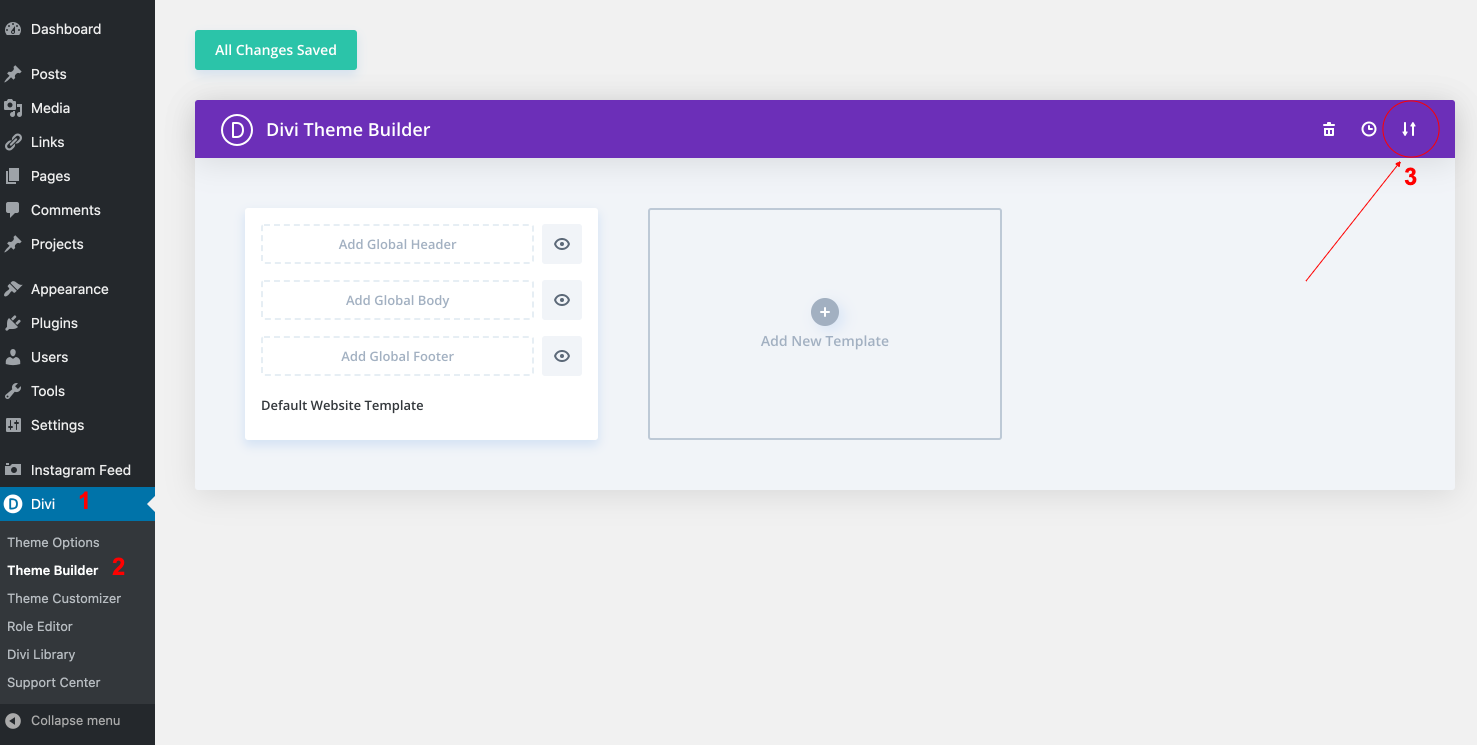
4. Edit your Footer > Save changes.
How to configure Instagram feed:
- Once you’ve installed the plugin “Instagram Feed“, click on the Instagram Feed item in your WordPress menu.
- Click on the large blue button to connect your Instagram account.
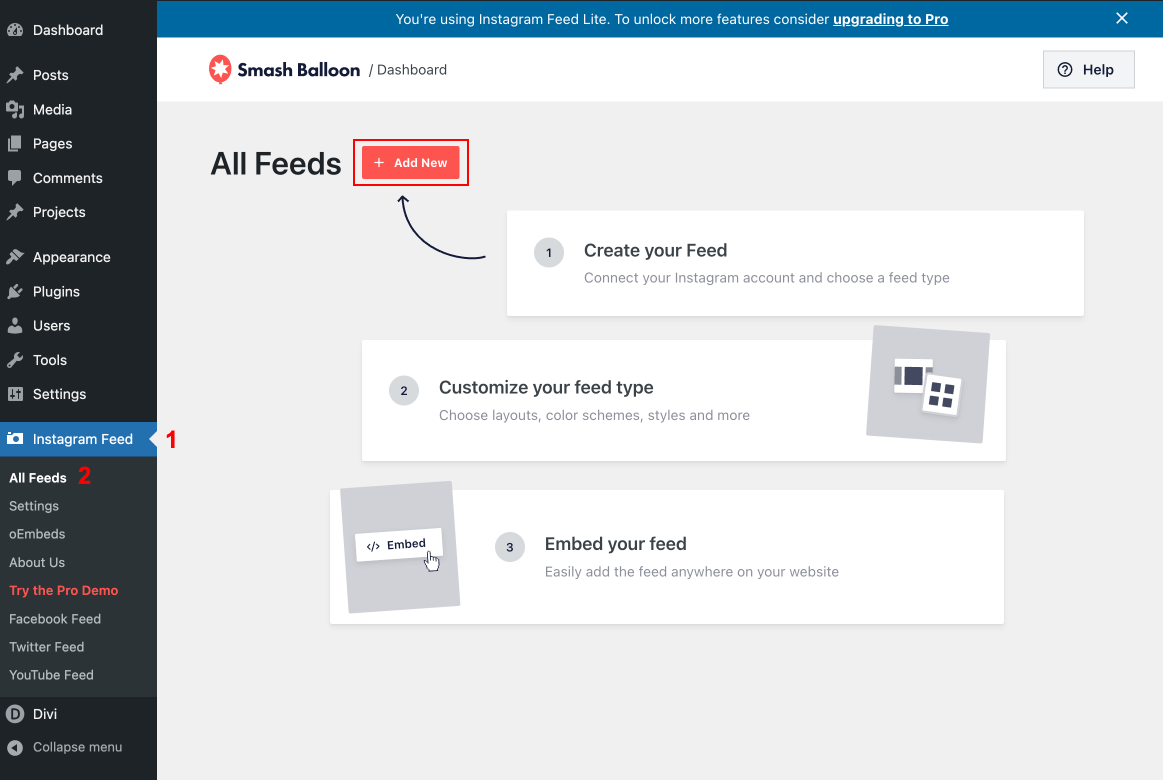
Click on the User Timeline option, then click Next.
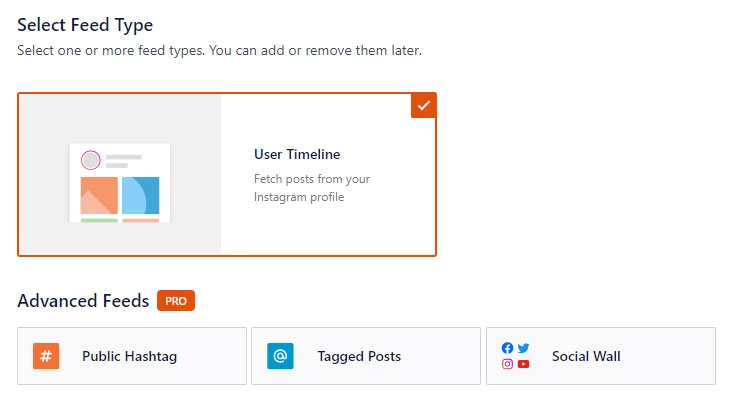
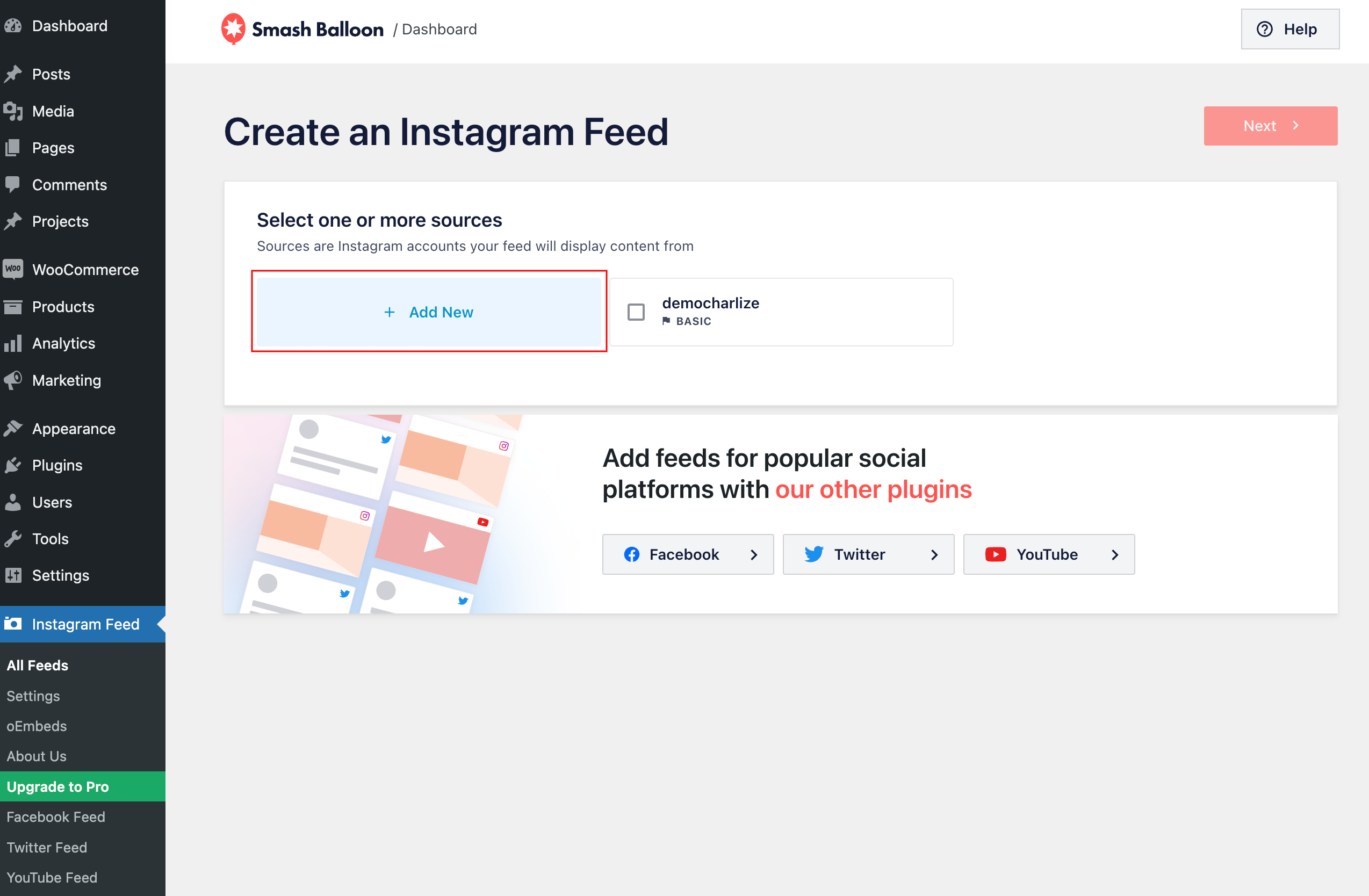
Select the Add New option.
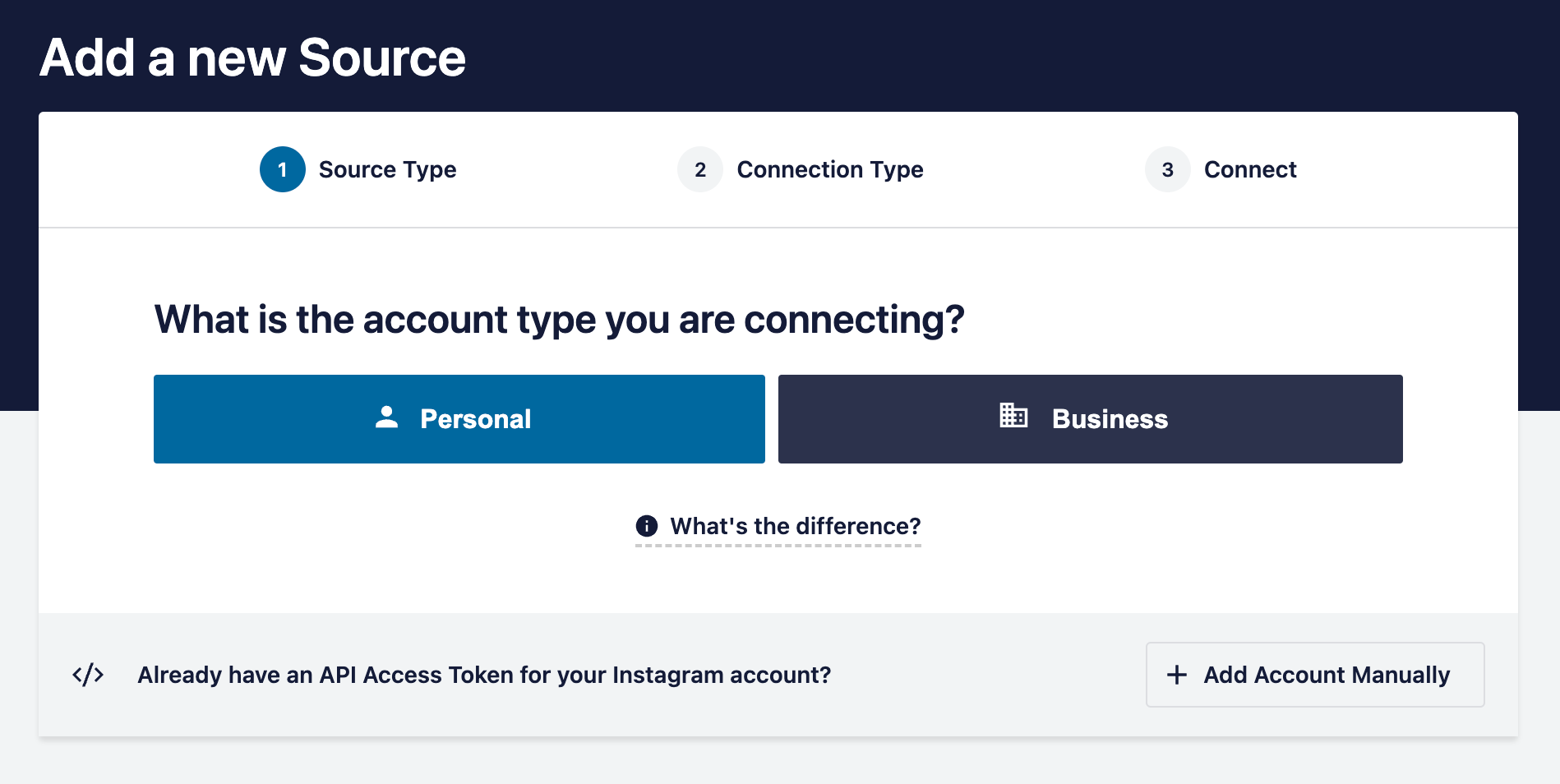
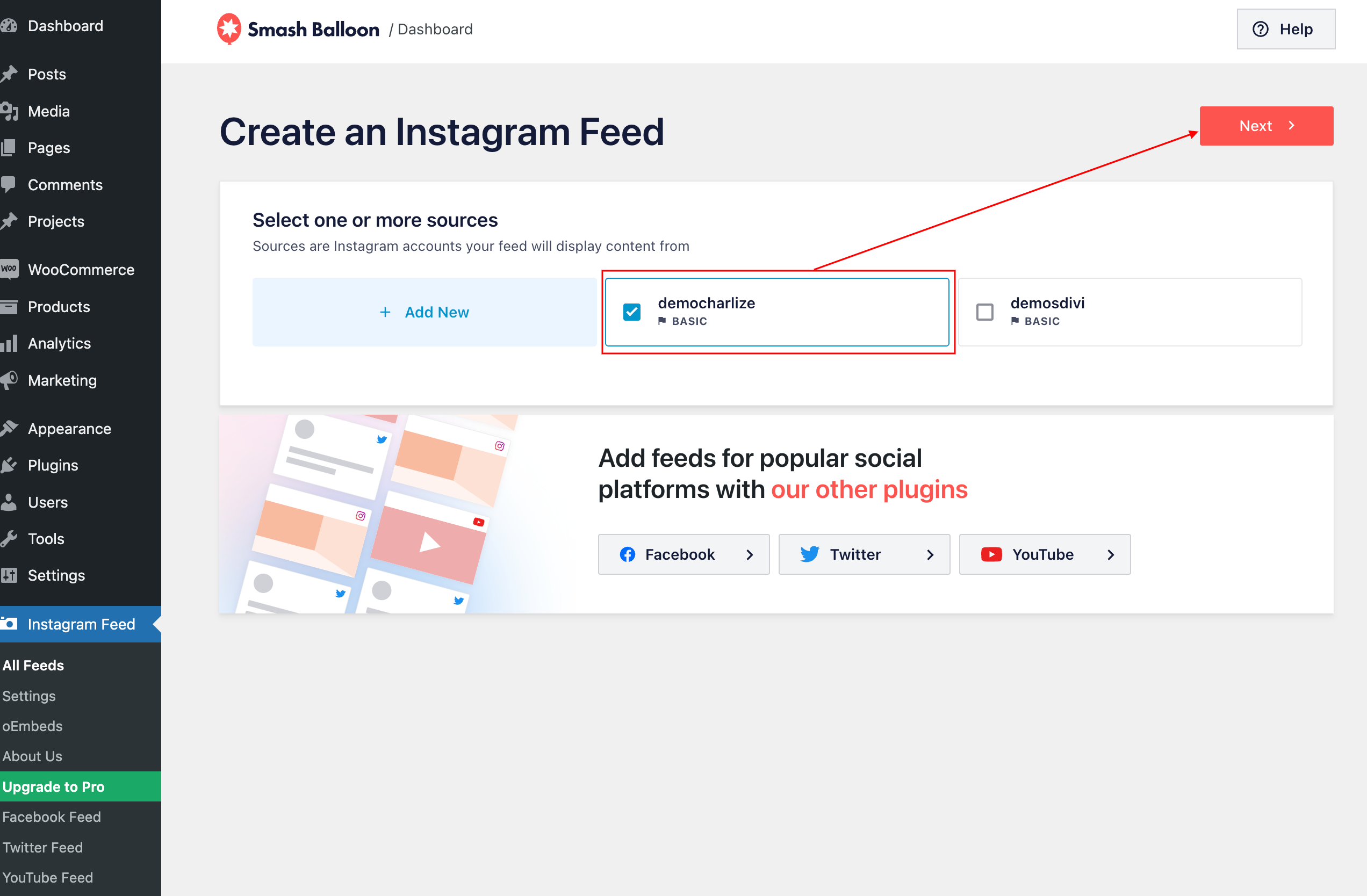
Once you’ve connected your Instagram account, select your account > next.
4. Navigate to the Customize page to customize your theme feed:
By default, feed is distributed in 20 columns with 20 photos, header, load more and follow button but you can customize it.
- Configure Feed Layout:
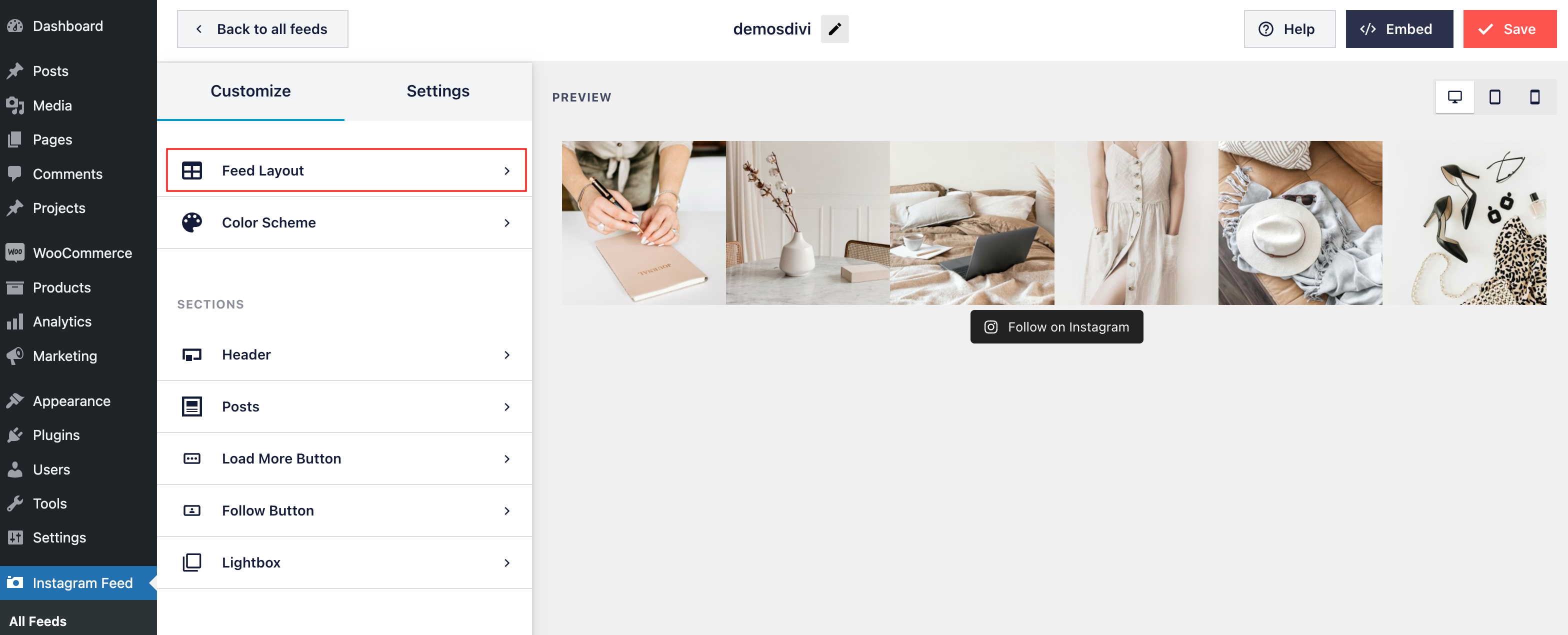
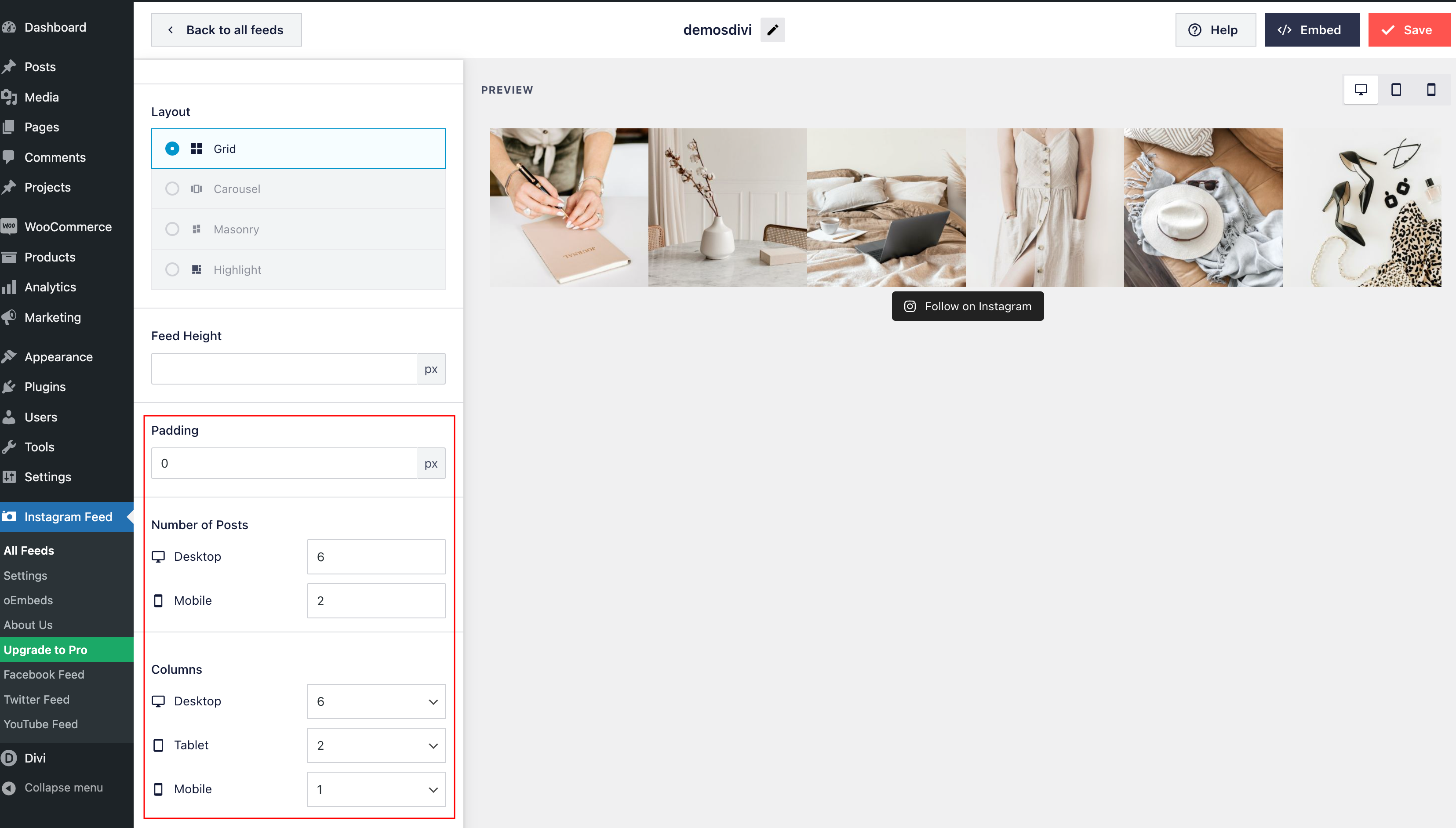
- Configure Header, load more button:
In demo, I´ve desactivated header
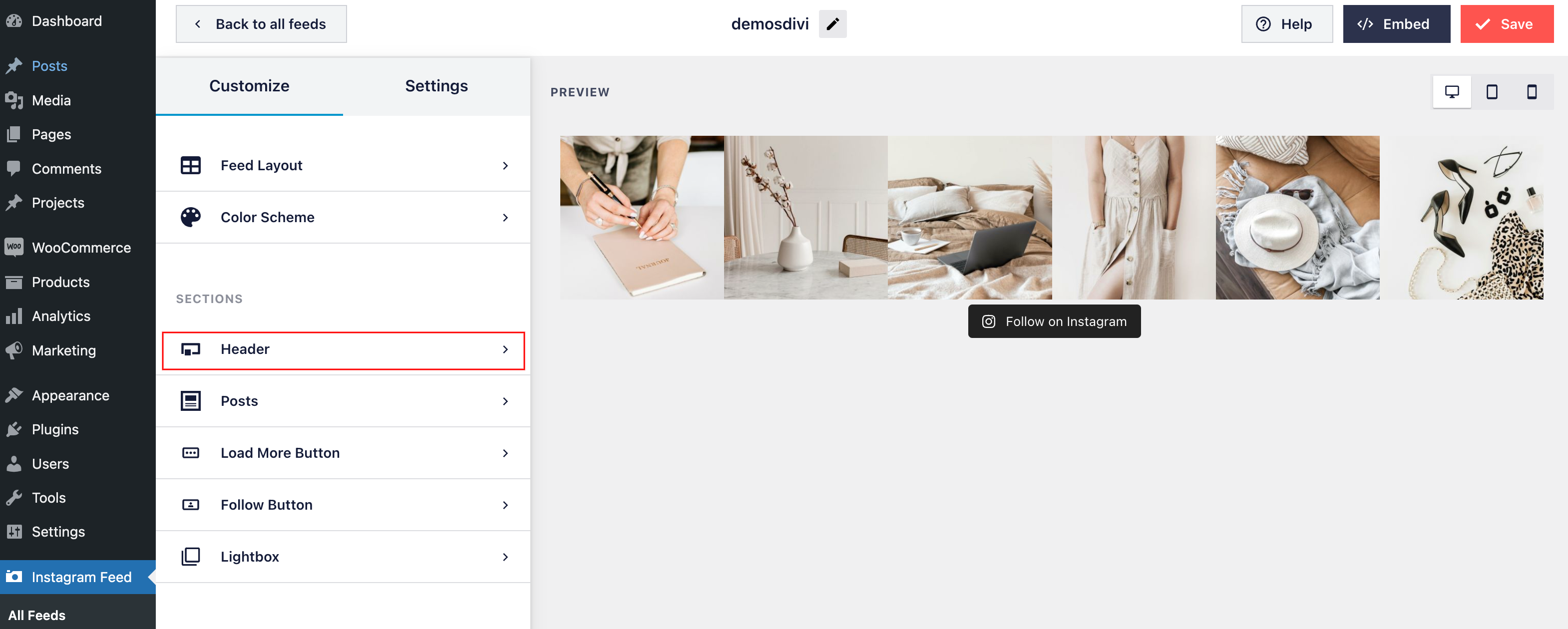
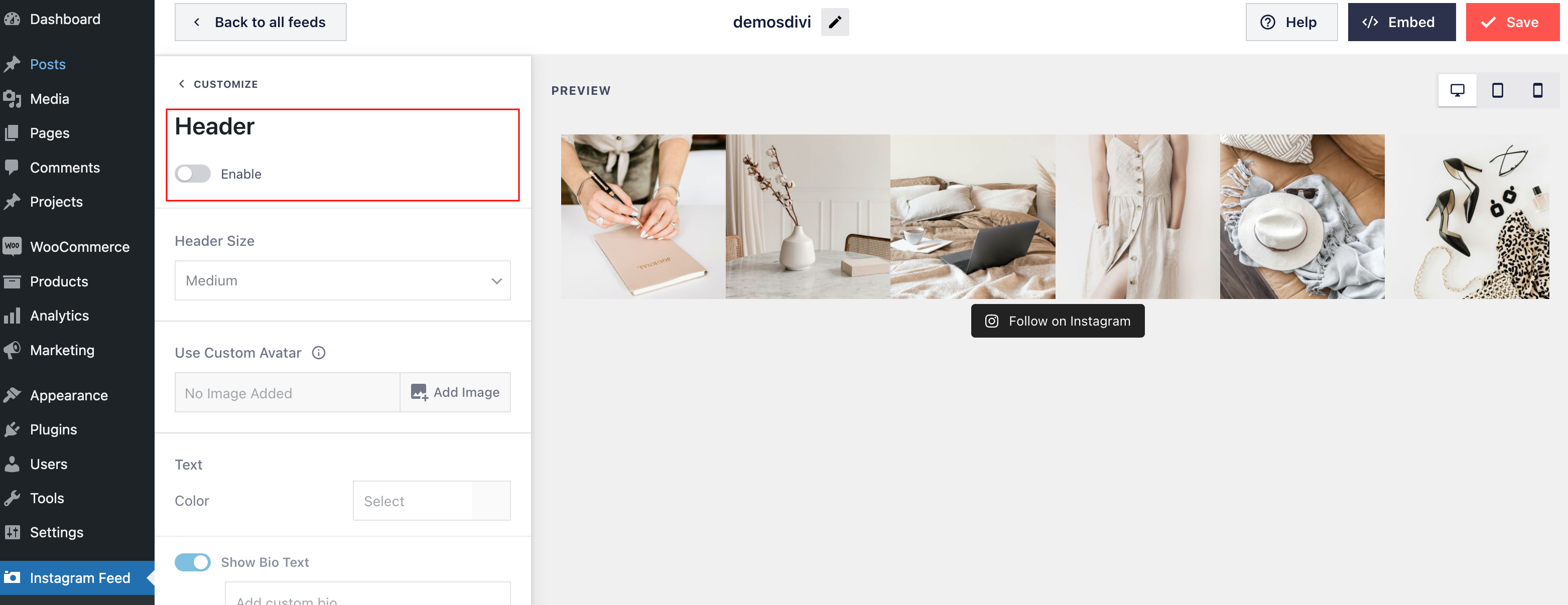
And Load more button.
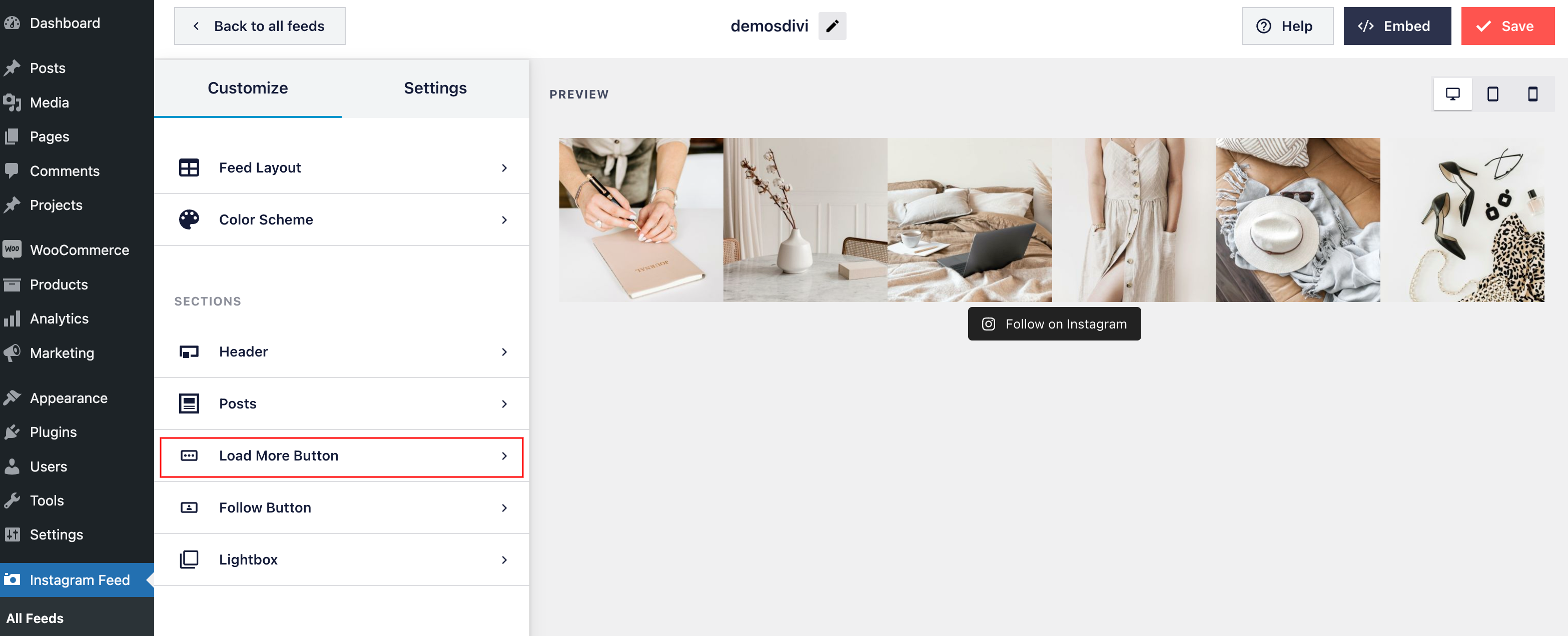
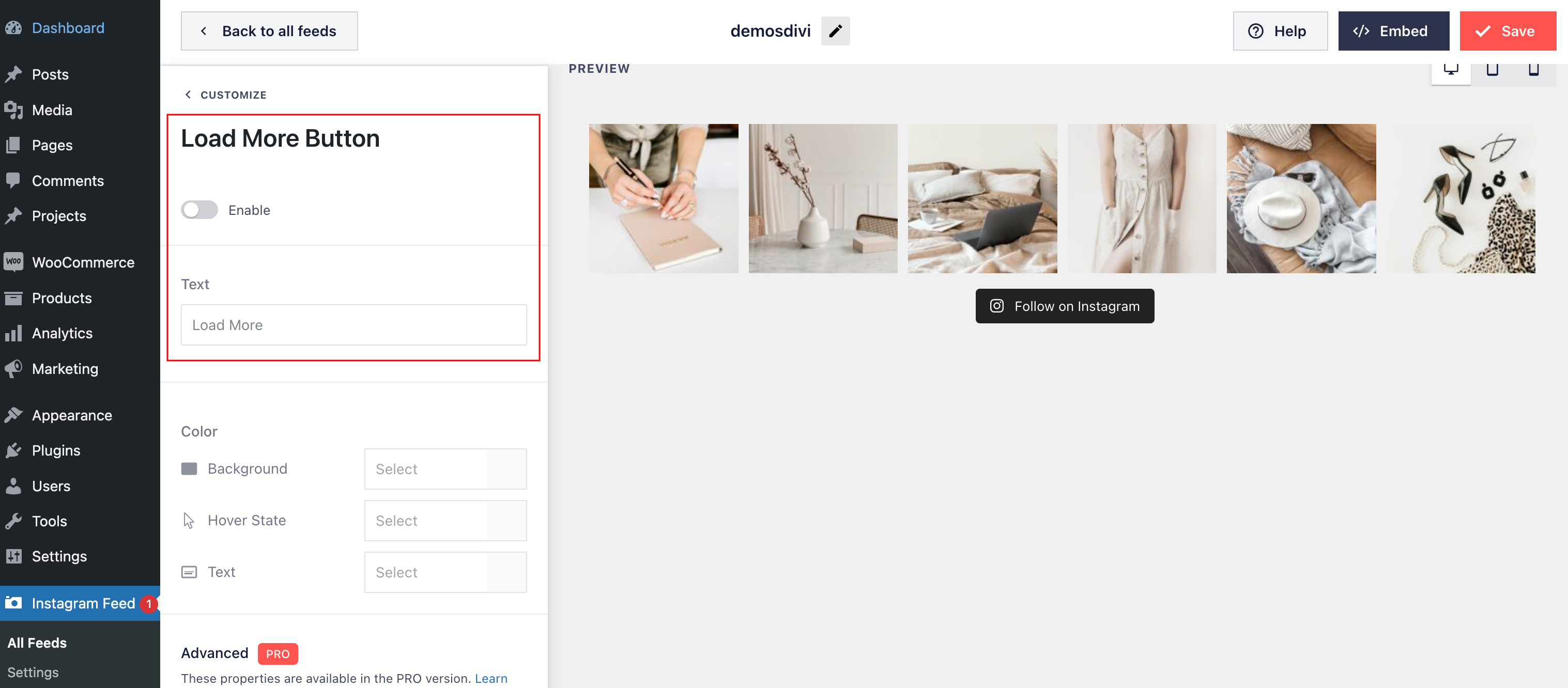
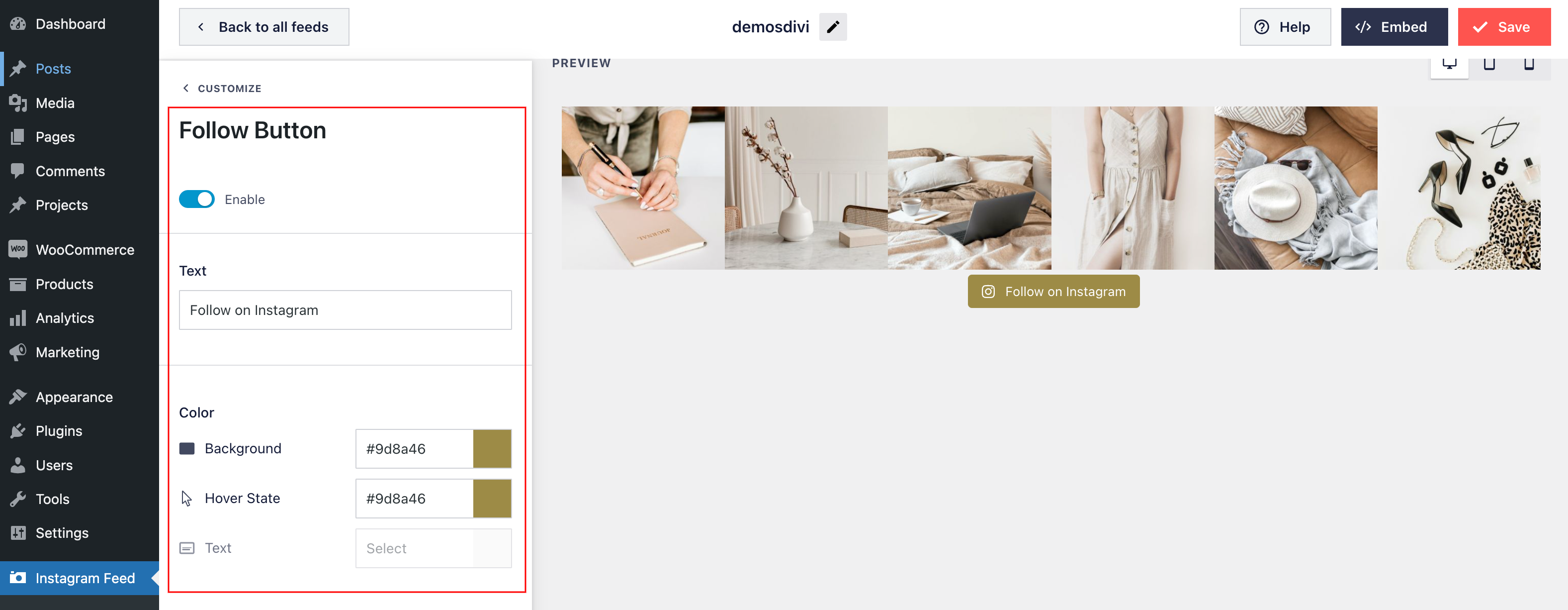
Customize button.
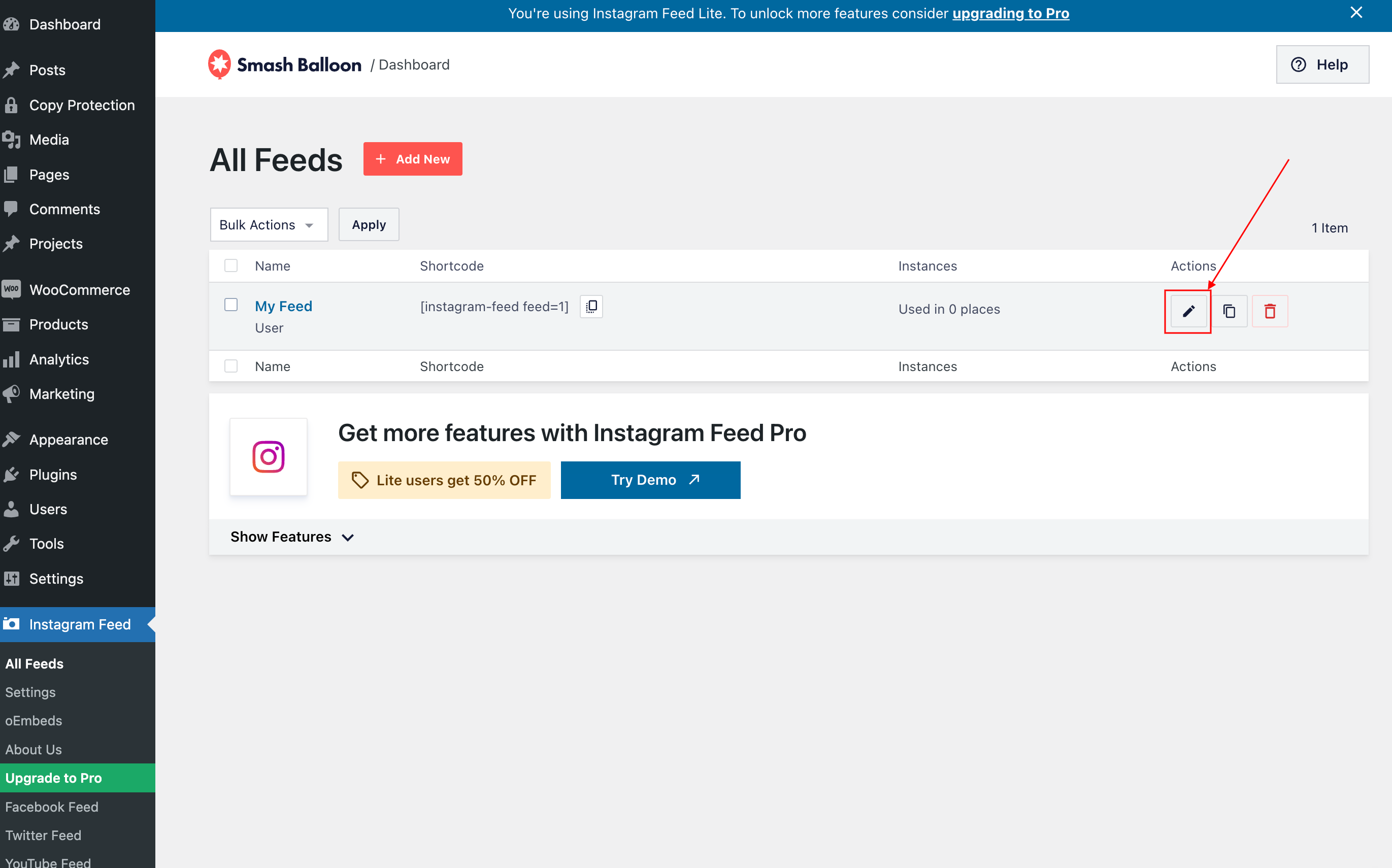
5.Once you’ve customized your feed, go to All Feeds > Copy the shortcode ([instagram-feed feed=2]) into any page, post or widget where you want the feed to appear.
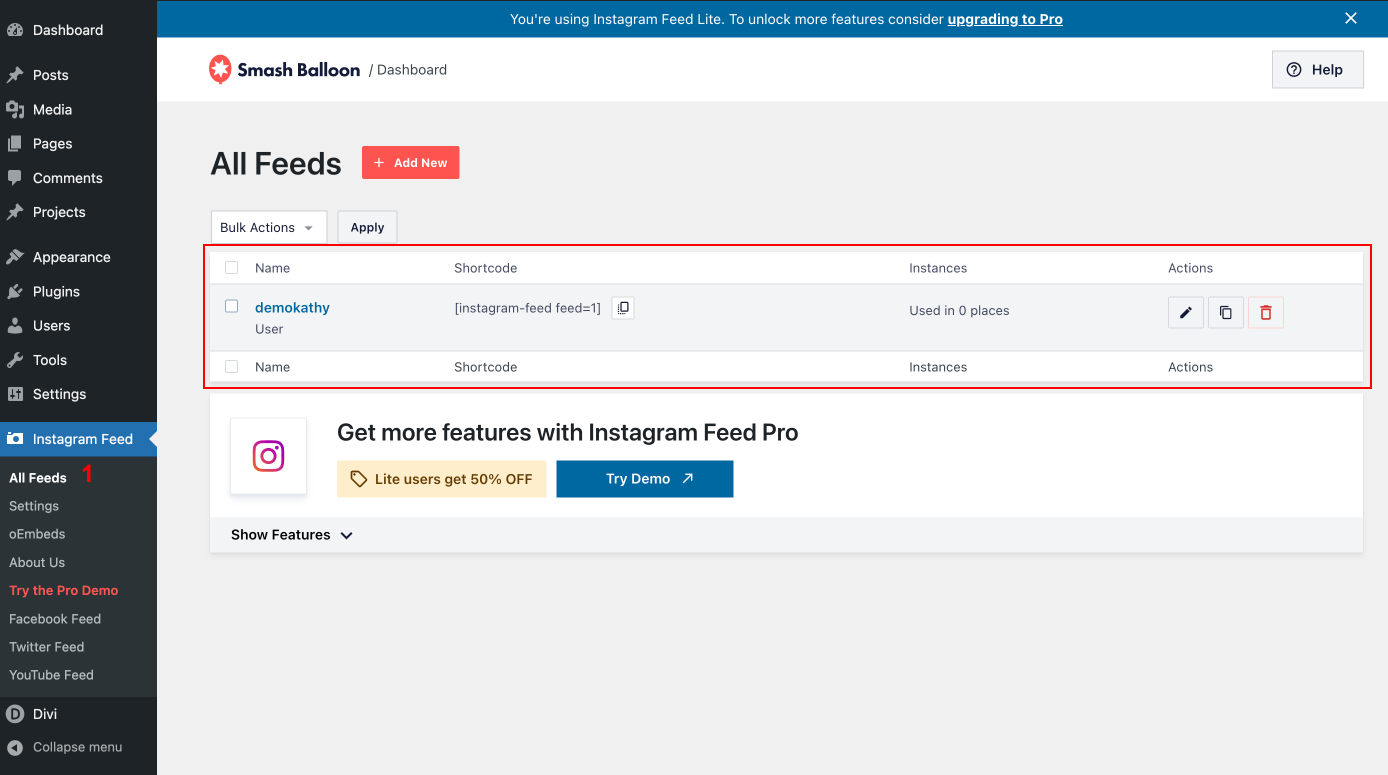
5.Once you’ve customized your feed, copy the [instagram-feed feed=2] shortcode into any page, post or widget where you want the feed to appear.
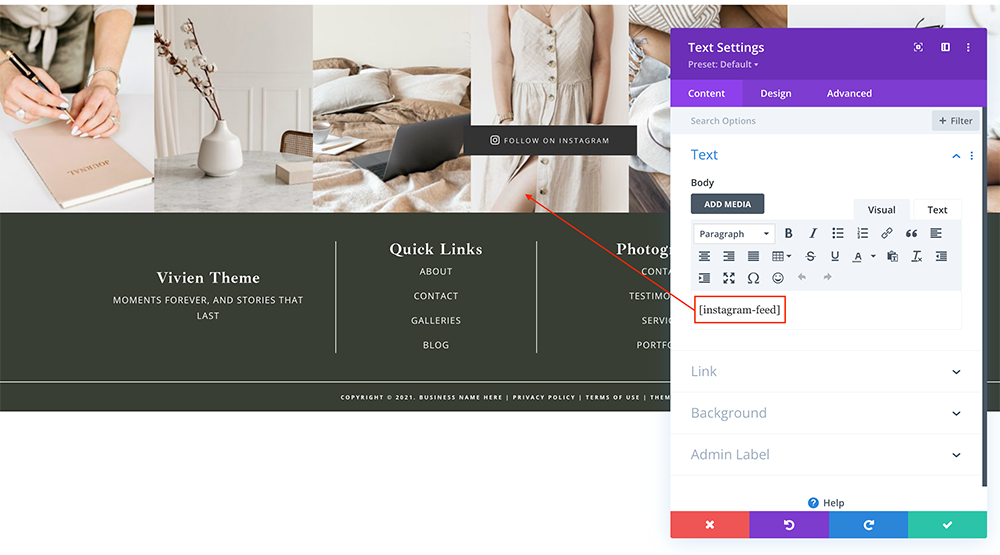
6. In DEMO I am using the Instagram feed in the footer and the code is already added. So you don’t need to add it
Go to Divi > Theme Builder > Footer
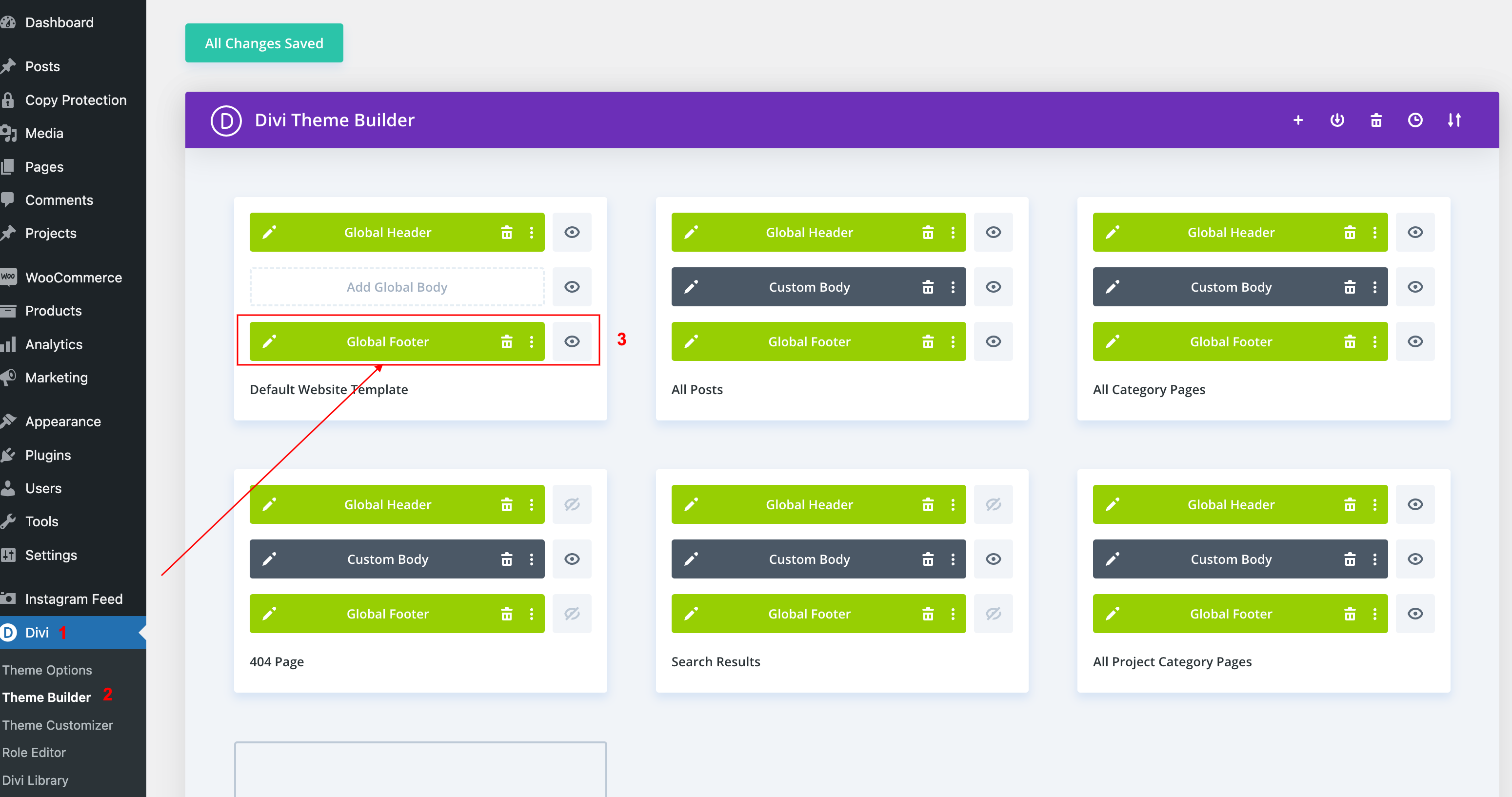
Example in DEMO Footer: