• HOME
  • DIVI BEGINNERS
  • TUTORIALS
  • TROUBLESHOOTING
  • SUBMIT A TICKET
  • HOME
  • DIVI BEGINNERS
  • TUTORIALS
  • TROUBLESHOOTING
  • SUBMIT A TICKET
home/Knowledge Base/4. Vivien Pro - Theme Settings/Vivien Pro – How to change global colors

Vivien Pro – How to change global colors

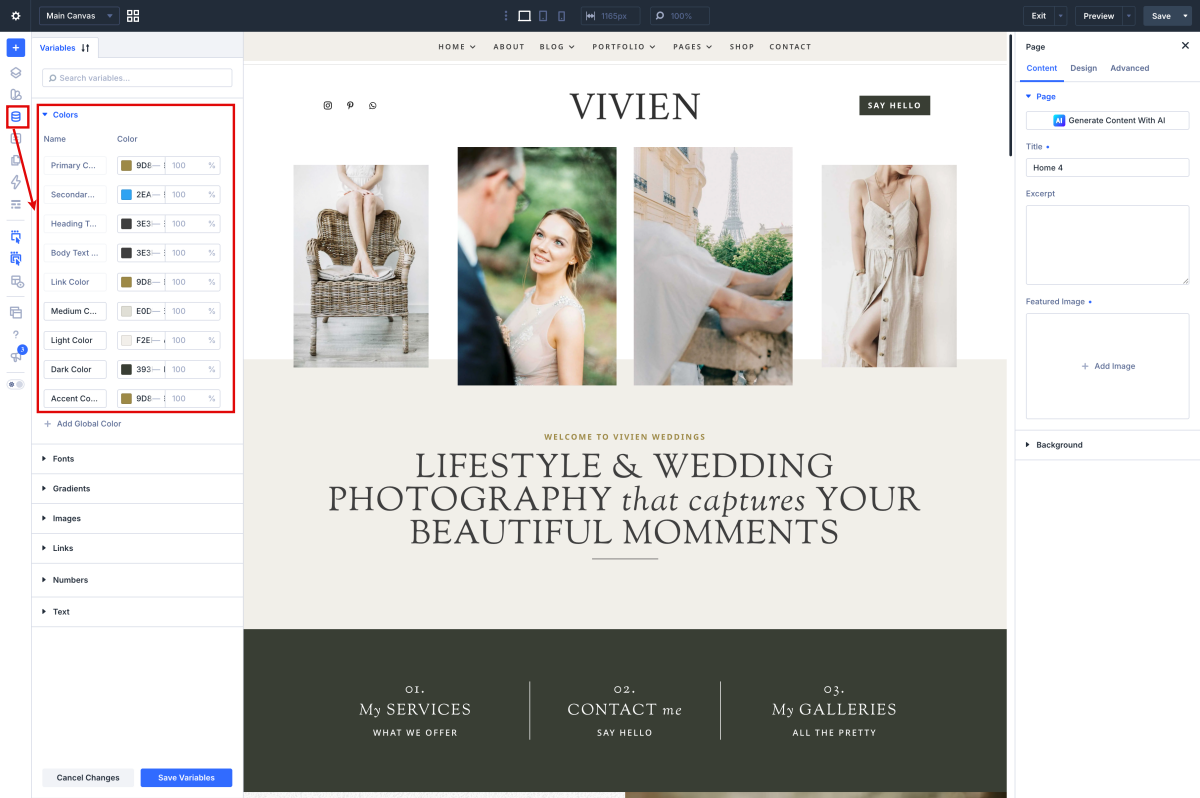
How to change global colors


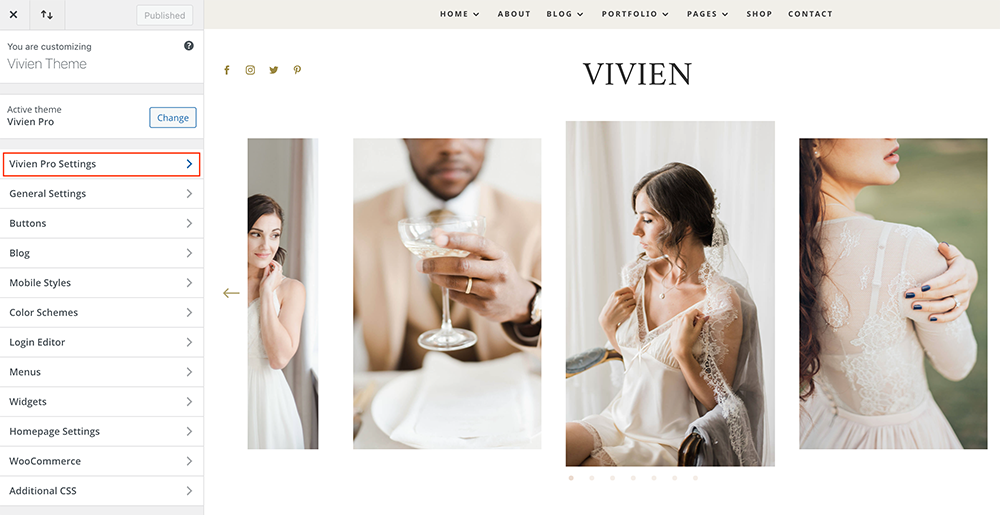
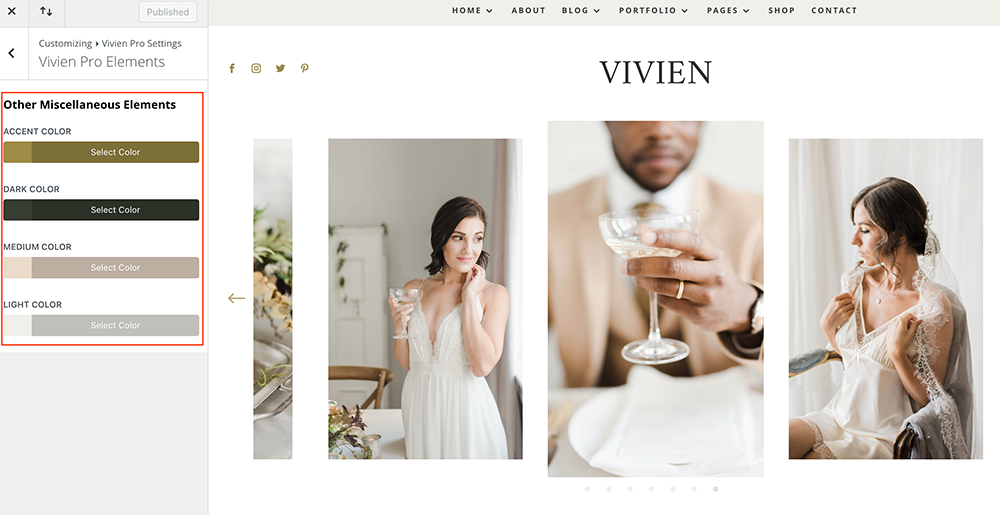
Navigate to Appearance > Customize > Vivien Pro Settings >  Vivien Pro Elements


Your Theme Elements – You can set light, medium and dark color for various miscellaneous elements.


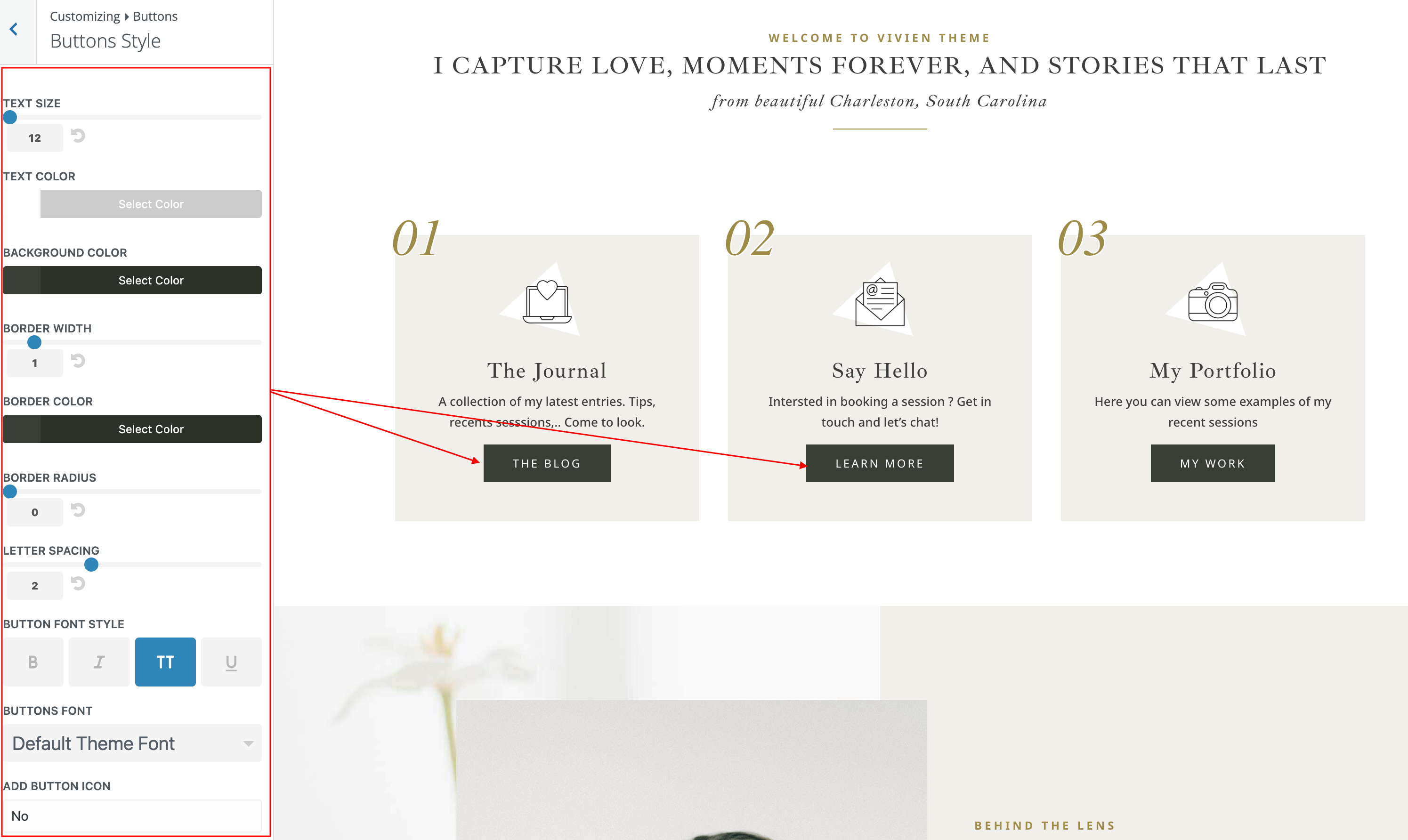
How to change global buttons


Navigate to Appearance > Customize > Buttons > Buttons Styles and Button Hover Styles.
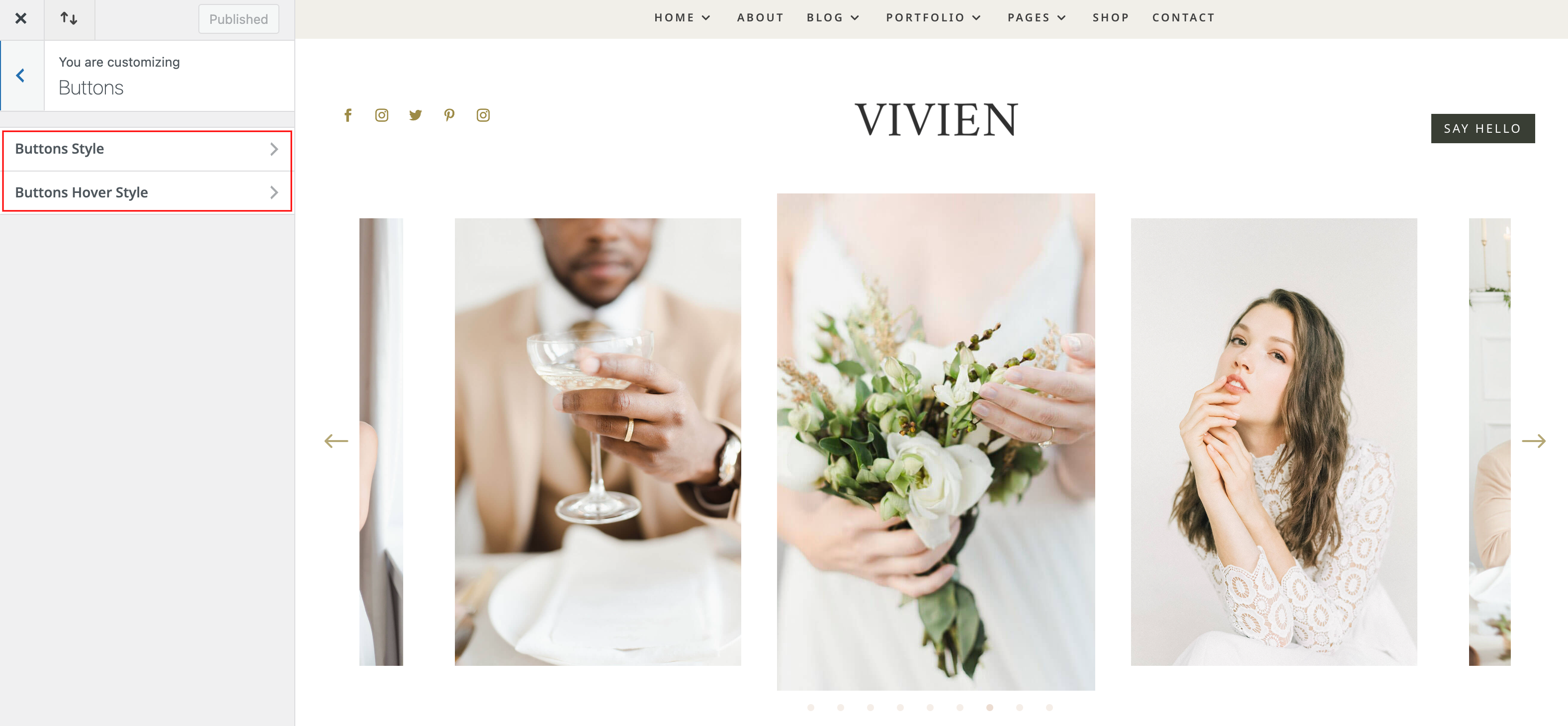
 

Customize your buttons.


Related Articles
  • Vivien Pro – How to Add a Popup Video to any Image
  • Vivien Pro – How to Design a Blog Post Template
  • Vivien Pro – How to Create an anchor text link in Galleries
  • Vivien Pro – Saving And Loading Sections In Divi
  • Vivien Pro – Saving And Loading Layouts In Divi
  • Vivien Pro – How to add Filterable portfolio
4. Vivien Pro - Theme Settings
  • Vivien Pro – How to change global colors
  • Vivien Pro – Theme Options
  • Vivien Pro – How to Import and edit Footer
  • Vivien Pro – How to Import and edit Header
  • Vivien Pro – How to configure Contact Form
  • Vivien Pro – How to add Filterable portfolio
  • Vivien Pro – Saving And Loading Layouts In Divi
  • Vivien Pro – Saving And Loading Sections In Divi
View All 10  

  Vivien Pro – How to configure Contact Form

Vivien Pro – How to add Filterable portfolio  

  • Privacy Policy
  • Terms of Use
  • Copyright 2023. All Rights Reserved.