• HOME
  • DIVI BEGINNERS
  • TUTORIALS
  • TROUBLESHOOTING
  • SUBMIT A TICKET
  • HOME
  • DIVI BEGINNERS
  • TUTORIALS
  • TROUBLESHOOTING
  • SUBMIT A TICKET
home/Knowledge Base/4. Vivien Pro - Theme Settings/Vivien Pro – How to Add a Popup Video to any Image

Vivien Pro – How to Add a Popup Video to any Image

The Video module that comes with the Divi builder allows you to embed videos on your site, but what if you would like to display those videos in a popup window like demo?
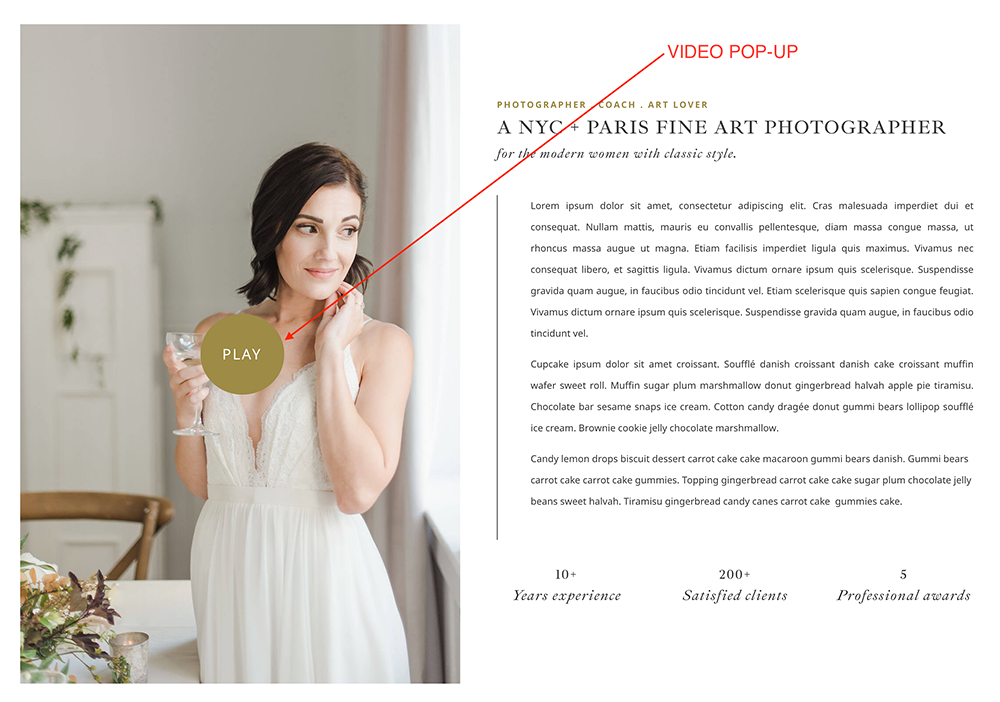


  1. Click on Enable Visual Builder in the top bar.
  2. Open your Image Module.
  3. Go to Content → Link tab
  4. Add Video URL to Image Link URL field and Save the module.
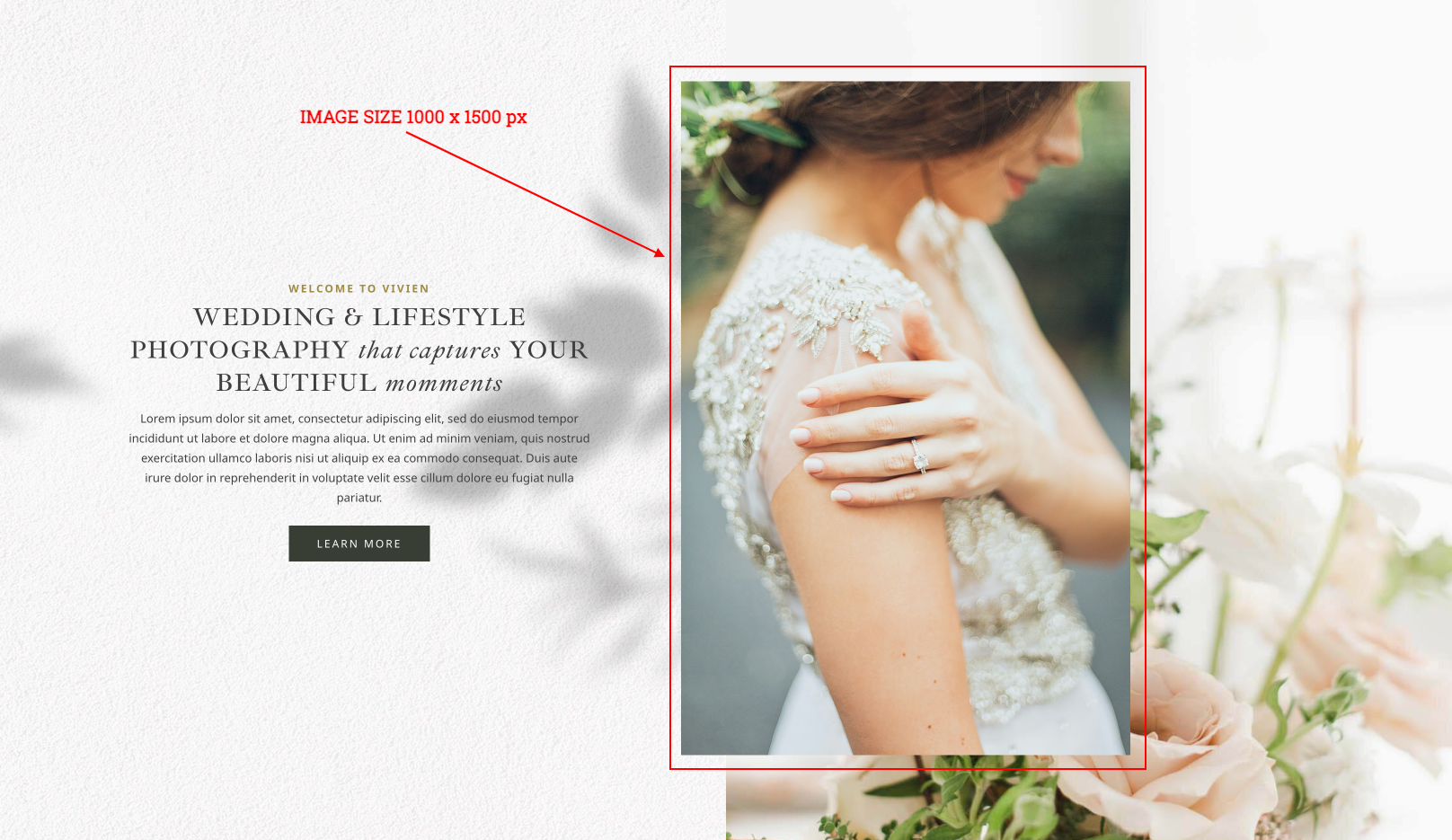


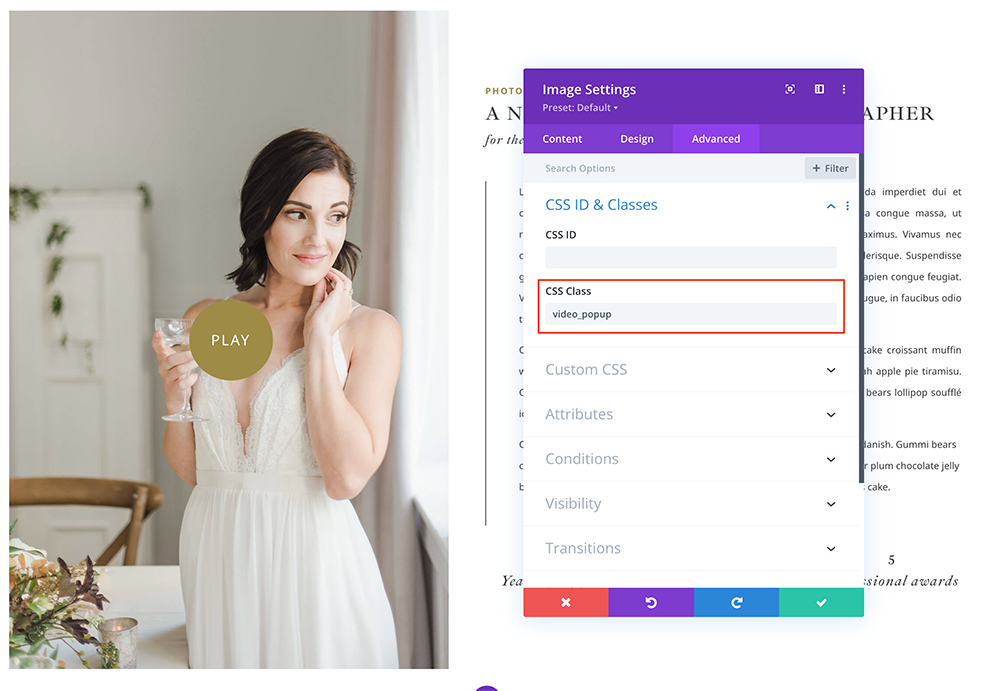
If you want add any other pop-up video to other image go any image module and paste this code:

  • Go to Advanced → CSS Class → Paste code: video_popup


Need Further Tutorials?

The Divi Blurb Module: https://bit.ly/2KOHKYs

Related Articles
  • Vivien Pro – How to Design a Blog Post Template
  • Vivien Pro – How to Create an anchor text link in Galleries
  • Vivien Pro – Saving And Loading Sections In Divi
  • Vivien Pro – Saving And Loading Layouts In Divi
  • Vivien Pro – How to add Filterable portfolio
  • Vivien Pro – How to configure Contact Form
4. Vivien Pro - Theme Settings
  • Vivien Pro – How to Add a Popup Video to any Image
  • Vivien Pro – Theme Options
  • Vivien Pro – How to change global colors
  • Vivien Pro – How to Import and edit Footer
  • Vivien Pro – How to Import and edit Header
  • Vivien Pro – How to configure Contact Form
  • Vivien Pro – How to add Filterable portfolio
  • Vivien Pro – Saving And Loading Layouts In Divi
View All 10  

  Vivien Pro – How to add Filterable portfolio

  • Privacy Policy
  • Terms of Use
  • Copyright 2023. All Rights Reserved.