The last step is to import Divi Theme Builder Templates to Import Footer, Header, 404 page, Blog post layouts, ….
Go to Divi > Theme Builder > click to Portability Icon at the top .
To import the json file using the Divi Theme Builder, you will navigate to the same portability options within the Theme Builder by clicking the portability icon at the top right of the page.
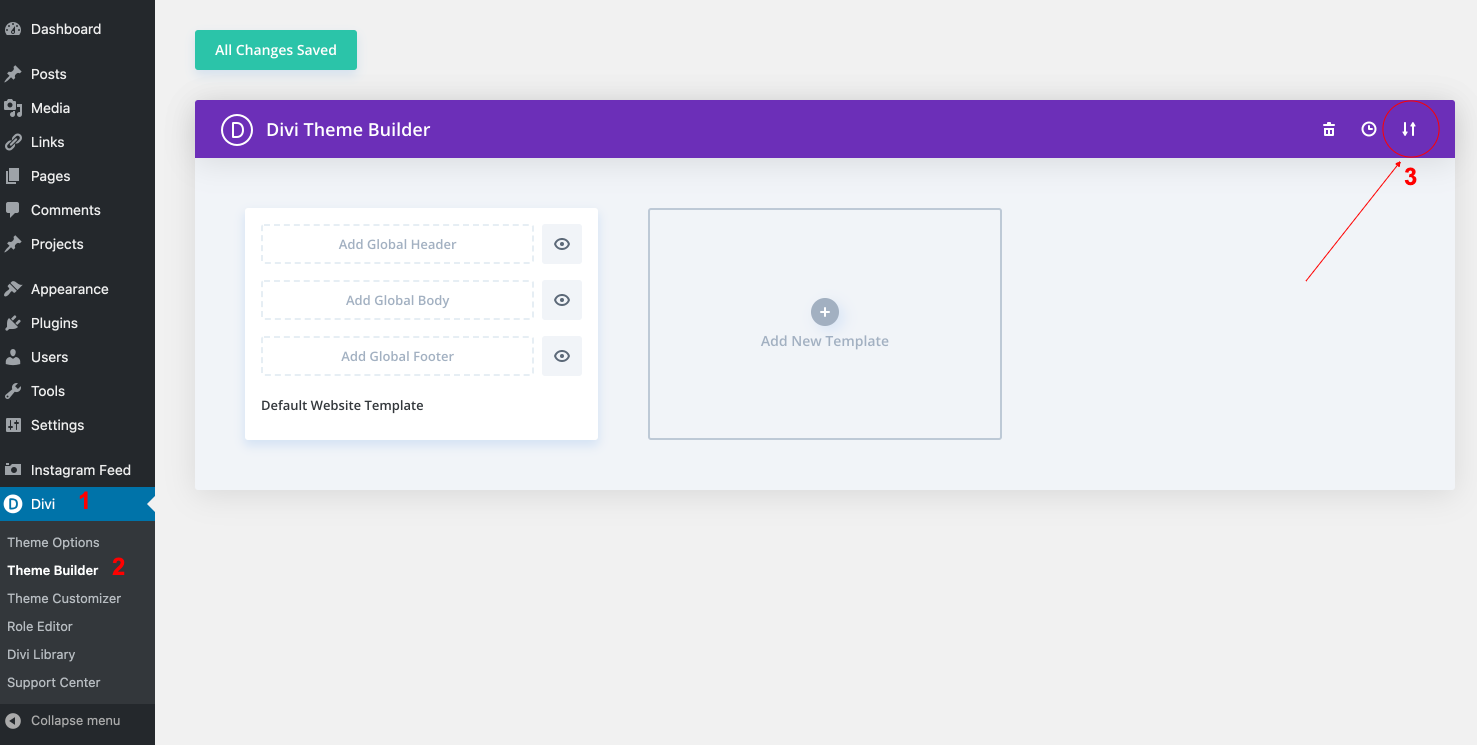
Then select the Import Tab.
Choose Yourtheme-Theme-Builder.json included in downloaded theme package (DEMO ARCHIVES FOLDER) and click Import Divi Theme Builder Templates and Save changes in Divi Theme Builder.
If you are importing templates to an empty theme builder, the options don’t apply so you can leave them checked. We’ll cover overrides later in this post.
After that, click the import button.
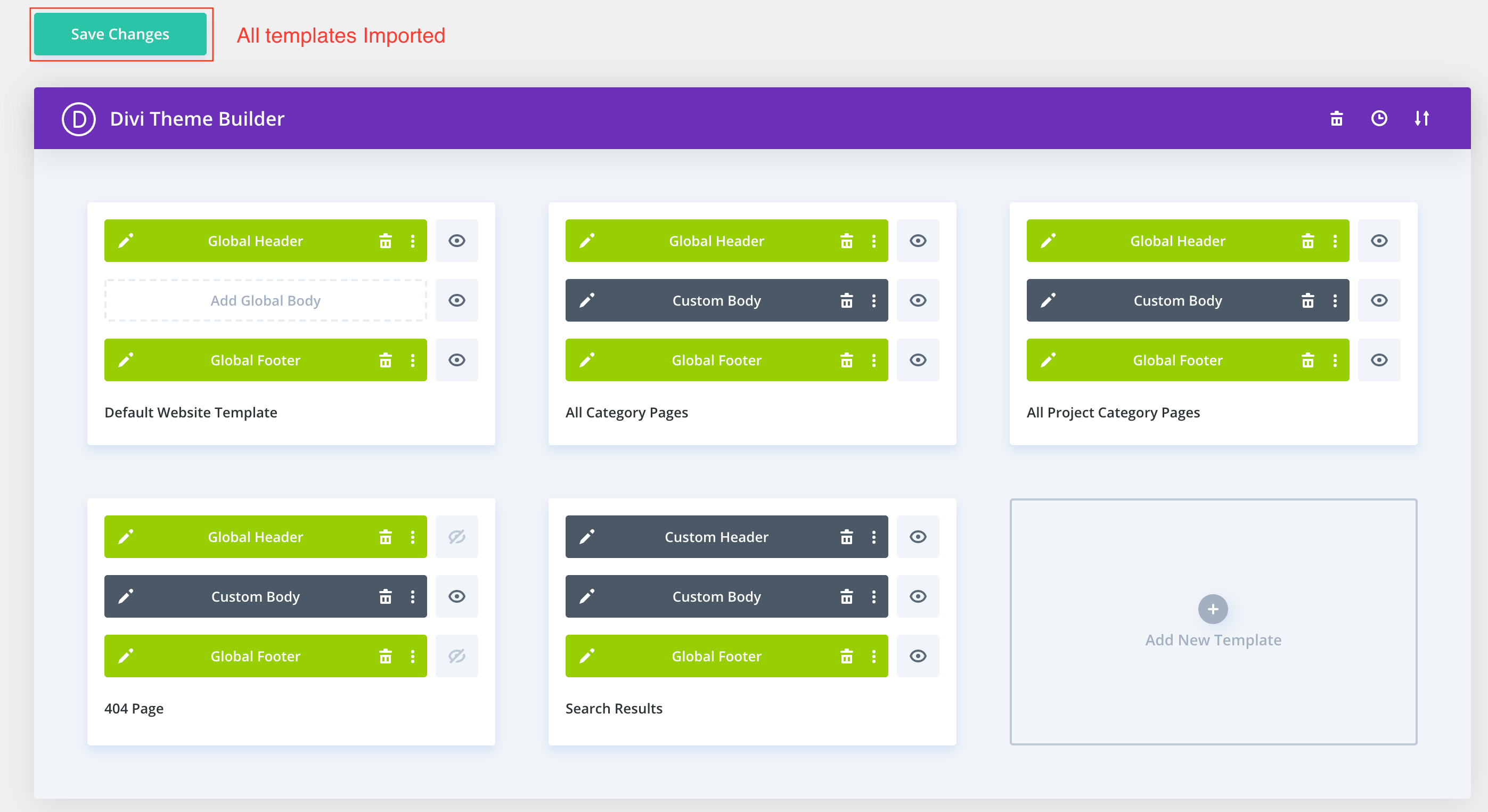
That’s it! All the templates contained in the file will be magically imported to your website with all the Global areas and assignments in place.
All you have to do now is click to save changes.