NOTE: If you CAN´T SEE DEMO after importing automatically, most likely your Host provider can´t handle with large demo so you have to import manually ( Explained below )
Before importing or using a Divi template, check your server settings
- WordPress 4.8 or higher
- MySQL 5.6 or higher
- PHP 5.6 or higher
- PHP Memory Limit: 256 MB or higher
- PHP Time Limit: 300 seconds or higher
- PHP Maximum POST Size: 512 MB or higher
- PHP Maximum Input Variables: 3000 or higher
- PHP Remote GET: Enabled
- Xdebug: Disabled
Go to Divi > Support Center > System Status > Check if you have correct WordPress configuration.
Requirements: https://bit.ly/35rUcFf
STEP 1: Automatic Import DEMO Content
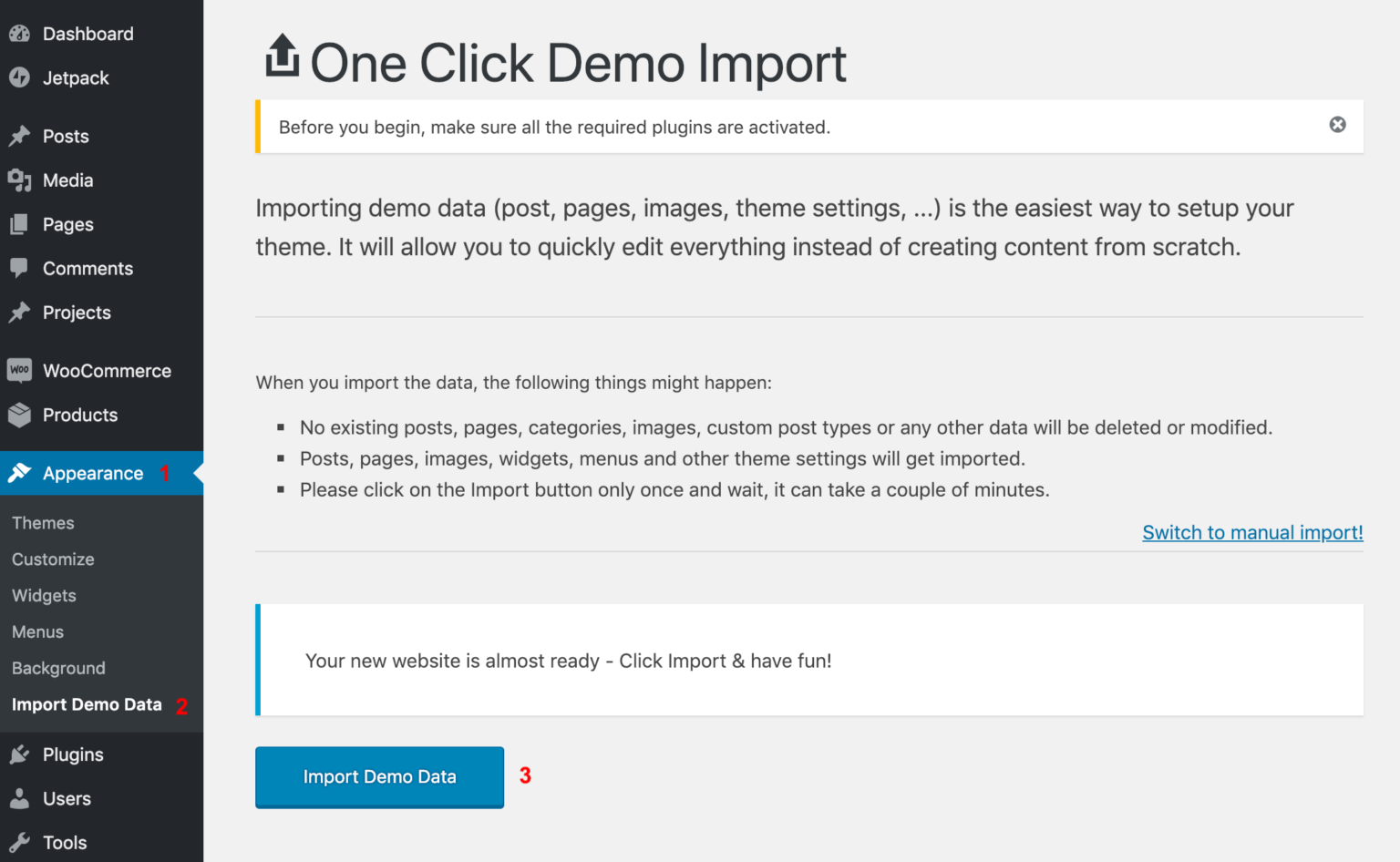
Go to Appearance > Import Demo Data and click on Import Demo Data.
Warnings after import…
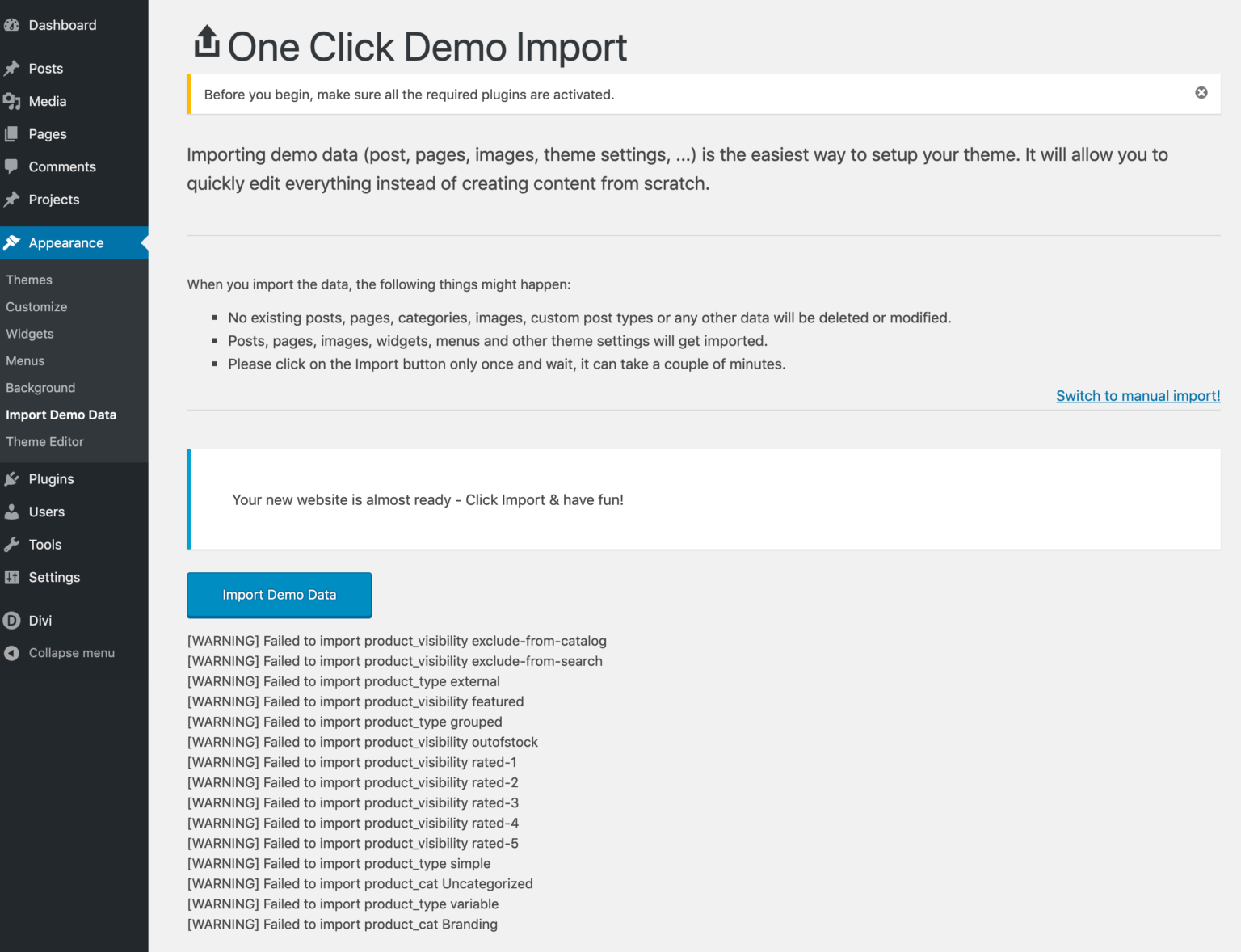
NOTE: You will see an error! Don’t worry, it’s normal. Demo content comes with products.
If you do not intend to sell any product or install WooCommerce plugin you can ignore it.
If you are going to install WooCommerce, install it, activate it and re-import the content.
(OPTIONAL: If your Host provider can´t handle with large demos) Manual Import DEMO Content)
– Import The Demo XML file and The Theme Options.
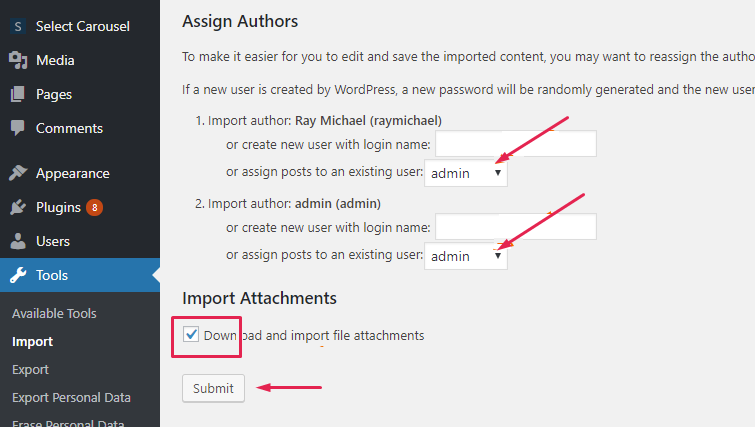
- On your WordPress Dashboard, go to Tools → Import → WordPress.
- Install the WordPress Importer.
- Go to demo folder and browse for the XML file themename-demo-content.xml and import it.
- All of the demo content should now be uploaded to your site and ready to use.
– Import Demo Styles.
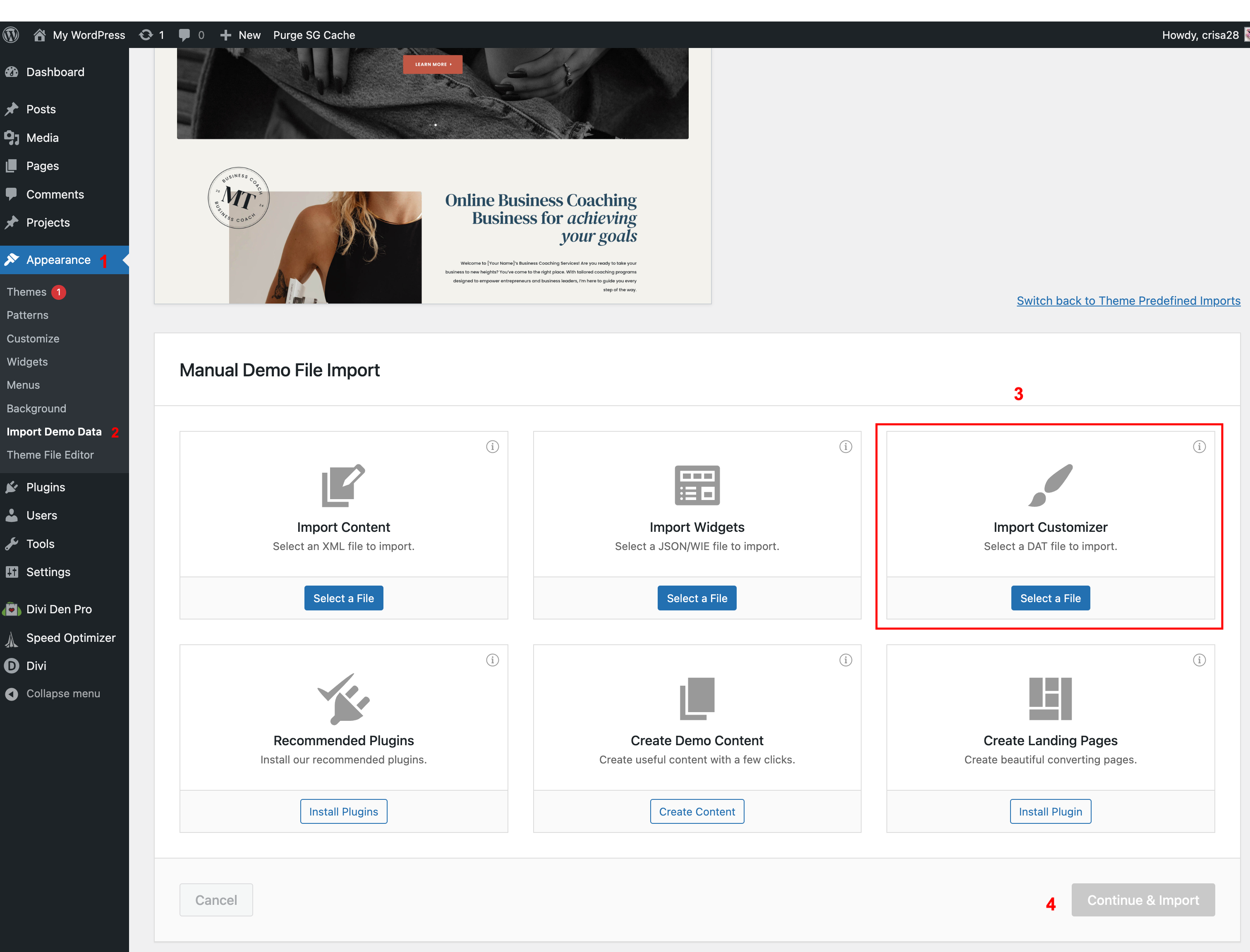
- On your WordPress Dashboard, go to Appeance → Import Demo Data → Switch to Manual Imports → Import Customizer
- Go to demo folder and browse for the XML file themename-customizer.dat and import it.
– Set Up the Front Page
- Go to your WordPress Dashboard → Settings → Reading panel.
- Set ‘Front page displays:’ to ‘a static page’ and choose the home page.
- Save changes.
Step 2: Import DIVI Options
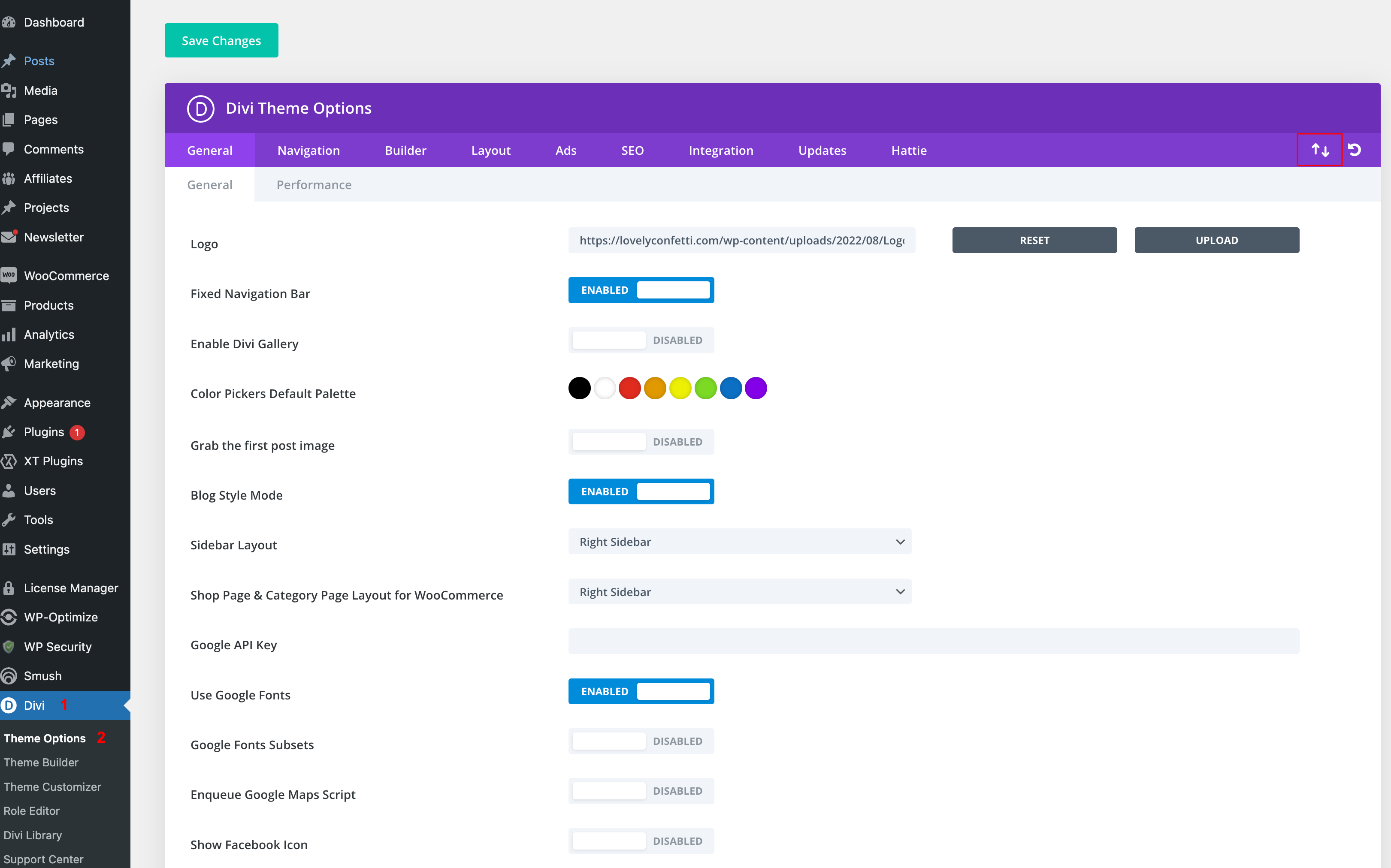
Go to Appearance > Divi > Theme Options >Click the “Import” tab at the top.
Then click “Choose file” and from your theme folder, choose “[Theme Name]-Theme-Options.json” and upload that. Then click “Import theme options” at the bottom of the popup. This can take a minute or so to complete. Once it has the page will refresh.
Step 3: Import DIVI Builder (Footer / Header)
The last step is to import Divi Theme Builder Templates.
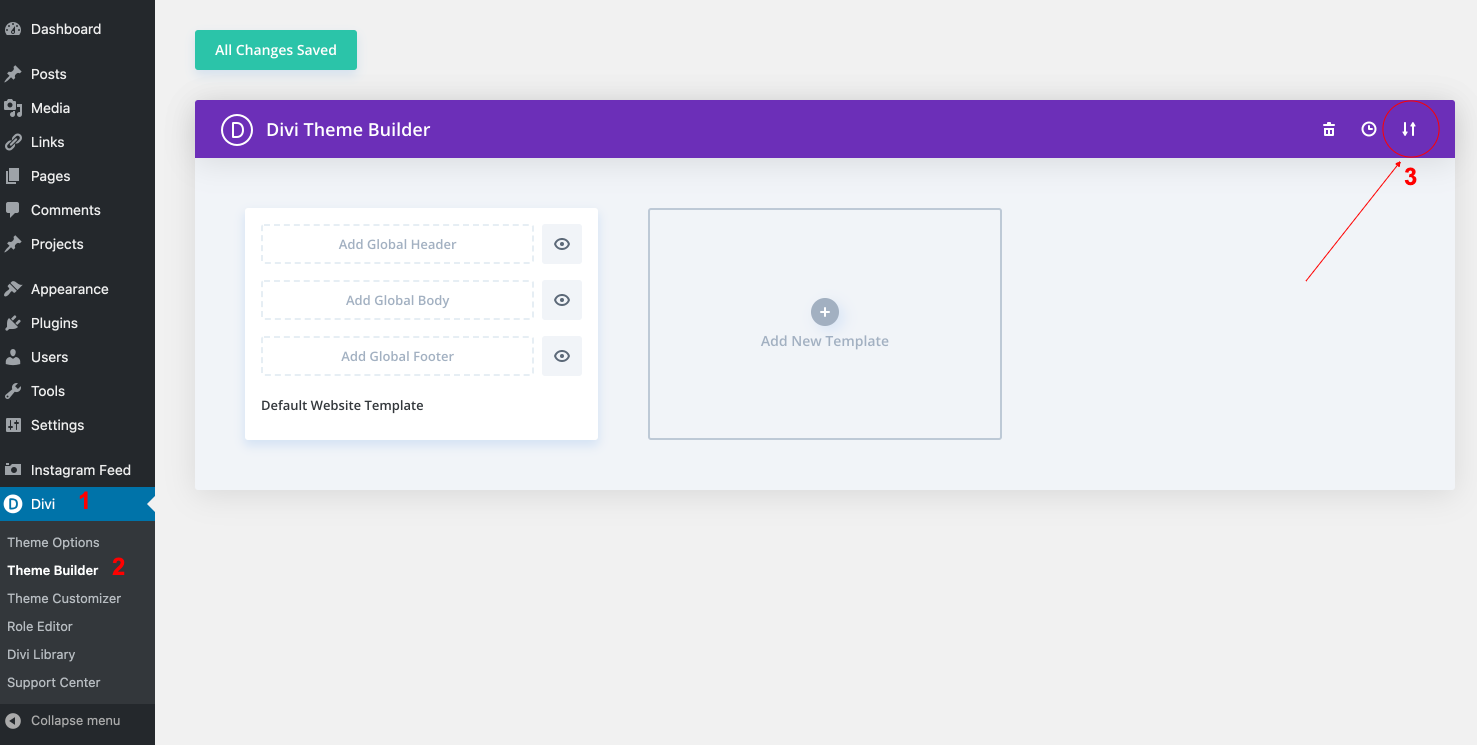
Go to Divi > Theme Builder > click to Portability Icon at the top .
Choose Yourtheme-Theme-Builder.json included in downloaded theme package and click Import Divi Theme Builder Templates and Save changes in Divi Theme Builder.