All my themes have a Contact page with a Contact Form added. You can use this to change the settings or any of the options for any of those particular fields.
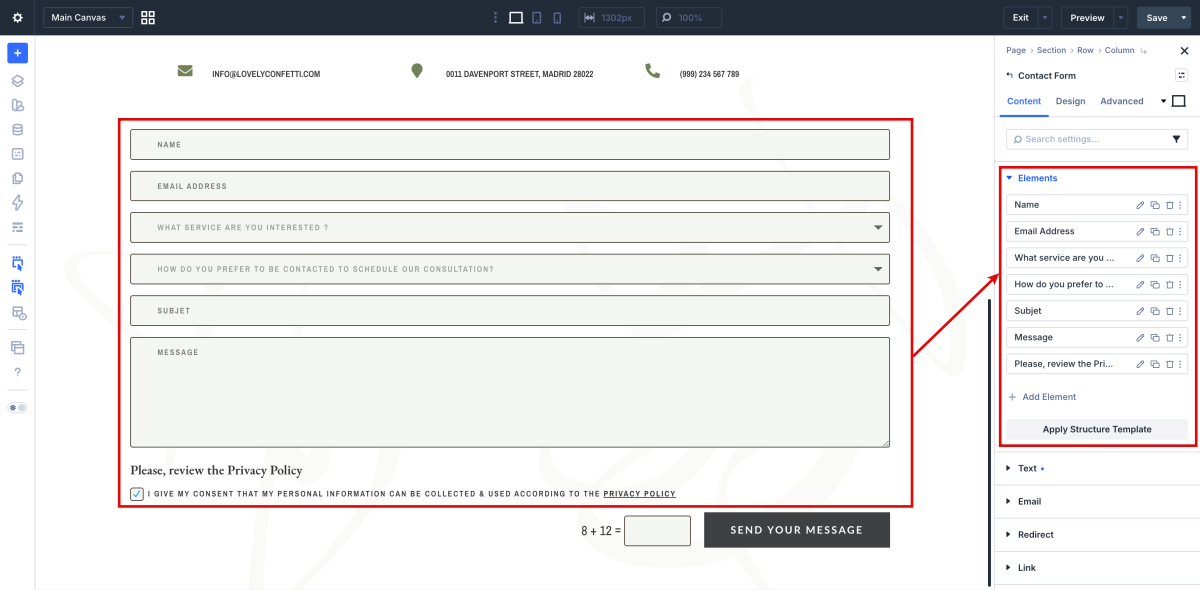
The default form includes “Name”, “Email” and “Message” but you can add or take away any field that you want to.
Step 1: Add, Edit, and Delete Contact Form Fields
-
Open the Contact Form Module: Click on the Contact Form module on your page or click the Gear icon to open its settings.
-
Edit an Item: Click the Pencil icon next to the Contact Form item you want to edit(1).
- Add a New Item: In the Content tab, click Add New Field (2).
-
Duplicate a Field: Click on the Duplicate icon (4).
-
Delete Item: Click the Trash icon (3) next to the Contact Form item to delete it.
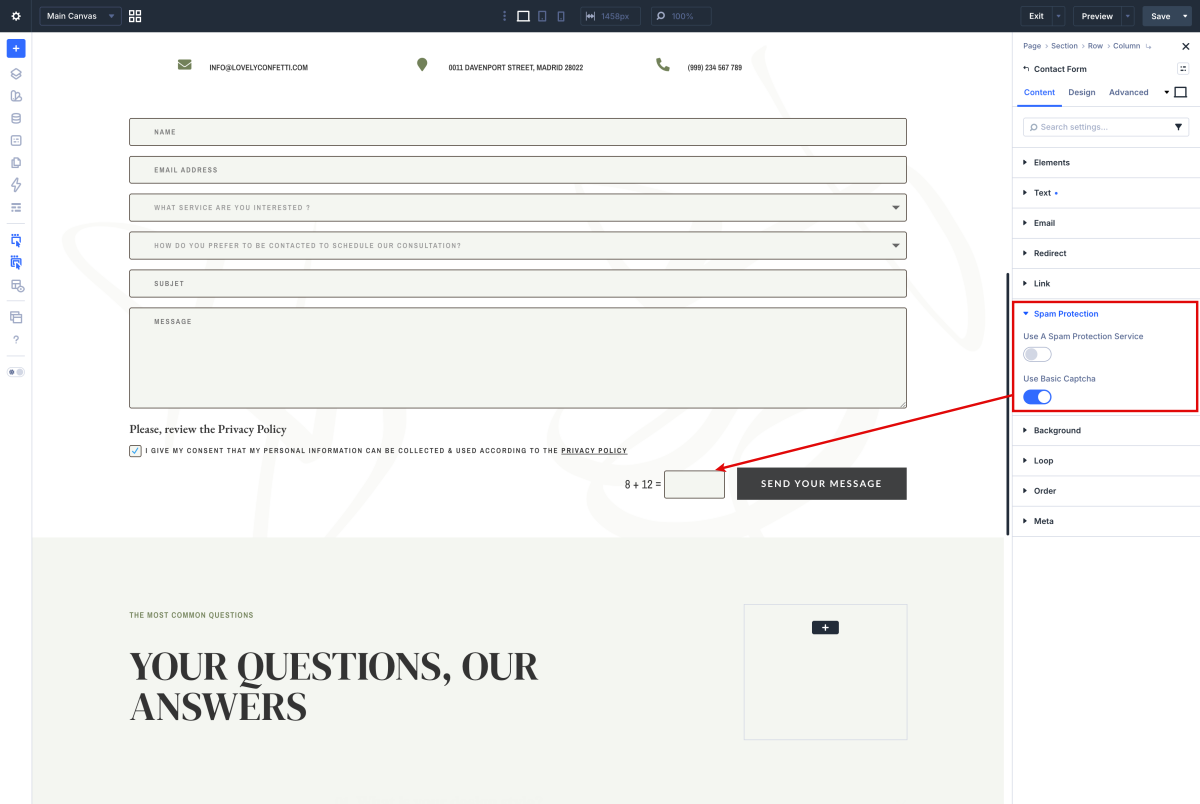
Step 2: Prevent Spam bots.
The next option is to “Display Captcha.” This is a security measure to ensure humans are filling out your form, not spam bots.
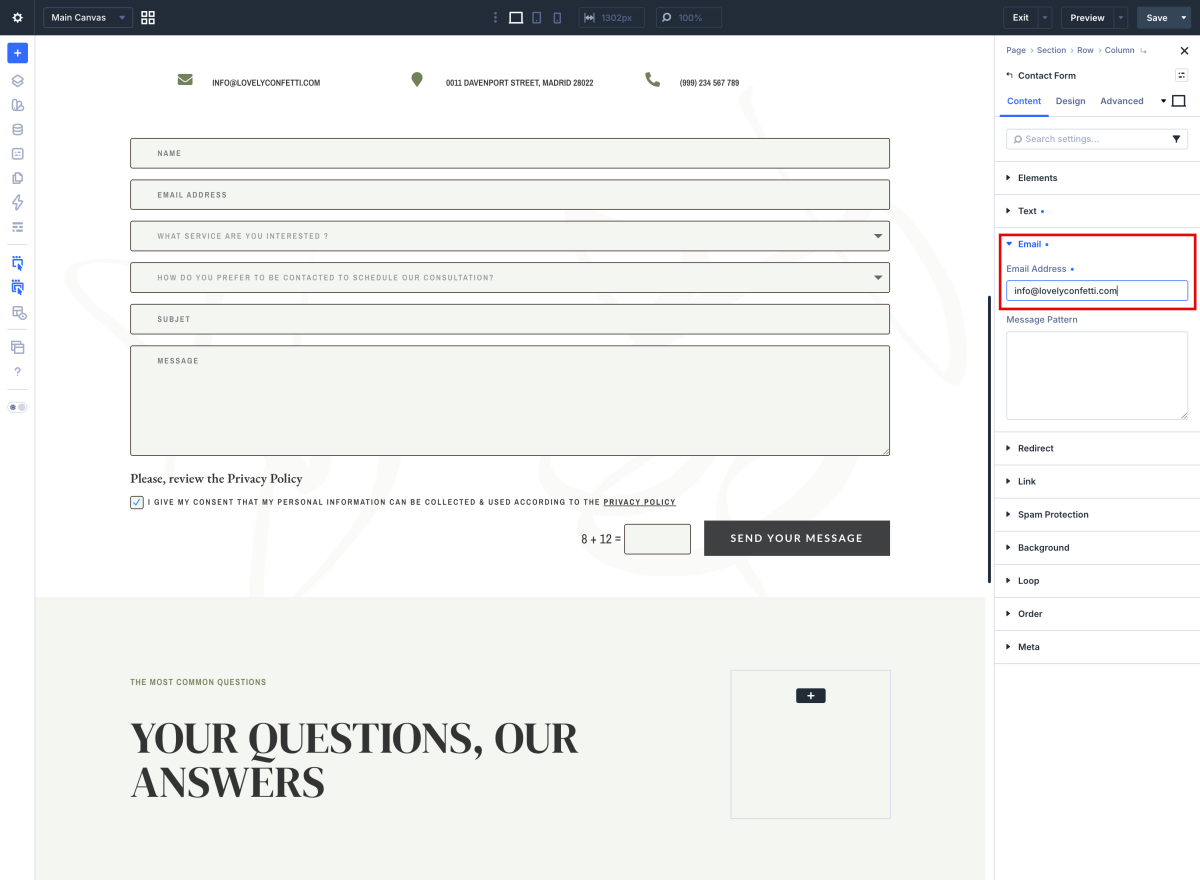
Step 3: Add email address
The second “Email” field, is the email address that you’re going to want your emails to go to when somebody fills out the form. So, a visitor comes your website, fills everything out, and hits the submit button.
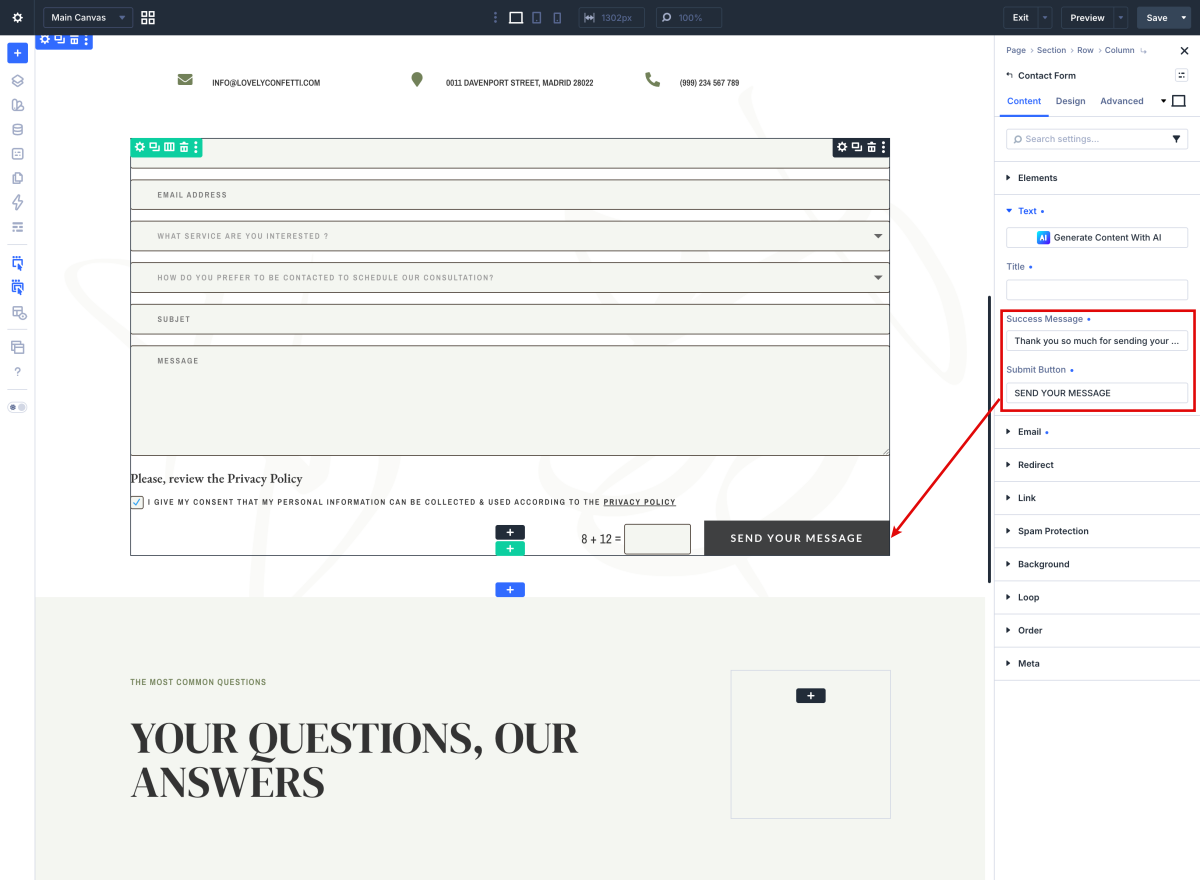
Step 4: Add Success Message
Put in a simple “Success Message,” “Thanks for signing up.” Something of that nature.
Step 5: Add Privacy Policy
Take a look this tutorial: https://www.support.helplovelyconfetti.com/work/how-to-add-privacy-policy-to-divi-contact-form-in-divi-5/
Need Further Tutorials?
The Divi Contact Form Module: https://short-url.cc/1s0IK