COLOR GUIDE:
Color Light: #f5f6f1
Color Medium: #e0dfd6
Color Dark: #34271e
Color Accent: #6e7565
Headings & Body: #333
How to change Theme Color Scheme
Saving colors can be accomplished by setting a default color palette in Divi’s theme options. To set your colors, navigate to Divi > Theme Options > General > Color Pickers Default Palette.
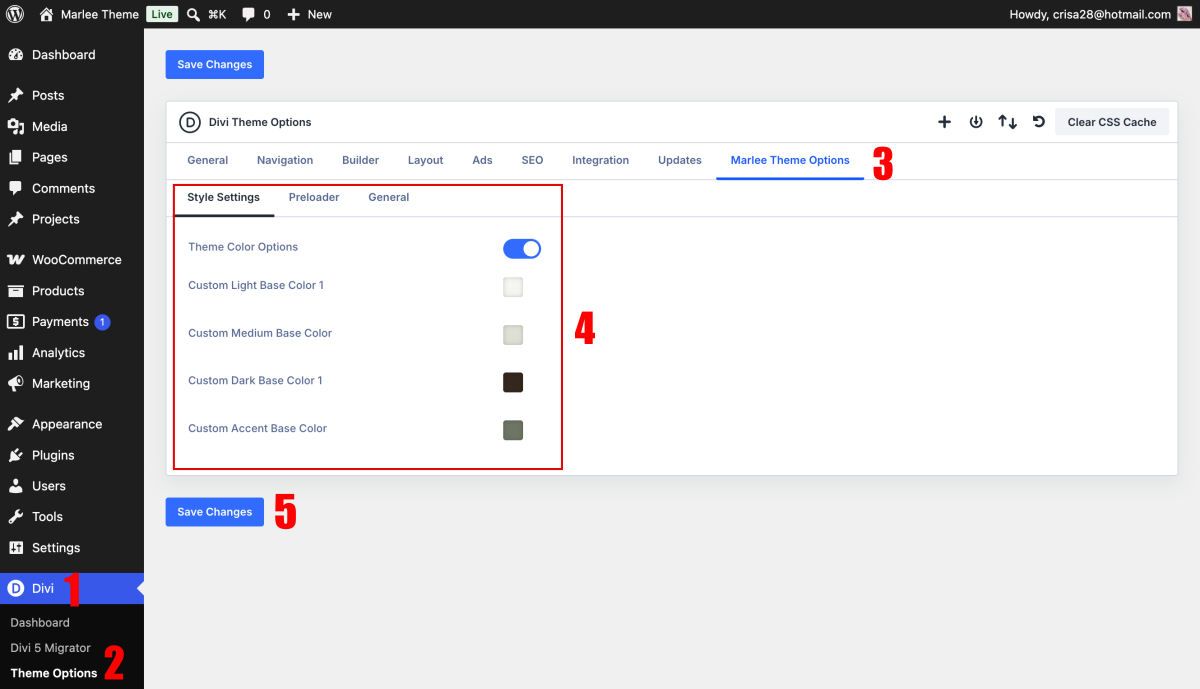
If you don´t want use Marlee Theme Otions, disable and use Divi Variable Manager.
How to change global Colors
Open any page in the Visual Builder and click the Variable Manager icon in the left sidebar.
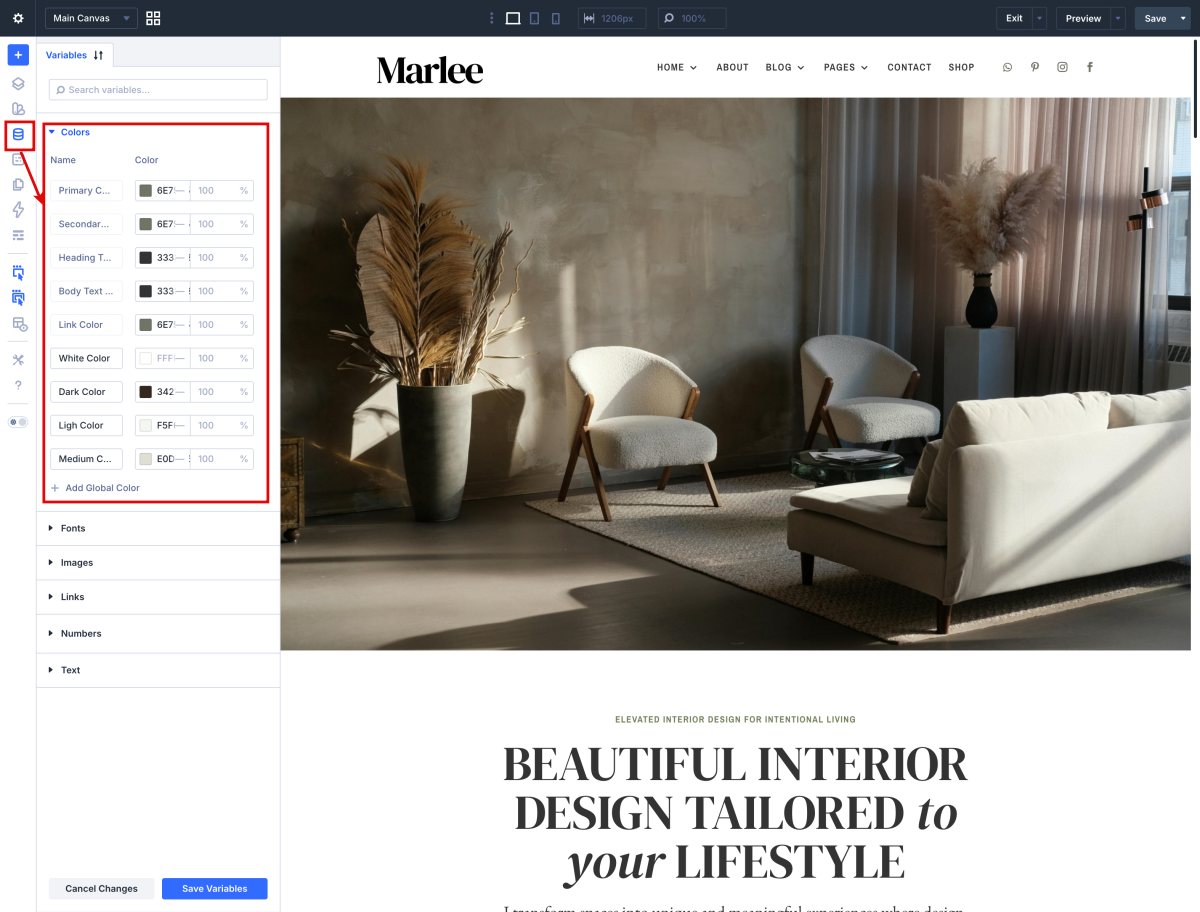
How to apply Global Variables in your designs

How to change global buttons
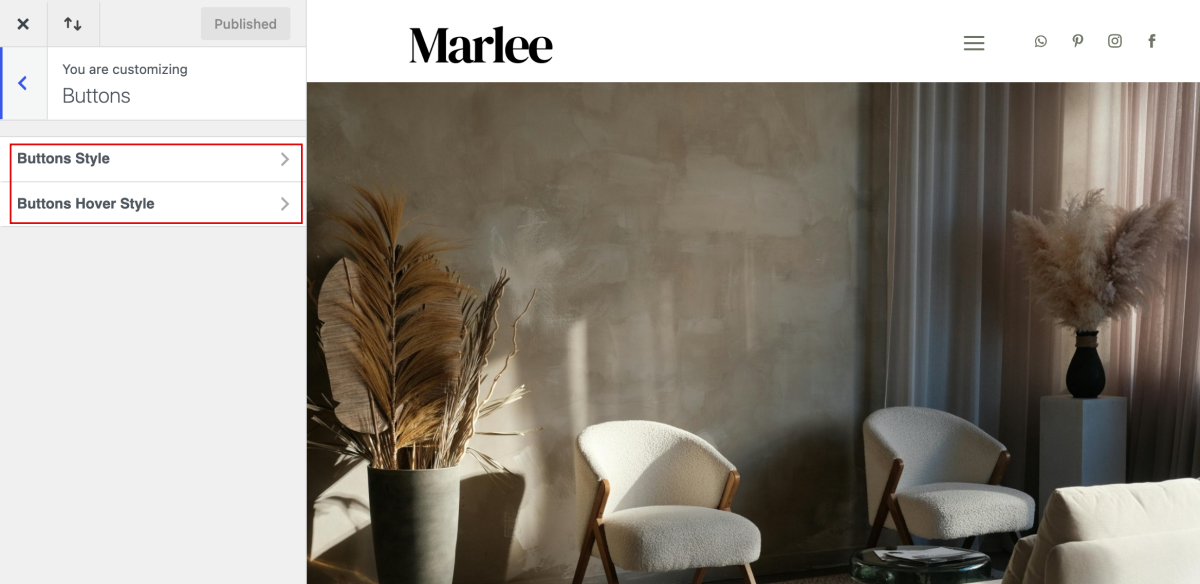
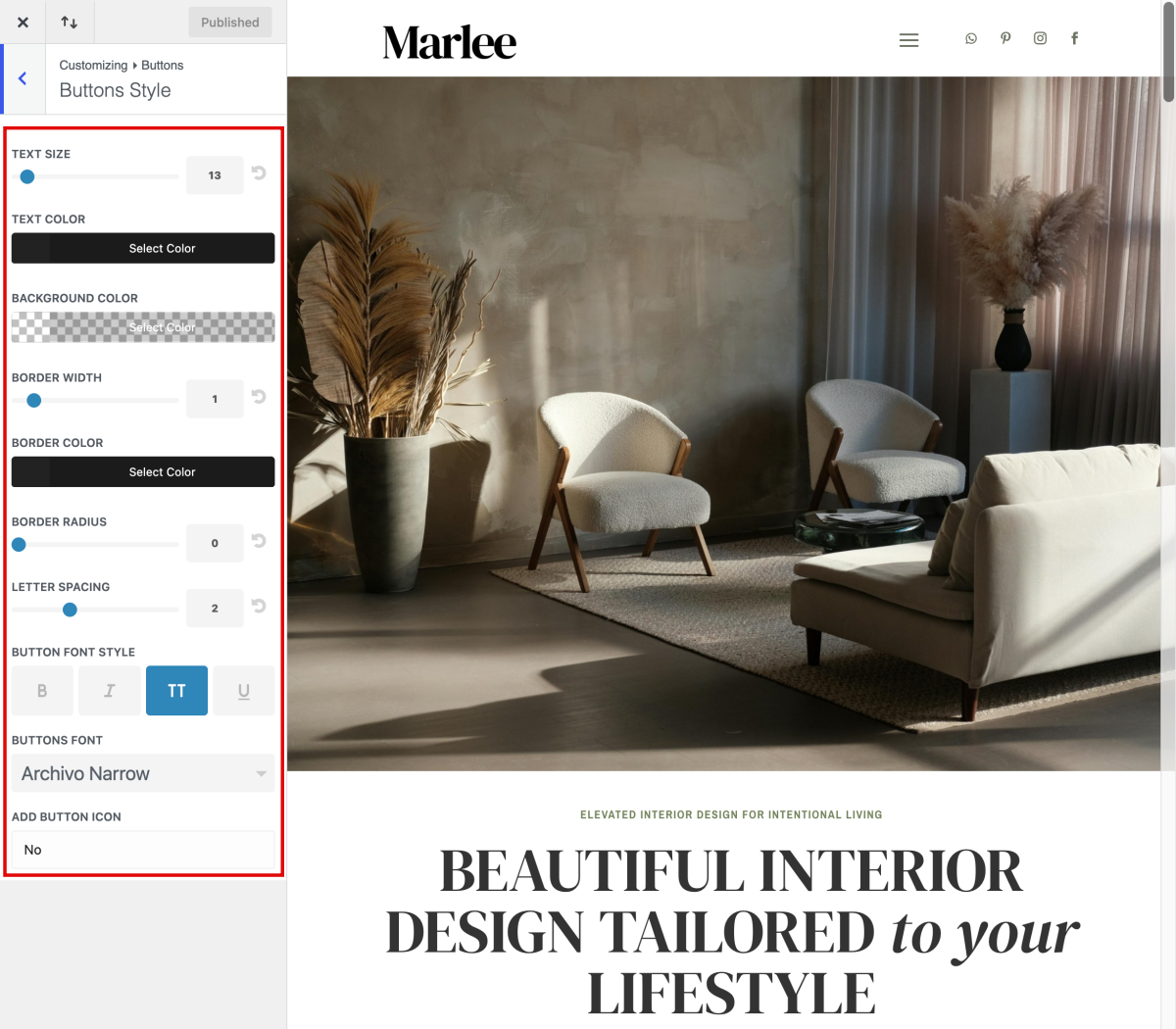
Navigate to Appearance > Customize > Buttons > Buttons Styles and Button Hover Styles.
You can change the color of your button text & background, adjust the button font size and style, and even create rounded buttons using the border-radius slider. In addition, you can change the default font and icon used within the buttons.
What Is Divi 5’s Color Palette Variable Generator?
Divi 5’s Color Palette Variable Generator is part of the larger Variable Generator. It helps you create a complete set of color variables from a primary color, then save those variables to the Colors group inside the Variable Manager.
When the Variable Manager opens, hover over the Colors group to reveal the Generate Color Palette Variables icon.
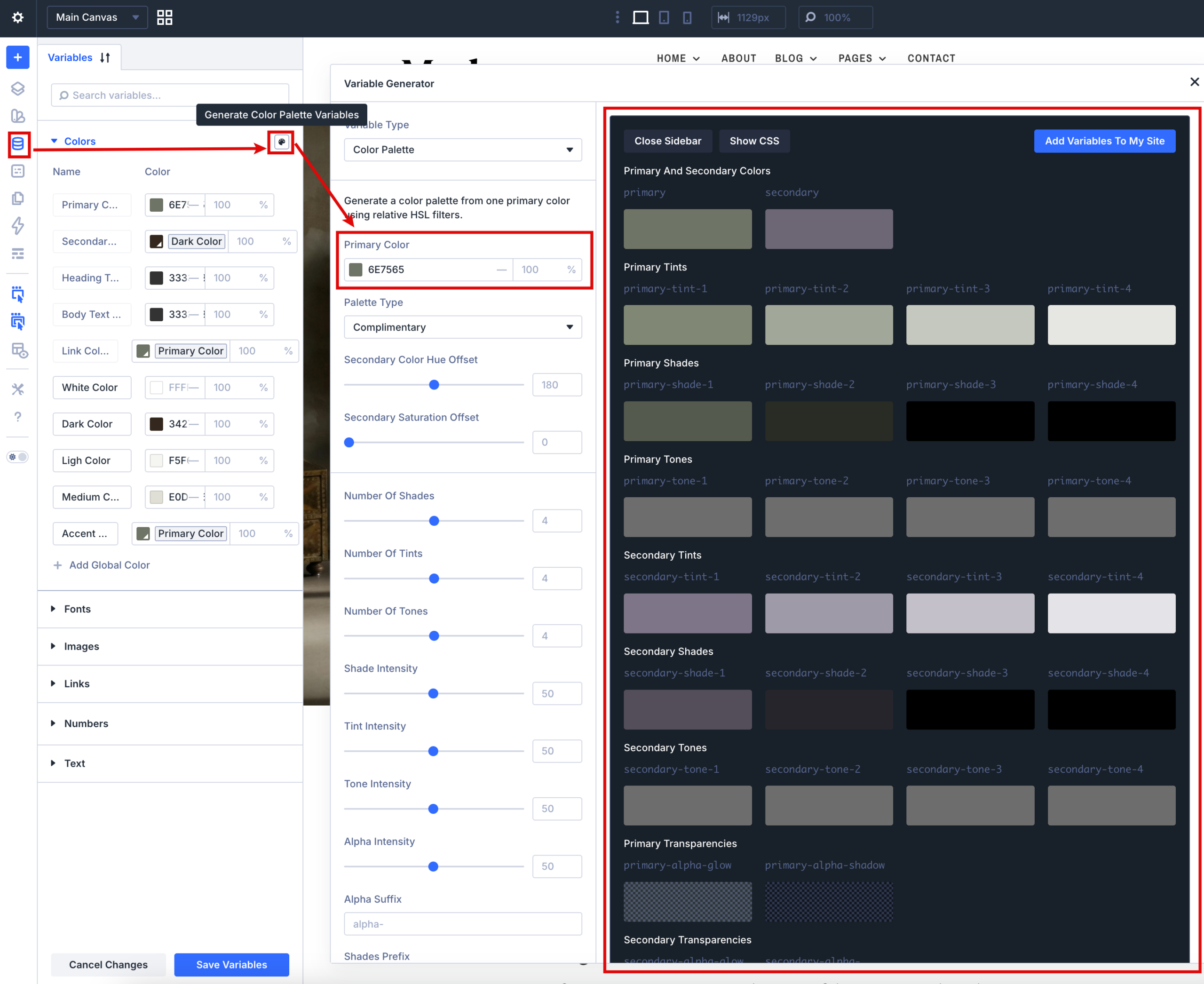
Instead of manually creating every related color, Divi uses relative HSL adjustments to generate connected colors based on your starting color. That matters because the relationships between colors stay intact. If you later edit the primary color, the related colors can follow the same logic instead of forcing you to rebuild the whole palette by hand.
The generator can create a full set of color variables, including:
- Primary And Secondary Colors: The core colors used as the foundation for the palette.
- Tints: Lighter variations that work well for backgrounds, cards, and subtle accents.
- Shades: Darker variations that work well for text, borders, and stronger accents.
- Tones: More neutral variations that reduce saturation and help create calmer UI colors.
- Alpha Variants: Transparent versions that are useful for overlays, glows, shadows, and layered backgrounds.
Need Further Tutorials?
Global Variables in Divi 5: https://shortlink.uk/1wHxB
Everything You Need To Know About Divi 5’s Color Palette Variable Generator: https://shorturl.at/HtTCD
Divi Buttons in Theme Customizer: https://shorturl.at/CuMIU