• HOME
  • DIVI BEGINNERS
  • TUTORIALS
  • TROUBLESHOOTING
  • SUBMIT A TICKET
  • HOME
  • DIVI BEGINNERS
  • TUTORIALS
  • TROUBLESHOOTING
  • SUBMIT A TICKET
home/Knowledge Base/4. Hattie - Theme Settings/Hattie – How to Import and edit Footer

Hattie – How to Import and edit Footer

  1. Log in to your WP Admin panel.
  2. Navigate to Divi > Theme Builder > Edit Footer > Save changes.
  3. Import “Hattie-Theme-Builder.json” from “Demo archives” folder if you have not imported it yet.
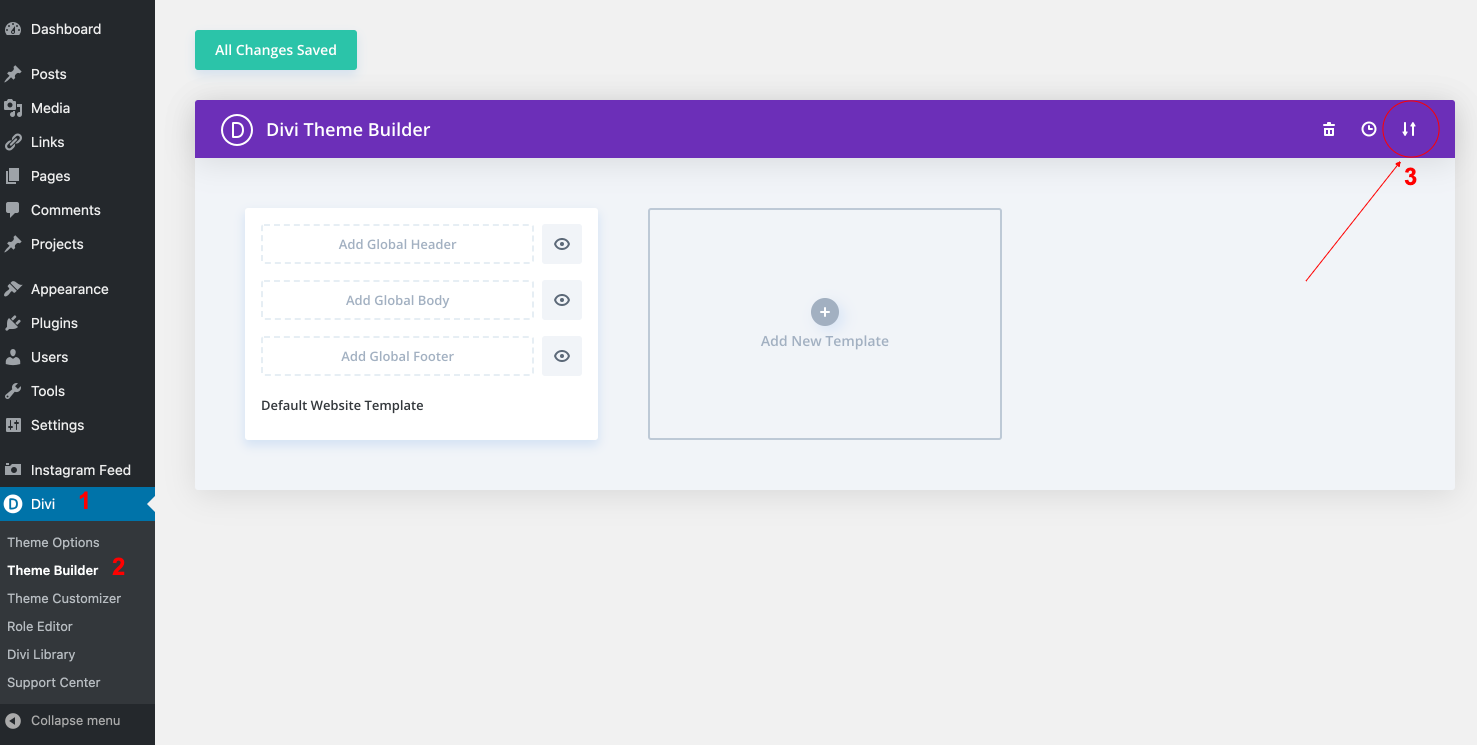
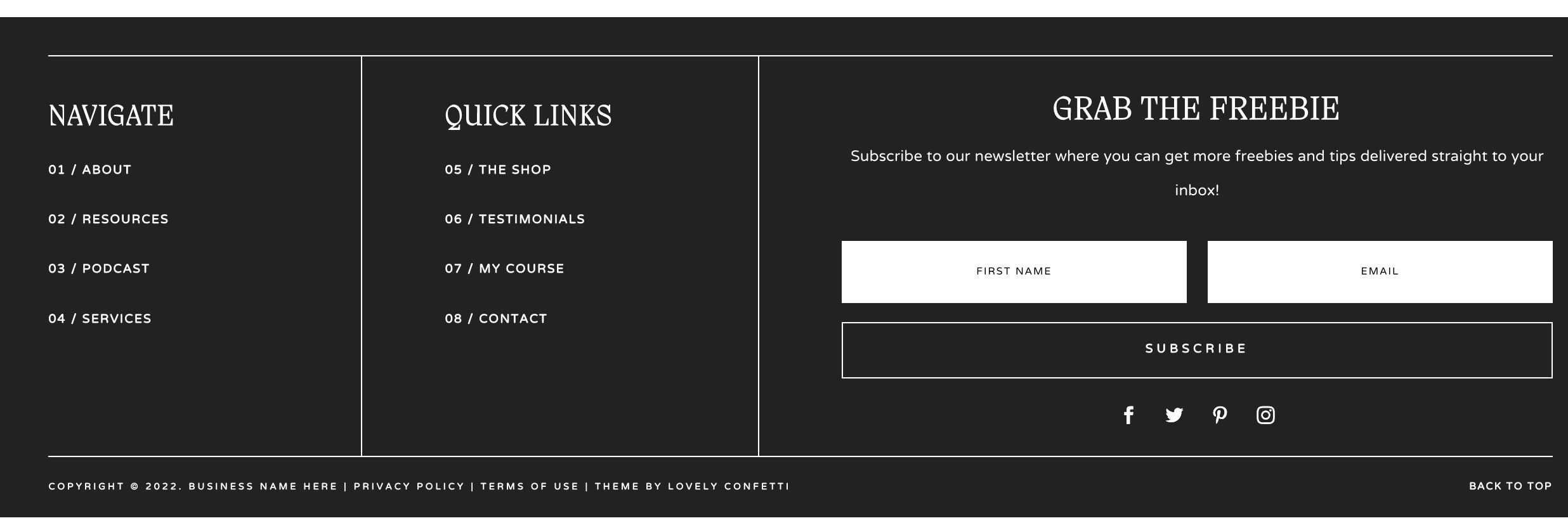
4. Edit your Footer > Save changes.

https://www.support.helplovelyconfetti.com/wp-content/uploads/2022/10/Hattie_Footer.webm


How to integrate Maiclhimp for action: https://www.support.helplovelyconfetti.com/work/how-to-integrate-mailchimp-with-divi-builder/

Related Articles
  • Hattie – How to add lovely icons to Blurbs
  • Hattie – How to Design a Blog Post Template
  • Hattie – Saving And Loading Sections In Divi
  • Hattie – Saving And Loading Layouts In Divi
  • Hattie – How to add Filterable portfolio
  • Hattie – How to configure Contact Form
4. Hattie - Theme Settings
  • Hattie – How to Import and edit Footer
  • Hattie – How to change global colors
  • Hattie – Theme Options
  • Hattie – How to configure Header
  • Hattie – How to configure Contact Form
  • Hattie – How to add Filterable portfolio
  • Hattie – Saving And Loading Layouts In Divi
  • Hattie – Saving And Loading Sections In Divi
View All 9  

  Hattie – Saving And Loading Layouts In Divi

Hattie – How to Design a Blog Post Template  

  • Privacy Policy
  • Terms of Use
  • Copyright 2023. All Rights Reserved.