• HOME
  • DIVI BEGINNERS
  • TUTORIALS
  • TROUBLESHOOTING
  • SUBMIT A TICKET
  • HOME
  • DIVI BEGINNERS
  • TUTORIALS
  • TROUBLESHOOTING
  • SUBMIT A TICKET
home/Knowledge Base/4. Hattie - Theme Settings/Hattie – How to add lovely icons to Blurbs

Hattie – How to add lovely icons to Blurbs


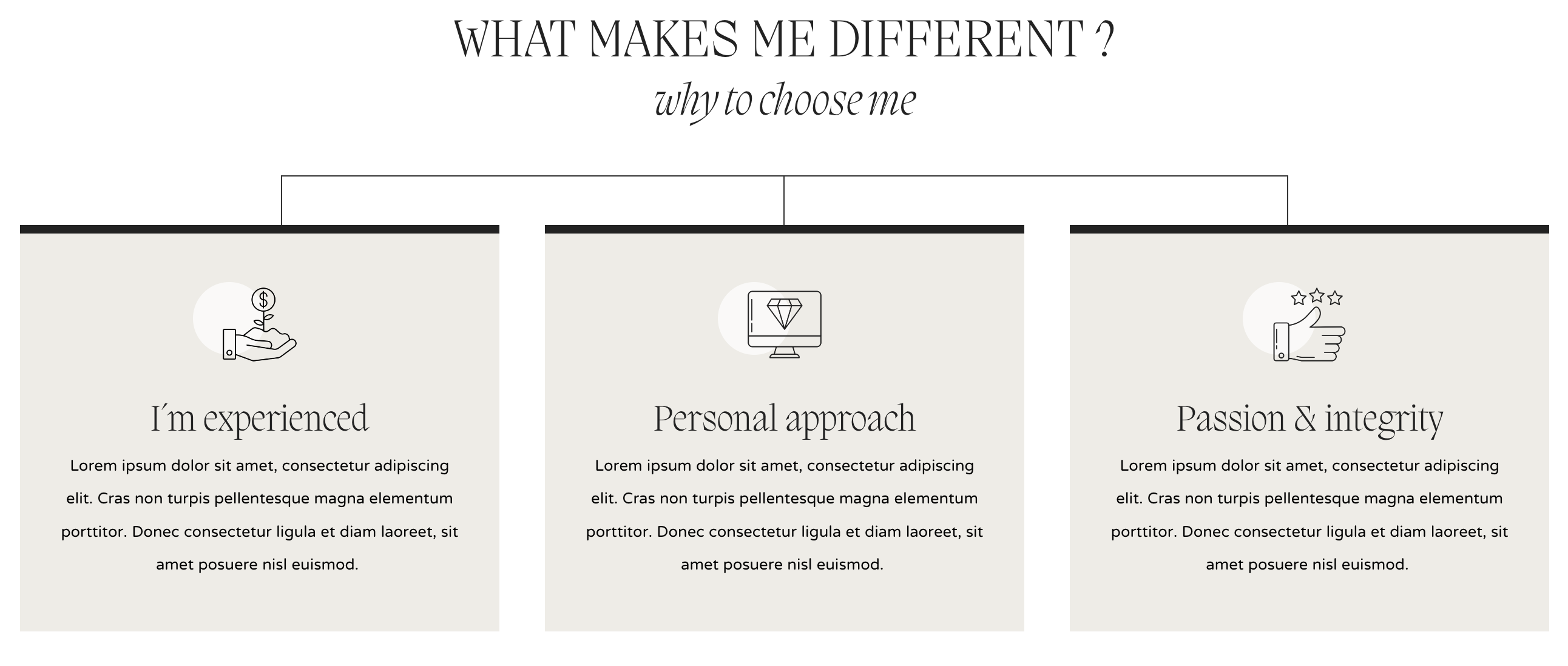
This is  is an example of what is shown in the theme demo.  However, you can choose blurb Divi icons, or any image that fits your needs!


  1. Click on Enable Visual Builder in the top bar.
  2. Create a blurb o edit demo blurb.
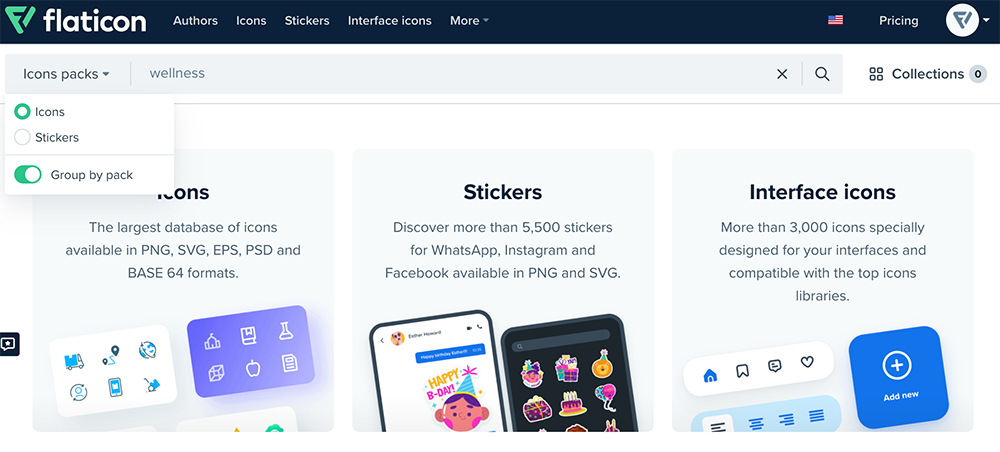
  3. Go to Flaticon
  4. Type your website topic and choose pack if you want a cohesive combo icons. (example: SEO Marketing).
5. You´ll see all packs.
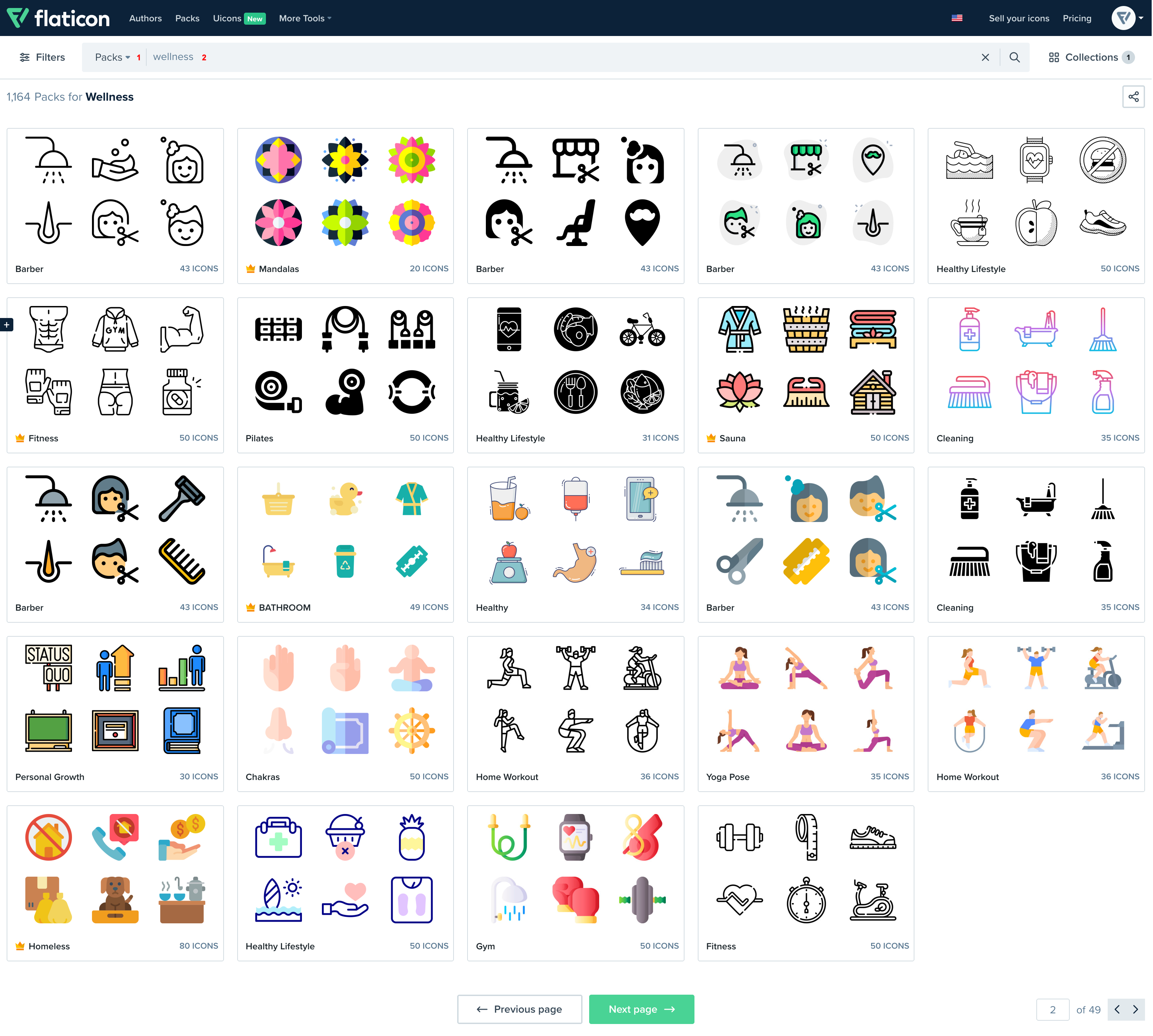
This is the option I´ve chosen: Icon Pack: Digital Marketing
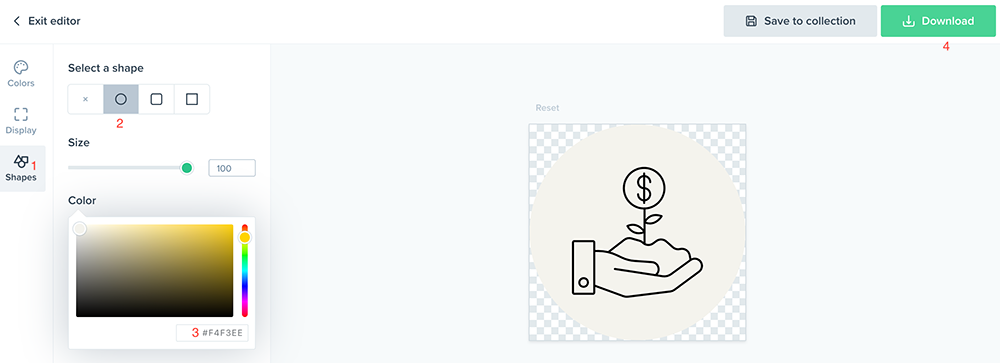
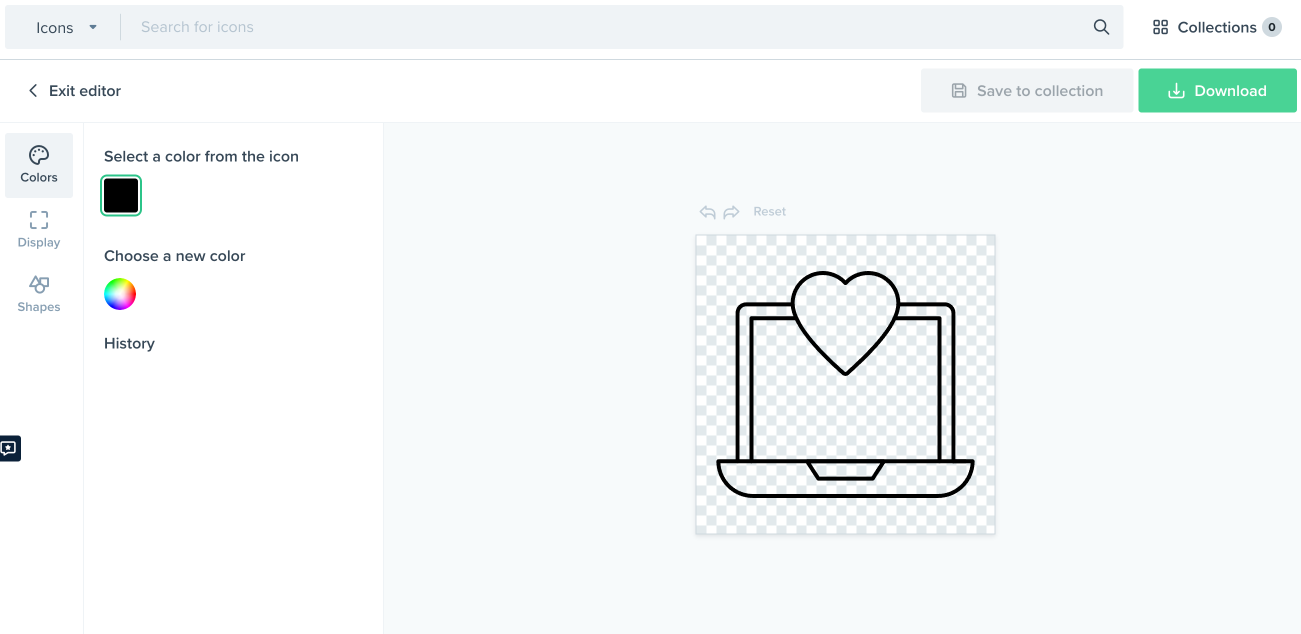
5. Choose your icon and select (Customize your icon > Select Download > Format .PNG > Select 512px).
https://www.support.helplovelyconfetti.com/wp-content/uploads/2022/10/Hattie_Blurb-Icons.webm
Related Articles
  • Hattie – How to Design a Blog Post Template
  • Hattie – Saving And Loading Sections In Divi
  • Hattie – Saving And Loading Layouts In Divi
  • Hattie – How to add Filterable portfolio
  • Hattie – How to configure Contact Form
  • Hattie – How to configure Header
4. Hattie - Theme Settings
  • Hattie – How to add lovely icons to Blurbs
  • Hattie – How to change global colors
  • Hattie – Theme Options
  • Hattie – How to Import and edit Footer
  • Hattie – How to configure Header
  • Hattie – How to configure Contact Form
  • Hattie – How to add Filterable portfolio
  • Hattie – Saving And Loading Layouts In Divi
View All 9  

  Hattie – How to change global colors

Hattie – How to add Filterable portfolio  

  • Privacy Policy
  • Terms of Use
  • Copyright 2023. All Rights Reserved.