• HOME
  • DIVI BEGINNERS
  • TUTORIALS
  • TROUBLESHOOTING
  • SUBMIT A TICKET
  • HOME
  • DIVI BEGINNERS
  • TUTORIALS
  • TROUBLESHOOTING
  • SUBMIT A TICKET
home/Knowledge Base/4. Hattie - Theme Settings/Hattie – Theme Options

Hattie – Theme Options

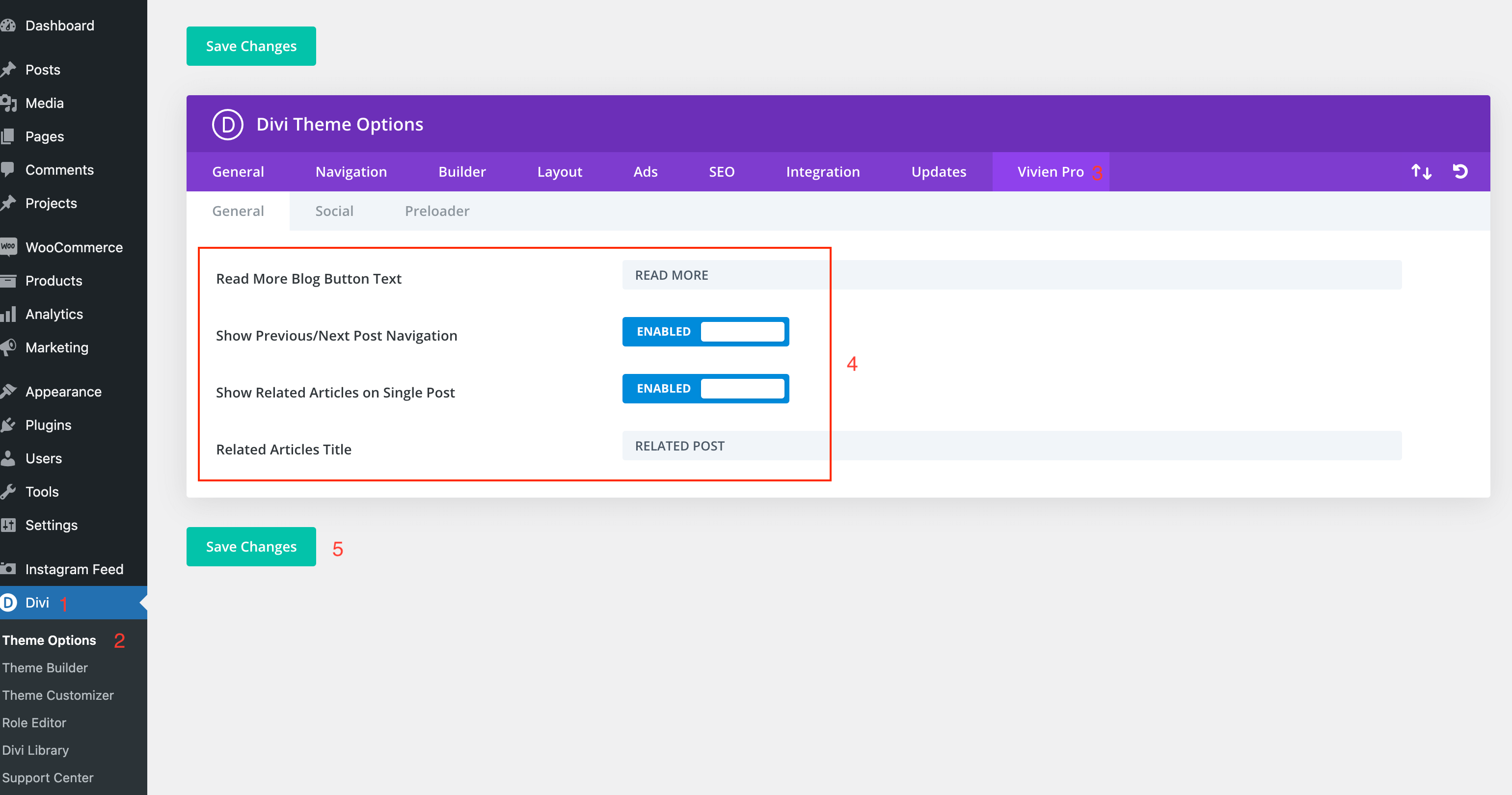
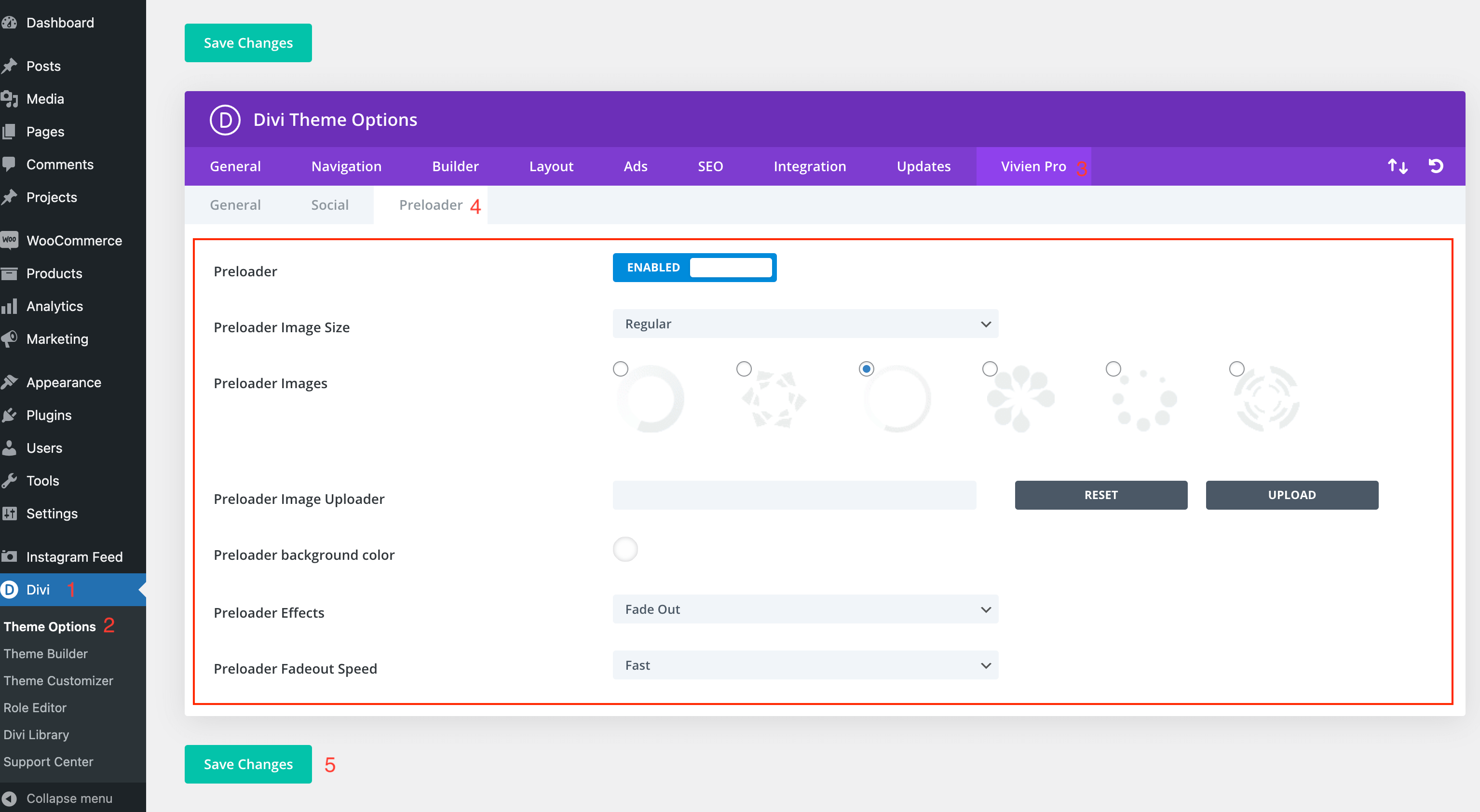
Hattie features extensive customization options, which you can access in Divi > Theme Options > Hattie.
 

General Tab

 
Available settings:

Read More Blog Button Text – changes the default text on all Divi Blog Modules.
Show Previous/Next Post Navigation – Show additional navigation links below blog post content – Enabled / Disabled
 

Setup Preloader

Preloader – Disabled/Enabled
Preloader Image Size – Regular / Large
Preloader Images – select preloader image
Preloader Image Uploader – you can upload your own preloader/gif image
Preloader background color – define background color for preloader
Preloader Effects – define effect FadeOut/SlideUp
Preloader Fadeout Speed – define speed of preloader fadeout effect


Related Articles
  • Hattie – How to add lovely icons to Blurbs
  • Hattie – How to Design a Blog Post Template
  • Hattie – Saving And Loading Sections In Divi
  • Hattie – Saving And Loading Layouts In Divi
  • Hattie – How to add Filterable portfolio
  • Hattie – How to configure Contact Form
4. Hattie - Theme Settings
  • Hattie – Theme Options
  • Hattie – How to change global colors
  • Hattie – How to Import and edit Footer
  • Hattie – How to configure Header
  • Hattie – How to configure Contact Form
  • Hattie – How to add Filterable portfolio
  • Hattie – Saving And Loading Layouts In Divi
  • Hattie – Saving And Loading Sections In Divi
View All 9  

Hattie – Saving And Loading Sections In Divi  

  • Privacy Policy
  • Terms of Use
  • Copyright 2023. All Rights Reserved.