Option 1: Header like demo

- Log in to your WP Admin panel.
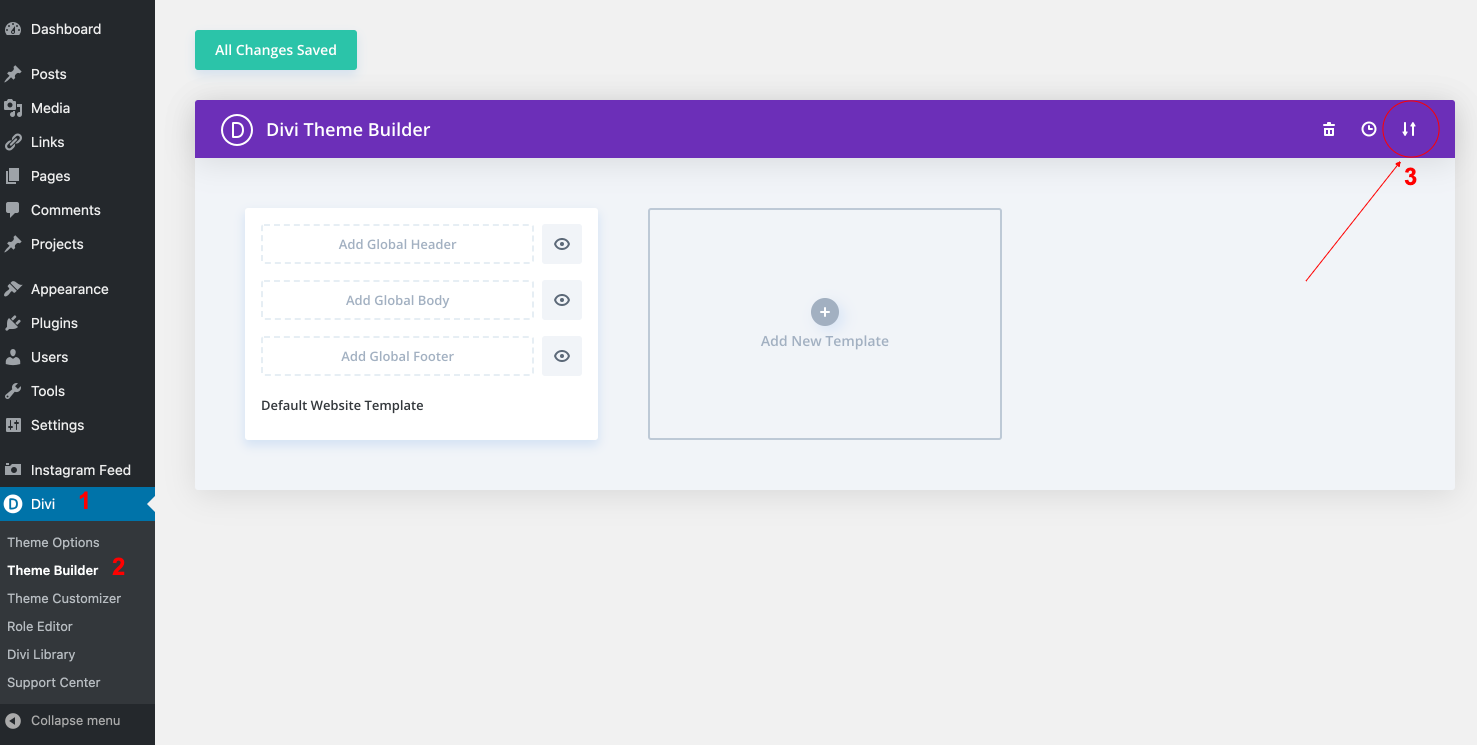
- Navigate to Divi > Theme Builder.
- Import “Oliviapro-Theme-Builder.json” from “Demo archives” folder if you don´t have imported.
- Edit your Header > Save changes.
How to upload your header logo
Note – PNG is the best choice because they have a small file size and transparent backgrounds. Inside package I´ve included archive .psd with demo logo that you can edit.
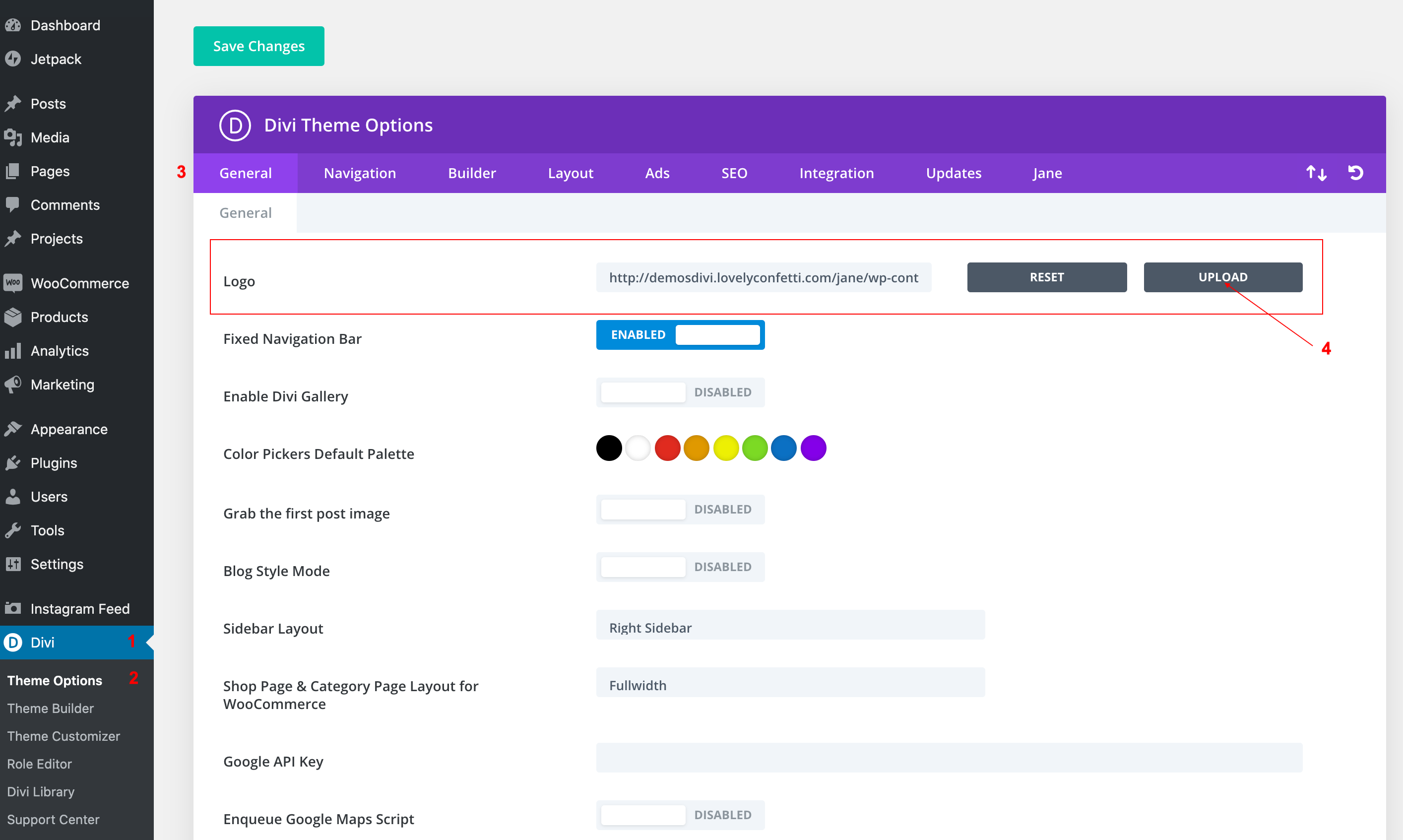
- Go to Divi > Theme Options.
- Within the Theme Options, under the General > General tab > Logo
- Upload your logo header.
Configure your social media and change logo link
Option 2: Divi Header
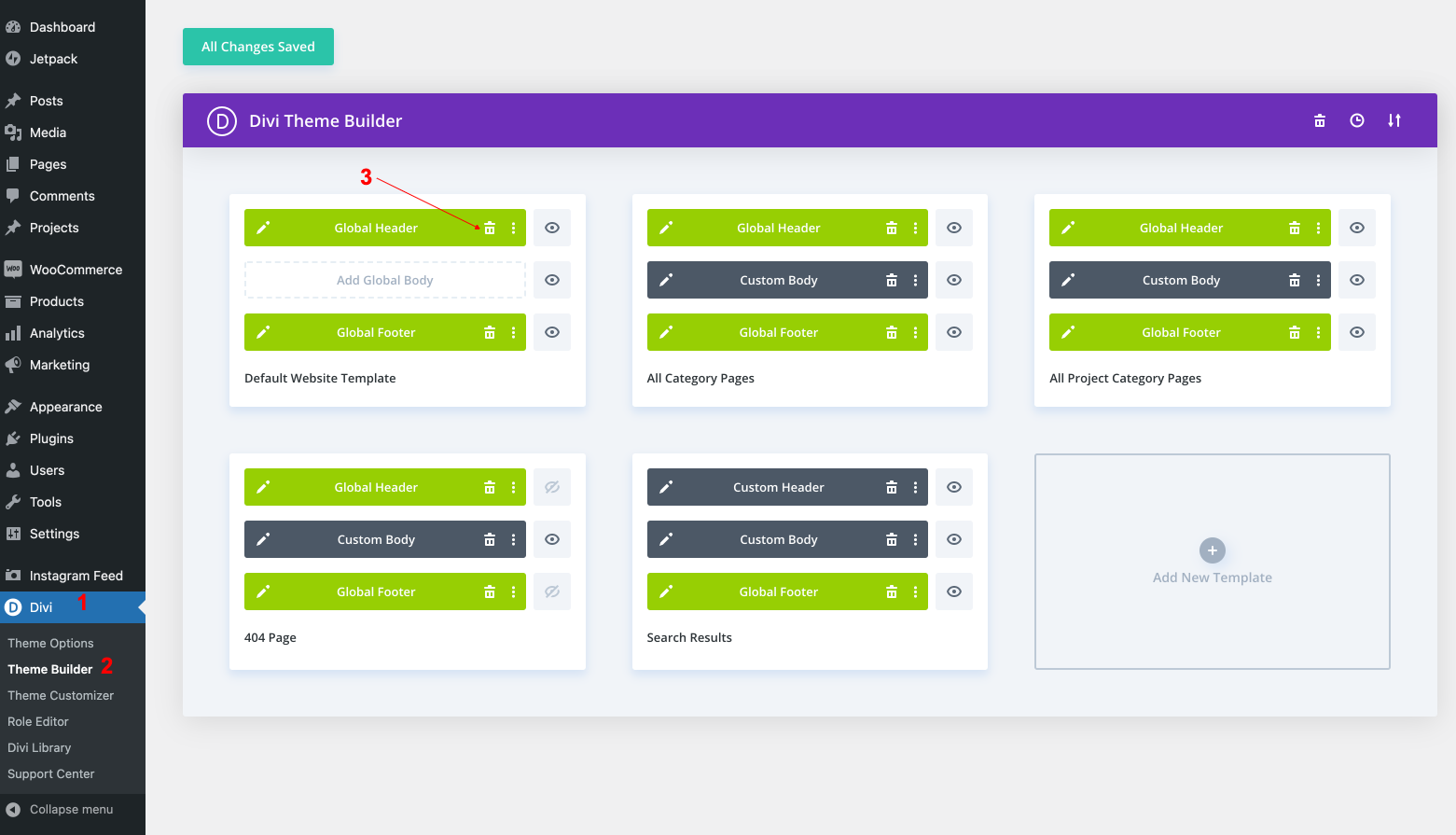
- If you want use demo header go to Divi > Theme Builder > Delete Header (if you have import it)
2. Now you can use Divi Header Options.
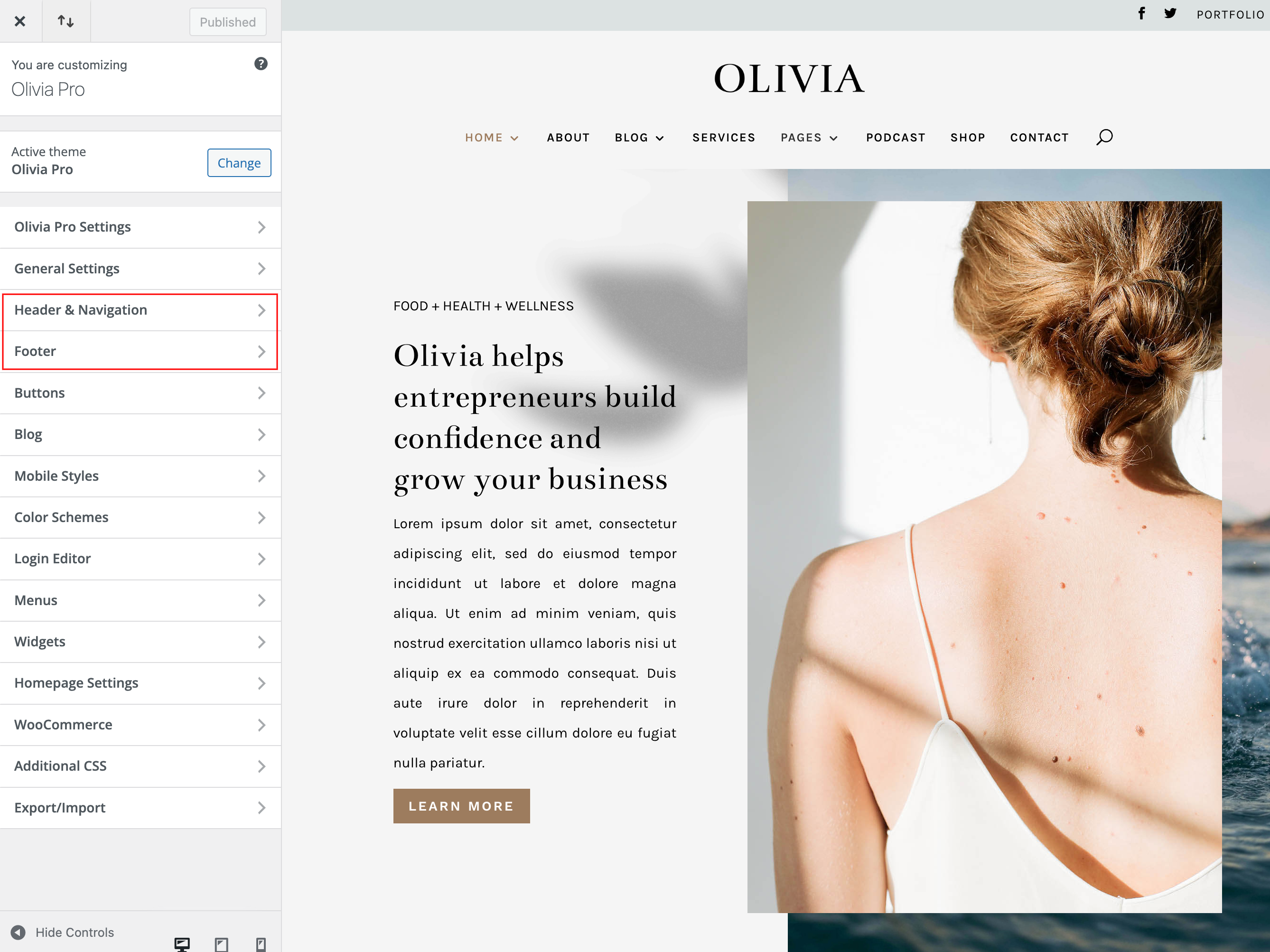
Go to Appearance > Customize > Header & Navigation > Header Format
Here you can adjust your header’s general format, such as switching between the main layouts modes: Default, Centered, Centered Inline Logo, Slide-in, and Fullscreen.
Choosing Centered will place your logo above your navigation menu and centered both within the header.
Choosing Centered Inline Logo will place the logo in-line with your nav menu elements, centered between the links.
You can also enable Vertical Navigation from within this section, which will create a drastically new look for your site, putting the navigation bar on the left of your content
Need Further Tutorials?
How to Setup Menus: https://codex.wordpress.org/WordPress_Menu_User_Guide
Divi Builder overiew: https://www.elegantthemes.com/documentation/divi/visual-builder/