• HOME
  • DIVI BEGINNERS
  • TUTORIALS
  • TROUBLESHOOTING
  • SUBMIT A TICKET
  • HOME
  • DIVI BEGINNERS
  • TUTORIALS
  • TROUBLESHOOTING
  • SUBMIT A TICKET
home/Knowledge Base/2. Meryl - Use Divi Visual Builder/Meryl – How to edit About Me

Meryl – How to edit About Me


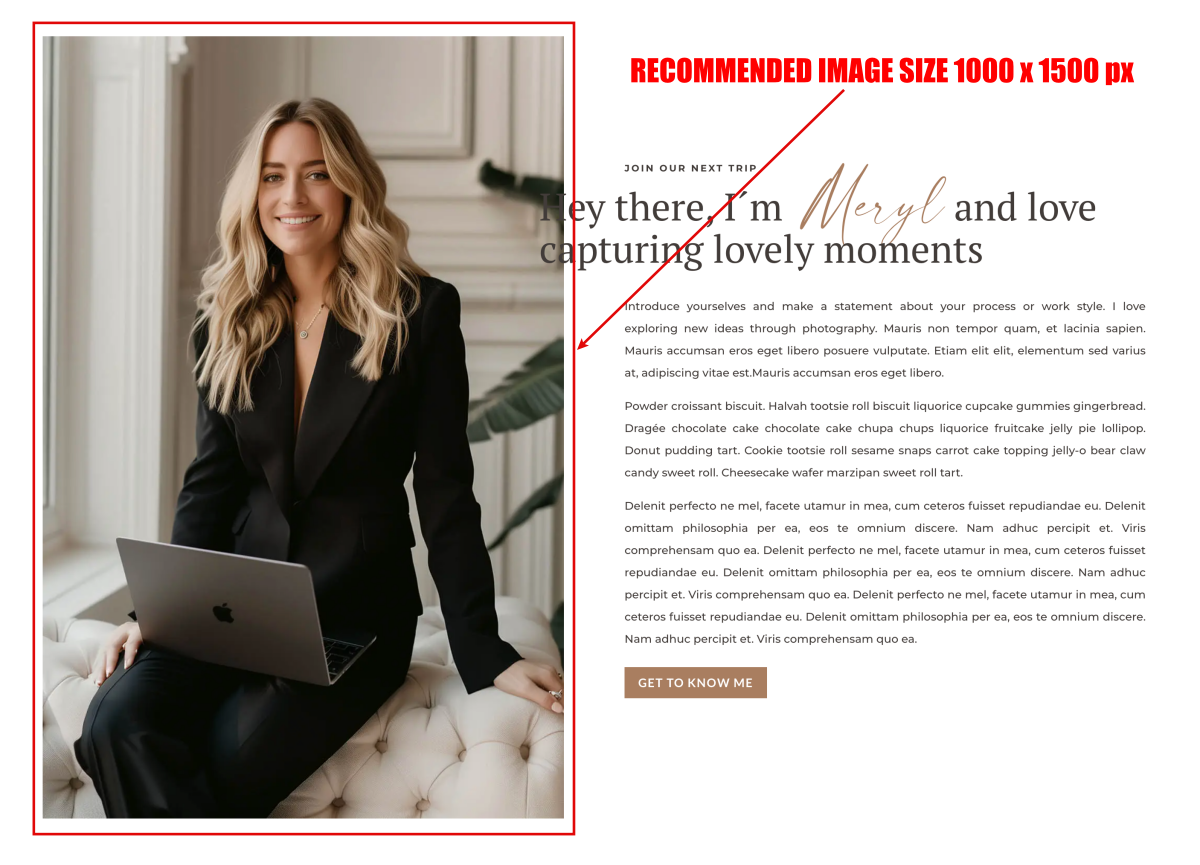
  1. Click on Enable Visual Builder in the top bar.
  2. Making changes to text with the Divi Visual Builder is as simple as clicking and typing.
  3. This is the code that combine 2 fonts en one one line text.
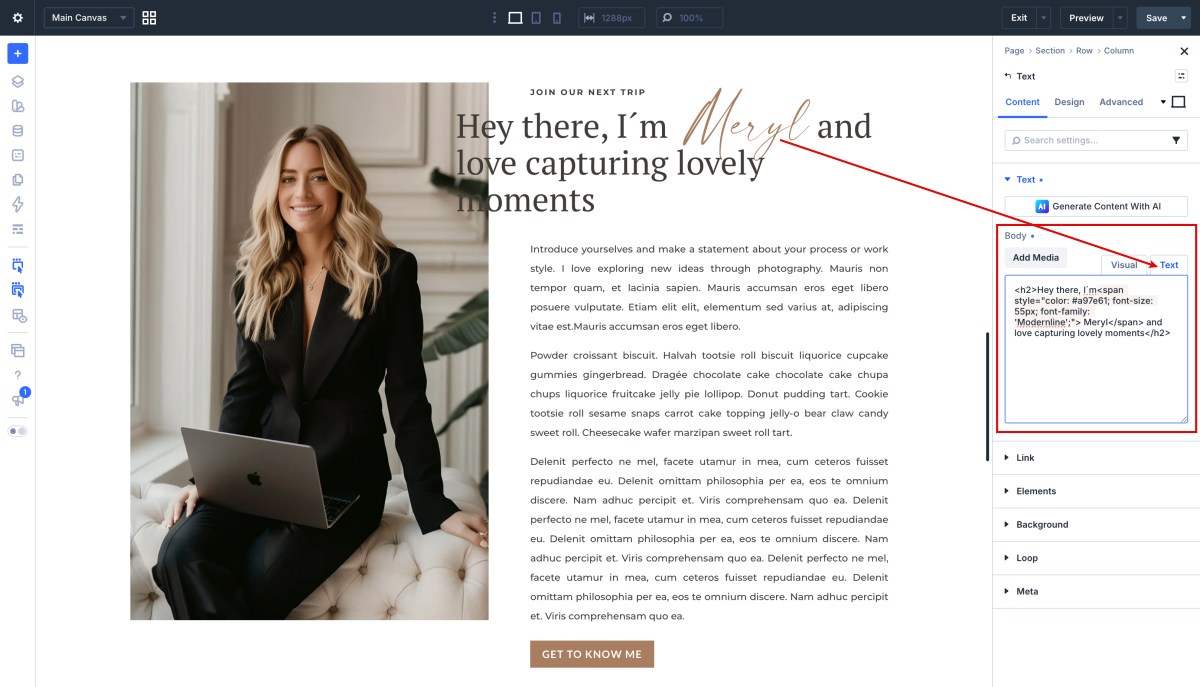
 

<span style="color: #a97e61; font-size: 60px; font-family: 'Modernline';"> Meryl</span>

  1. If you want use an alternative font or use it through theme take a look this tutorial:  How to combine multiple fonts on one line in Divi


https://www.support.helplovelyconfetti.com/wp-content/uploads/2020/09/MERYL-About-me.webm
Related Articles
  • Meryl – How to edit CTA Galleries
  • Meryl – How to edit CTA Boxes
  • Meryl – How to edit Hero
  • Meryl – How to edit texts
  • Meryl – How to edit images
  • Meryl – How to enable the Divi Visual Builder
2. Meryl - Use Divi Visual Builder
  • Meryl – How to edit About Me
  • Meryl – Choose your Home
  • Meryl – How to enable the Divi Visual Builder
  • Meryl – How to edit images
  • Meryl – How to edit texts
  • Meryl – How to edit Hero
  • Meryl – How to edit CTA Boxes
  • Meryl – How to edit CTA Galleries

  Meryl – How to edit CTA Boxes

Meryl – Choose your Home  

  • Privacy Policy
  • Terms of Use
  • Copyright 2023. All Rights Reserved.