How to edit Services in Home 1
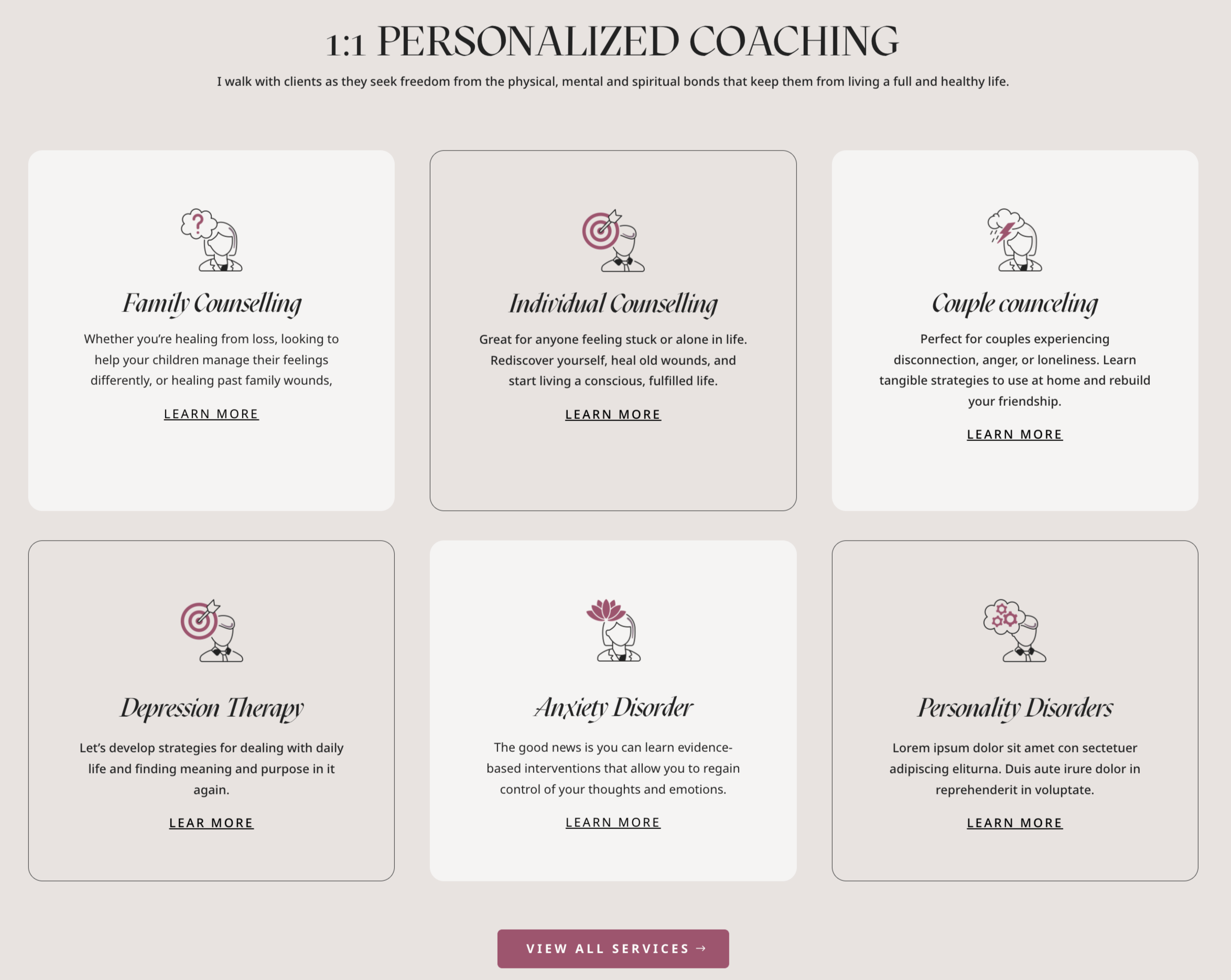
This is is an example of what is shown in the theme demo. However, you can choose blurb Divi icons, or any image that fits your needs!
- Click on Enable Visual Builder in the top bar.
- Create a blurb o edit demo blurb.
- Go to Flaticon
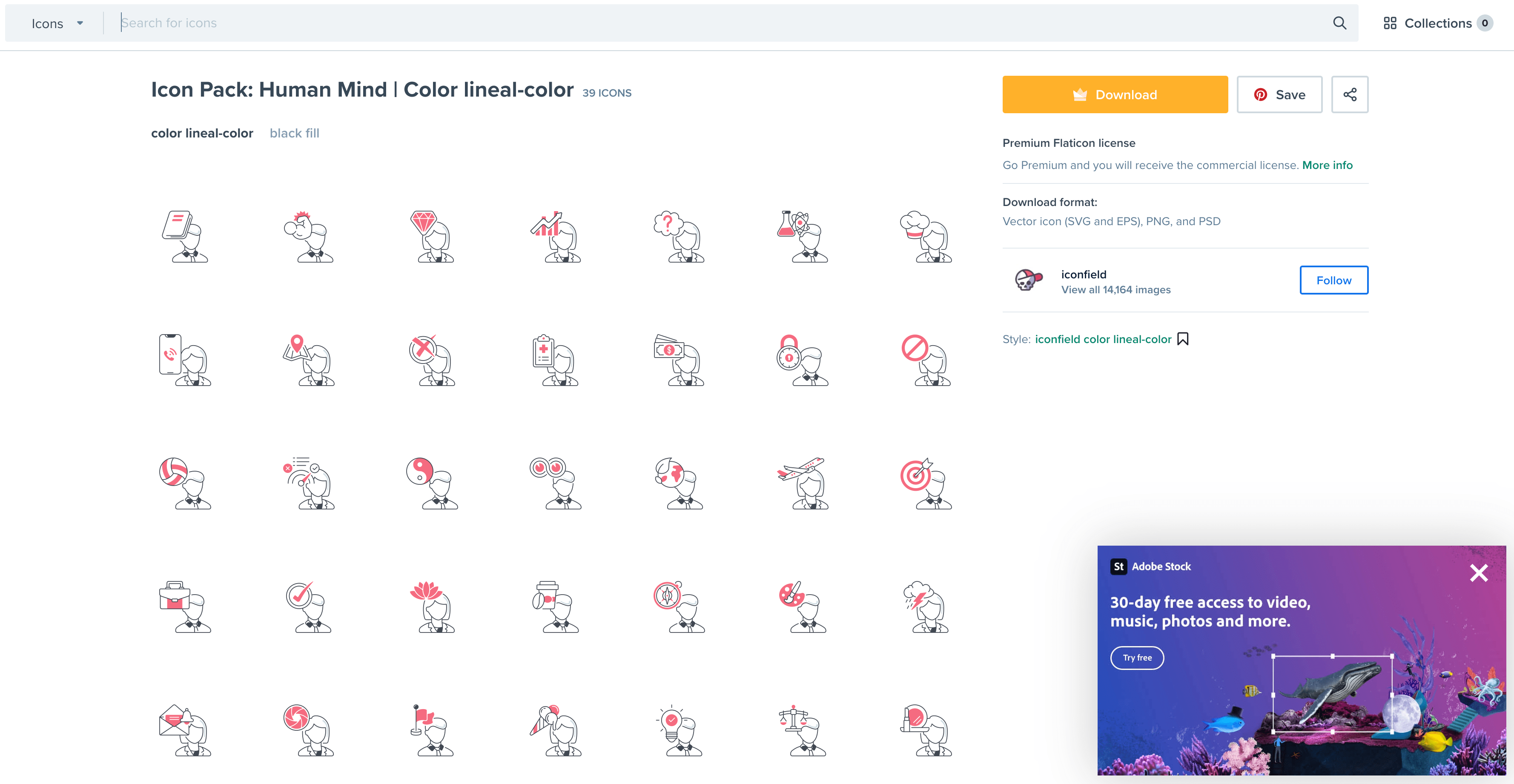
- Type your website topic and choose pack if you want a cohesive combo icons. (example: Humand Mind).
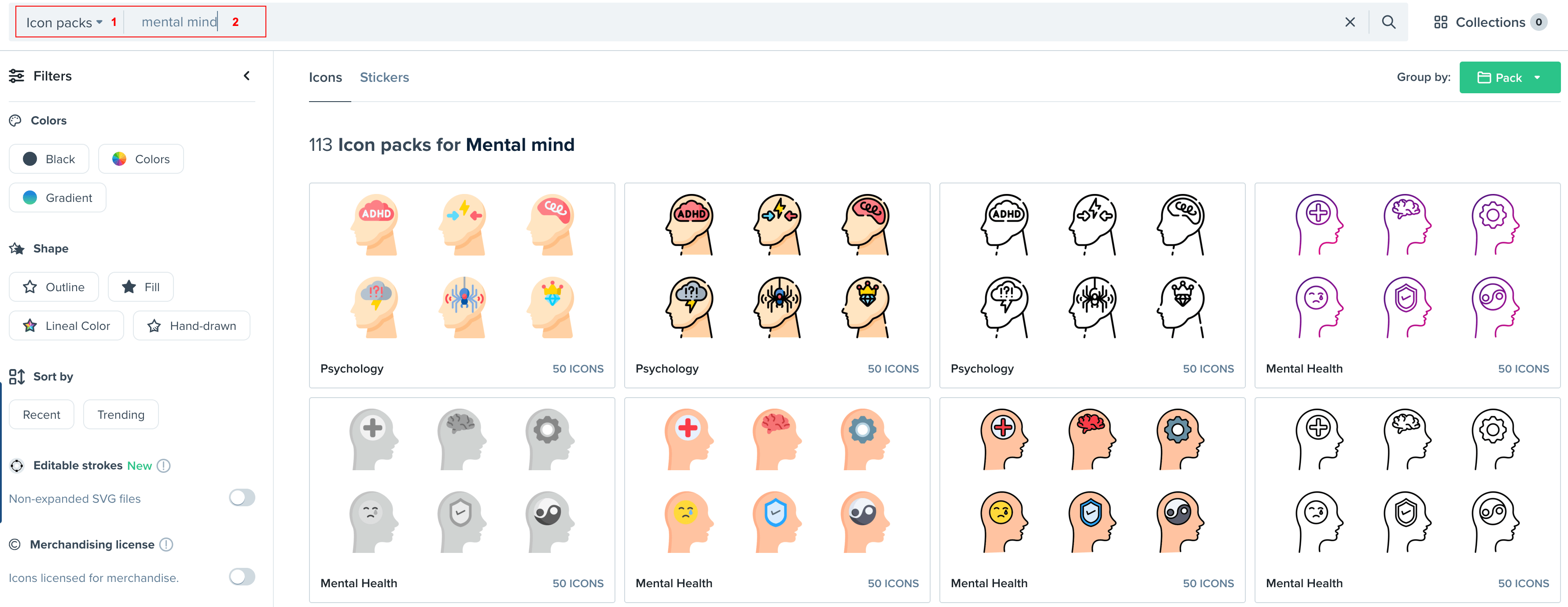
5. I´ve choosen this lovely pack.
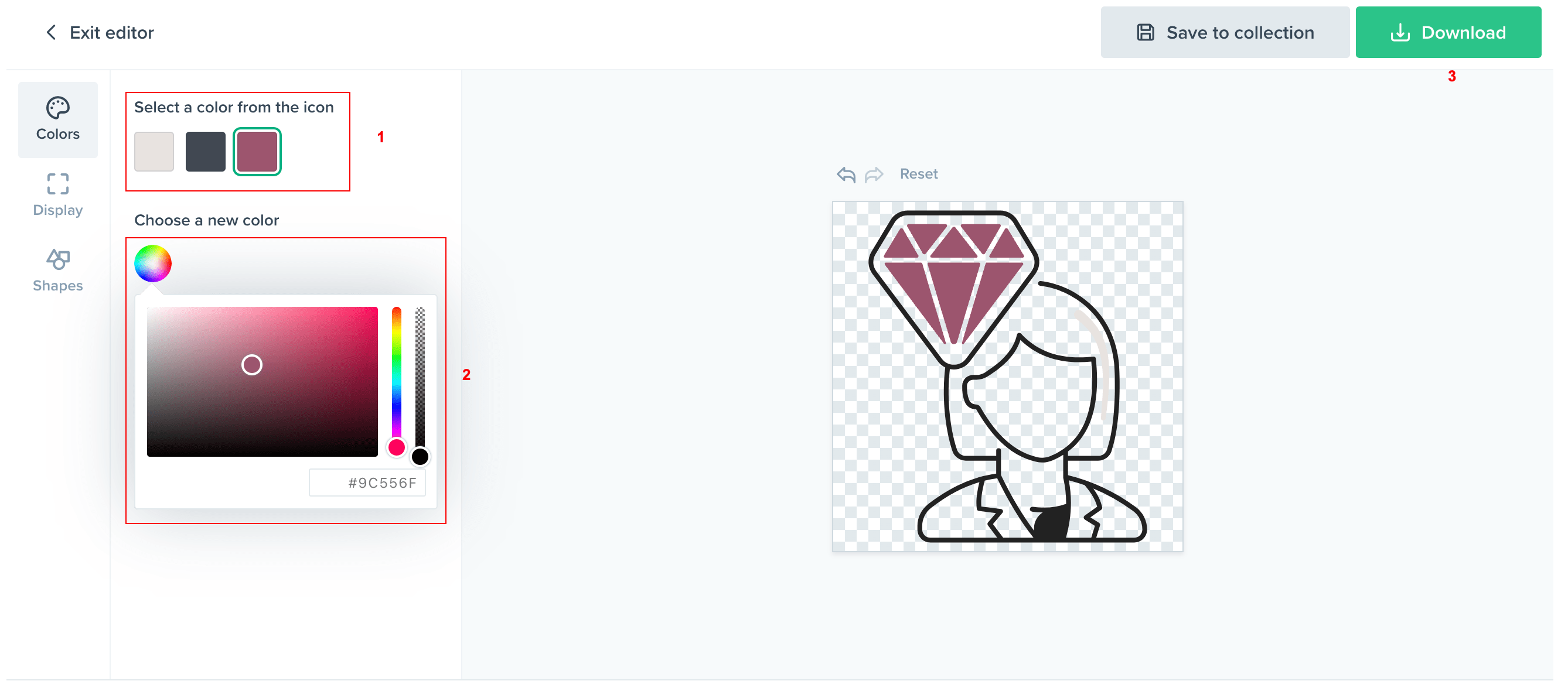
6. Choose your icon and select (Customize your icon > Select Download > Format .PNG > Select 512px).
How to edit Services in Home 2
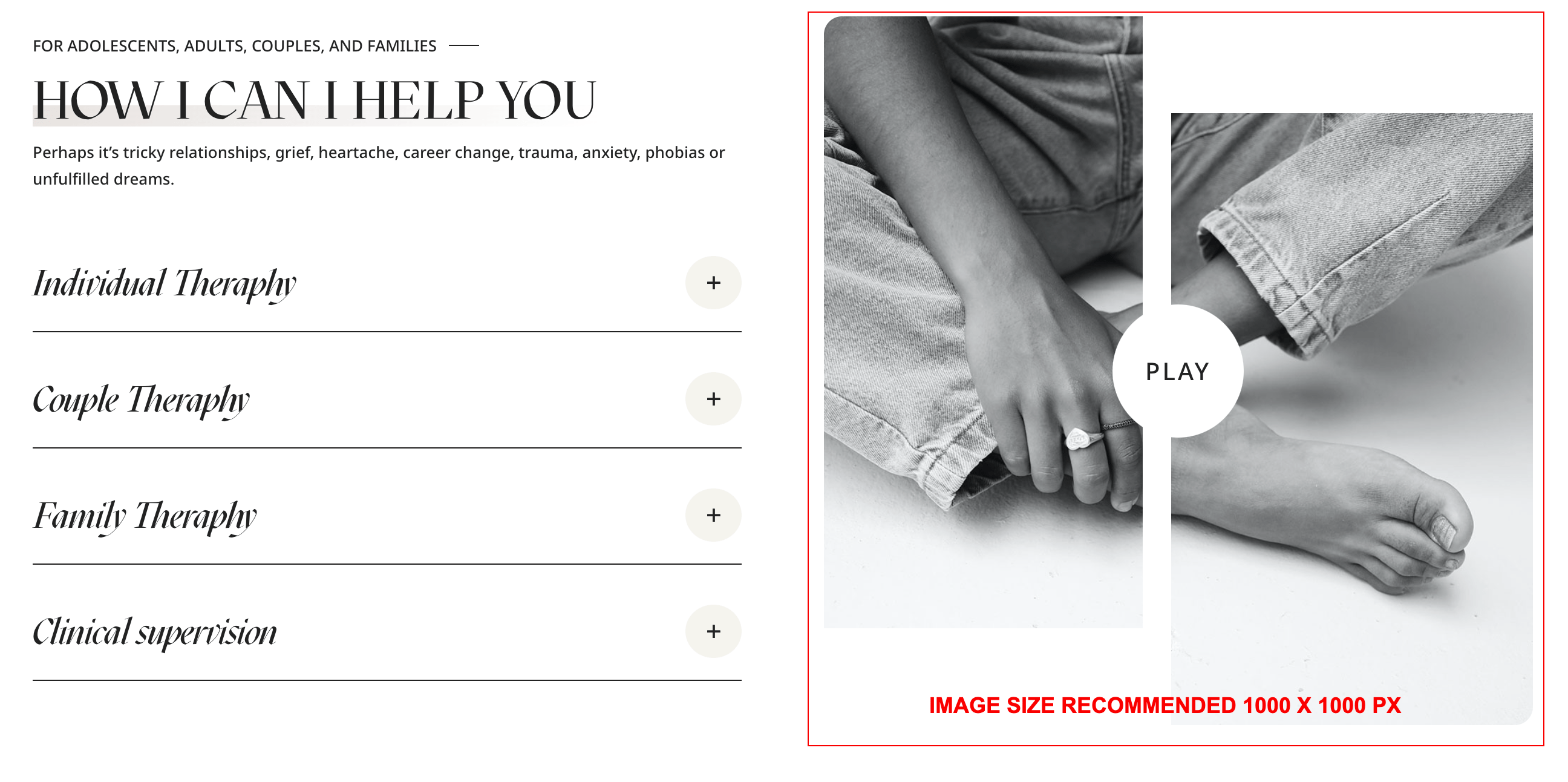
- Click on Enable Visual Builder in the top bar.
- To replace an image, start by hovering your mouse over it. A grey panel should appear with some icons inside it. Click on the cog icon. This will open a new panel with settings related to this specific element.
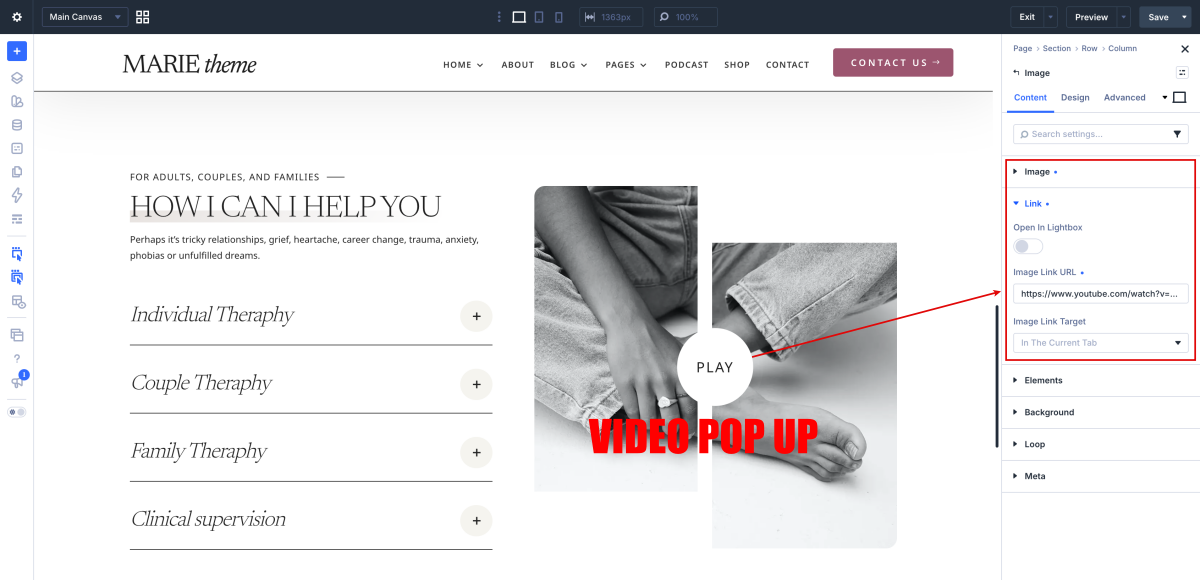
-
- Open your Image Module.
- Go to Content → Link tab
- Add Video URL to Image Link URL field and Save the module.
- If you want add any other pop-up video to other image go any image module and paste this code:
- Go to Advanced → CSS Class → Paste code: video_popup
How to edit Services in Home 3
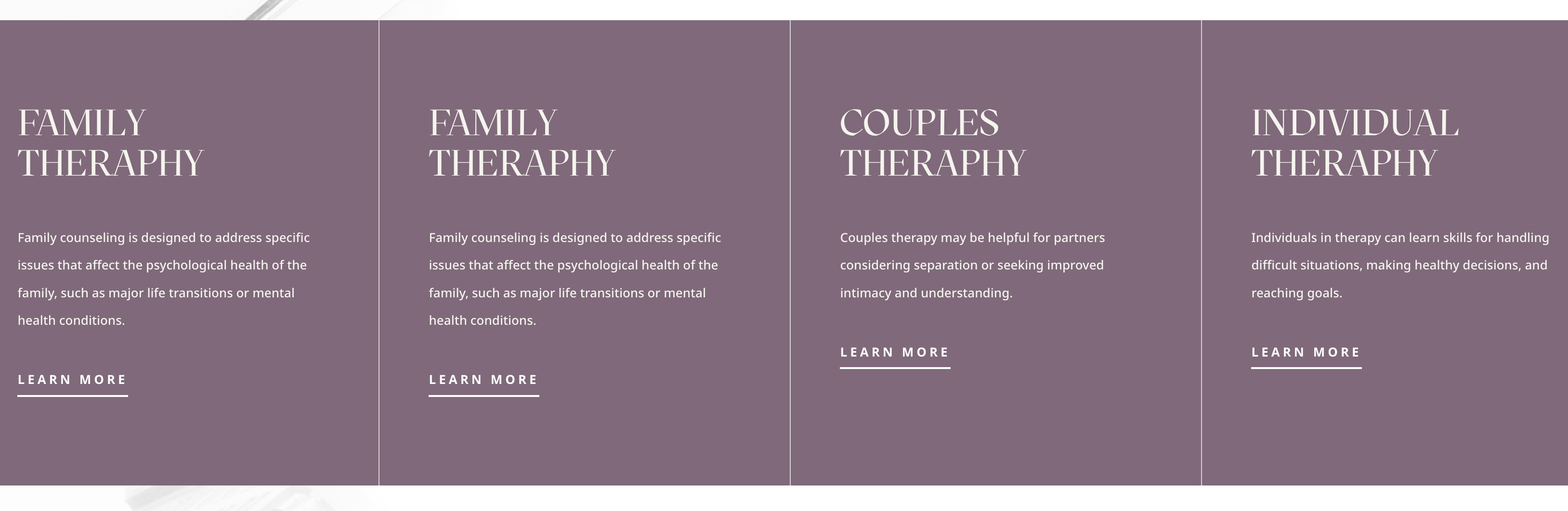
- Click on Enable Visual Builder in the top bar.
- To replace an image, start by hovering your mouse over it. A grey panel should appear with some icons inside it. Click on the cog icon. This will open a new panel with settings related to this specific element.
- For best results, use images with equal size.
Need Further Tutorials?
The Divi Button Module: https://bit.ly/2UN7GZc