Body font: Lato
Heading font: Butler
Handwritten: Better Grade
How to edit text:
- Click on Enable Visual Builder in the top bar.
- Making changes to text with the Divi Visual Builder is as simple as clicking and typing.
How to Globally Change the Website Font in Divi:
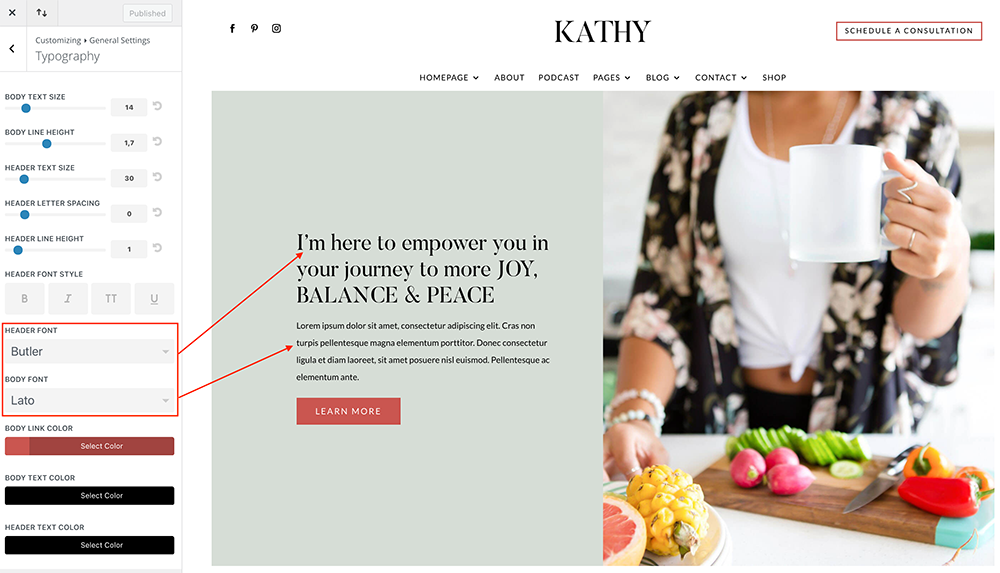
Fonts used in Kathy Theme are Butler in header, Lato in body and Better Grade.
Navigate to Divi > Theme Customizer > General Settings > Typography > Select your Header/body font.
How to Change Font in Divi Modules:
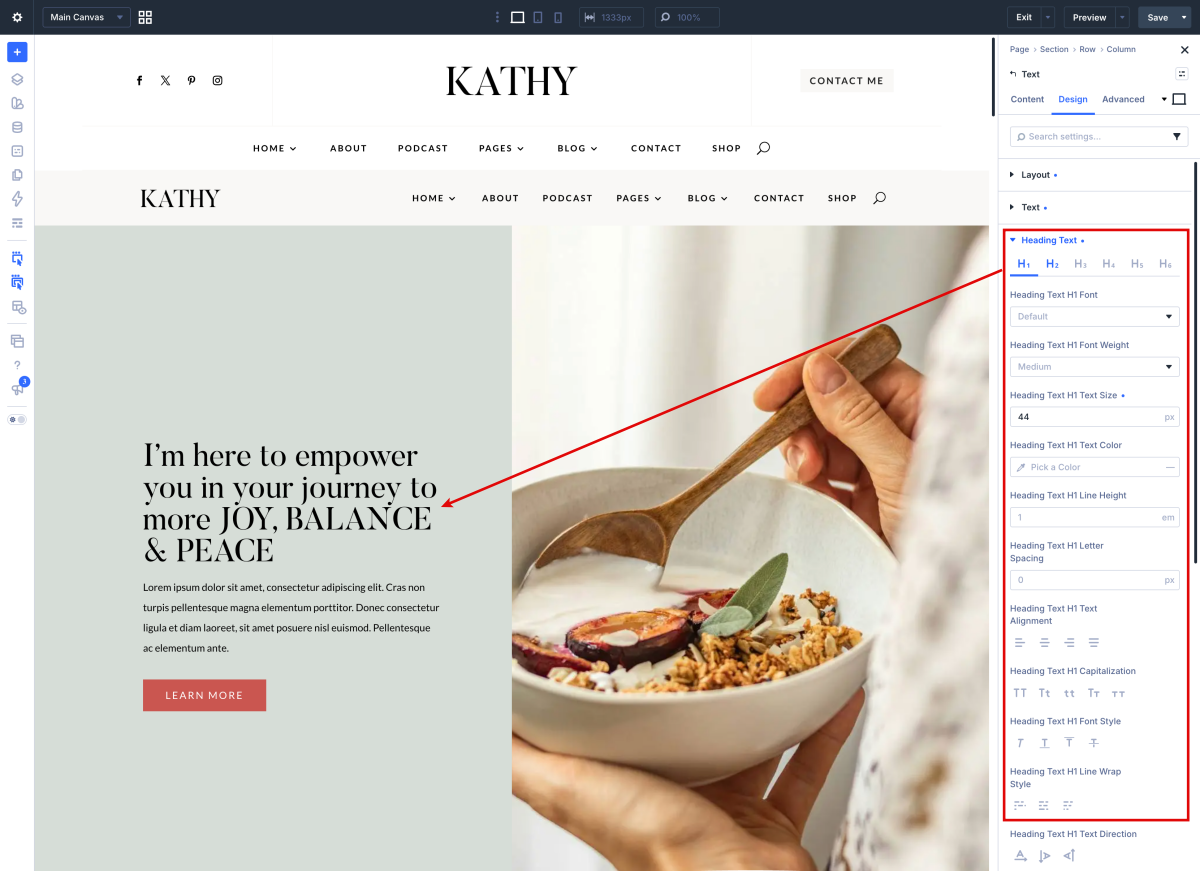
Each module have a design option where how you want it by choosing the text color, orientation, font, font size, font spacing, and line height.
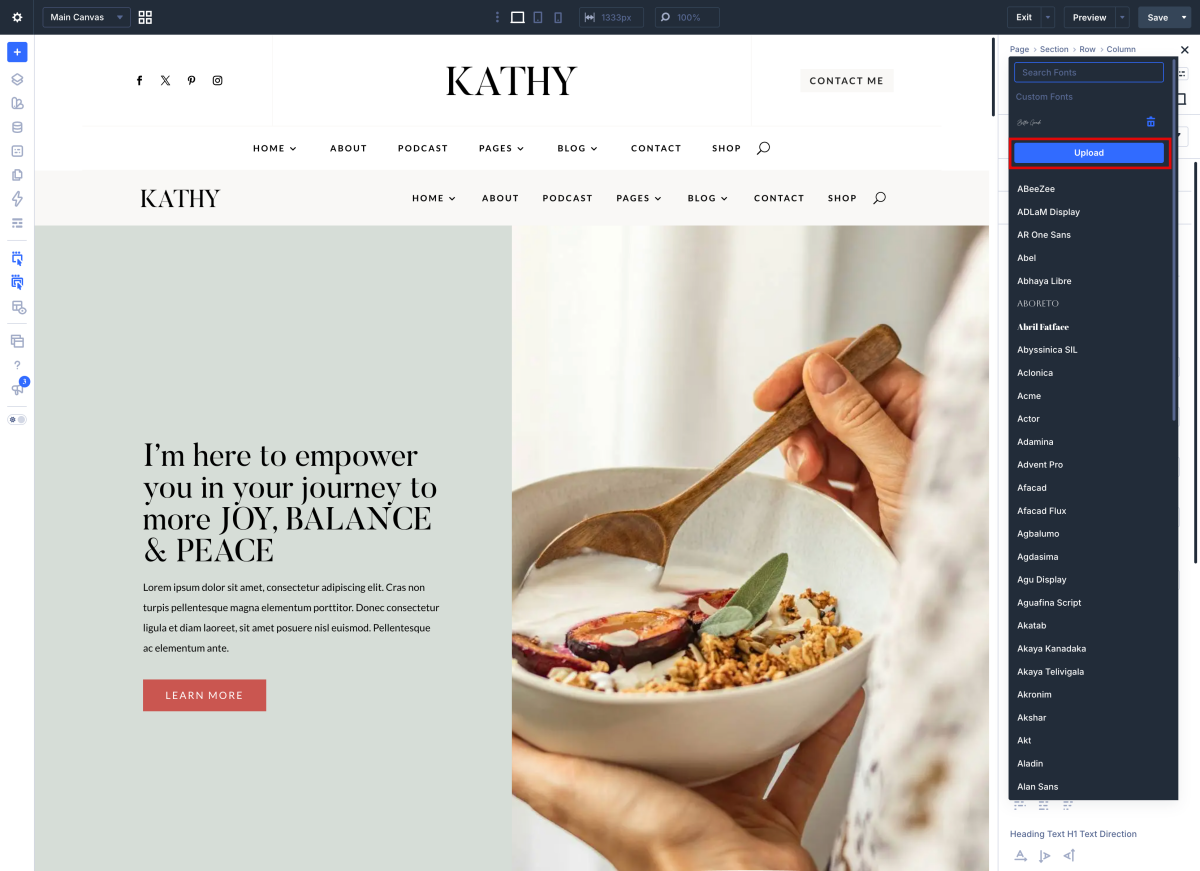
How to add a Custom Font to your Divi website:
Butler Regular (get font) and Better Grade ( get font) are fonts not included in Divi so you have to upload them.
- Open the Divi Visual Builder and go to any design module that shows a font.
- 2. Click “upload” and select your font (supported file formats are: .OTF, .TTF, .EOT, .WOFF, WOFF2).
Example Better Grade in demo.
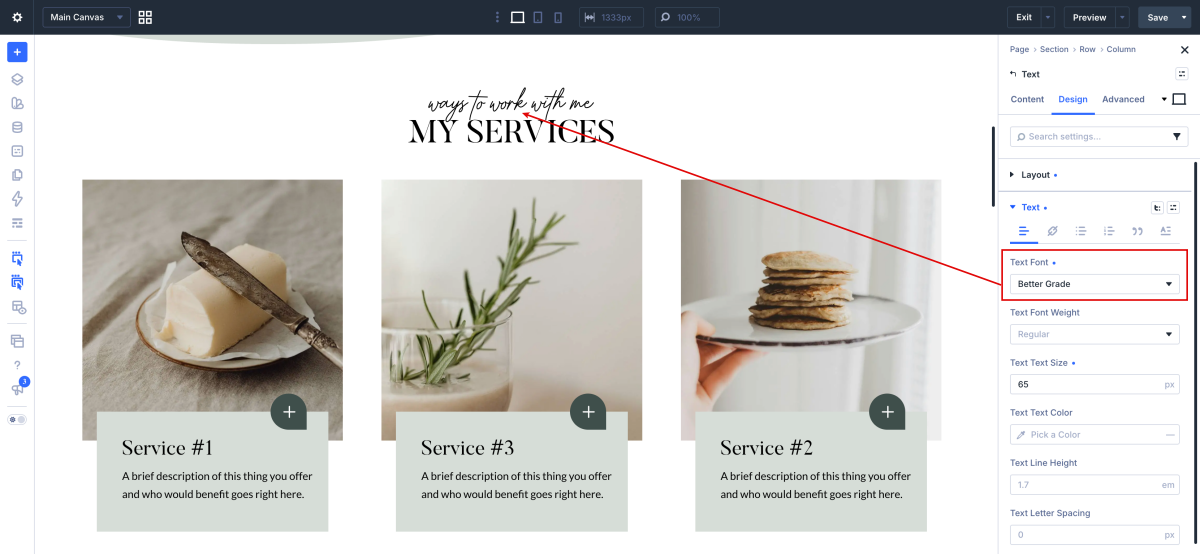
Once the fonts are loaded you can use them globally as is the case of the Butler font in the headings.
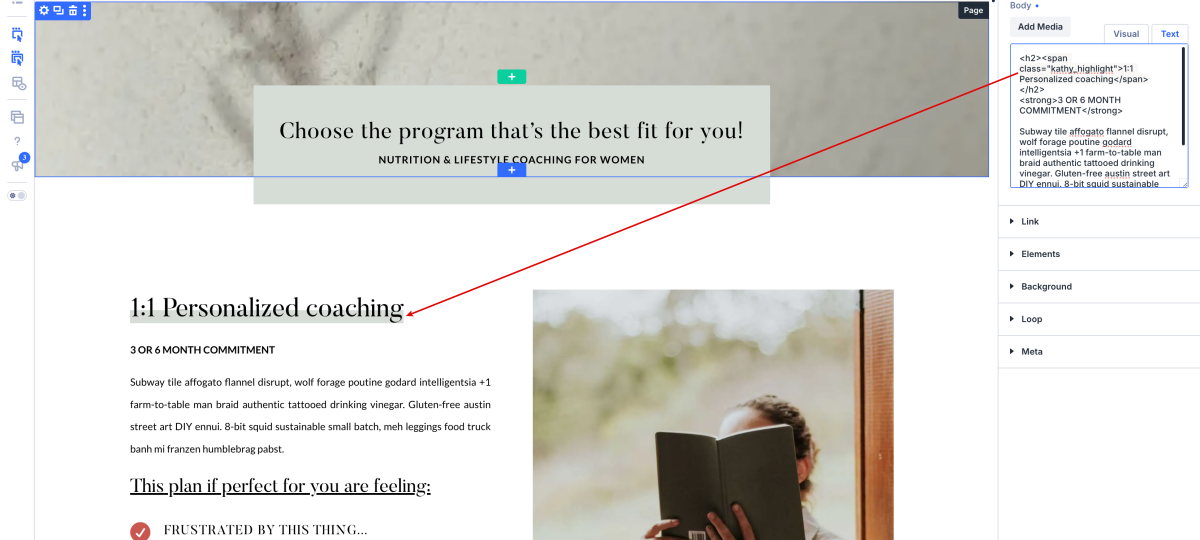
How To Add Text Highlights
- Go to text content and select text tab.
- Paste this snippet and edit the text (YOUR HIGHLIGHT TEXT GOES HERE…):
<span class="kathy_highlight">YOUR HIGHLIGHT TEXT GOES HERE...</span>