Creating a WordPress Menu
To begin creating your menu, click on Appearance – Menus in your WordPress dashboard.
Once there, you see the not-so-clear WordPress menu creation screen. In it, you have 4 main points of interest.
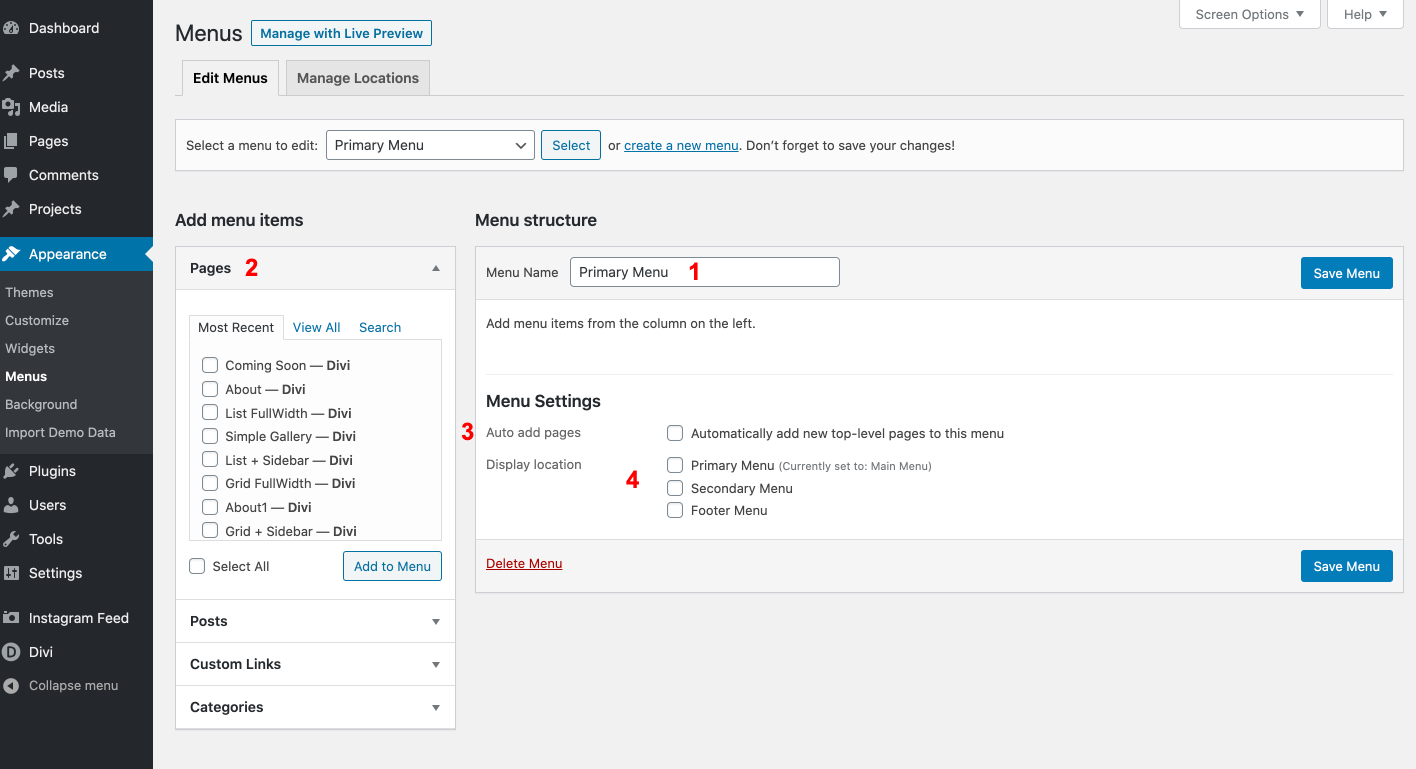
- Menu Name – This name is not front-facing. It is only for your organizational needs.
- Pages, Posts, Custom Links, and Categories – You can include menu items to anywhere on your blog (individual posts or pages, as well as whole categories). If you want a menu item as an external link, use the Custom Links section.
- Automatically Add Pages – If you want all new Pages you create to be added to your menu, leave this checked. Very few times is this a good option.
- Display Location – Your options may vary from theme to theme, but these are the places within your site that your menu can appear in full. The Manage Locations tab is an extension of this.
To create the menu itself, simply select anything from the left side (1) and press Add to Menu (2). It will appear under the Menu Structure heading to the right, and it can be expanded to show other options that can be changed on an item-by-item basis (3).
Creating a WordPress Menu with Hierarchy
If you want to have submenus (on click or on hover), you can do that. You do it exactly like you did above, only you add in a single step.
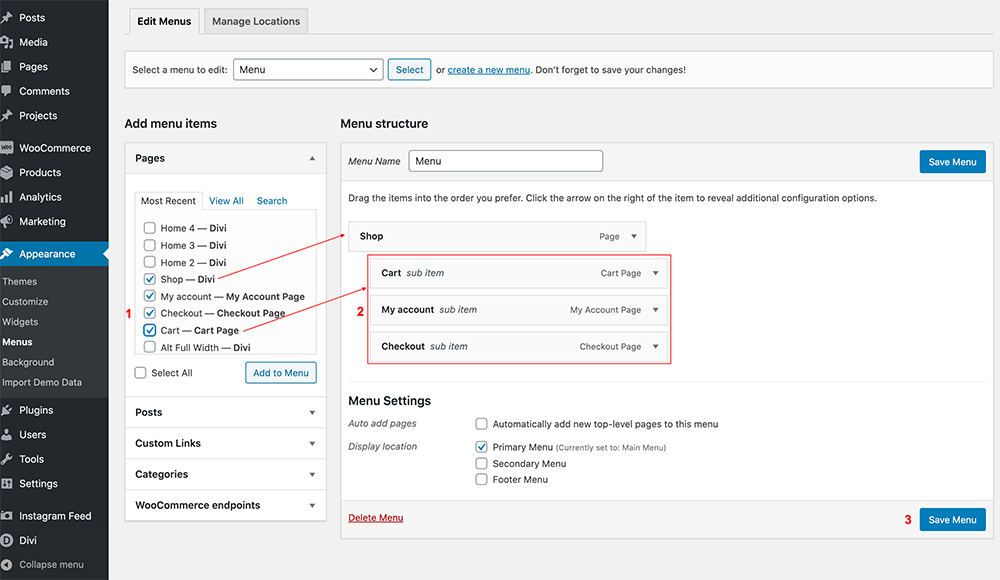
When you’ve hit the Add to Menu button, and the new item has appeared, you will be able to drag and drop it beneath the item you want as its parent.
Adding custom links to a WordPress menu
There are many reasons why you might want to add a custom links to your WordPress.
The most obvious are linking out to social media profiles or other websites.
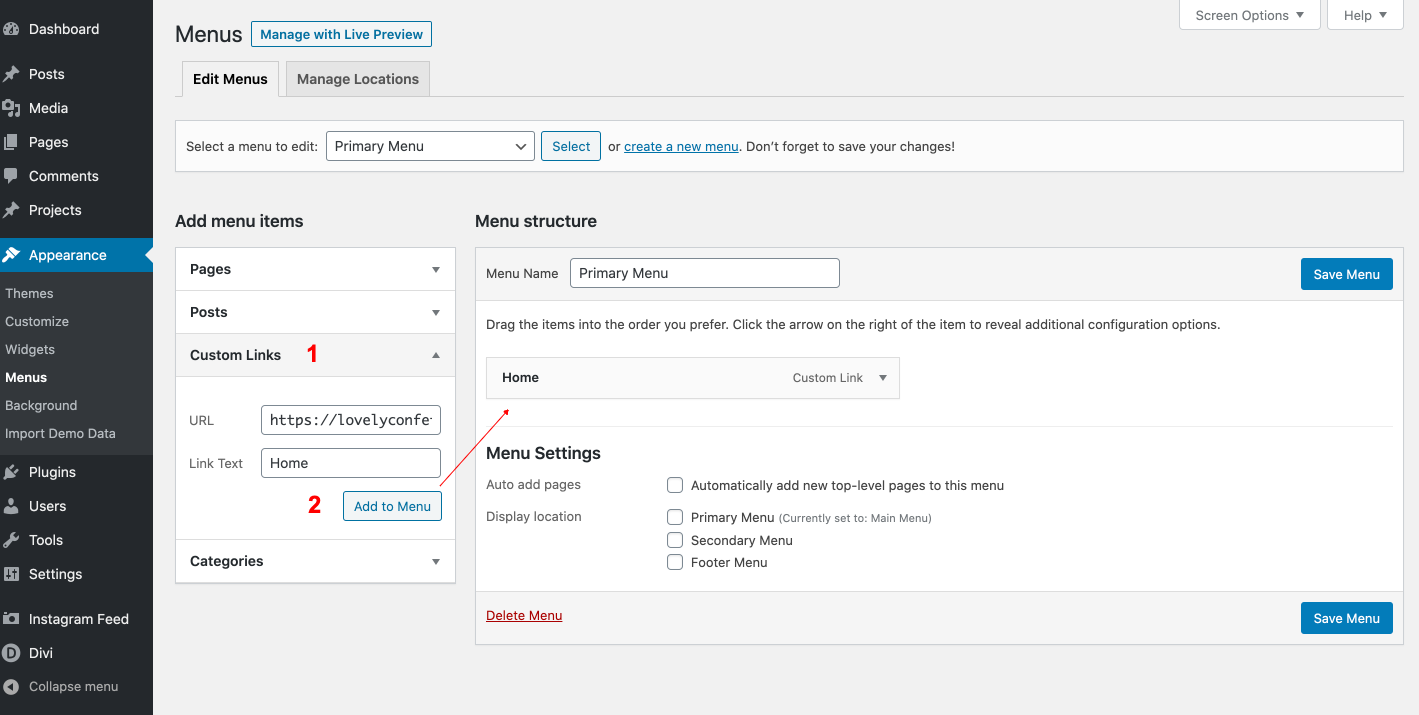
- Click on the ‘Custom Links’ heading from the menu options which appear below.
- Type or paste the URL into the URL text field.
- Add ‘Link Text’ – this is the word or words which will appear as your custom menu link, when your readers navigate and look at your website’s menu.
- Click on the ‘Add to Menu’ button, and your new custom link will be added to the bottom of your selected menu in the Menu Structure module to the right of the Menu screen.
Adding Categories to WordPress Menus
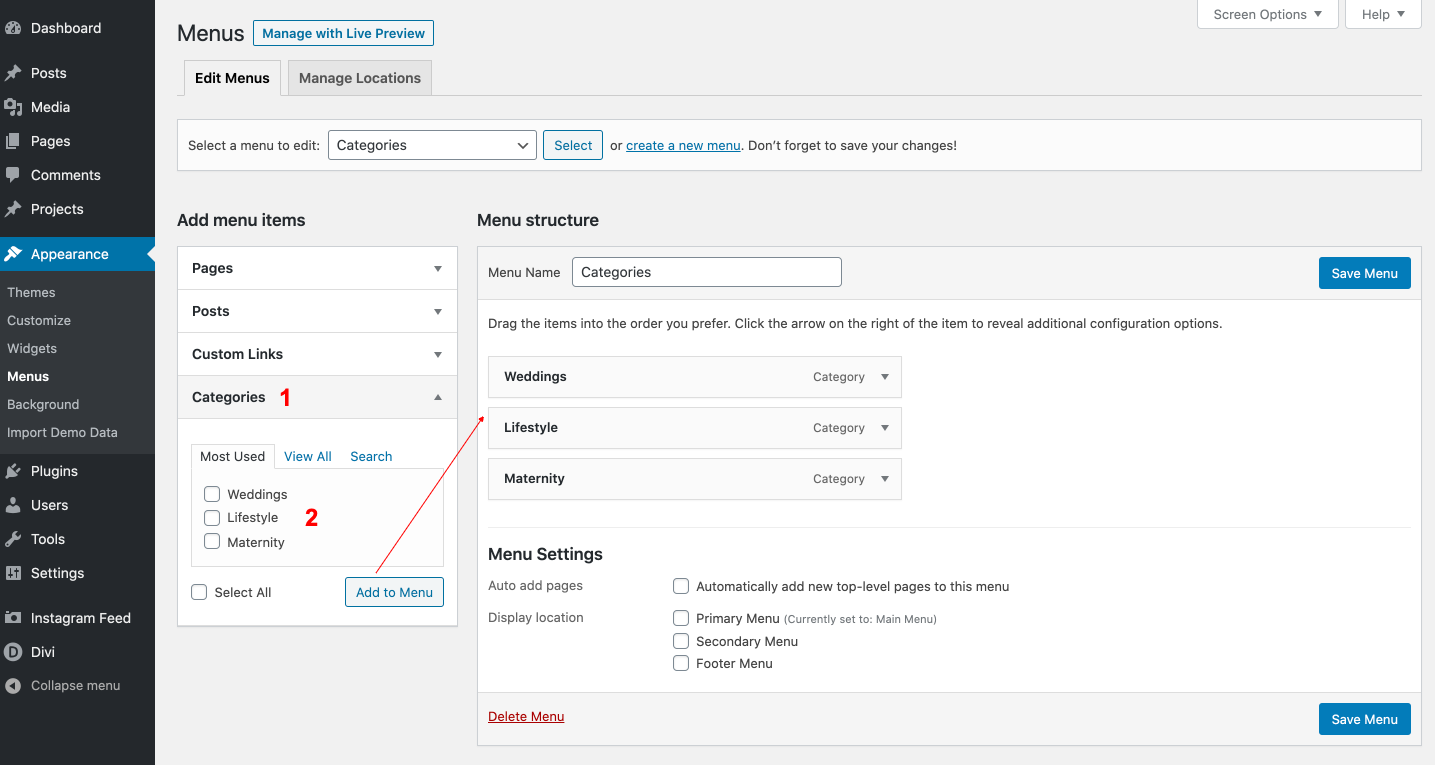
Simply select the categories you want to add to the menu, and then click the ‘Add to Menu’ button.