• HOME
  • DIVI BEGINNERS
  • TUTORIALS
  • TROUBLESHOOTING
  • SUBMIT A TICKET
  • HOME
  • DIVI BEGINNERS
  • TUTORIALS
  • TROUBLESHOOTING
  • SUBMIT A TICKET
home/Knowledge Base/2. Charlize - Use Divi Visual Builder/Charlize – How to edit Hero Image

Charlize – How to edit Hero Image

  1. Log into WordPress
  2. Go to the page you want to edit
  3. Click on Enable Visual Builder in the top bar.

 

How to change background:

Open the section settings > Content > Change background.
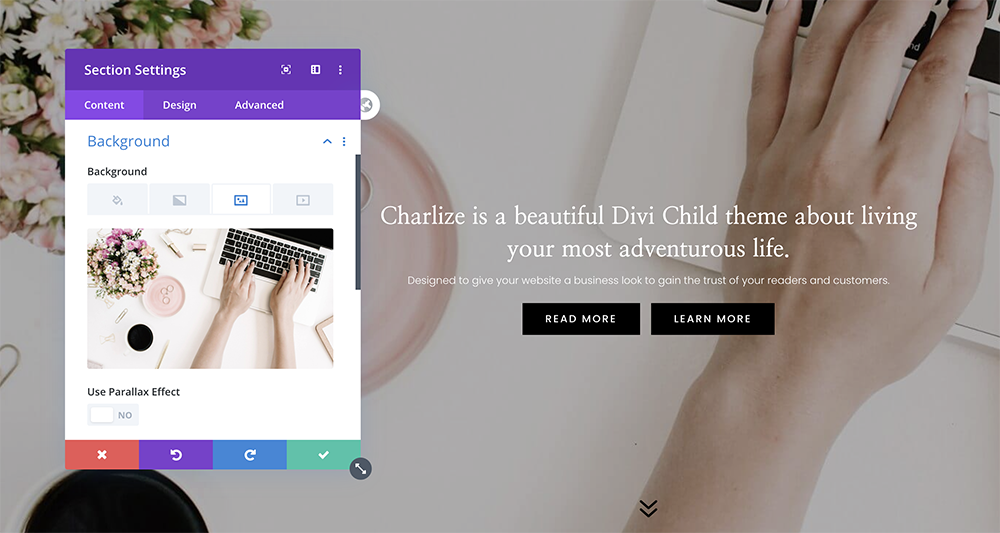
https://www.support.helplovelyconfetti.com/wp-content/uploads/2020/07/Charlize-Hero-Change-Background.webm


How to change Text:

Open the header settings > Content > Change title, subtitle and buttons.
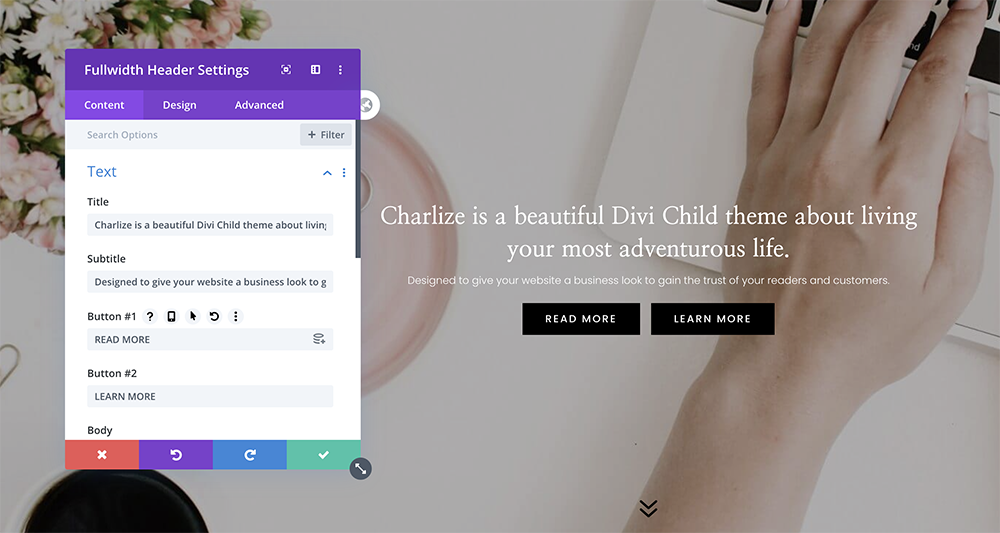
https://www.support.helplovelyconfetti.com/wp-content/uploads/2020/07/Charlize-Hero-Change-Text.webm


How to change Overlay:

Open the header settings > Content > Design > Change overlay


Related Articles
  • Charlize – How to choose your blog layout
  • Charlize – Choose your Home
  • Charlize – How to add Category Menu
  • Charlize – How to edit form optin
  • Charlize – How to edit Images
  • Charlize – How to edit Texts
2. Charlize - Use Divi Visual Builder
  • Charlize – How to edit Hero Image
  • Charlize – How to edit Texts
  • Charlize – How to edit Images
  • Charlize – How to edit form optin
  • Charlize – How to add Category Menu
  • Charlize – Choose your Home
  • Charlize – How to choose your blog layout

  Charlize – How to edit Images

Charlize – How to edit form optin  

  • Privacy Policy
  • Terms of Use
  • Copyright 2023. All Rights Reserved.