COLOR GUIDE:
Color Light 1: #f9f5f2
Color Light 2: #d2d6d8
Color Light 3: #ebe9e7
Color Medium 1: #808e97
Color Dark 1: #254960
Color Dark 2: #c15845
Color Dark 3, Headings & Body: #181d22
How to change global colors
Saving colors can be accomplished by setting a default color palette in Divi’s theme options. To set your colors, navigate to Divi > Theme Options > General > Color Pickers Default Palette.
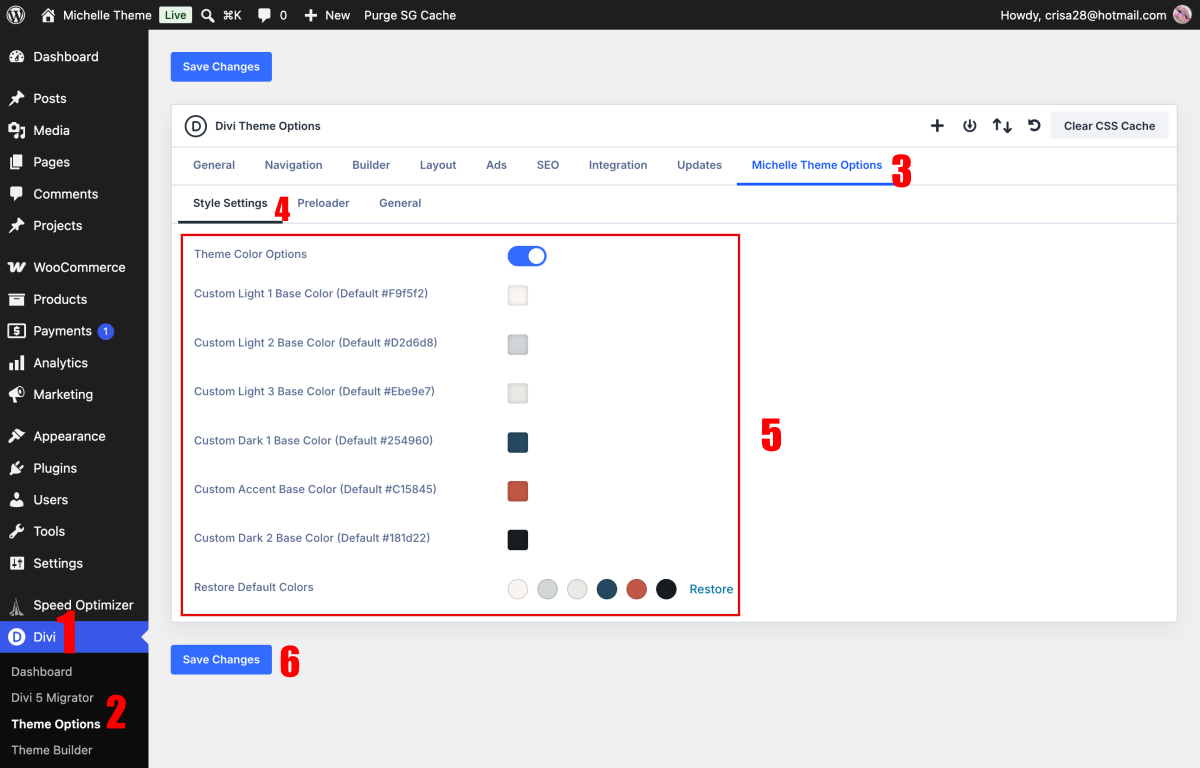
Once colors are saved, they are accessible to you anywhere within the Visual Builder’s color options under the saved tab.
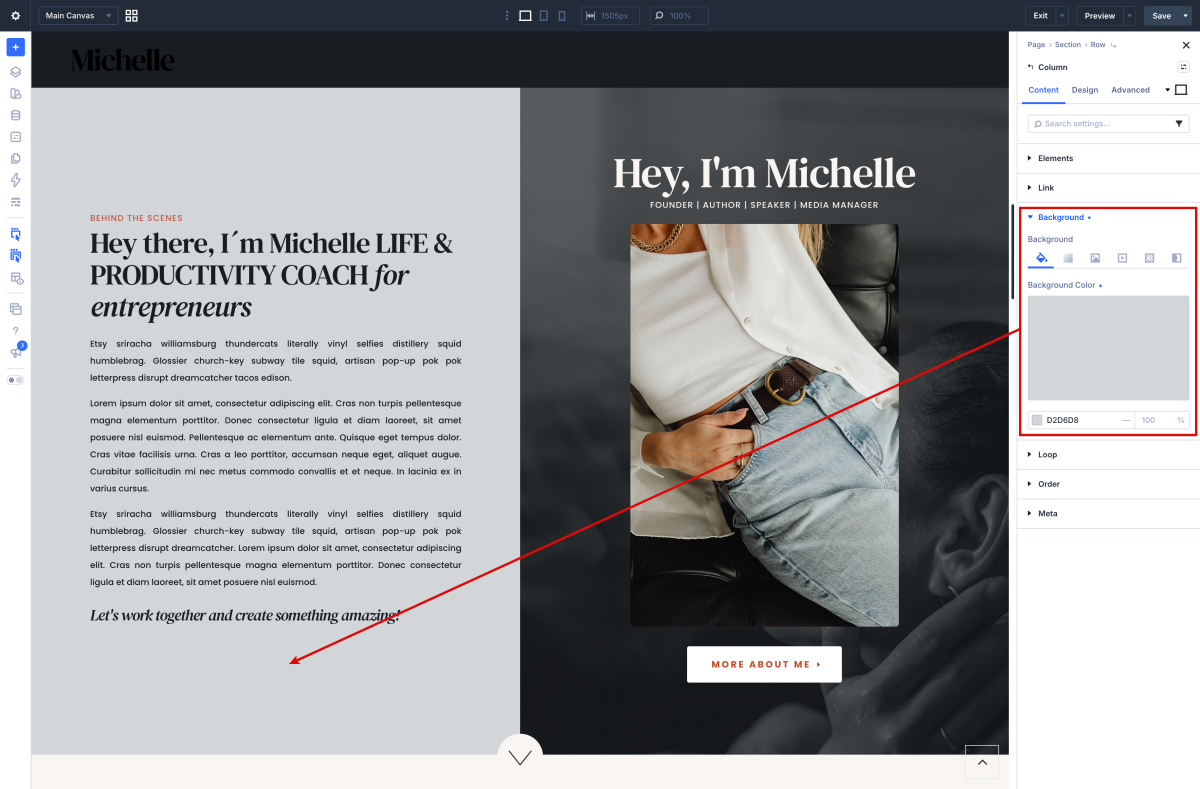
If you don´t want use Michelle Theme Otions, disable and use Divi Variable Manager.
How to change global Colors
Open any page in the Visual Builder and click the Variable Manager icon in the left sidebar.
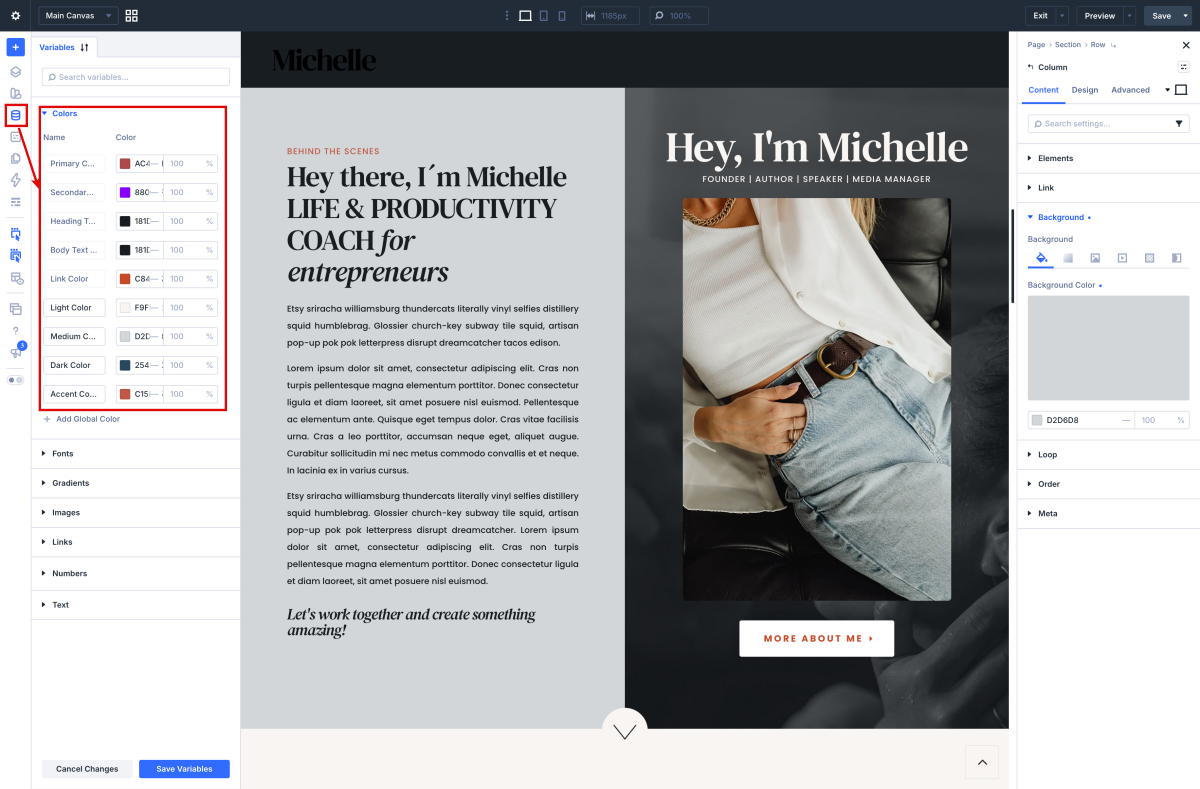
How to apply Global Variables in your designs

How to change global buttons
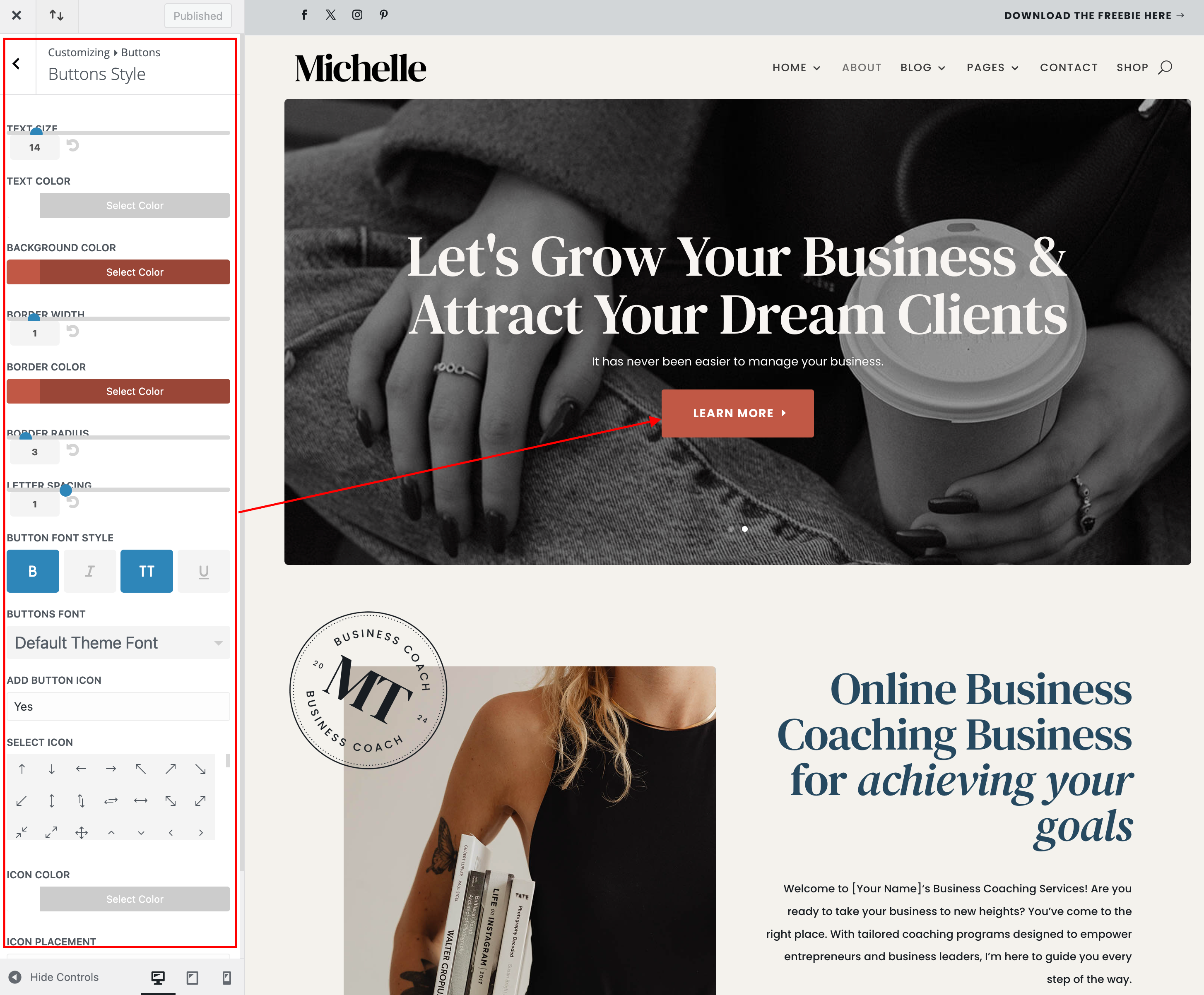
Navigate to Appearance > Customize > Buttons > Buttons Styles and Button Hover Styles.
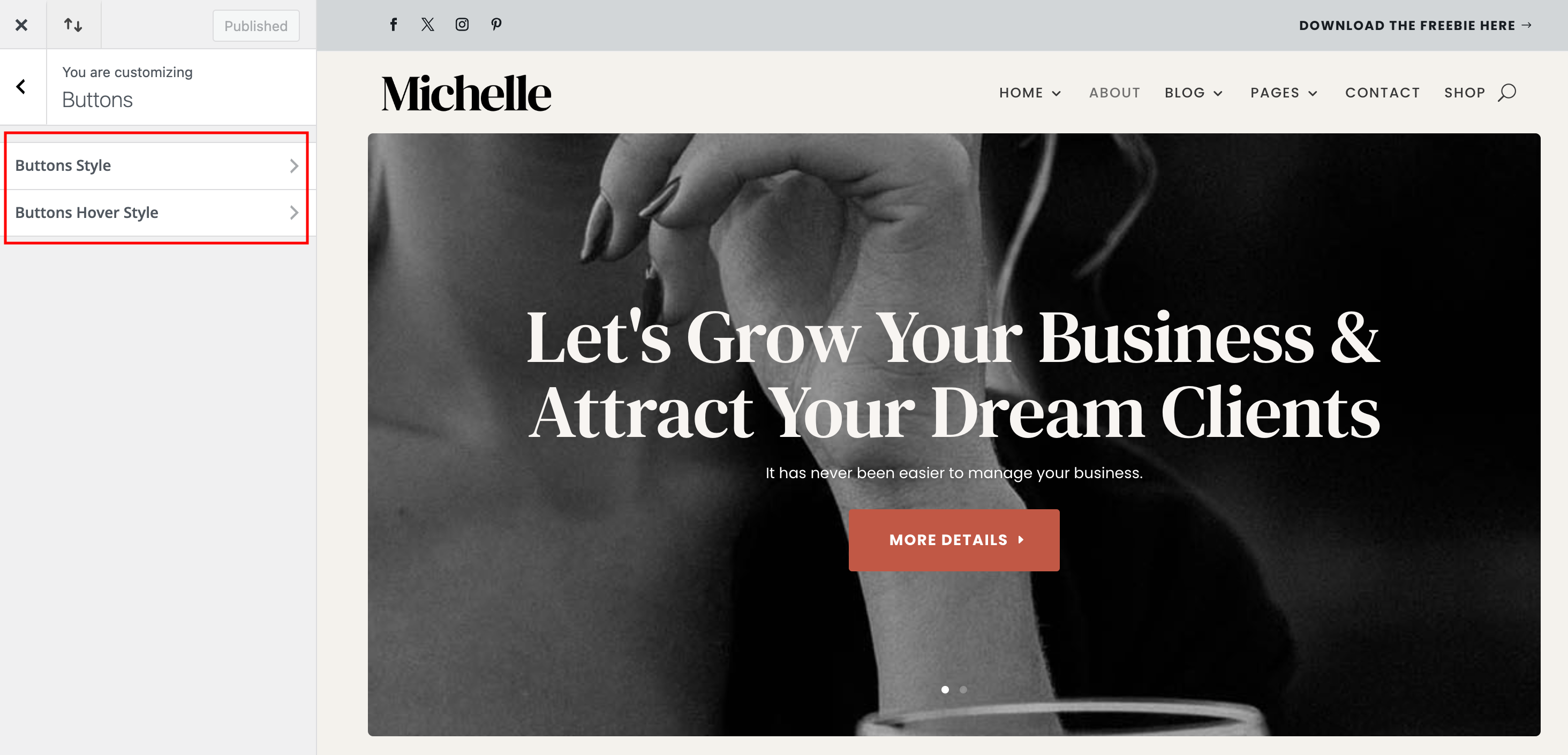
You can change the color of your button text & background, adjust the button font size and style, and even create rounded buttons using the border-radius slider. In addition, you can change the default font and icon used within the buttons.
Need Further Tutorials?
The Divi Color Management: https://l1nq.com/dkjLY
Divi Buttons in Theme Customizer: https://encr.pw/pnSov