Import a page layout from Divi Library
1 >> Open any page in Visual Builder.
2 >> Click on the Add Layout icon (located in the top left corner).
3 >> Click on the Saved Layout option.
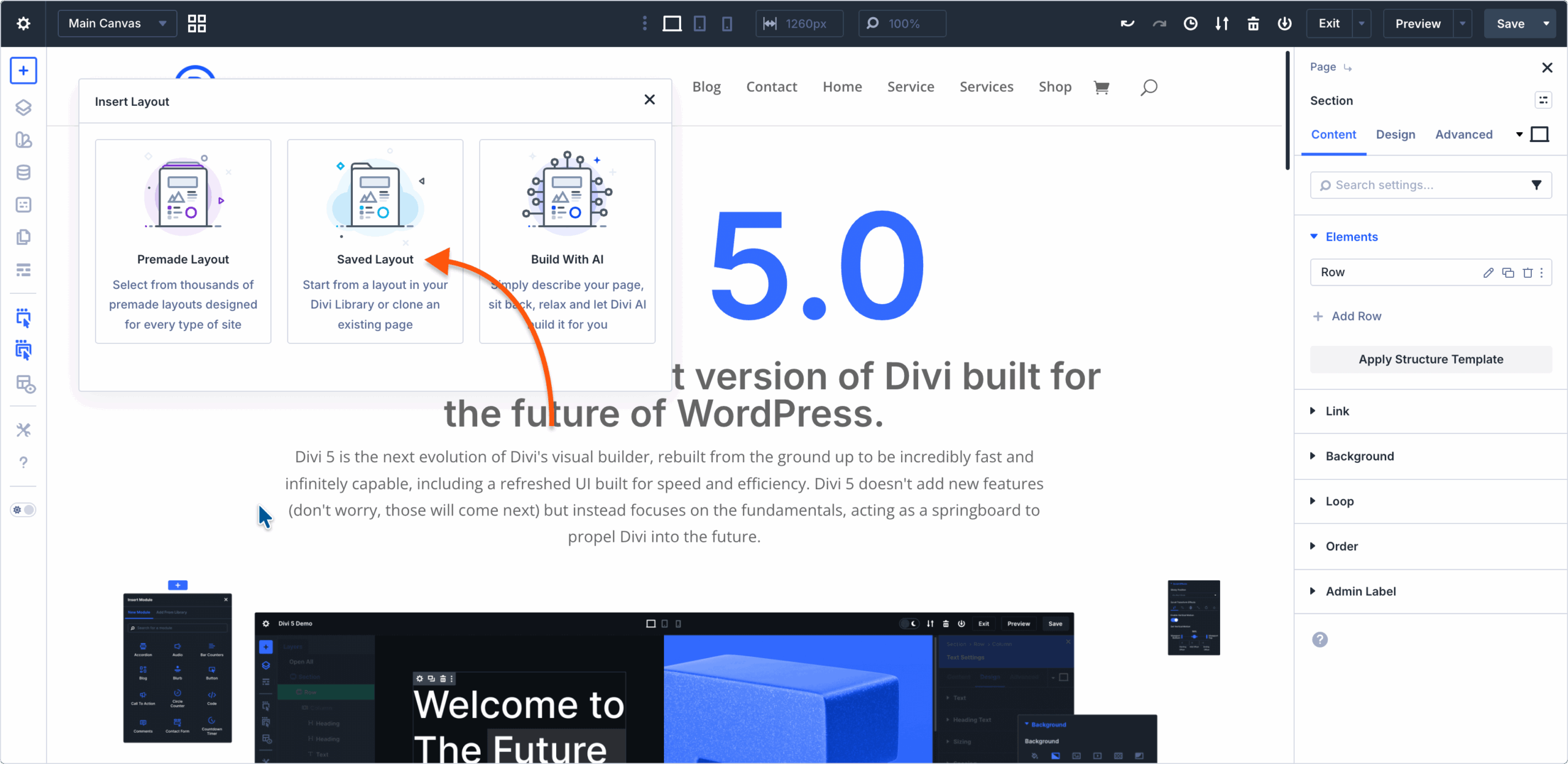
4 >> Click on the page layout you want to import.

5 >> Click on the Use This Layout button.

⚠︎ Note: If your page already has some elements added, when choosing to import a page layout, you have the option to replace the existing content or not, by checking/unchecking the Replace Existing Content option after selecting the layout you want to import.
Import elements(section, row, and module) from the Divi Library
⚠︎ Important note: Importing elements from Divi Library to your pages is contextual. That means, only a specific element type will be avaiable to be imported, depending on the context from where the import was initiated.
For example, clicking on the Add Section button and choosing the Add From Library tab, it will display only Sections that are being saved to the Divi Library.
1 >> Click the Add element button:
 – Add Section button
 – Add Row button
 – Add Module button

2 >> Click the Add From Library tab.
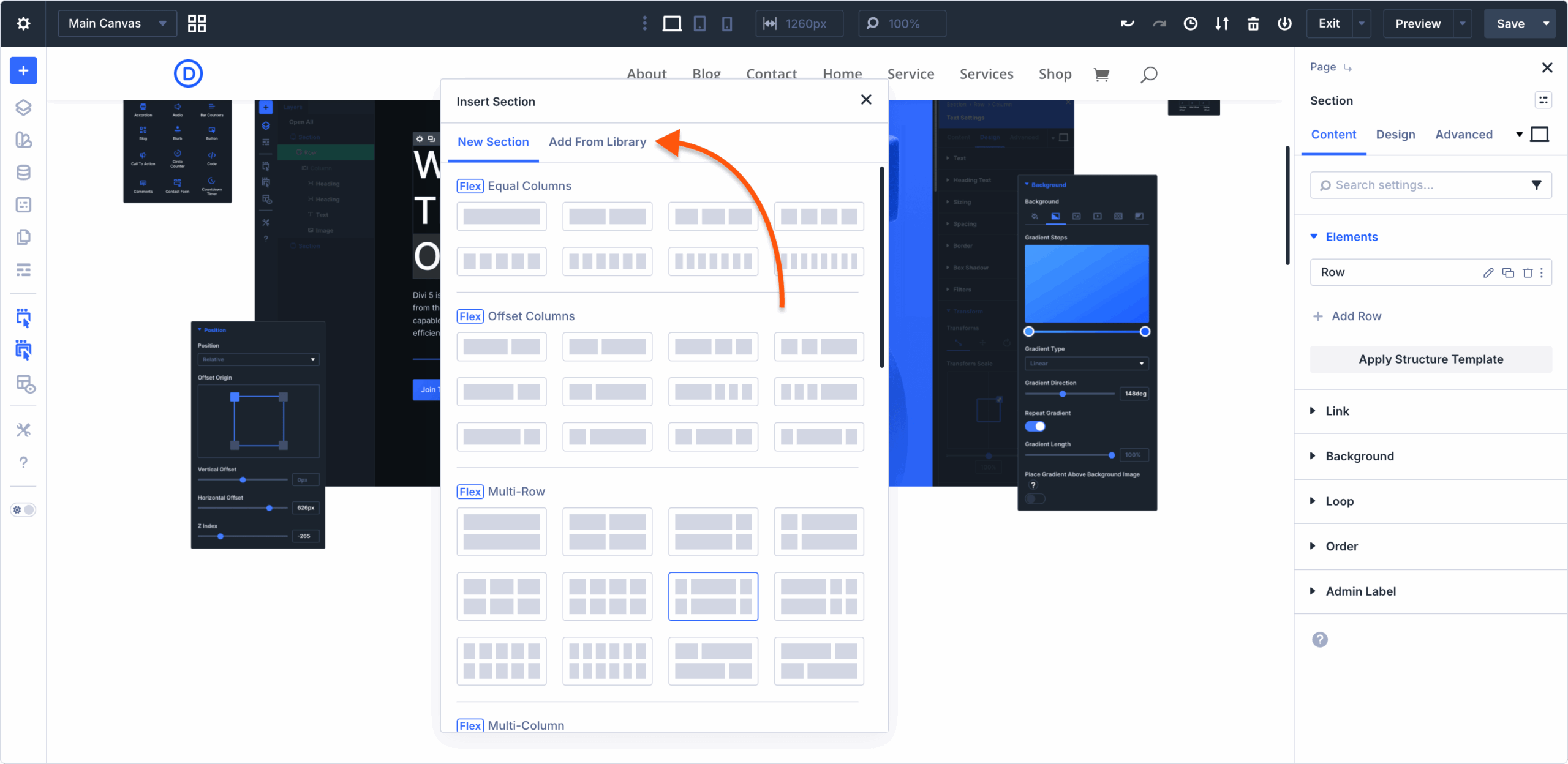
3 >> Select the element you want to import.
4 >> Click the Use This Section/Row/Module button.

Pro Tip: After selecting a layout or element to be imported, you can also click on the View Live Demo button to view a preview of the element you are about to import.