• HOME
  • DIVI BEGINNERS
  • TUTORIALS
  • TROUBLESHOOTING
  • SUBMIT A TICKET
  • HOME
  • DIVI BEGINNERS
  • TUTORIALS
  • TROUBLESHOOTING
  • SUBMIT A TICKET
home/Knowledge Base/2. Ellen - Use Divi Visual Builder/Ellen – How to edit texts

Ellen – How to edit texts

Google Body font: DM Sans
 
Google Headings font: Marcellus

How to edit text:


  1. Click on Enable Visual Builder in the top bar.
  2. Making changes to text with the Divi Visual Builder is as simple as clicking and typing.


https://www.support.helplovelyconfetti.com/wp-content/uploads/2024/07/Ellen_Edit-Texts.webm


How to Globally Change the Website Font in Divi:

Fonts used in Ellen Theme are Marcellus in headers, DM Sans in body.
 
Navigate to Divi > Theme Customizer > General Settings > Typography > Select your Header/body font.
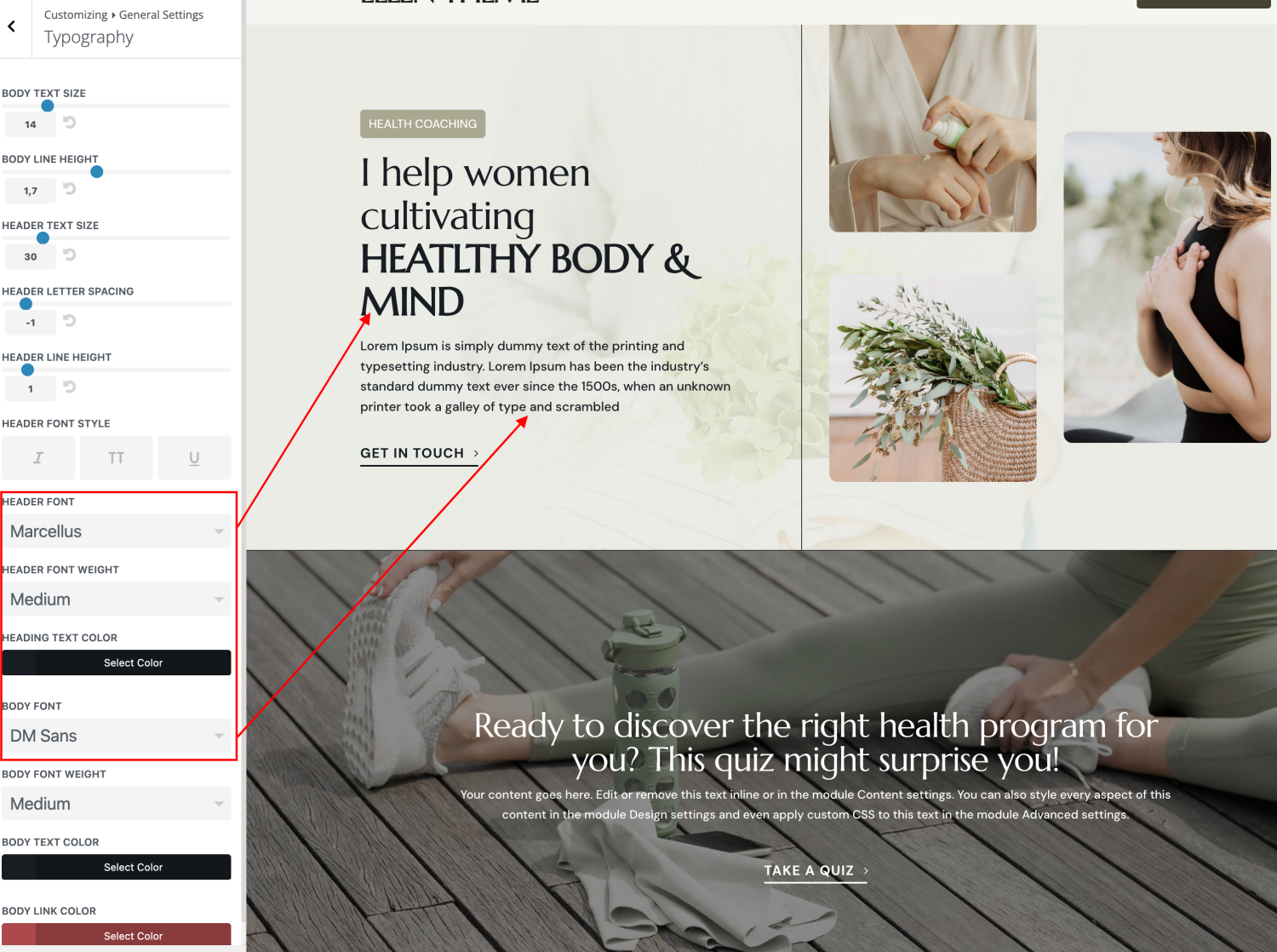


How to add a Custom Font to your Divi website and use it globally:
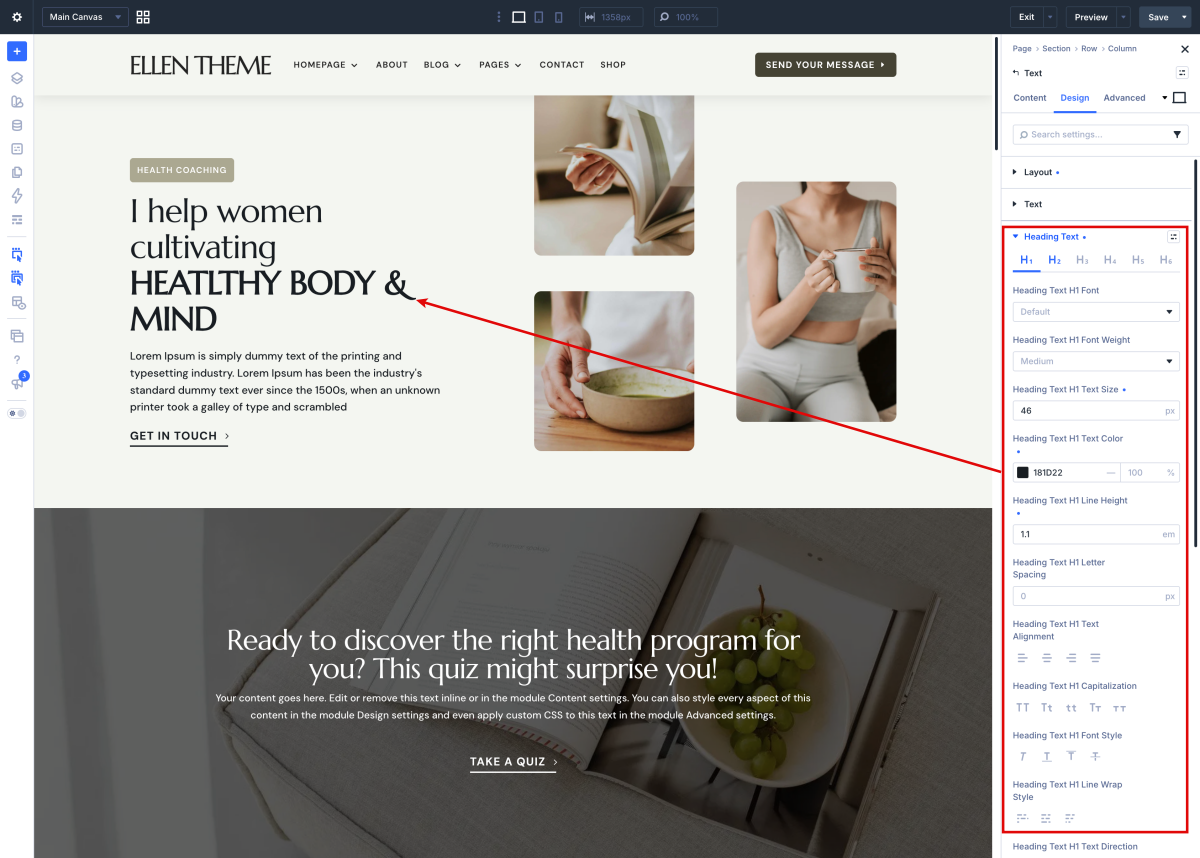
 

  1. Open the Divi Visual Builder and go to any design module that shows a font.
  2. Click “upload” and select your font (supported file formats are: .OTF, .TTF, .EOT, .WOFF, WOFF2).
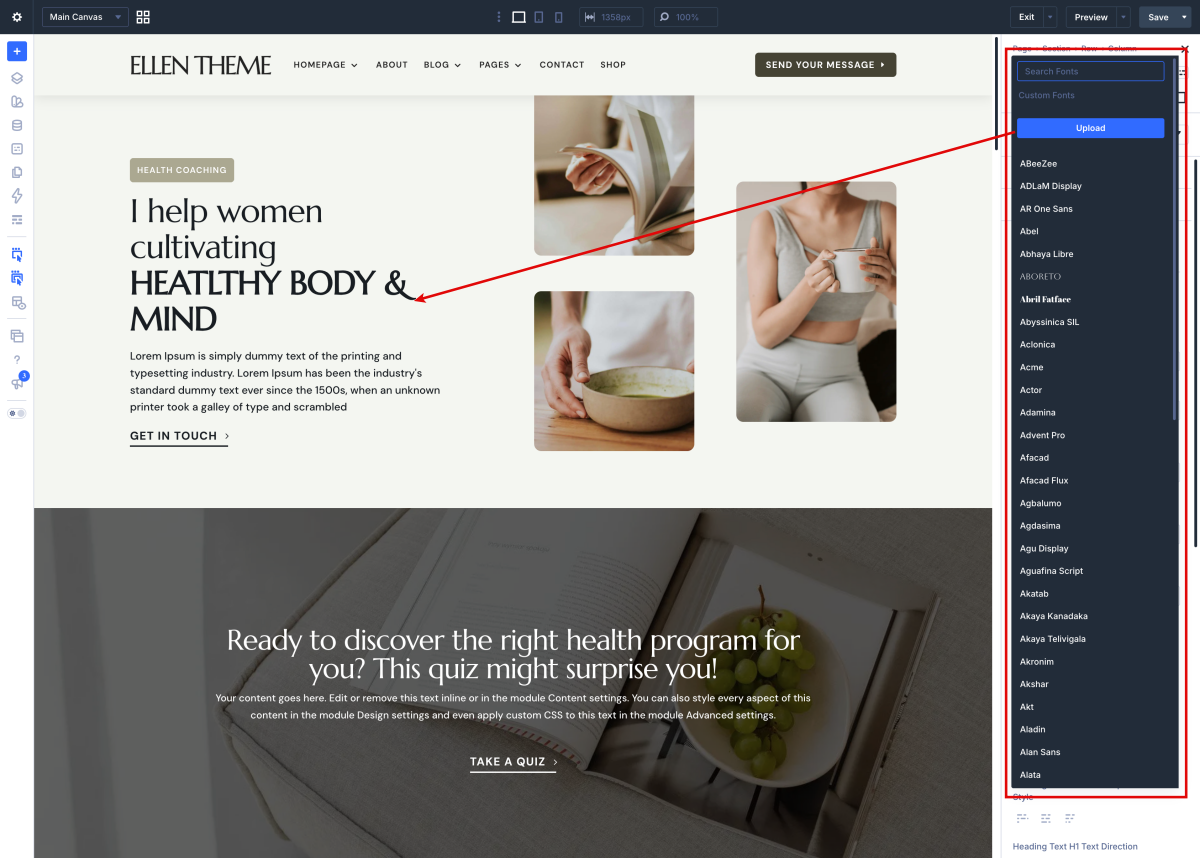


Once the fonts are loaded you can use them globally as is the case of the Sloop Script Regular font in the headings.
 

Need Further Tutorials?

The Divi Text Module: https://bit.ly/39TuifW

Related Articles
  • Ellen – How to edit Testimonials
  • Ellen – How to edit About
  • Ellen – How to edit Services
  • Ellen – How to edit Hero
  • Ellen – How to edit images
  • Ellen – Choose your Home
2. Ellen - Use Divi Visual Builder
  • Ellen – How to edit texts
  • Ellen – How to enable the Divi Visual Builder
  • Ellen – Choose your Home
  • Ellen – How to edit images
  • Ellen – How to edit Hero
  • Ellen – How to edit Services
  • Ellen – How to edit About
  • Ellen – How to edit Testimonials

  Ellen – How to enable the Divi Visual Builder

Ellen – How to edit Testimonials  

  • Privacy Policy
  • Terms of Use
  • Copyright 2023. All Rights Reserved.