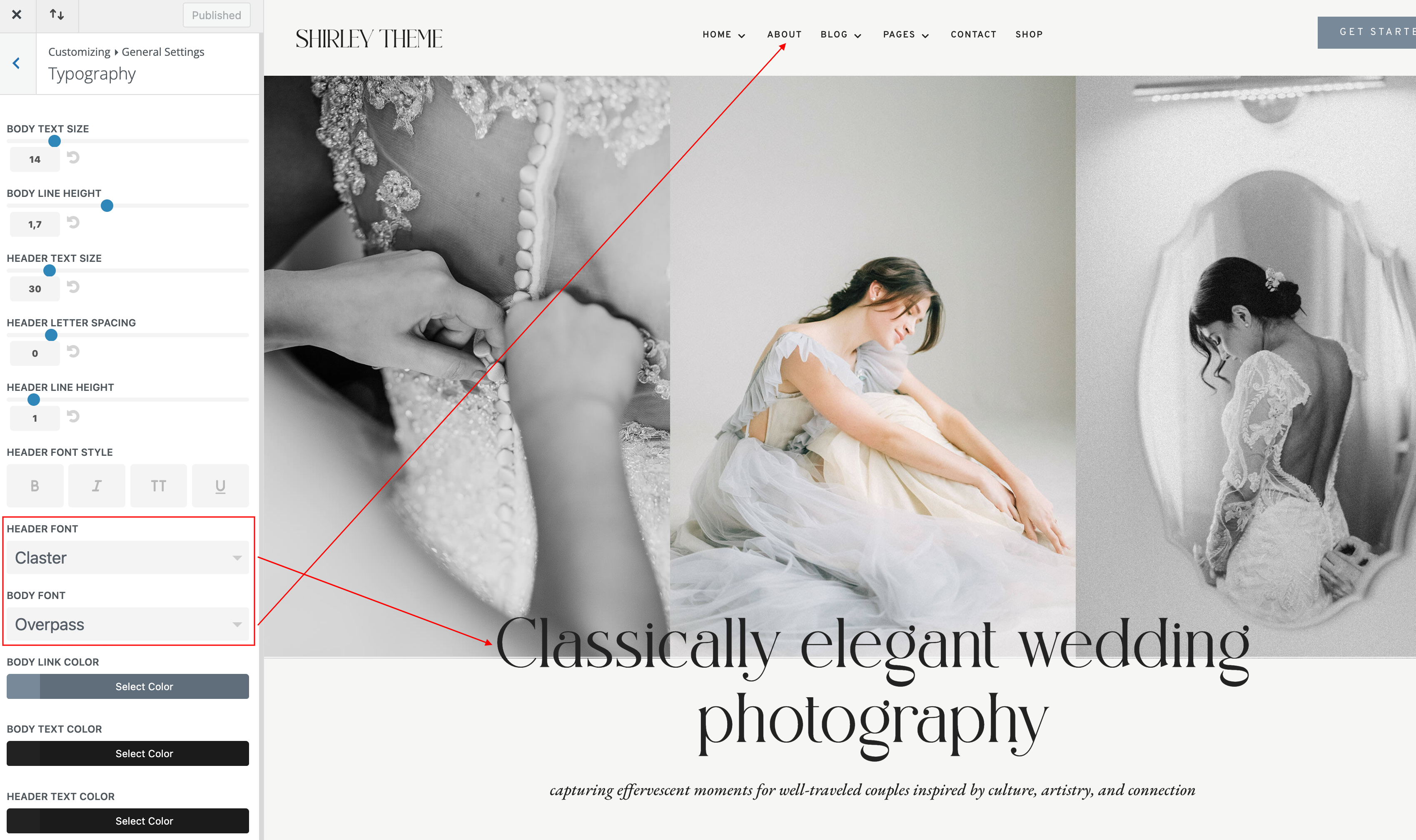
Google Body font: Overpass
Headings font: Claster Oleander
Headings italic: EB Garamond
How to edit text:
- Click on Enable Visual Builder in the top bar.
- Making changes to text with the Divi Visual Builder is as simple as clicking and typing.
How to Globally Change the Website Font in Divi:
Fonts used in Shirley Theme are Claster Oleander, EB Garamond in headers, Overpass in body
Navigate to Divi > Theme Customizer > General Settings > Typography > Select your Header/body font.
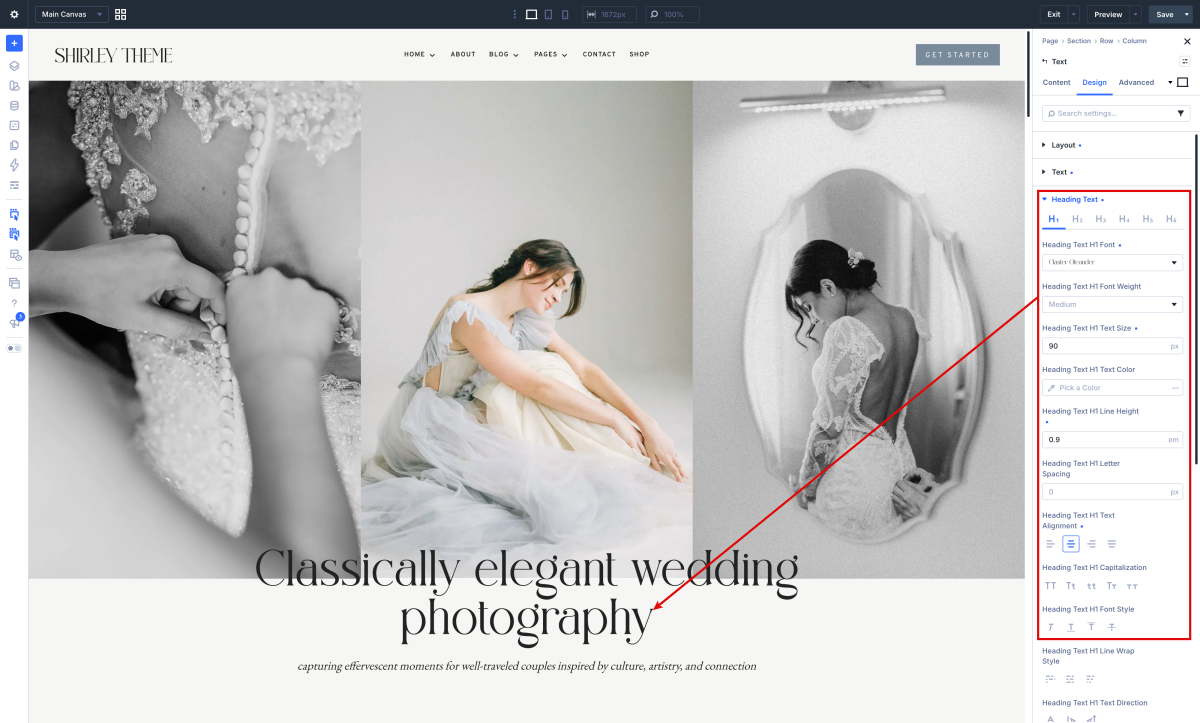
How to Change Font in Divi Modules:
Each module have a design option where how you want it by choosing the text color, orientation, font, font size, font spacing, and line height.
How to add a Custom Font to your Divi website:
Claster Oleander (get font) is a fonts not included in Google Fonts so you have to upload them.
- Open the Divi Visual Builder and go to any design module that shows a font.
- Click “upload” and select your font (supported file formats are: .OTF, .TTF, .EOT, .WOFF, WOFF2).
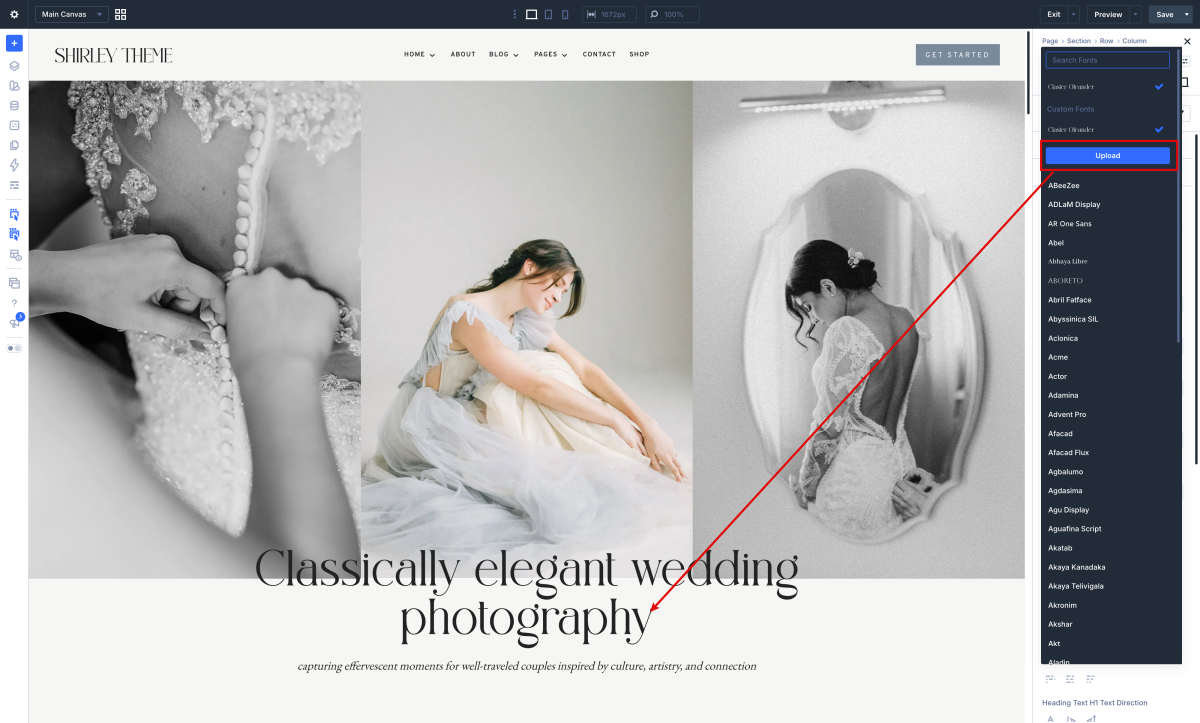
Once the fonts are loaded you can use them globally as is the case of the Claster Oleander font in the headings.
Need Further Tutorials?
The Divi Text Module: https://bit.ly/39TuifW