How to edit Hero in Home 1
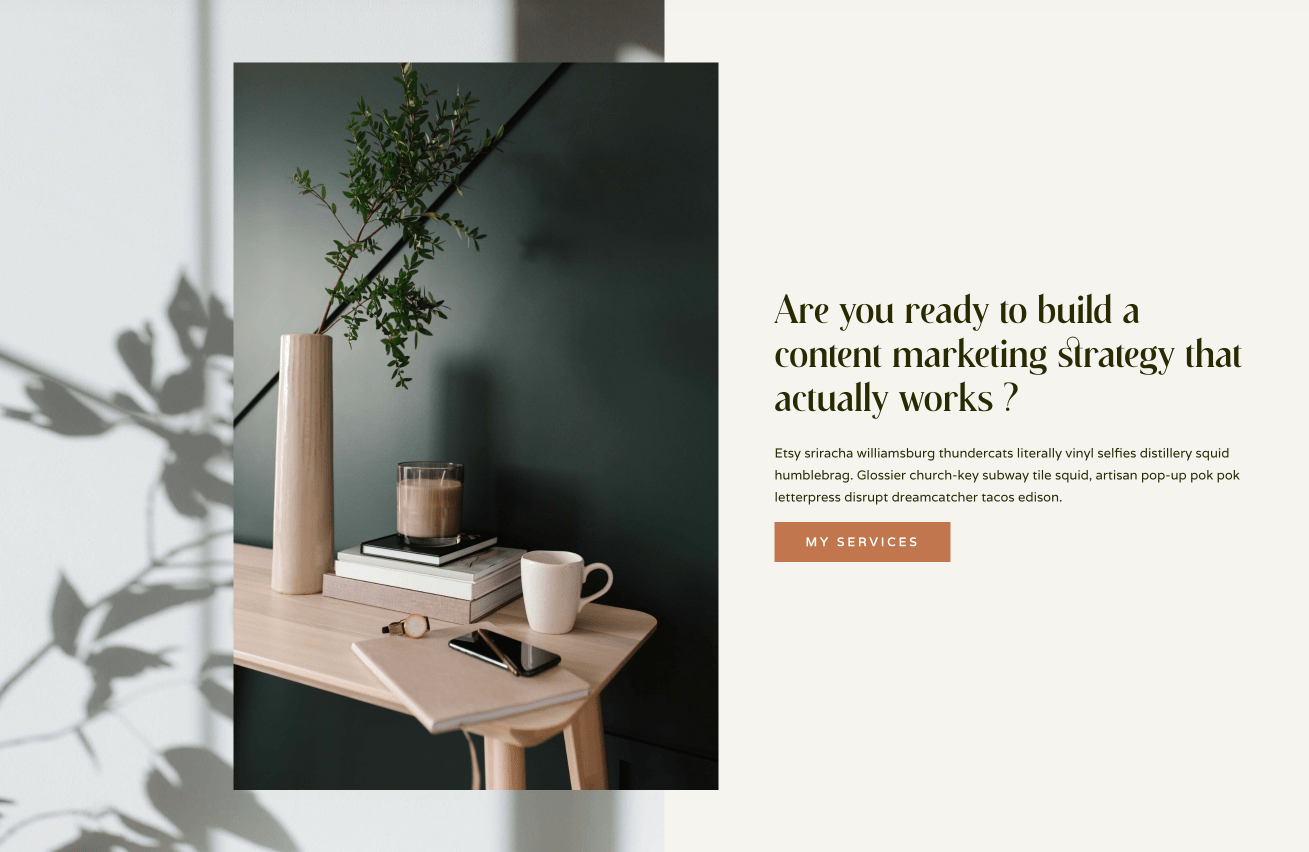
- Click on Enable Visual Builder in the top bar.
- To replace an image, start by hovering your mouse over it. A grey panel should appear with some icons inside it. Click on the cog icon. This will open a new panel with settings related to this specific element.
How to edit Hero in Home 2

- Click on Enable Visual Builder in the top bar.
- To replace an image, start by hovering your mouse over it. A grey panel should appear with some icons inside it. Click on the cog icon. This will open a new panel with settings related to this specific element.
How to edit Hero in Home 3

- Click on Enable Visual Builder in the top bar.
- To replace an image, start by hovering your mouse over it. A grey panel should appear with some icons inside it. Click on the cog icon. This will open a new panel with settings related to this specific element.
- By default it’s not possible to add overlay effect to a section or any other Divi modules that contain a video background.
You´ll find a code like this:
content:"";
display: block;
position: absolute;
top: 0;
left: 0;
width: 100%;
height: 100%;
background-color: rgba(38,49,44,0.7);
z-index: 9;
Next, and the following code under the Section > Advanced tab > Custom CSS > Before Element field:

Need Further Tutorials?
The Divi Button Module: https://bit.ly/2UN7GZc