The Divi Library in Divi 5 is your site’s collection of reusable elements. You can save full page layouts, sections, rows, and modules, and then add them to any page later.
What you can store in the Divi 5 Library
In Divi 5, the library can hold:
- Full page layouts
- Sections
- Rows
- Modules
You can also save items as global elements, but the core idea is always the same: save an element once and reuse it anywhere.
How to Save elements to the Divi Library
Save a page layout to the Divi Library
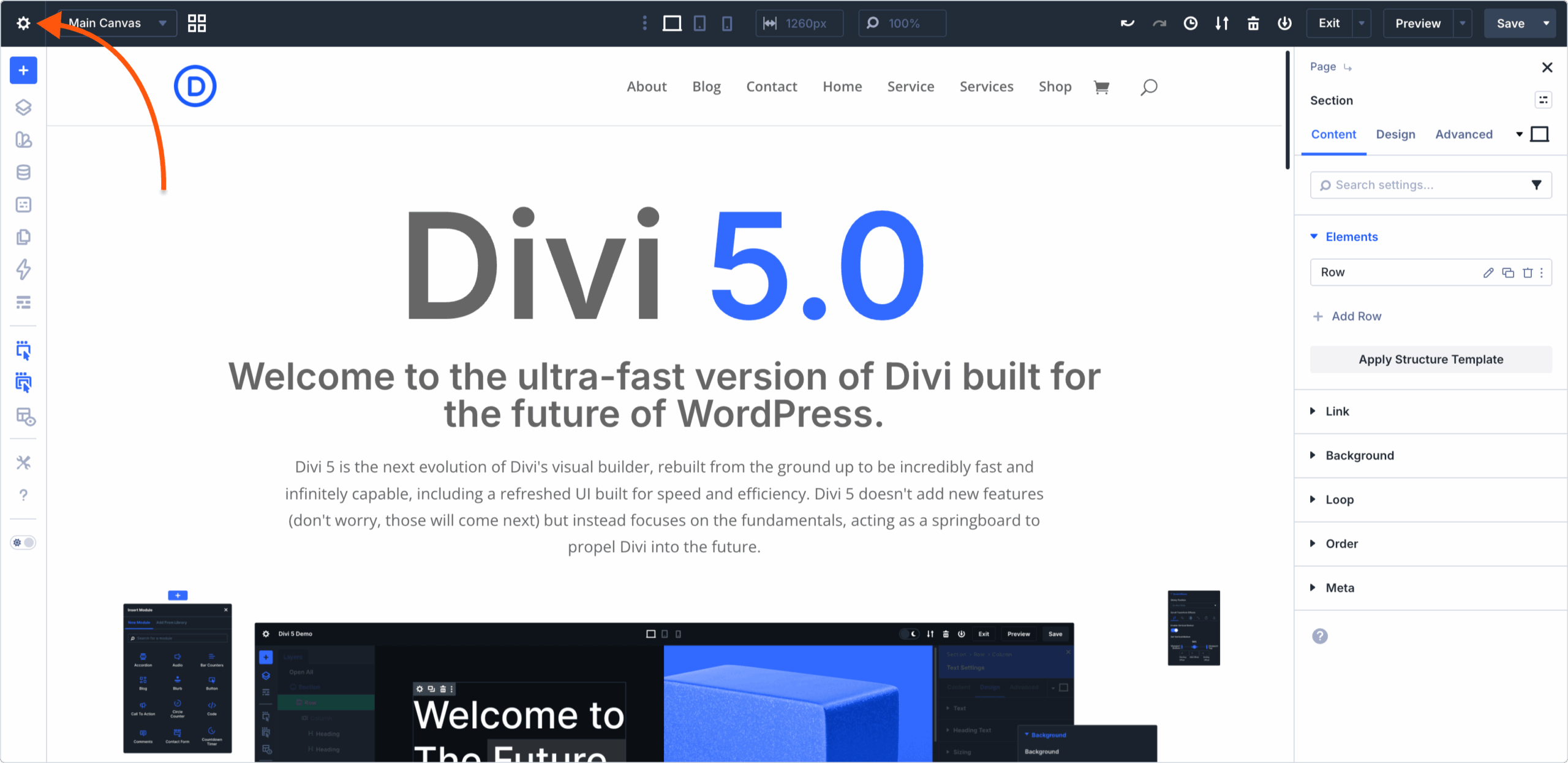
1>> Open the page in Visual Builder.
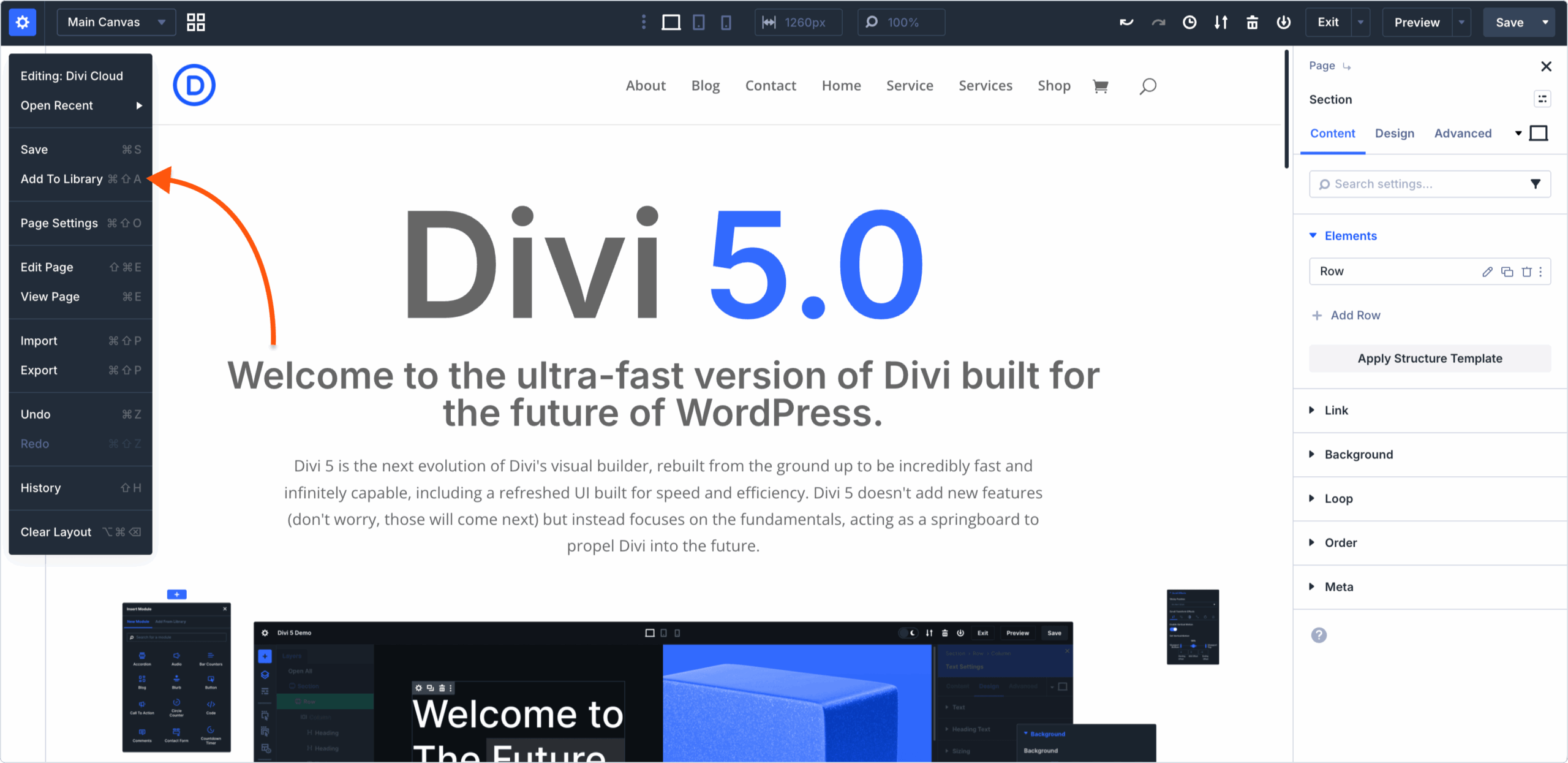
2>> From the top bar, click on the Add to Library icon.
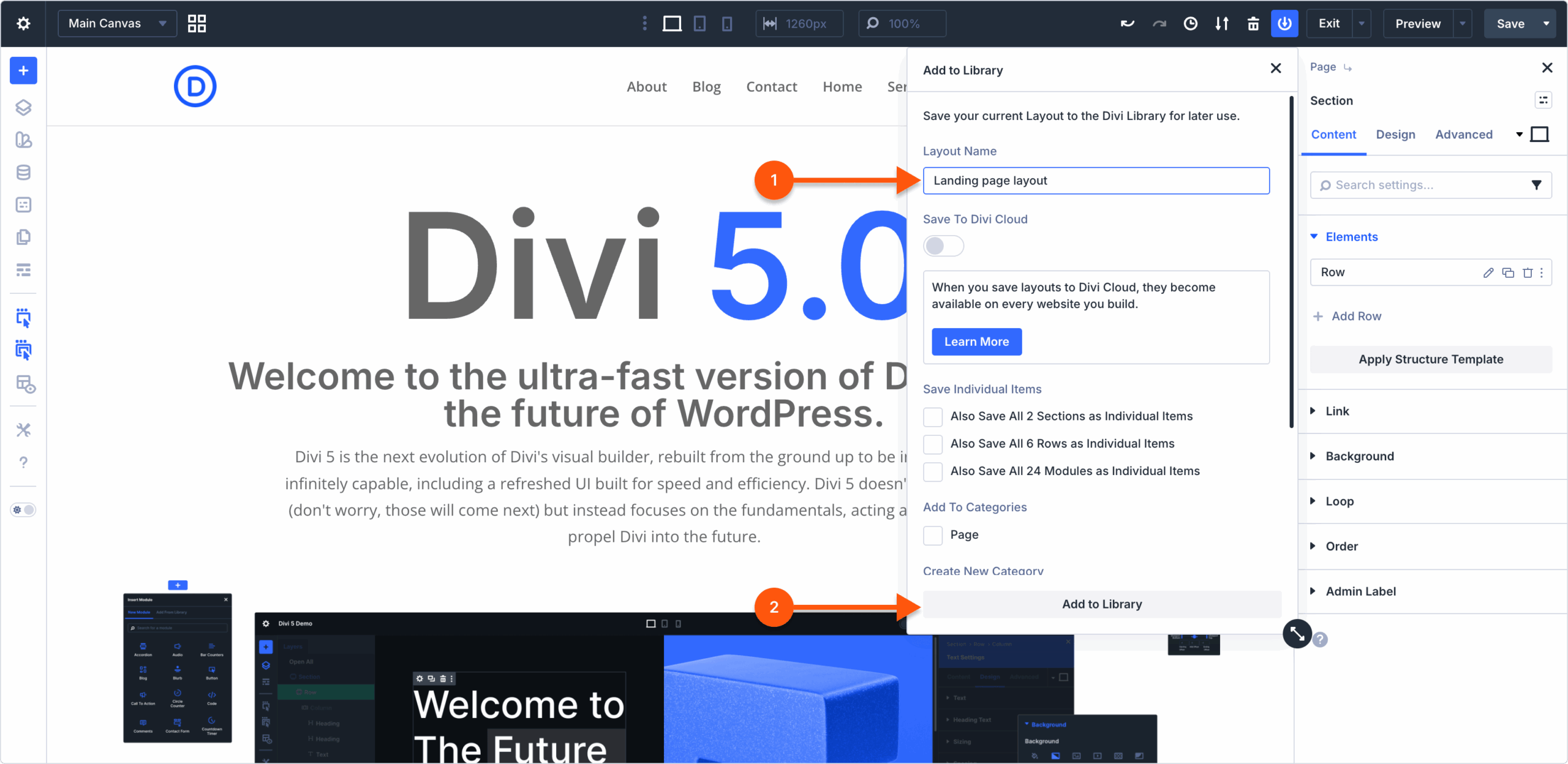
3 >> Set the layout’s name
4 >> Click on Add to Library button.
5 >> Give the layout a descriptive name.
6 >> Toggle on Add to library.
⚠︎ Notes:
- You can also save a breakdown of your entire page layout as separate Sections, Rows, or modules by selecting the desired option in the Save Individual Items section
- You can assign the page layout to an existing category or tag and/or create a new category/tag on the fly. This is useful to keep your things organized in the Divi Library.
Save an individual element (section, row, or module) to the Divi Library
1 >> Hover over the element you want to save to the Divi Library.
2 >> Right-click on it and choose Save To Library from the contextual menu.

3 >> Give it a name.
4 >> (optional) Choose any of the existing categories or tags, or create new ones to which the saved element will be assigned.
5 >> Click the Add to Library button.
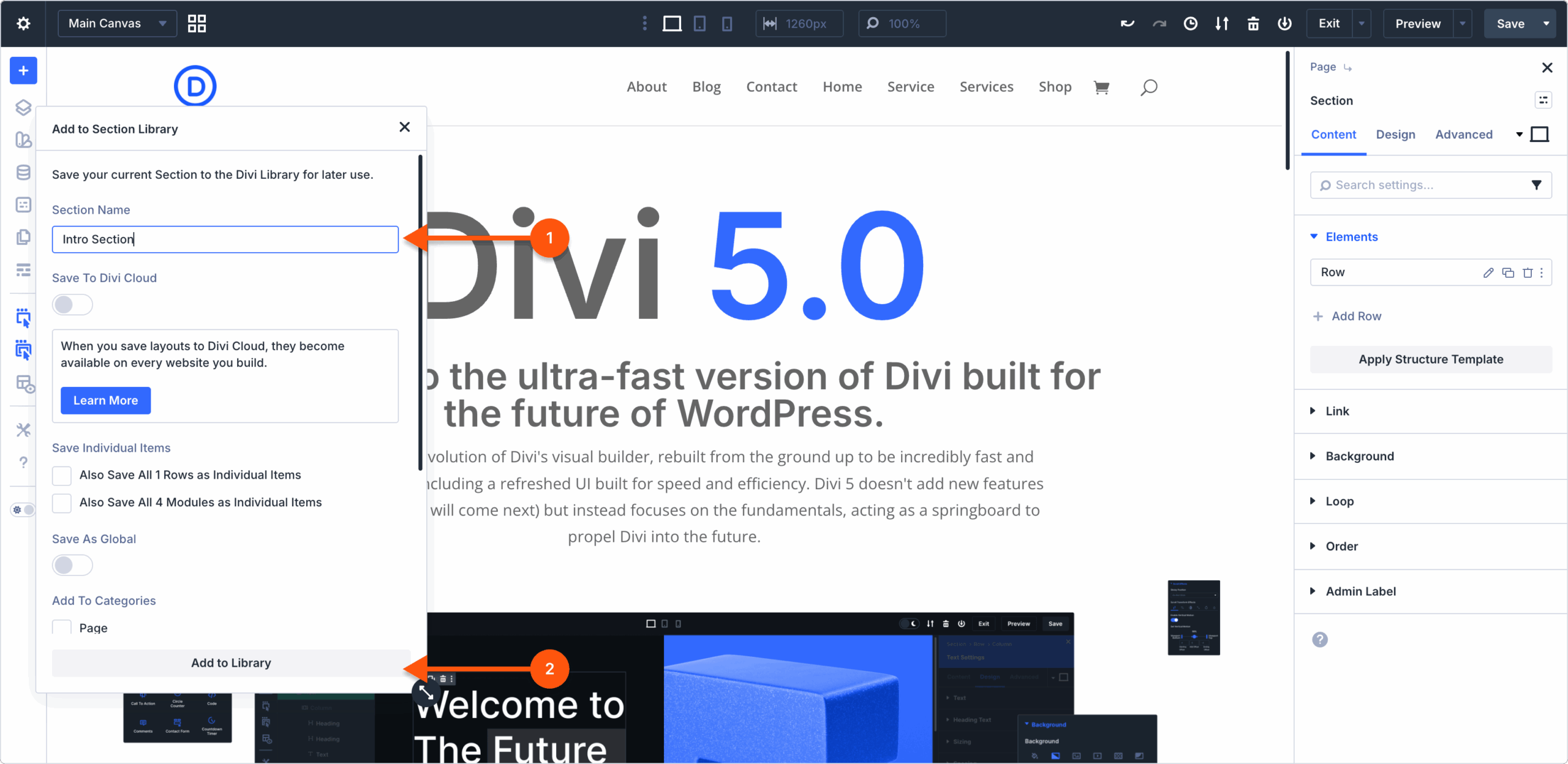
Alternatively, you can hover the element you want to save to the Divi Library and click on the three dots icon. From thee select the Save to Library option.