• HOME
  • DIVI BEGINNERS
  • TUTORIALS
  • TROUBLESHOOTING
  • SUBMIT A TICKET
  • HOME
  • DIVI BEGINNERS
  • TUTORIALS
  • TROUBLESHOOTING
  • SUBMIT A TICKET
home/Knowledge Base/2. Halle - Use Divi Visual Builder/Halle – How to edit text

Halle – How to edit text

  1. Click on Enable Visual Builder in the top bar.
  2. Making changes to text with the Divi Visual Builder is as simple as clicking and typing.


https://www.support.helplovelyconfetti.com/wp-content/uploads/2018/12/Halle-Edit-Texts.webm


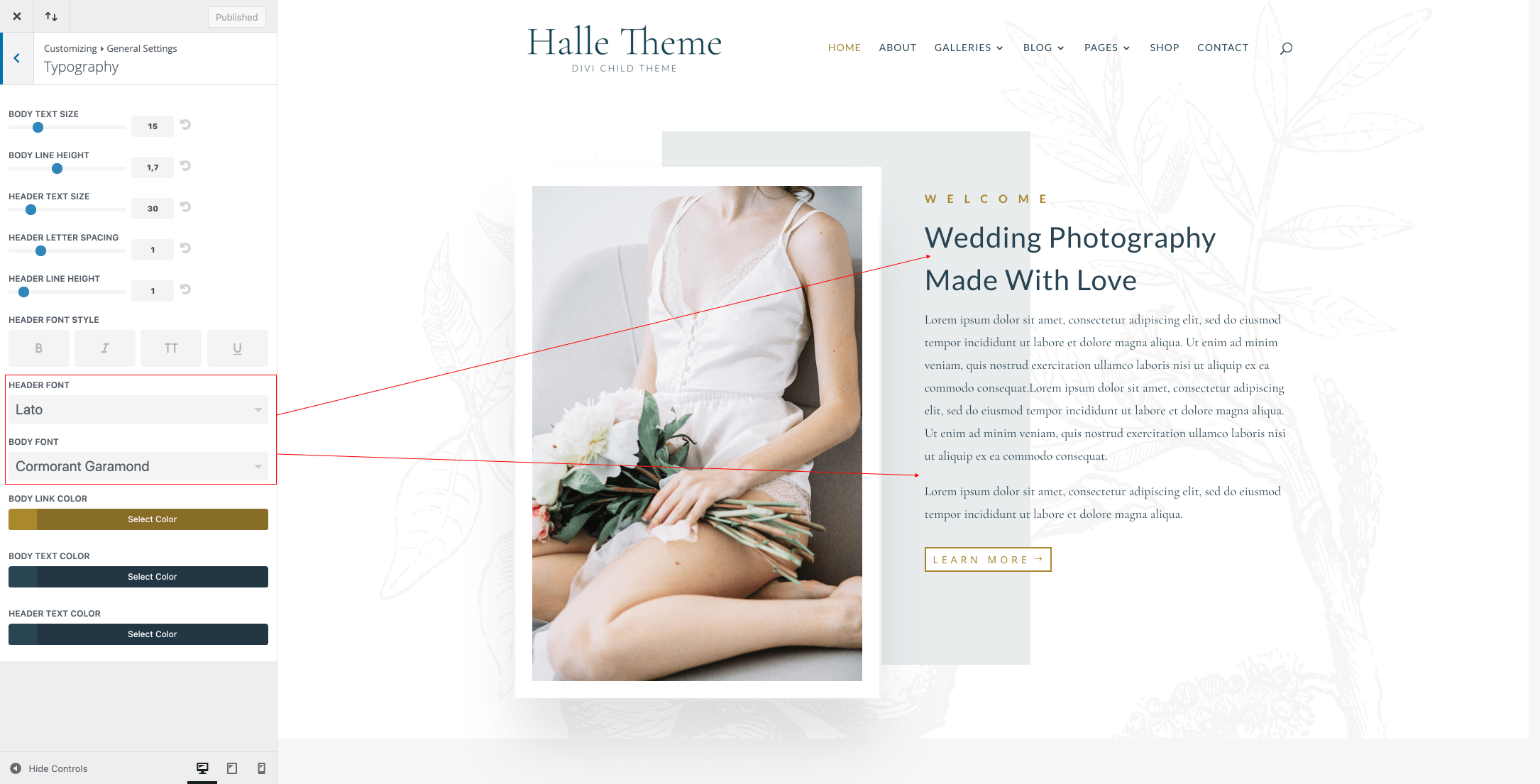
How to Globally Change the Website Font in Divi:

Fonts used in Jane Theme are Cormorant Garamond in header and Lato in body.

Navigate to Divi > Theme Customizer > General Settings > Typography > Select your Header/body font.


How to add a Custom Font to your Divi website:

Font used in Sally Theme is Wamelo (Font inside theme folder)

  1. Open the Divi Visual Builder and go to any design module that shows a font.
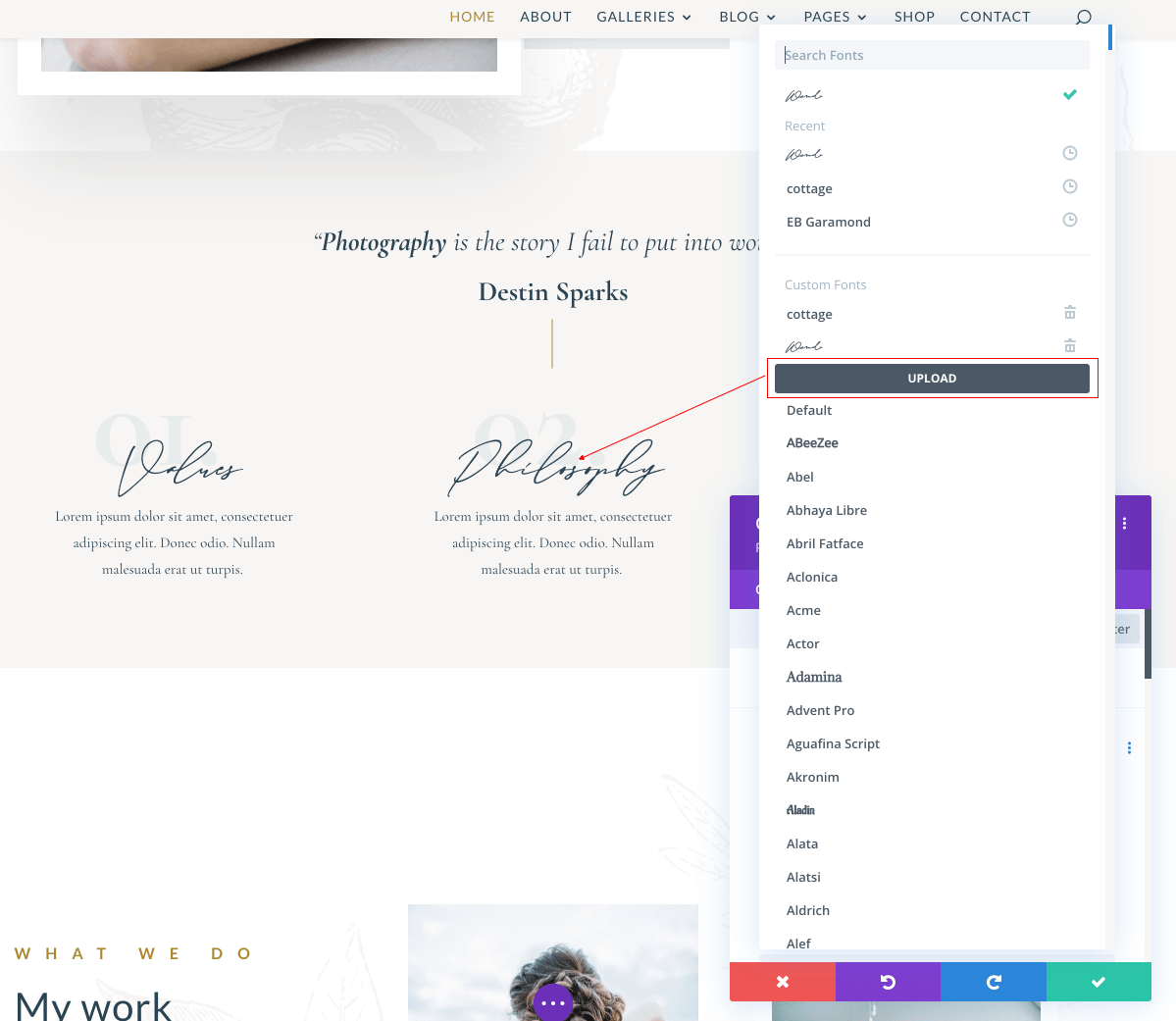


2. Click “upload” and select your font (supported file formats are: .OTF, .TTF, .EOT, .WOFF, WOFF2).


Need Further Tutorials?

The Divi Text Module: https://bit.ly/39TuifW

How to add a Custom Font to your Divi website: https://bit.ly/39Oq3SM

How to Globally Change the Website Font in Divi: https://bit.ly/2Cumzdg


Related Articles
  • Halle – How to edit form optin
  • Halle – How to change header background image
  • Halle – How to edit Call To Actions
  • Halle – How to edit images
  • Halle – How to enable the Divi Visual Builder
2. Halle - Use Divi Visual Builder
  • Halle – How to edit text
  • Halle – How to enable the Divi Visual Builder
  • Halle – How to edit images
  • Halle – How to edit Call To Actions
  • Halle – How to change header background image
  • Halle – How to edit form optin

  Halle – How to enable the Divi Visual Builder

Halle – How to edit images  

  • Privacy Policy
  • Terms of Use
  • Copyright 2023. All Rights Reserved.