A you can see in product listing and FAQS, I offer a coy of Divi but if you want update the Divi theme to a newer version you will need an Elegant Themes license.
If you don’t yet have an Elegant Themes Licence, you can get one HERE.
Note: Before proceeding with the update, it’s highly recommended to create a backup of your website. This ensures that you can revert to the previous version in case anything goes wrong during the update.
Here’s a step-by-step guide on how to update the Divi theme:
1. Get your Elegant Themes API key
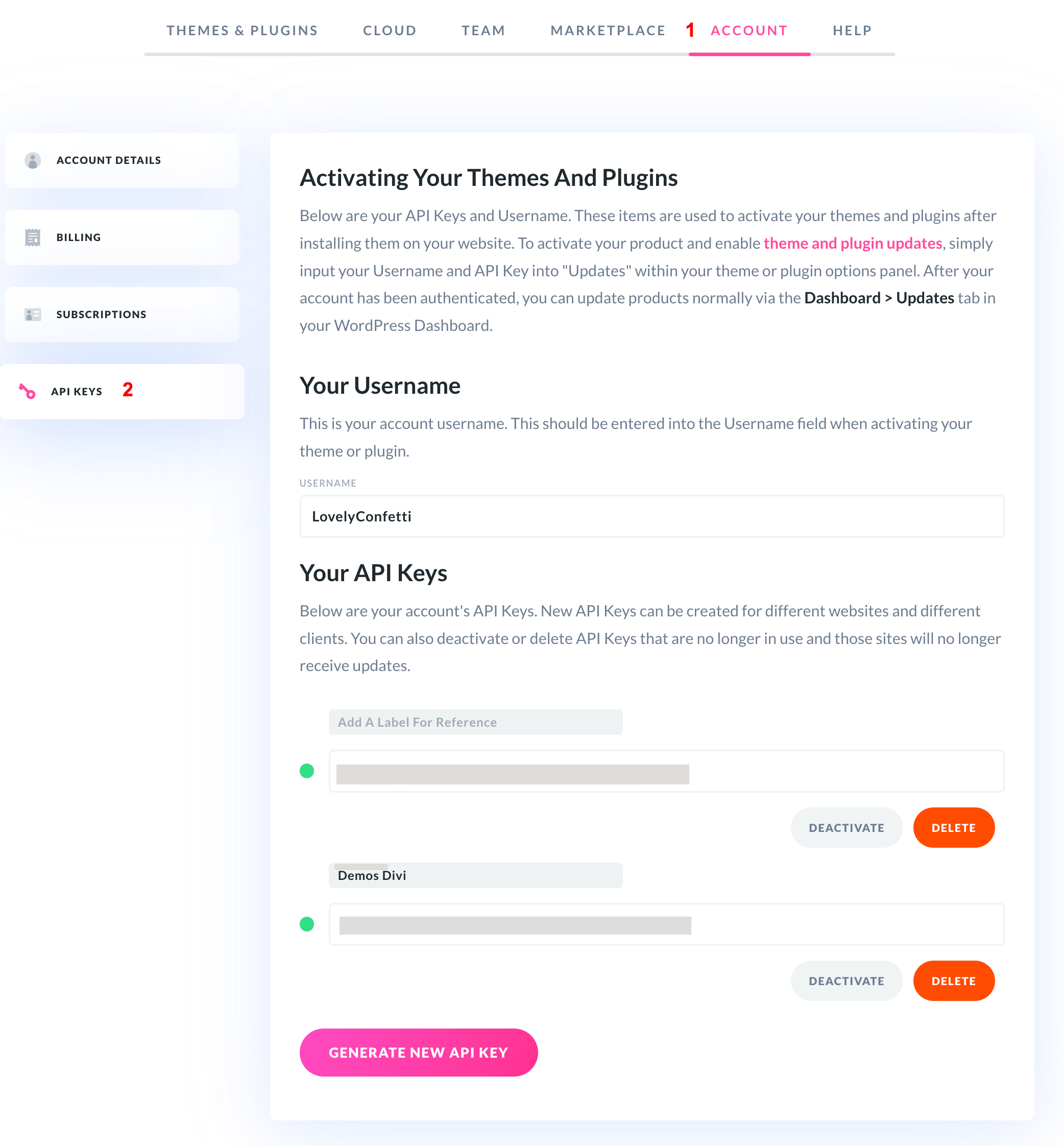
Once you have access to an Elegant Themes account:
Go to My Account > Access to your API keys Account > Your API Key > Copy your API key.
You can also create more API keys here. This can be useful, for example, if you want to separate your personal projects from your clients projects.
2. Enter your API key
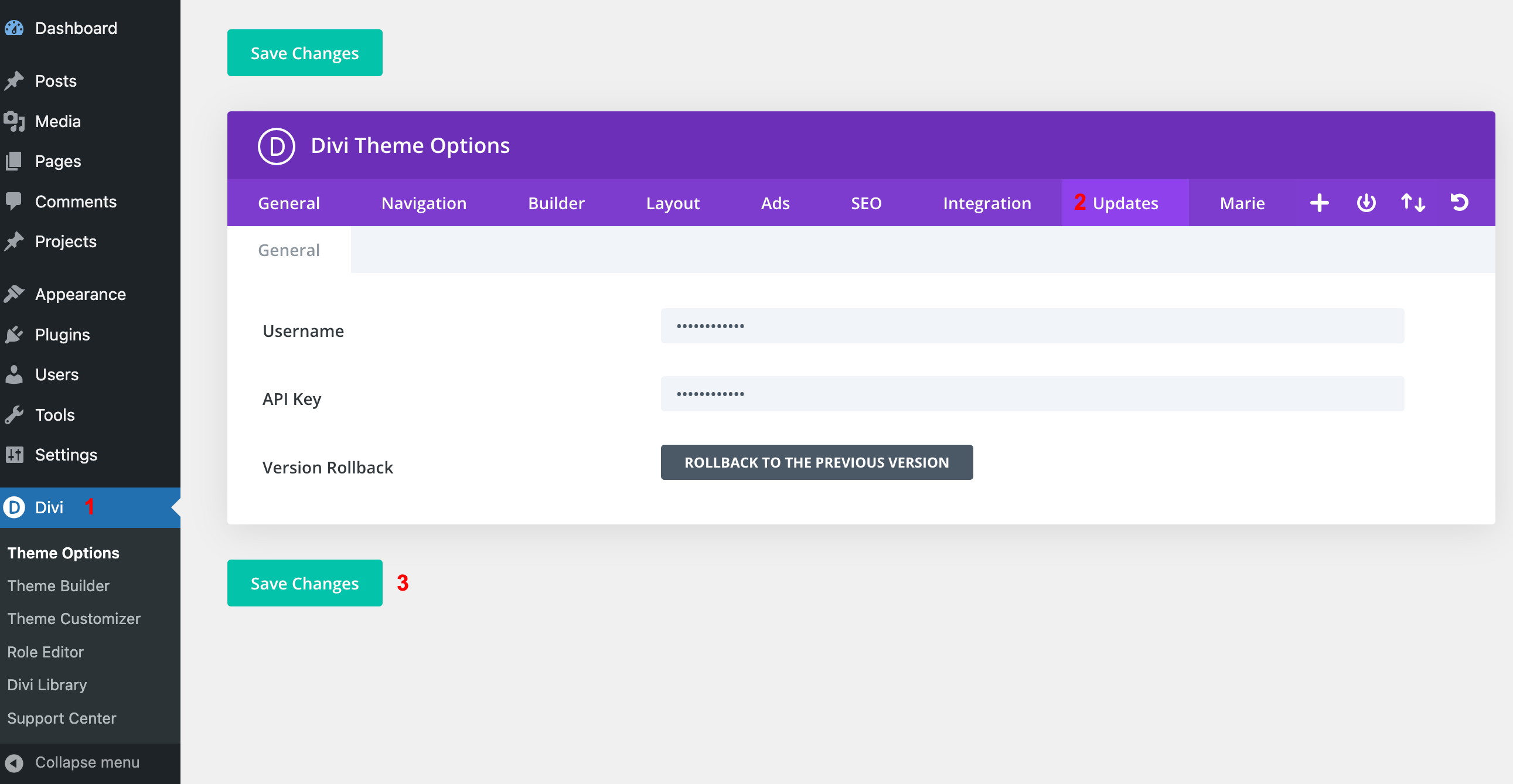
Log in to your WordPress admin dashboard, go to Divi > Theme Options > Updates and enter your ET username and your API key here.
Since the Divi 3.6 update, you can also downgrade your Divi theme to a previous version from here. Just click on the “Rollback to the previous version” button. This may come in handy if anything goes wrong with your website after you update it.
When you enter your Elegant Themes username and API key, click the green “Save Changes” button at the top or bottom.
3. Update Divi Theme
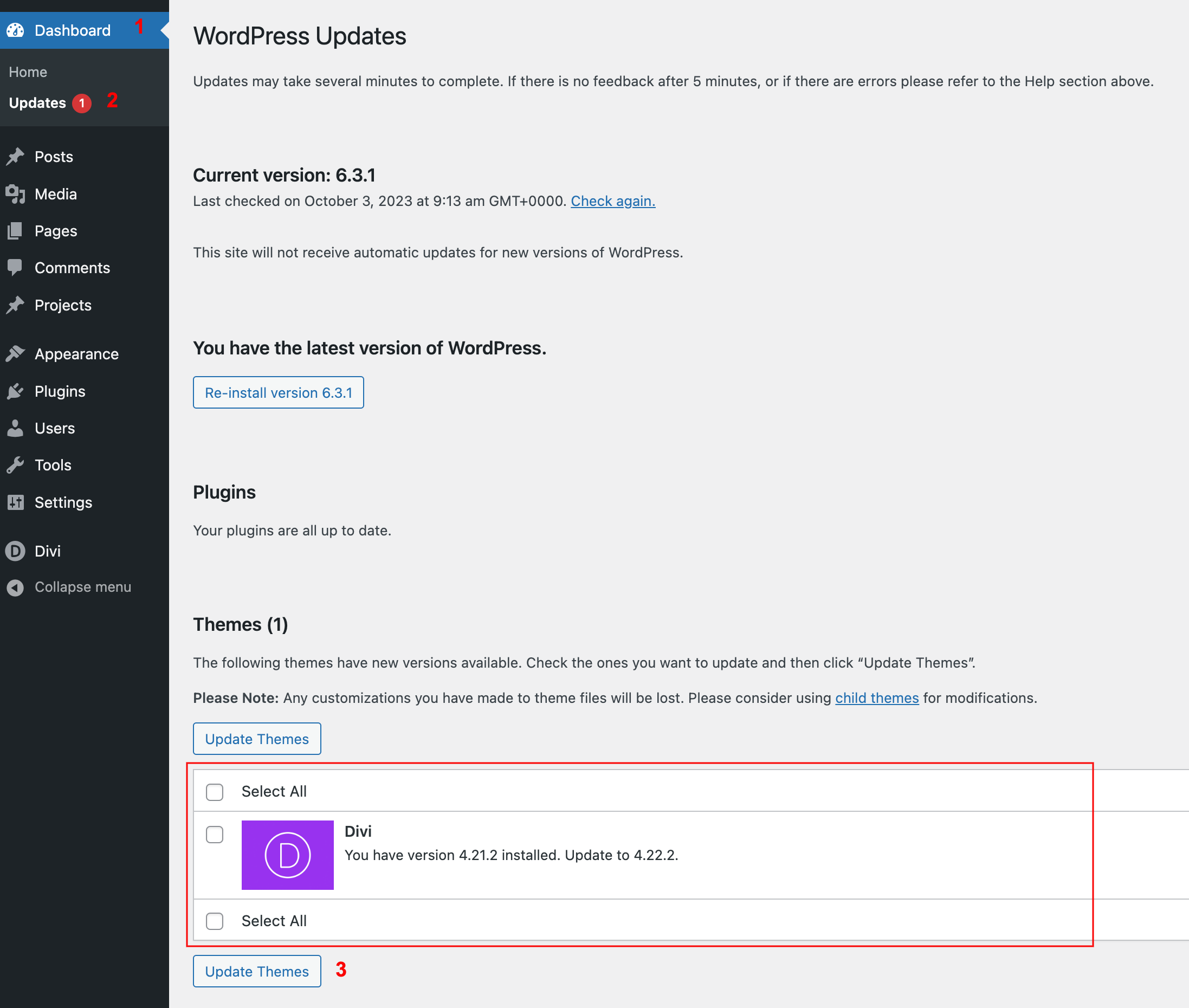
Finally, go to Dashboard > Updates (or alternatively: Appearance > Themes), choose Divi and click “Update Themes”.
If there’s a new version of Divi available, you’ll see an update notification with an “Update Now” link. Click on it.