With an anchor link, you can take your visitors from anywhere on your website (a text, a button, the menu or the footer) straight to a specific section of another page, so they don’t have to scroll to find it. In Divi 5 it takes two steps and no plugins.
I am using the Jane Pro template as an example: https://demojanepro.lovelyconfetti.com
But you can add this with any template.
What is it for?
A regular link opens a page from the top. An anchor link opens the page and scrolls down automatically to the section you choose. It’s very useful to:
- Send visitors to your contact section or quote request form.
- Link to the FAQ section on a services page.
- Jump straight to your opening hours, pricing or location.
- Highlight a promotion placed in the middle of a long page.
Step 1: Give the target section a name (ID)
First, you need to “mark” the section you want to land on by giving it a unique identifier.
- Open the page that contains the section with the Visual Builder.
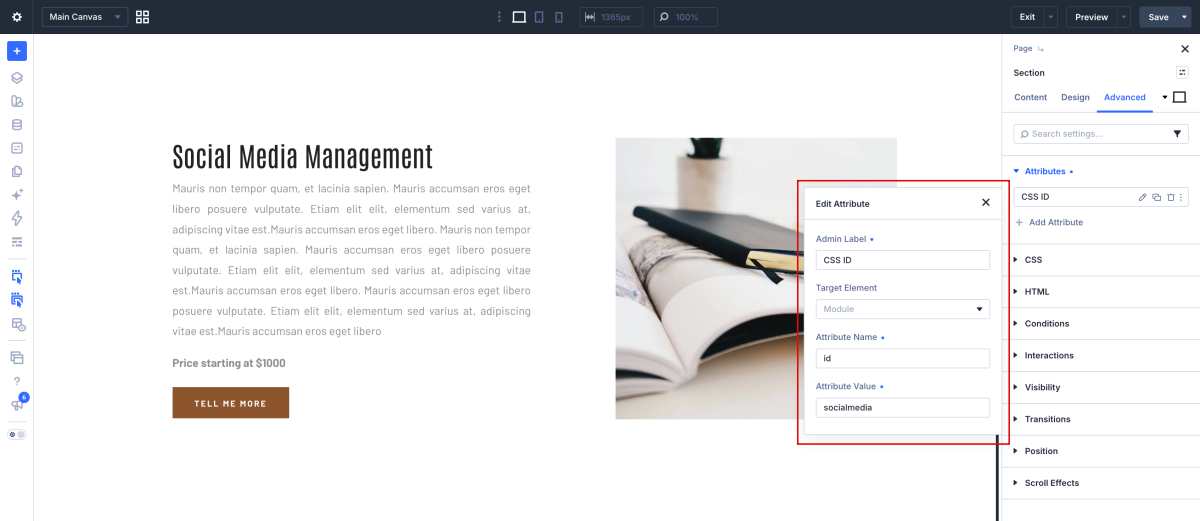
- Open the settings of the whole section (not the row or the module).
- Go to the Advanced → CSS ID & Classes tab (in some Divi 5 versions it appears as Attributes).
- In the CSS ID field, type a short name, for example:
socialmedia - Save the page.
Use only lowercase letters, numbers and hyphens in the ID: no spaces or special characters. For example, socialmedia instead of social media.
Step 2: Create the link
The link always follows the same pattern: the page address, followed by # and the ID you created.
https://yourdomain.com/page-name/#socialmedia
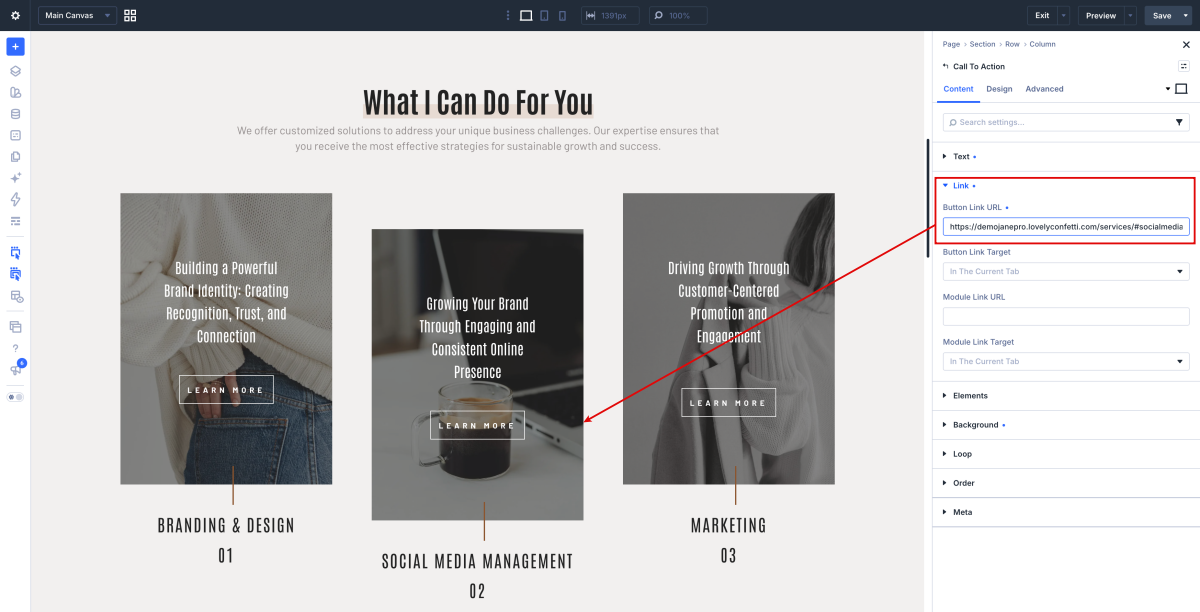
In this case my page is : https://demojanepro.lovelyconfetti.com/services/ so I´ve added #socialmedia at the end.
https://demojanepro.lovelyconfetti.com/services/#socialmedia
The only thing that changes is where you paste it, depending on where you want to link from:
- In a text: in the Text module, select the words, click the link icon and paste the address.
- In a button or/and module: open the Button module settings and paste the address in Button Link URL.
- In the menu: go to Appearance → Menus, add a Custom Link with that address and the label you want to show.
- In the header or footer: open them from Divi → Theme Builder with the Visual Builder, add the link as you would in a text or button, and click Save Changes when you’re done. That way it will appear on every page.
That’s it: when someone clicks the link, the page will open and scroll straight to the chosen section.
Linking to a section on the same page
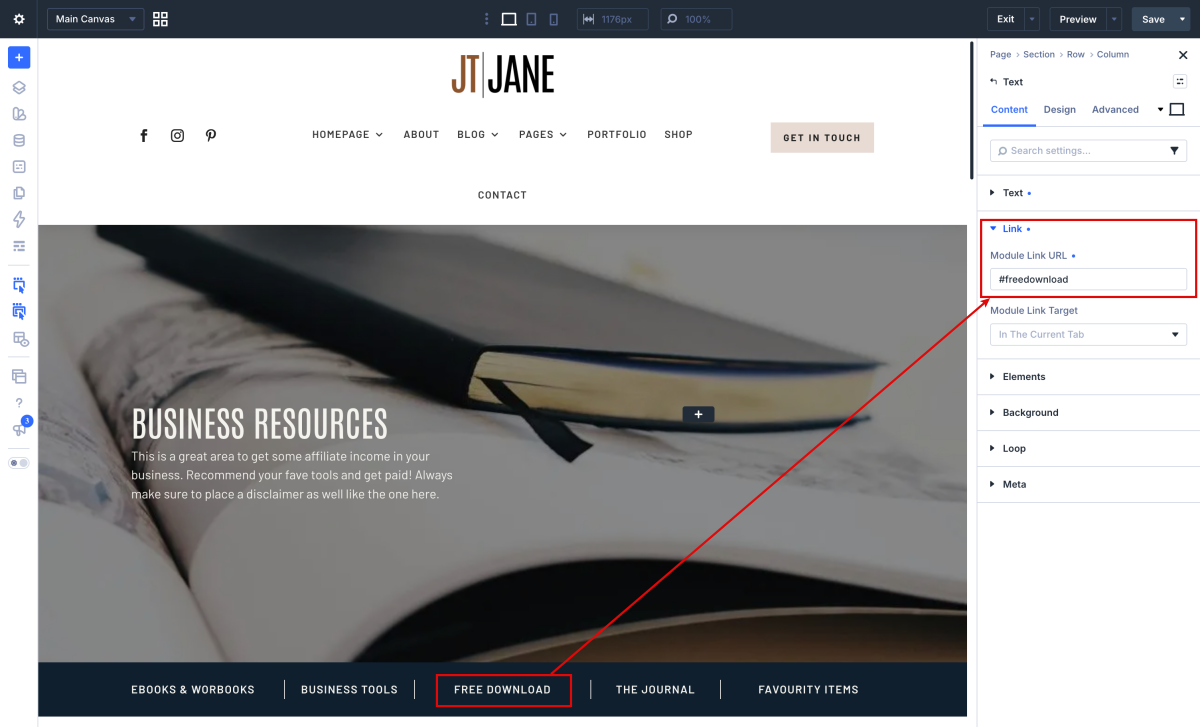
If the section is on the same page as the link (for example, a “Free Download” button at the top of a long landing page), you don’t need the full address. Just use # followed by the ID.
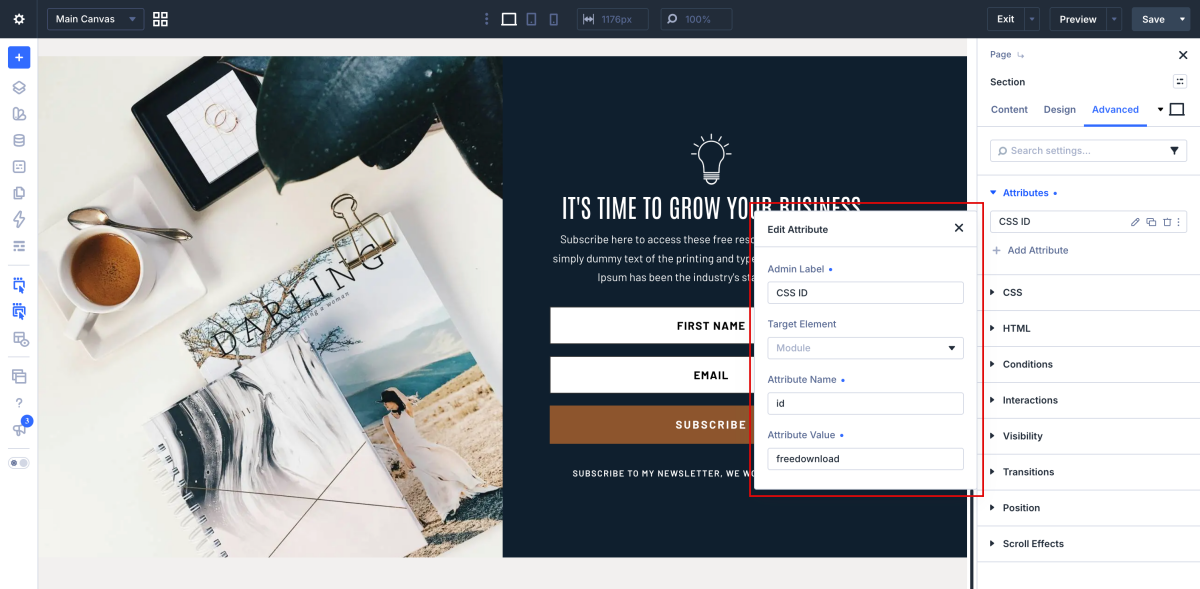
- Give the target section an ID, as explained in Step 1 (for example,
freedownload).
- In your text, button or menu item, use this as the link:
#freedownload
- Save the page.
When visitors click the link, the page will scroll smoothly down (or up) to that section without reloading.
This is perfect for one-page websites: you can build the whole menu with same-page anchor links, such as #services, #about, #pricing and #contact. If you use these links in the menu or in the Theme Builder header, add the page address before the # (for example, https://yourdomain.com/#services), so they also work when visitors are on a different page.
Tip: if the header covers the section
If your website has a fixed header (one that stays at the top while scrolling), it may cover the top of the section when the page lands there. You can fix it with a single line of code.
Go to Divi → Theme Options → General → Custom CSS and add the following, replacing contact with your ID and 100px with the approximate height of your header:
#contact {
  scroll-margin-top: 100px;
}
This way the page stops a little earlier and the whole section is visible.
Common mistakes
- The link opens the page but doesn’t scroll down: check that the ID is spelled exactly the same in the section and in the link, including capital letters and hyphens.
- You added the ID to the row or the module: it still works, but the section is the clearest place for it.
- You used the same ID twice: each ID must be unique on a page.
- You don’t see the change: clear your website cache and your browser cache (Ctrl + F5).
Need help?
If you’d like us to set up the links on your website or check that everything works properly, get in touch and we’ll take care of it for you.