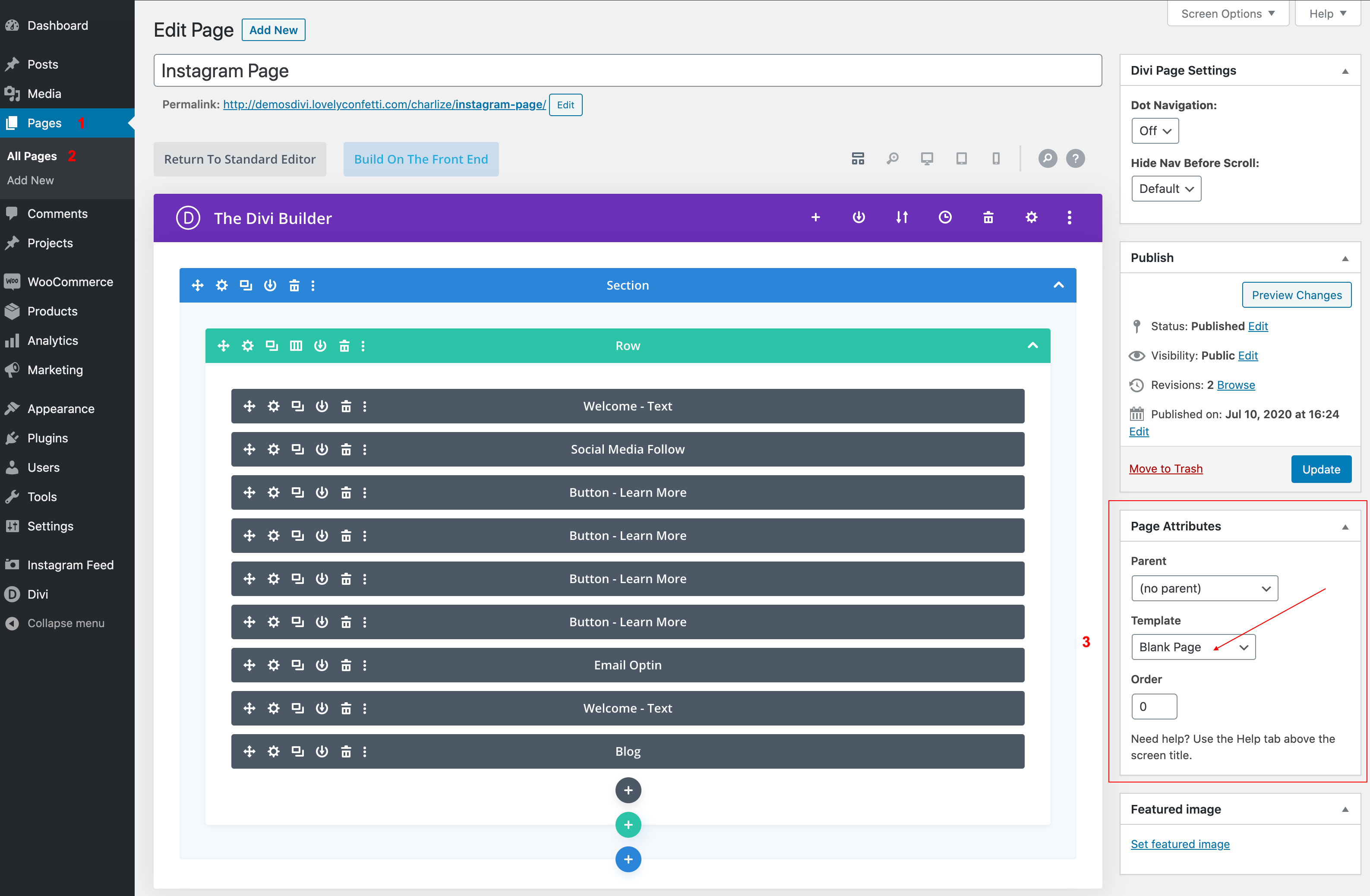
In most cases, you will simply want to hide both the Divi header & footer from a particular page (Coming soon, sales pages, lead magnets,..)
This would be the case for a landing page or sales page where the user should not be distracted by navigation options so that they are more likely to convert to signup or purchase.
This is very quick and easy to implement.
To hide both the header and footer from a WordPress page in Divi you will need to;
- Add a new page, or choose to edit an existing page.
- In the right-hand page options scroll down to the Page Attributes.
- Under Page Attributes, set the Template dropdown to Blank Page.
- This will completely remove both the header and footer from your page.
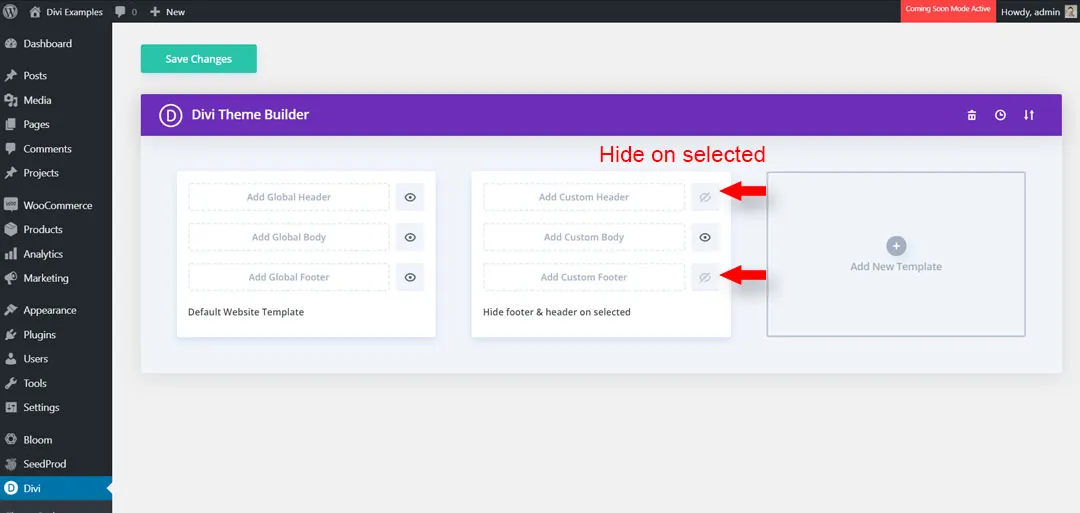
Hide the Divi header and/or footer with the Theme Builder
The Divi Theme Builder is a template system within Divi that allows you to use the Divi Builder to create templates and assign them to any pages or posts on your website.
You can use the Divi Theme Builder to create a template that will be selectively assigned to your website using the Template Settings checkboxes. You can set the template to Hide On or Exclude From any pages or posts you choose.
To create a custom template to hide the header and/or footer you will need to;
- Go to Divi in your WordPress dashboard and click on the Divi Theme Builder menu item
- In your Theme Builder dashboard click on the + icon to create a new Theme Builder template
- The Template Settings window will pop up and you can select the pages/posts you want to apply the template to by checking the Use On checkboxes. You can also use the Exclude From tab checkboxes to specify any pages/posts the template should not be used on
- Chose where to apply your new template and click on the Create Template button
- To hide your Divi header on pages and posts assigned to this template, click on the eye icon adjacent to your Add Custom Header title.
- To hide your Divi footer on pages and posts assigned to this template, click on the eye icon adjacent to your Add Custom Footer title.
- Click the Save Changes button and your headers and/or footer will now be hidden.