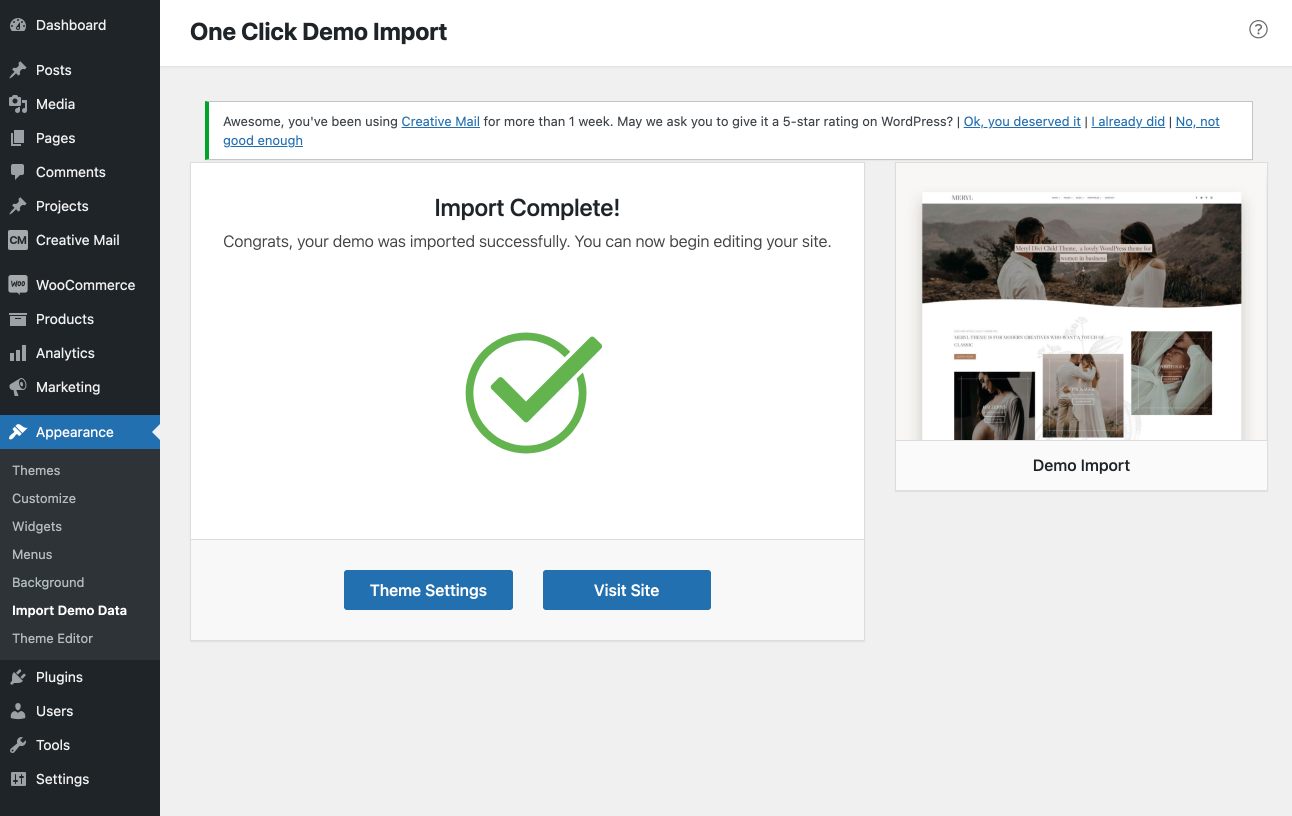
If you can´t import demo and it do not works it is probably because your hosting provided limit default server settings and it need to be increased in the server panel server has some settings.
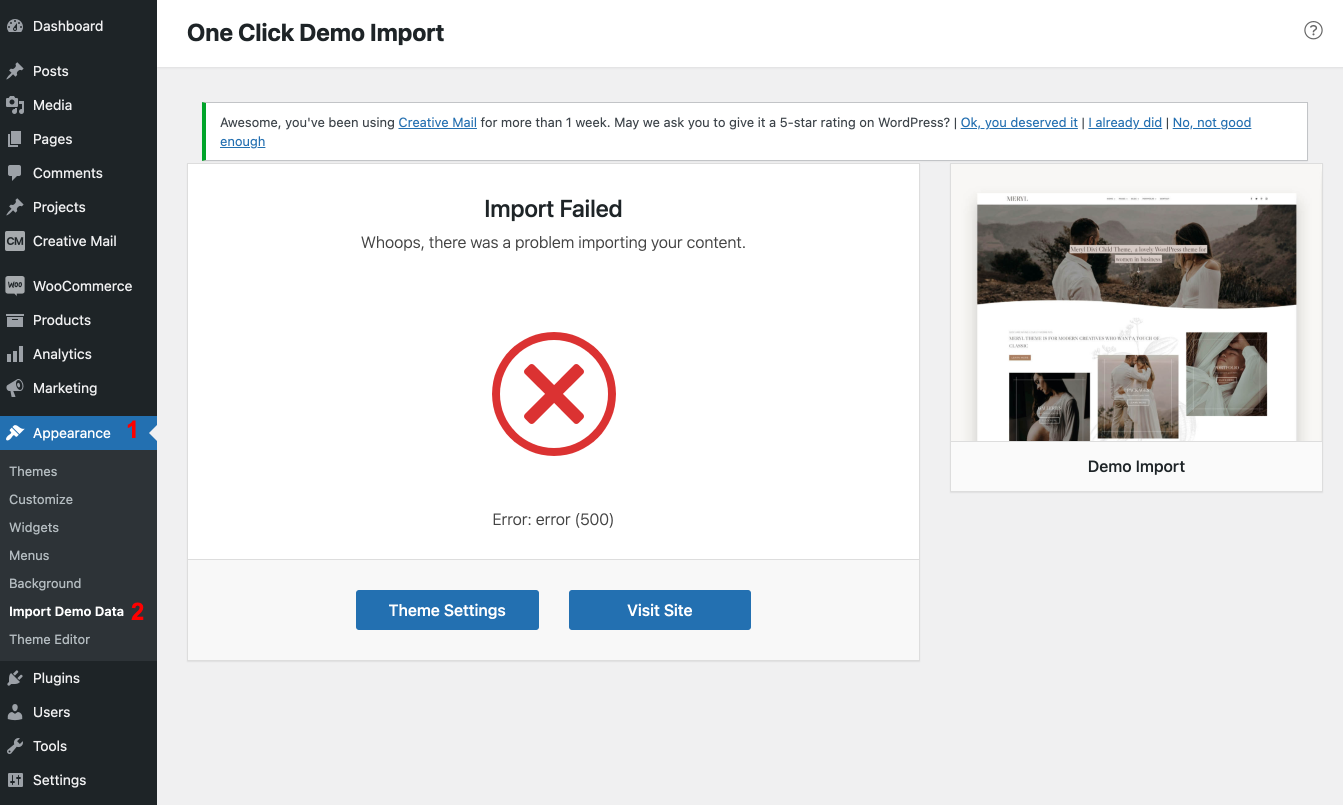
Typically this problem occurs when a PHP code in WordPress takes a long time to run and reaches the maximum time limit set by your WordPress hosting server.
The time limit is important because it helps prevent the abuse of server resources.
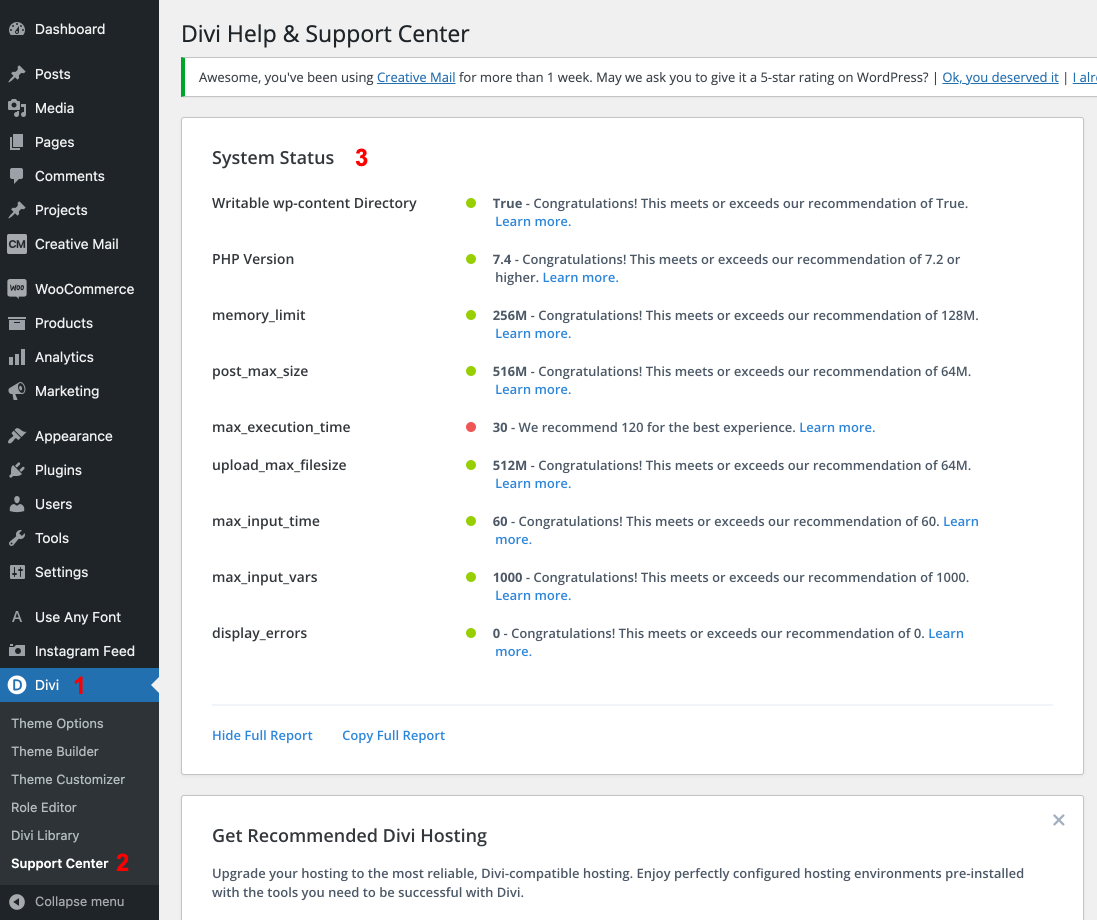
Step 1: Check System Status
As the minimum server requirements for Divi websites, Elegant Themes has provided an extensive list of PHP system compliance settings.
Configuring your hosting environment correctly will solve the most common problems that Divi users face, and that means the System Status area will save tons of back and forth between you and our support team. It’s always the first step to a healthy Divi website.
These settings have been upgraded many times, so it’s important that you stay up-to-date with the very latest recommendations.
- WordPress 4.8 or higher
- MySQL 5.6 or higher
- PHP 5.6 or higher
- PHP Memory Limit: 256 MB or higher
- PHP Time Limit: 300 seconds or higher
- PHP Maximum POST Size: 512 MB or higher
- PHP Maximum Input Variables: 3000 or higher
- PHP Remote GET: Enabled
- Xdebug: Disabled
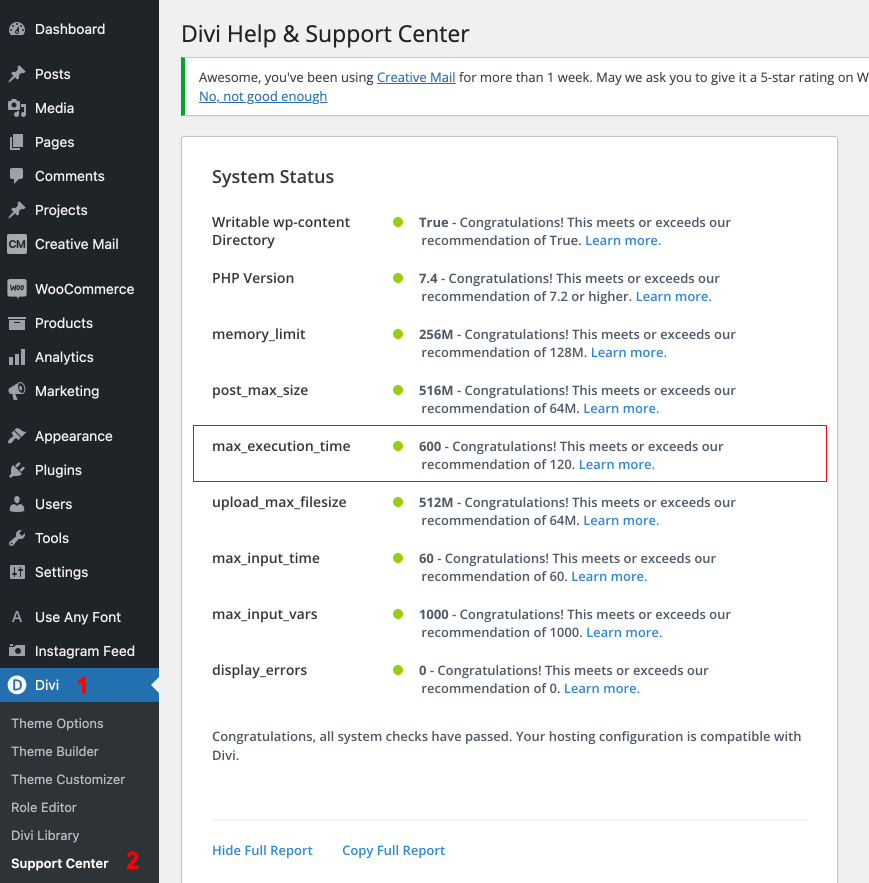
To check that your server meets these requirements, navigate to the Divi > Support Center > Check the System Status report.
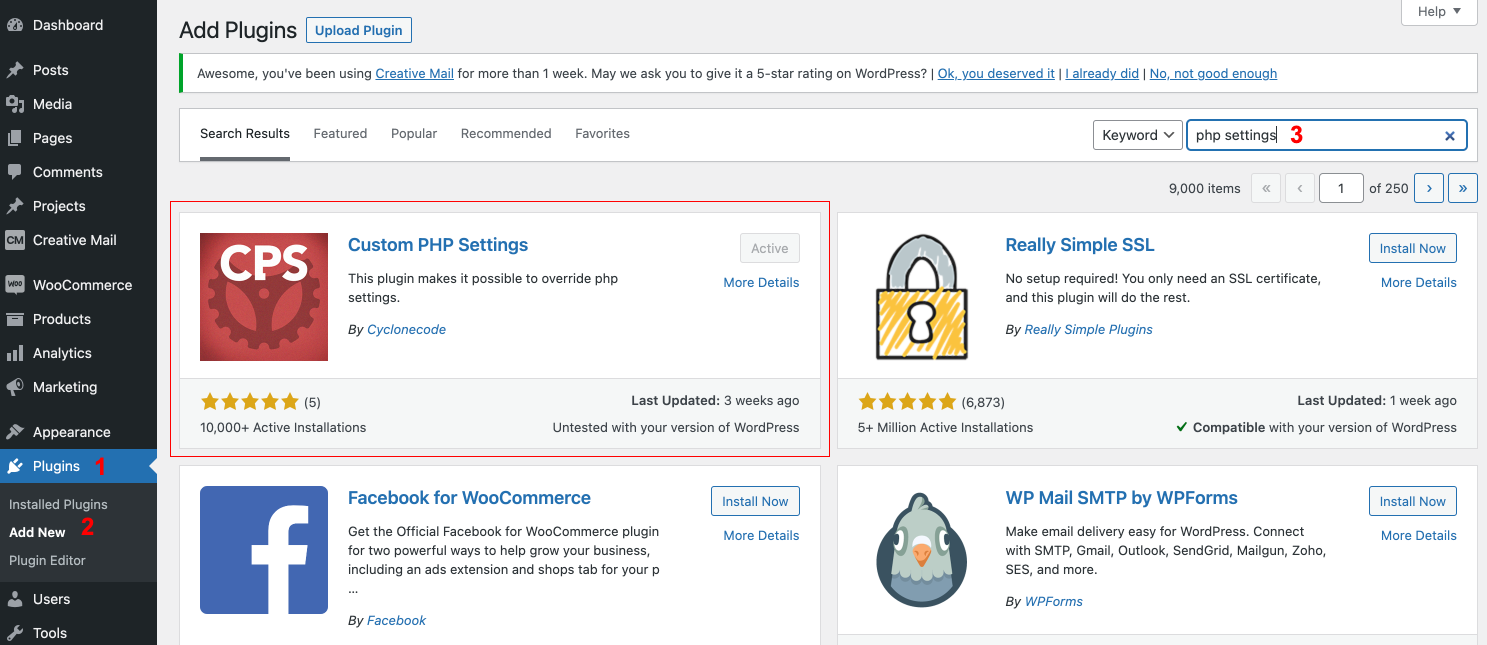
Step 2: Install Custom PHP Settings Plugin
Go to Appearance > Plugins > Add Custom PHP Settings plugin
Step 3: Increase the PHP time limit
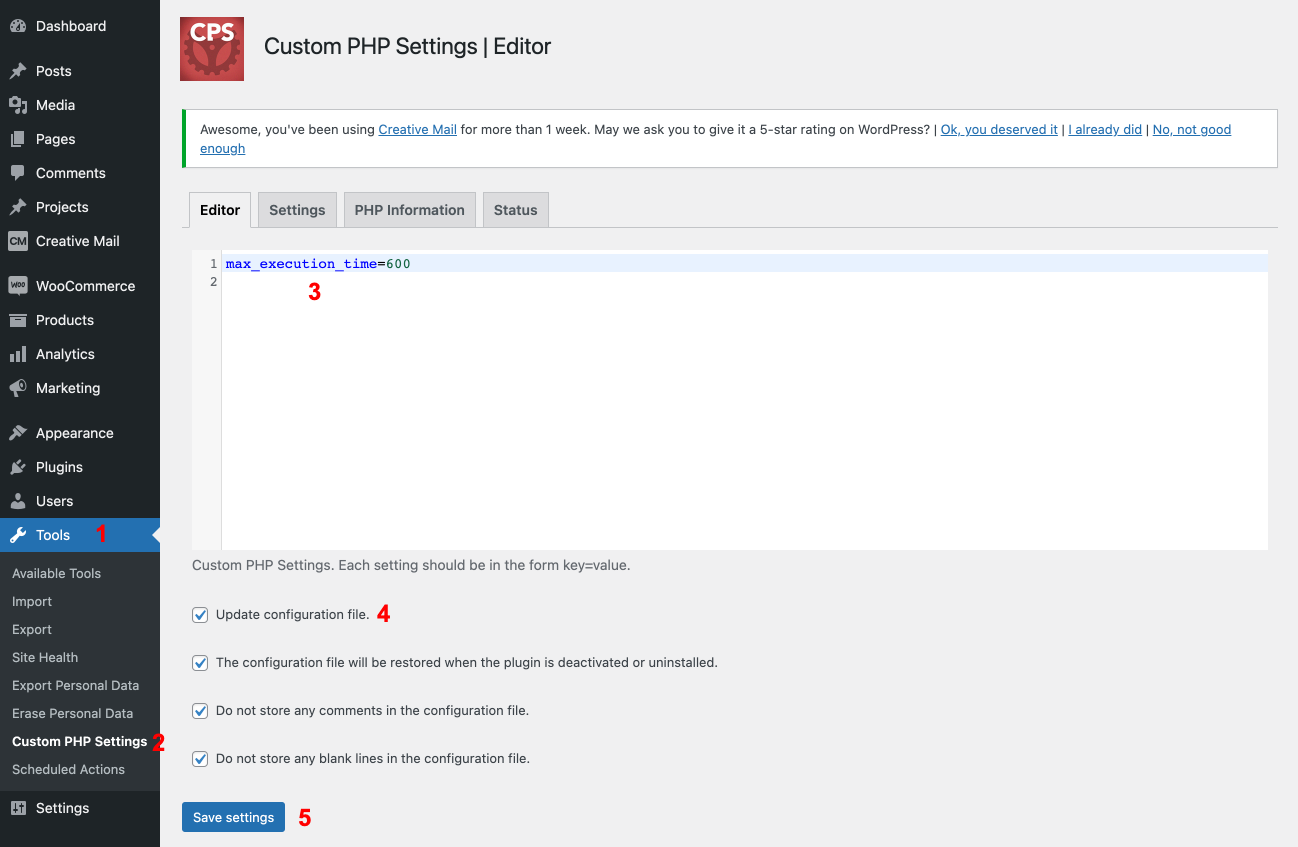
Go to Tools > Custom PHP Settings > Add max_execution_time=600 > Select Update configuration file > Save changes.
If you have more errors you have to add the correct setting (Example: upload_max_filesize=512)
Back to Divi > Support Center > Check if now you have correct WordPress configuration.
Step 4: Re import demo
Go to Appearance > Import Demo Import