You may have noticed that a tooltip appears on mouseover in your Divi publications?
When you hover over some images on your Divi website, you will see the image title text appear in a tiny tooltip beside the mouse cursor.

If you find this annoying, you can solve this problem in less time than it takes me to write this mini-tutorial!
Where Does The Image Title Come From In WordPress?
When you upload an image to the WordPress Media Library, it automatically generates an image title from the image file name. The title text is slightly prettified with the file extension removed, but it’s still often cryptic and incomprehensible.
To display the filename by default when your visitors, intentionally or unintentionally, hover your images doesn’t benefit anyone.
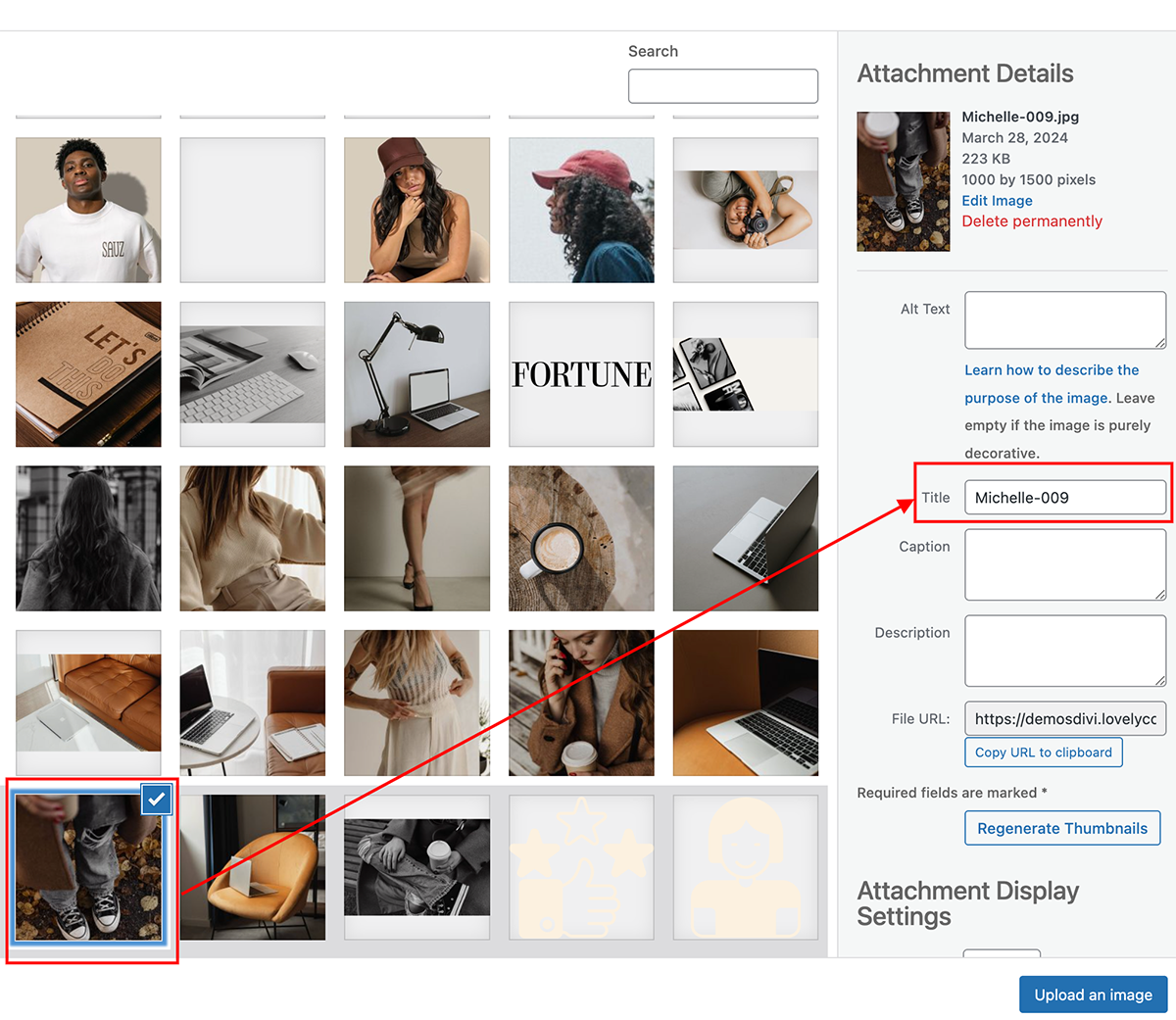
The Divi Image module inherits the Image Title from the Media Library when you insert the image in the module. You can find the Title Text (and the Alt Text) in the Image Module settings under Advanced » Attributes.
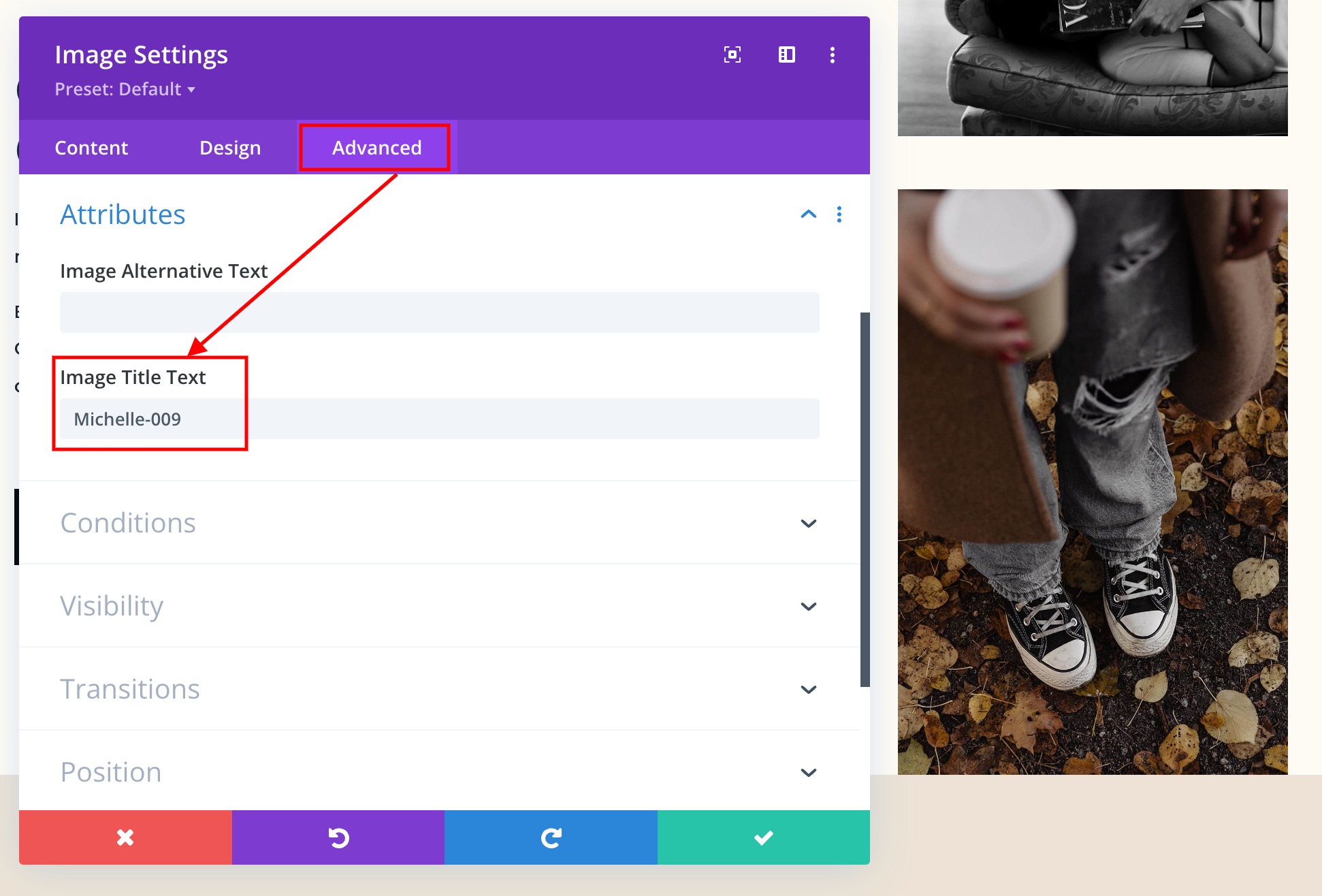
You could of course rephrase or delete the automatic Title Text each time you upload a new image, but that is a tiresome process. Here’s how you can change the logic globally and make the Image Title hover tooltip an option instead of being the default behaviour.
Method 1: Hide Image Title Text On Hover adding a small CSS snippet
By just adding a small CSS code, you can hide the Image Title text from being displayed on hover. This fix applies to all images on your WordPress website, not just the Divi Image module.
- From your WordPress dashboard, go to Divi » Theme Customizer
- Go to Additional CSS and paste the snippet below.
- Click the blue Publish button to save your changes.
/* Hide image titles on hover */
img {
pointer-events:none;
}

Method 2: Hide Image Title Text On Hover Using jQuery
The way this works is by adding a jQuery snippet to your website, which will target the image attribute element that appears when you hover over an image and remove it.
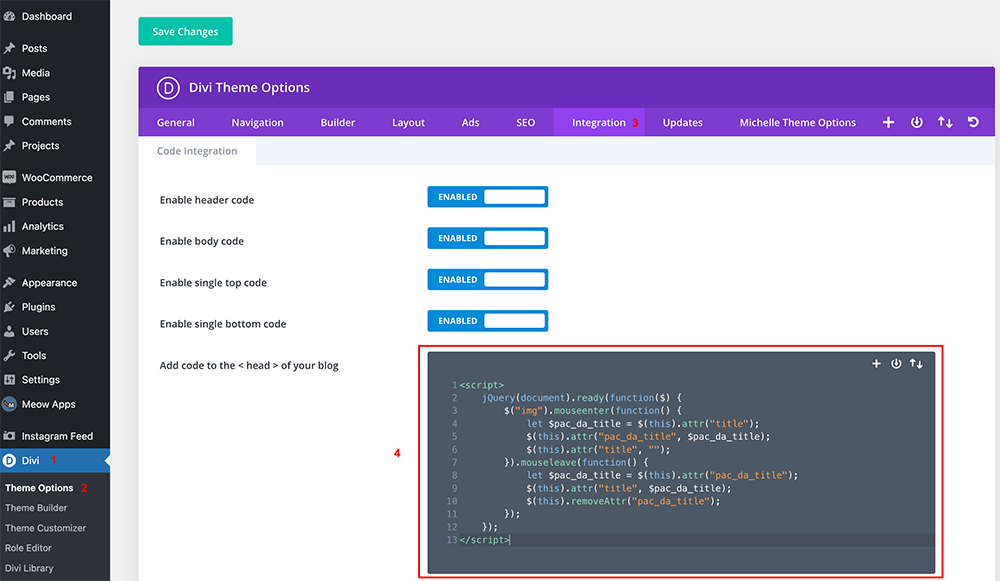
- From your WordPress dashboard, go to Divi » Theme Options » Integration
- Go to Add code to the < head > of your blog and paste the snippet below.
- Click the green Save Changes button to save your changes.
<script>
    jQuery(document).ready(function($) {
        $("img").mouseenter(function() {
            let $pac_da_title = $(this).attr("title");
            $(this).attr("pac_da_title", $pac_da_title);
            $(this).attr("title", "");
        }).mouseleave(function() {
            let $pac_da_title = $(this).attr("pac_da_title");
            $(this).attr("title", $pac_da_title);
            $(this).removeAttr("pac_da_title");
        });
    });
</script>