Recommended image sizes
For general use, here are recommended image sizes for Halle Pro Theme
Large Featured Images: 1000 x 1500 px
Landscape Featured Images: 1000 x 667 px
Square Featured Images: 1000 x 1000 px
Blog Featured Images: 1000 x 1000 px
Changing Background Images
If you are attempting to replace an image but there is no Divi Image Module, then the image is being displayed as a background image.
To create a beautiful responsive design many of my themes often use background images of sections and rows instead of using the Divi Image Module.
The benefit is a responsive image that fits the text content next to it.
- Identify where the background image is located.
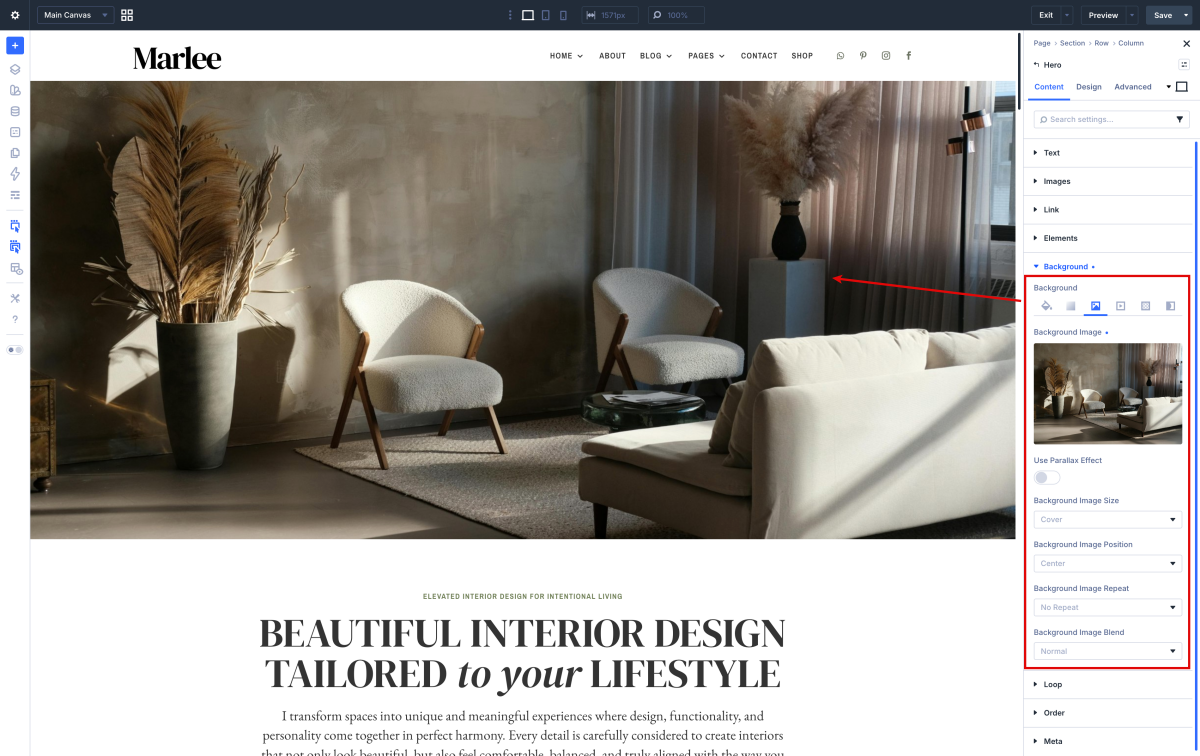
- Click the setting gear icon for the section or row.
- Click “Background” to open the background settings.
- Hover above the image and click the setting gear icon above the image
- Select an image from your media folder or upload a new image.
Accessing Background Options
To access Background Options for any element:
-
Open the settings for the element you want to customize.
-
Select the Content tab.
-
Click Background to view the available options.
Here, you’ll see settings for adding and adjusting color, gradient, image, video backgrounds, patterns, and masks.
Background Options Overview
Each background type in the Background Options Group offers unique styling choices to make your designs stand out:
 >> Background Color: Add solid color fills using a color picker. You can adjust opacity, set gradients, or layer colors with images and patterns.
 >> Background Gradient: Create custom gradients by selecting colors and configuring gradient directions, start/end points, and radial or linear styles. Gradients can be used alone or layered with other backgrounds.
 >> Background Image: Upload or select images for your background. You can adjust the position, size, and repeat settings to control how the image appears across devices. Options include fixed or parallax scrolling.
 >> Background Video: Embed video backgrounds by uploading a video file or adding a URL. Video backgrounds work well for capturing attention but are optimized to avoid loading issues on mobile.
>>Background Pattern: Choose from built-in pattern options to add texture and depth. Patterns can be adjusted for opacity and size to fit your design style and combined with other backgrounds.
>> Background Mask: Masks add custom shapes and overlays to backgrounds. Choose from a variety of shapes like circles, diagonal lines, and geometric patterns to create focus areas or visually separate sections. Masks are highly customizable with options for color, size, and orientation, making them ideal for layered effects when combined with other backgrounds.
Changing Images
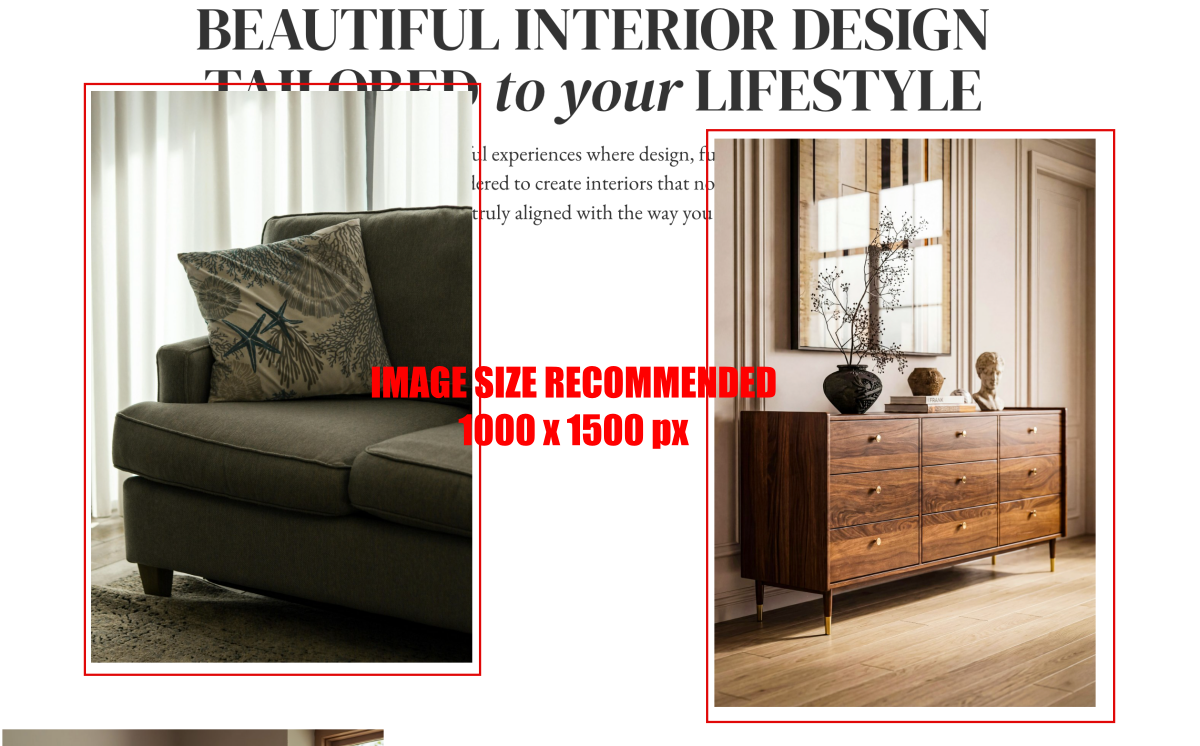
Image Module Settings Breakdown
These settings are organized into three groups via the tabs at the top of the module:
The Content tab
The Content tab allows you to choose the image file, set a module link, customize the module’s background, and more.

-
Image – Select the image file to display. You can either select an existing image from the Media Library or upload a new one.
-
Link – Make the entire Image module clickable or choose to open the image in a Lightbox window.
-
Elements – Allows you to add nested elements.
-
Background – Choose the Image module’s background styles.
-
Loop – Enables the loop builder.
-
Order – Choose the order in which the Image module appears inside a Flexbox and Grid layout.
-
Meta – Choose the Image Module’s Label text and force its Visibility inside the Visual Builder.
The Design tab
All the design styles and options for the Image module are in this tab.

-
Alignment – Choose the Image module’s alignment.
-
Overlay – If the Open in Lightbox option inside the Content Tab → Link is enabled, choose the Image module’s Post Image overlay styles.
-
Sizing – Choose the Image module’s sizing.
-
Spacing – Choose the Image module’s spacing.
-
Border – Choose the Image module’s border styles.
-
Box Shadow – Choose the Image module’s Box Shadow styles.
-
Filters – Choose the Image module’s filters, such as hue shifts, saturation changes, and blending modes.
-
Transform – Choose the Image module’s advanced design effects, such as scaling, rotating, skewing, and translating.
-
Animation – Choose the Image module’s animation styles.
Need Further Tutorials?
The Divi Image Module: https://bit.ly/2Rpi4W2
How to crop and resize images: https://www.support.helplovelyconfetti.com/work/how-to-crop-and-resize-images/
Divi Builder overiew: https://www.elegantthemes.com/documentation/divi/visual-builder/