Step 1: Create a Google Analytics account
If you don’t have a Google Analytics account yet, you can easily create one at Google Analytics
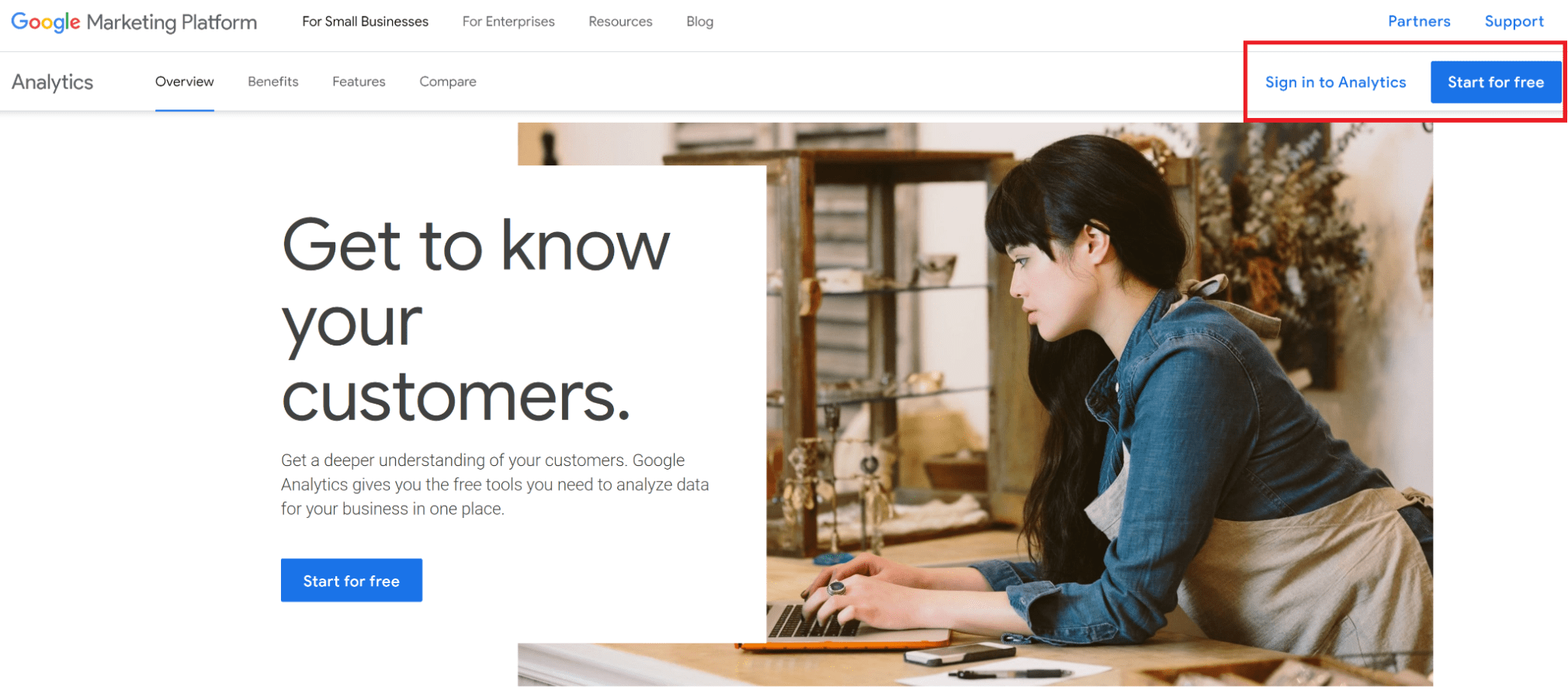
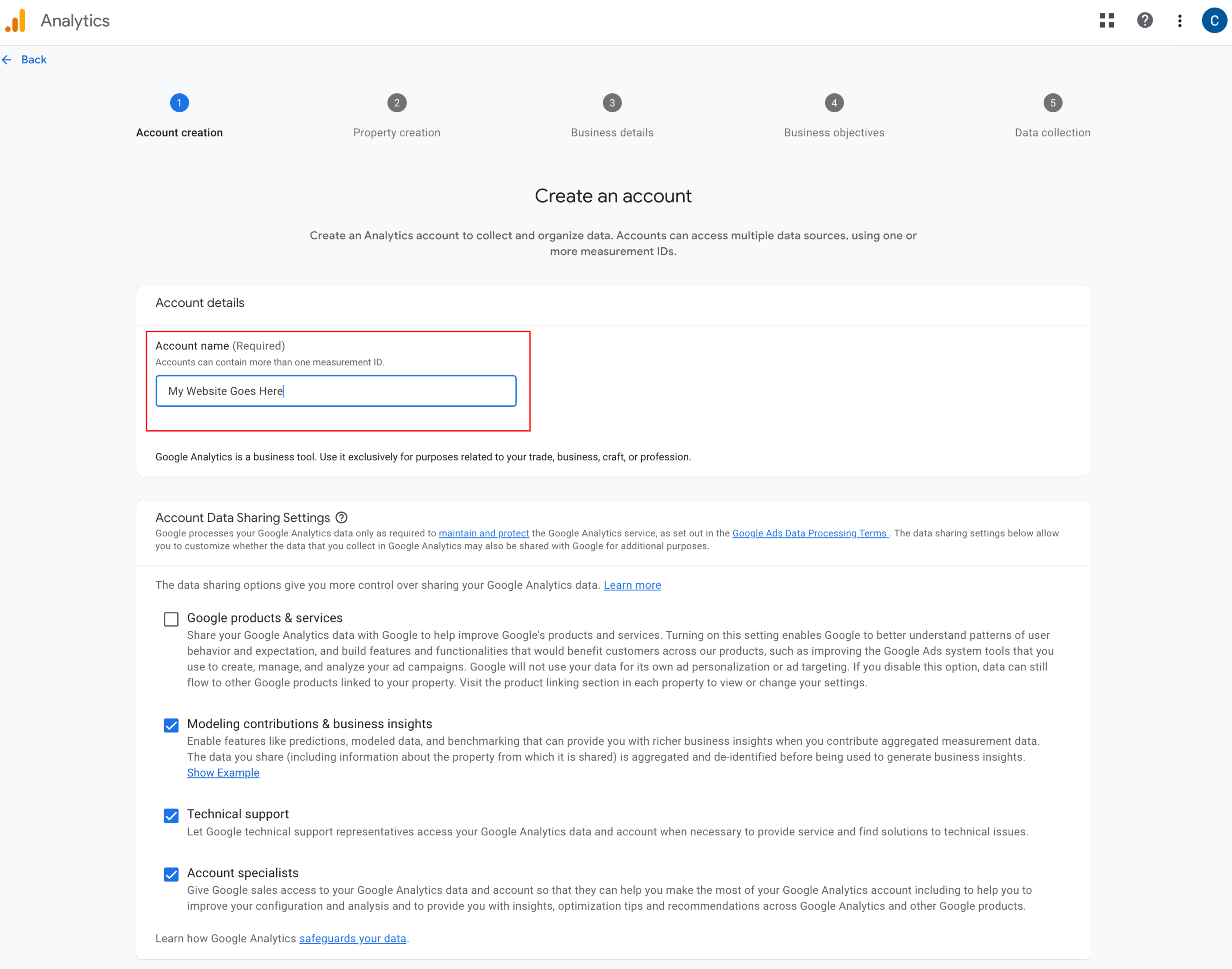
1. Naming the Account
On the first page, enter your account name and and leave the data sharing boxes ticked (you can untick them if you want to, they won’t change anything with your data).
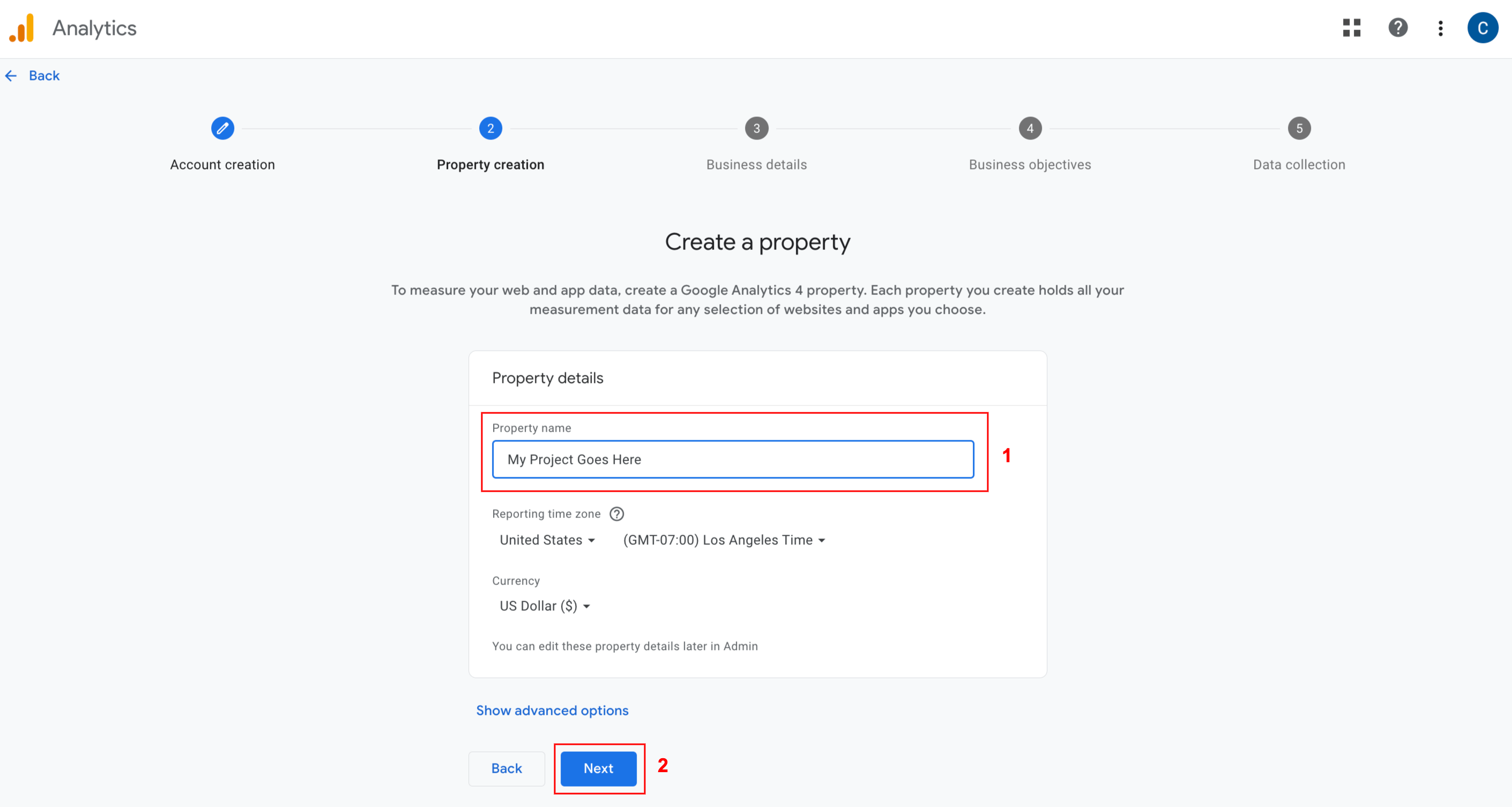
2. Fill out Your Property Details
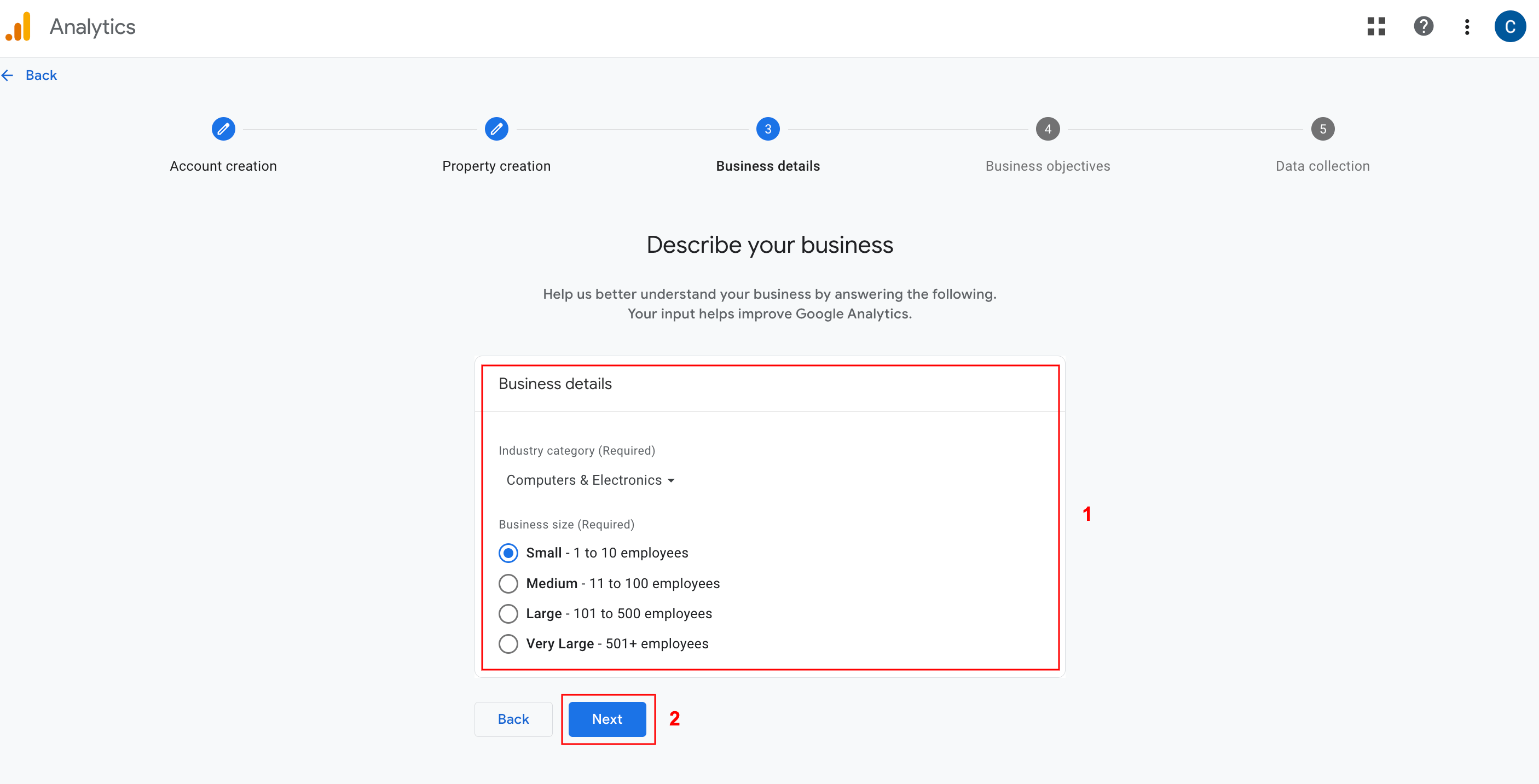
3. Enter your business details
Choose what data you want to share with Google ( Industry, Business size and intent).
4. Set up your date stream
Select the “Web” option.
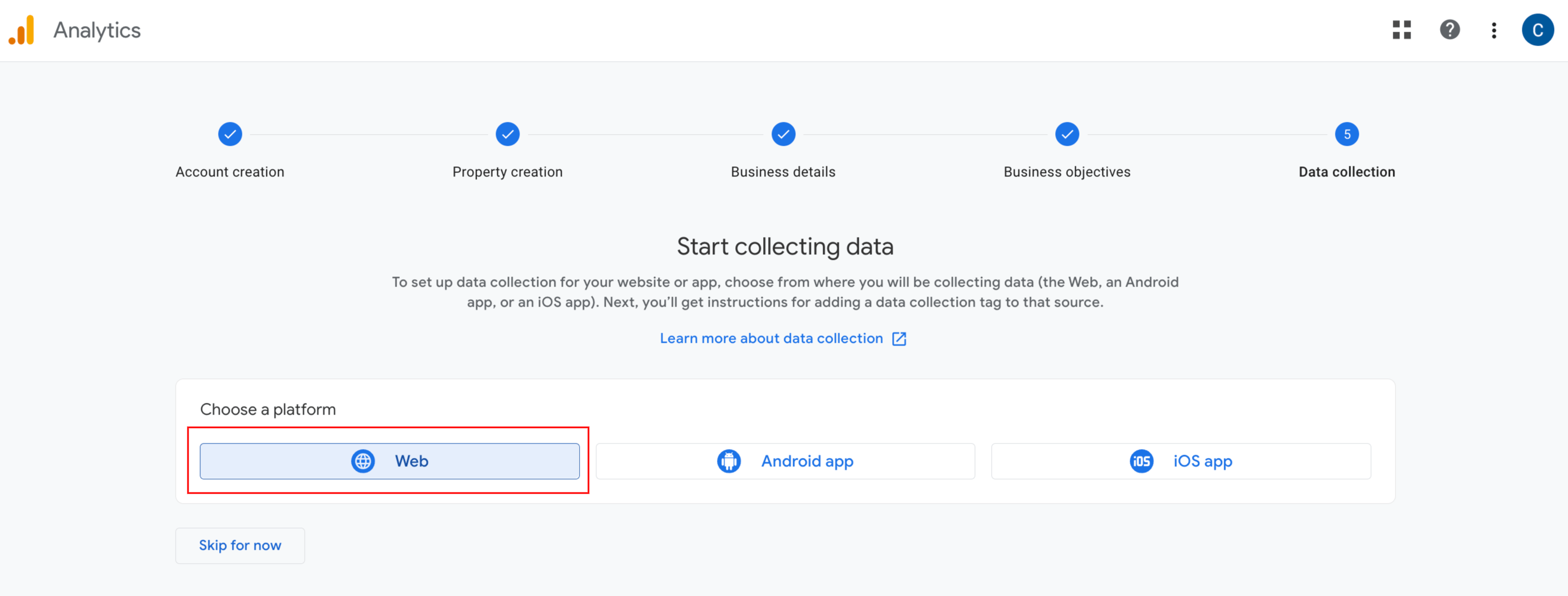
4. Set up your date stream
You will be prompted to add your domain URL and to name your data stream.
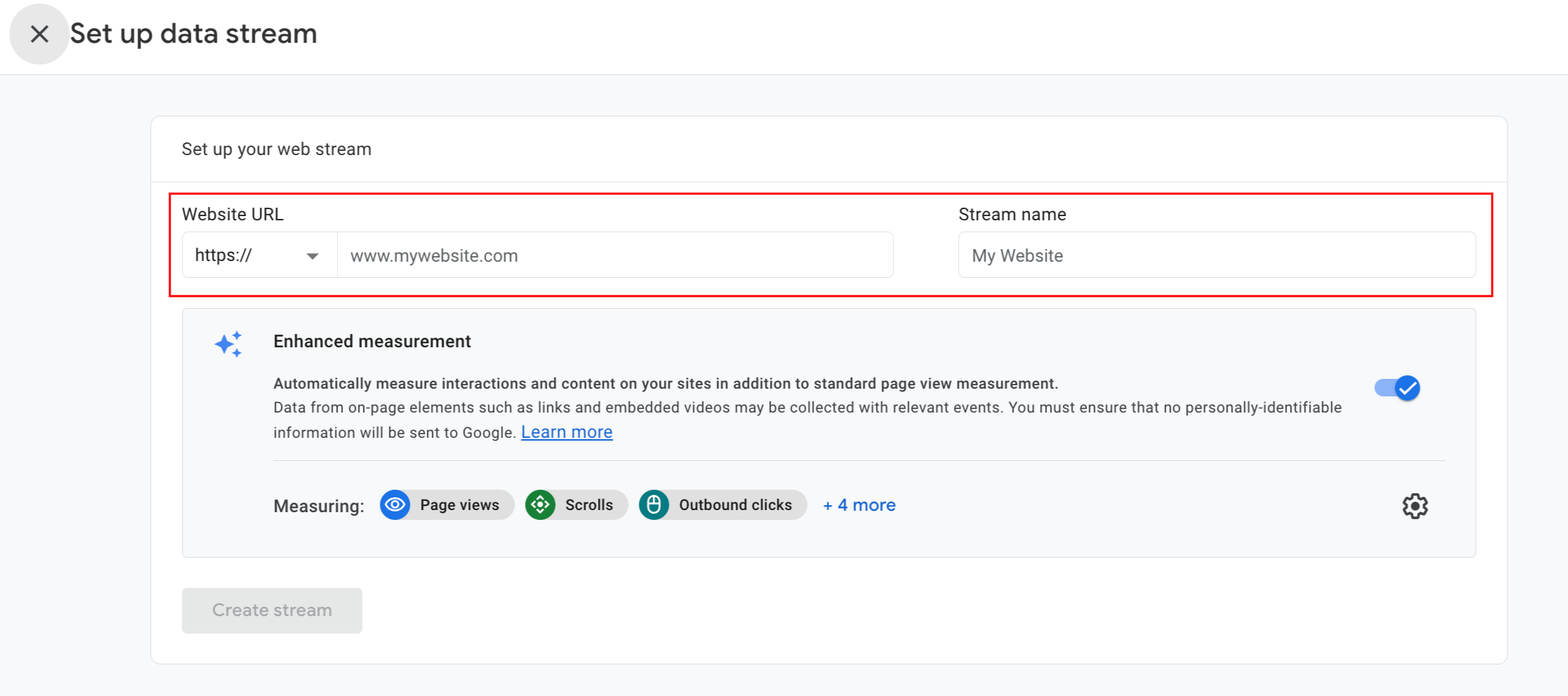
Step 2 : Integrate the tracking code in Divi
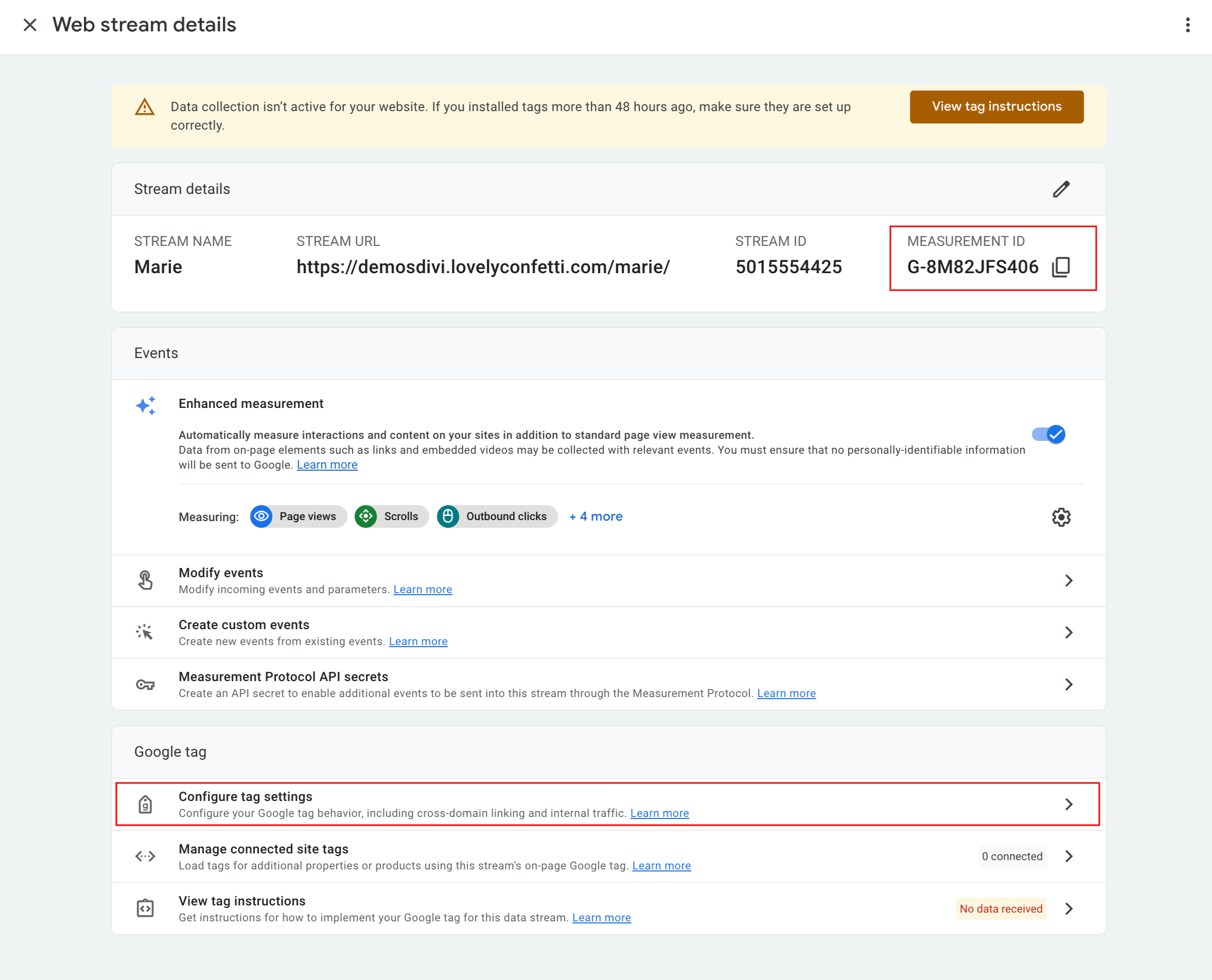
The next screen is very important.
This is the web stream details that has your measurement ID. It will be used to complete the set-up, without it you cannot get data from your website to Google Analytics.
Click the “Global site tag (gtag.js)” row.
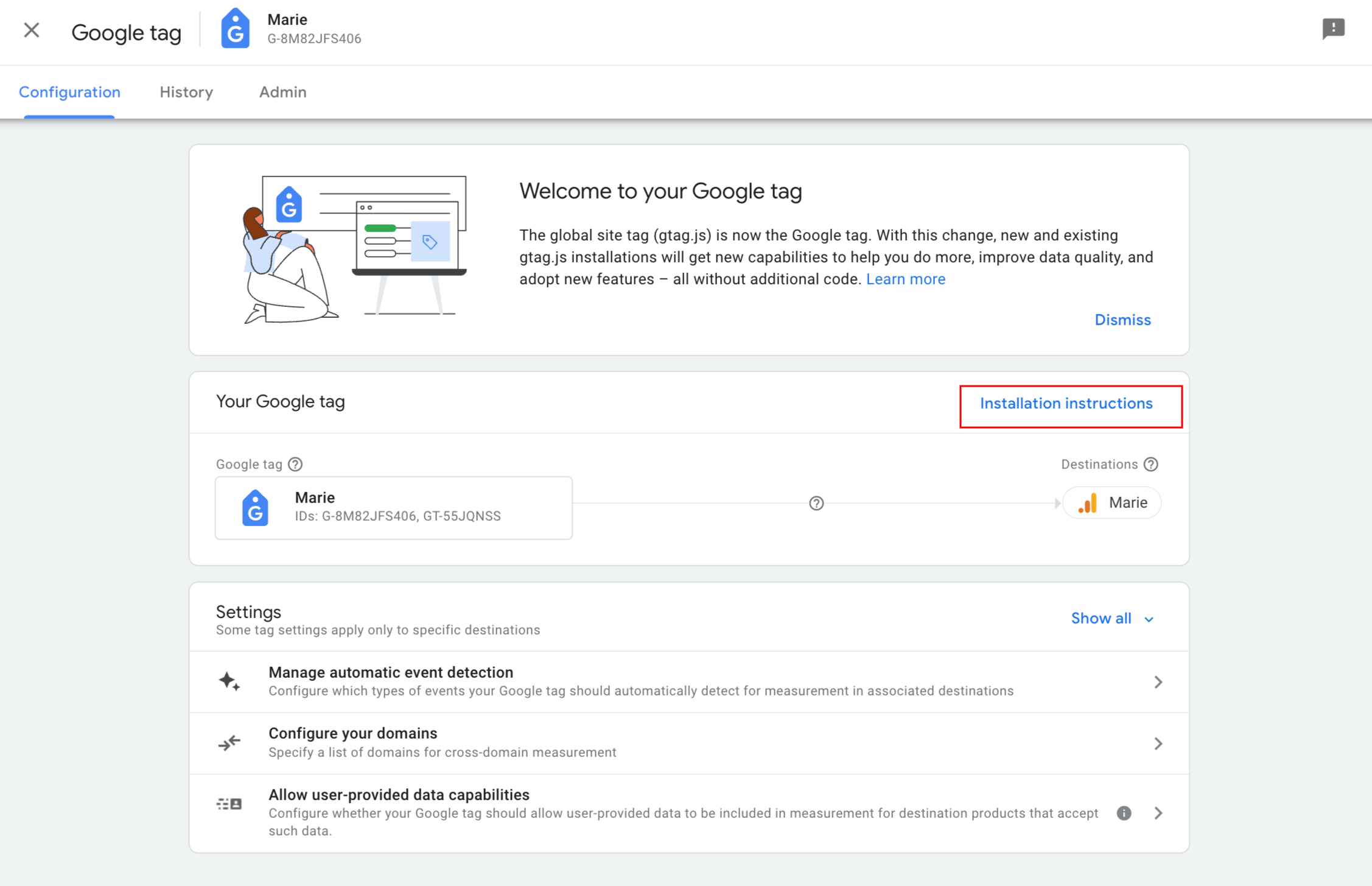
When you click on it, you will be given a small piece of JavaScript and copy that code.
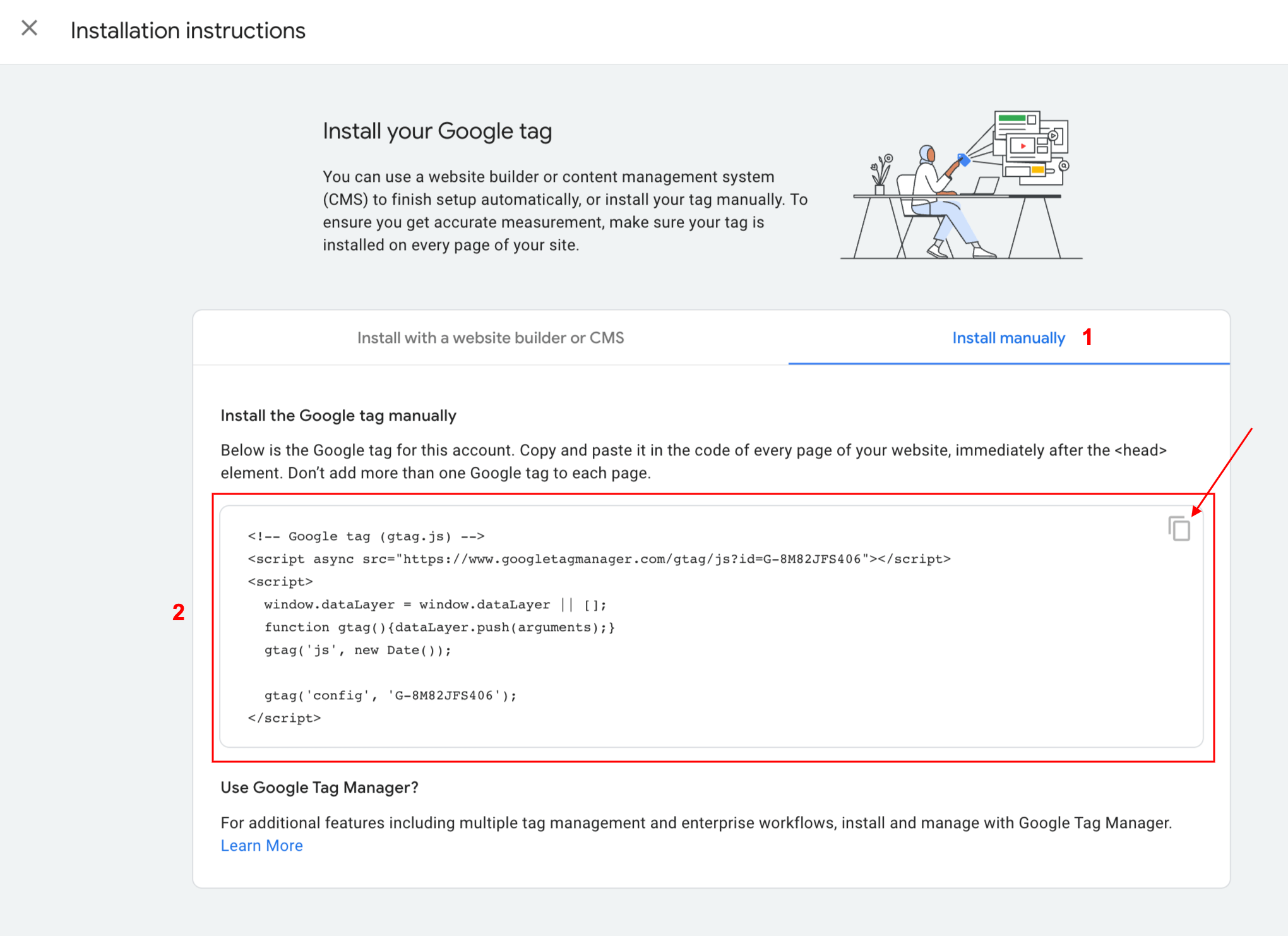
Step 3 : Integrate the tracking code in Divi
Navigate to Divi > Theme Options > Integration > You will find a field for adding the “tracking codes such as Google Analytics.” > Paste tracking code here and Save changes.
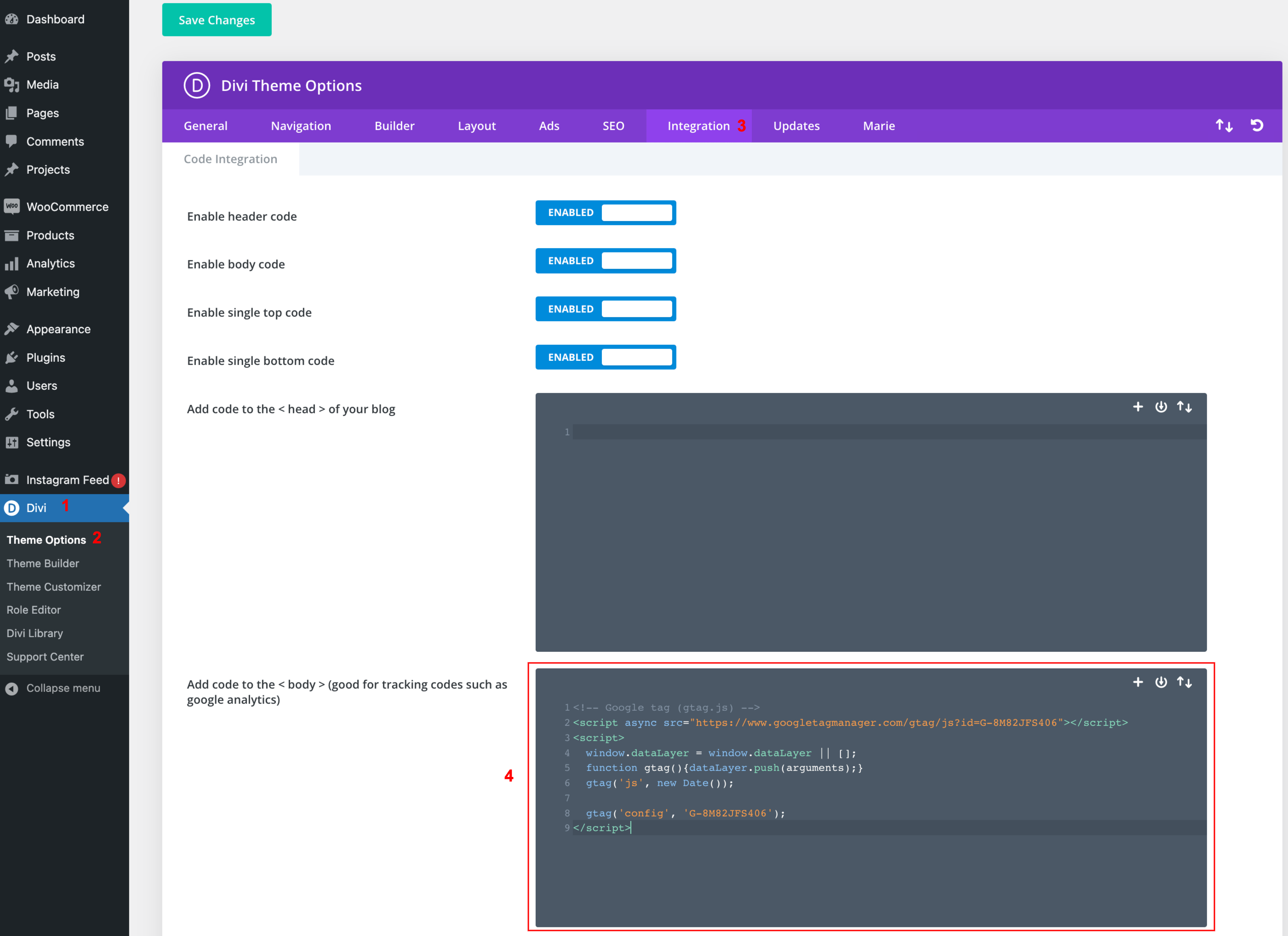
Now you have successfully added Google Analytics to your Divi website.