- Log in to your WP Admin panel.
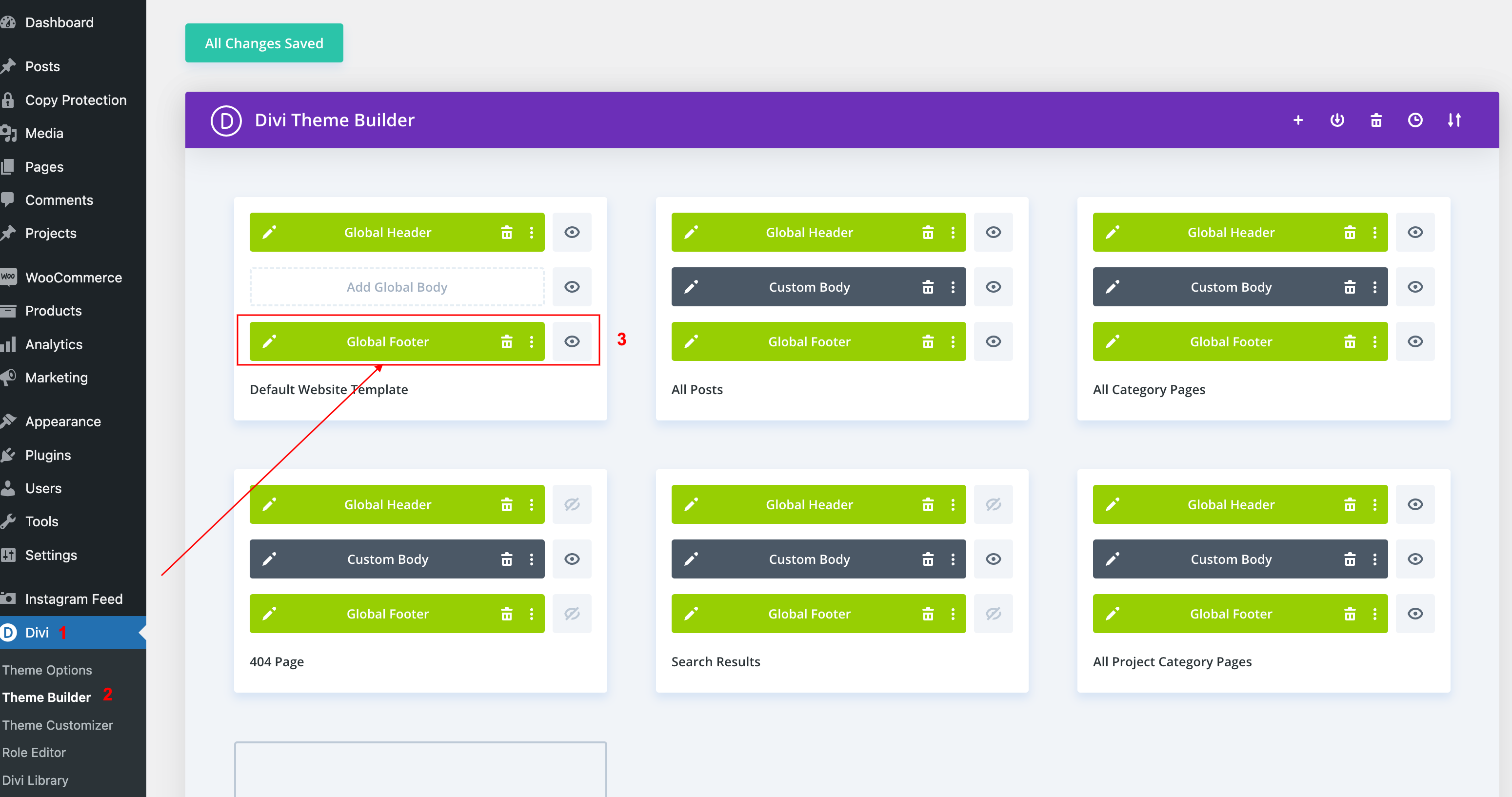
- Navigate to Divi > Theme Builder > Edit Footer > Save changes.
- Import “Judy-Theme-Builder.json” from “Demo archives” folder if you have not imported it yet.
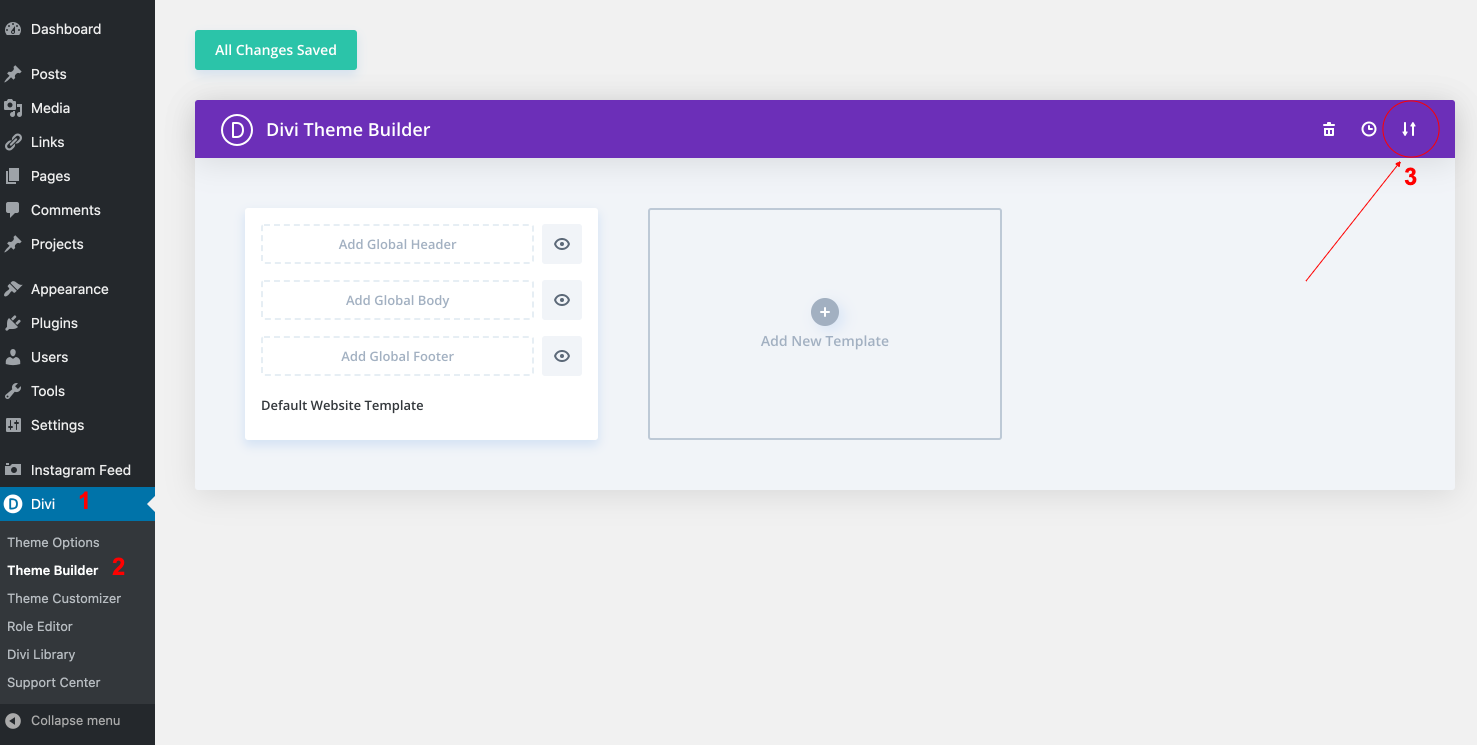
4. Edit your Footer > Save changes.
How to configure Instagram feed:
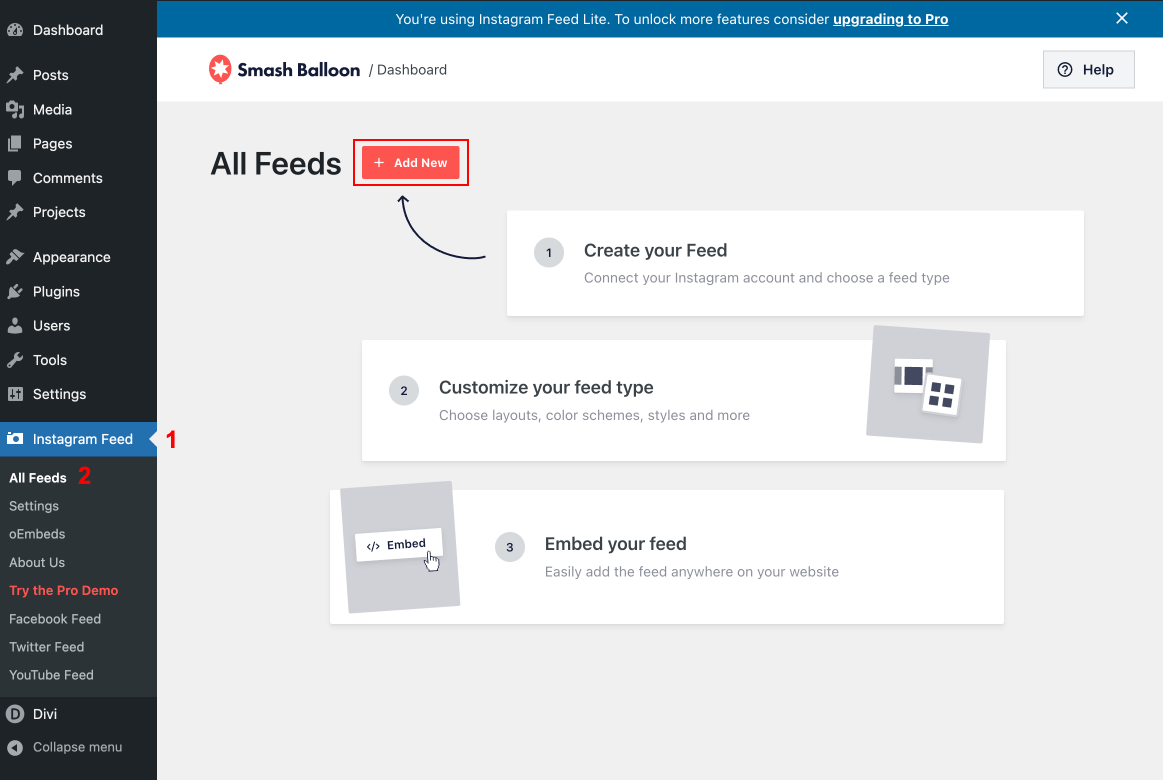
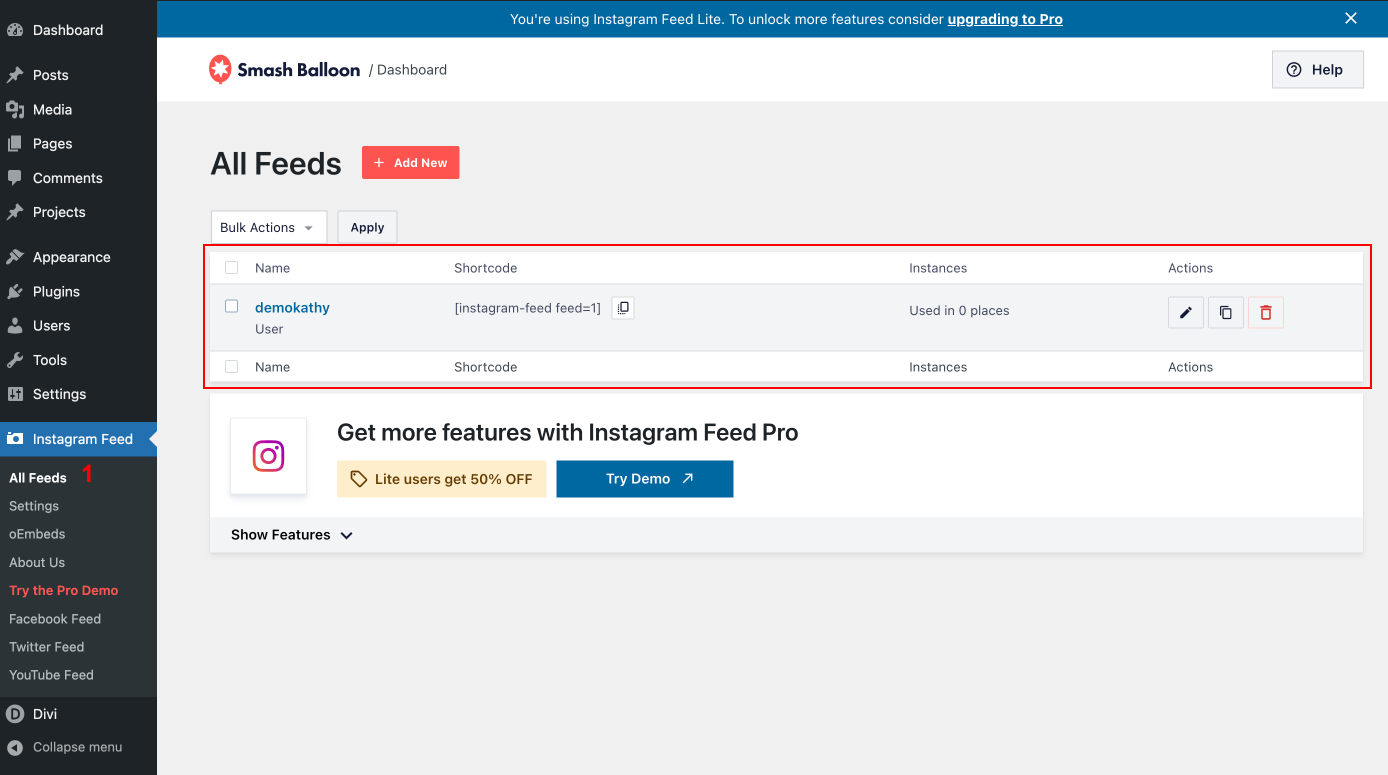
- Once you’ve installed the plugin “Instagram Feed“, click on the Instagram Feed item in your WordPress menu.
- Click on the large blue button to connect your Instagram account.
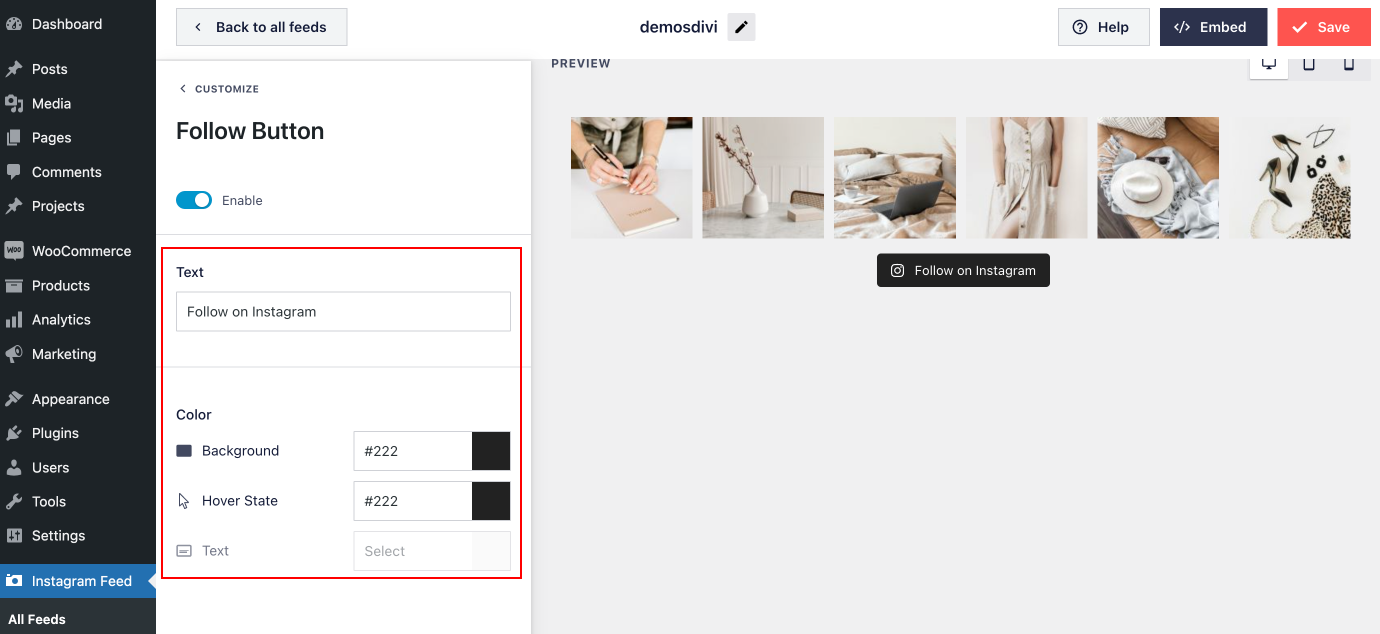
Configuration : Number of Photos: 6 ; Number of Columns:6 ; Header: Desactivated; “Load More” Button: Selected ; “Follow” Button: Activated;
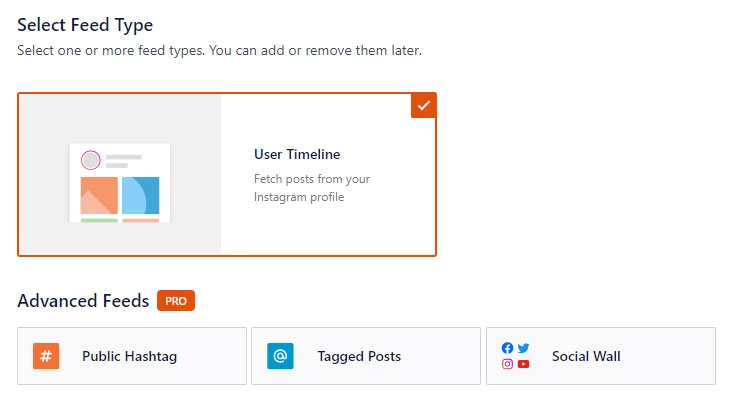
Click on the User Timeline option, then click Next.
Select the Add New option.
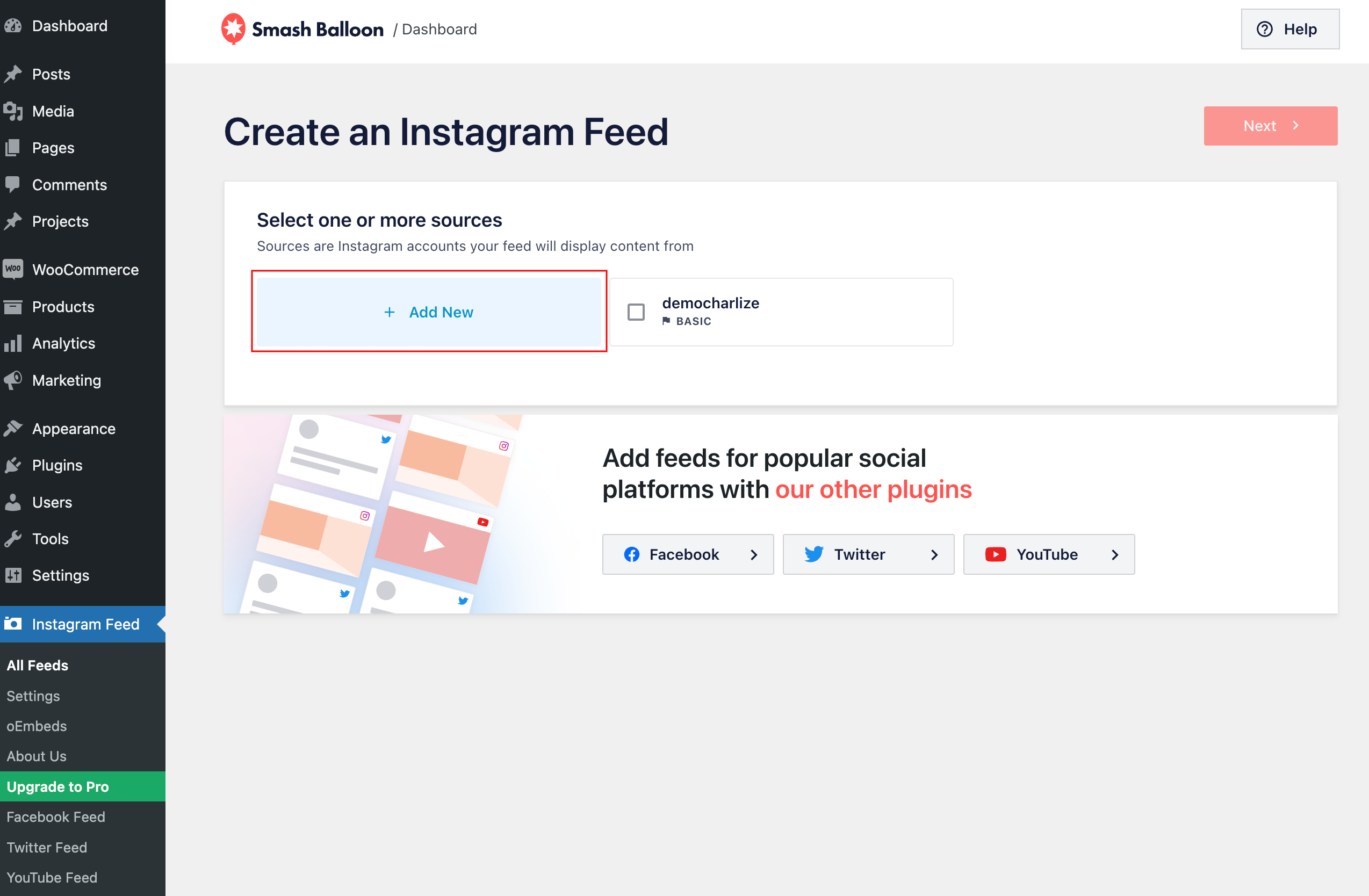
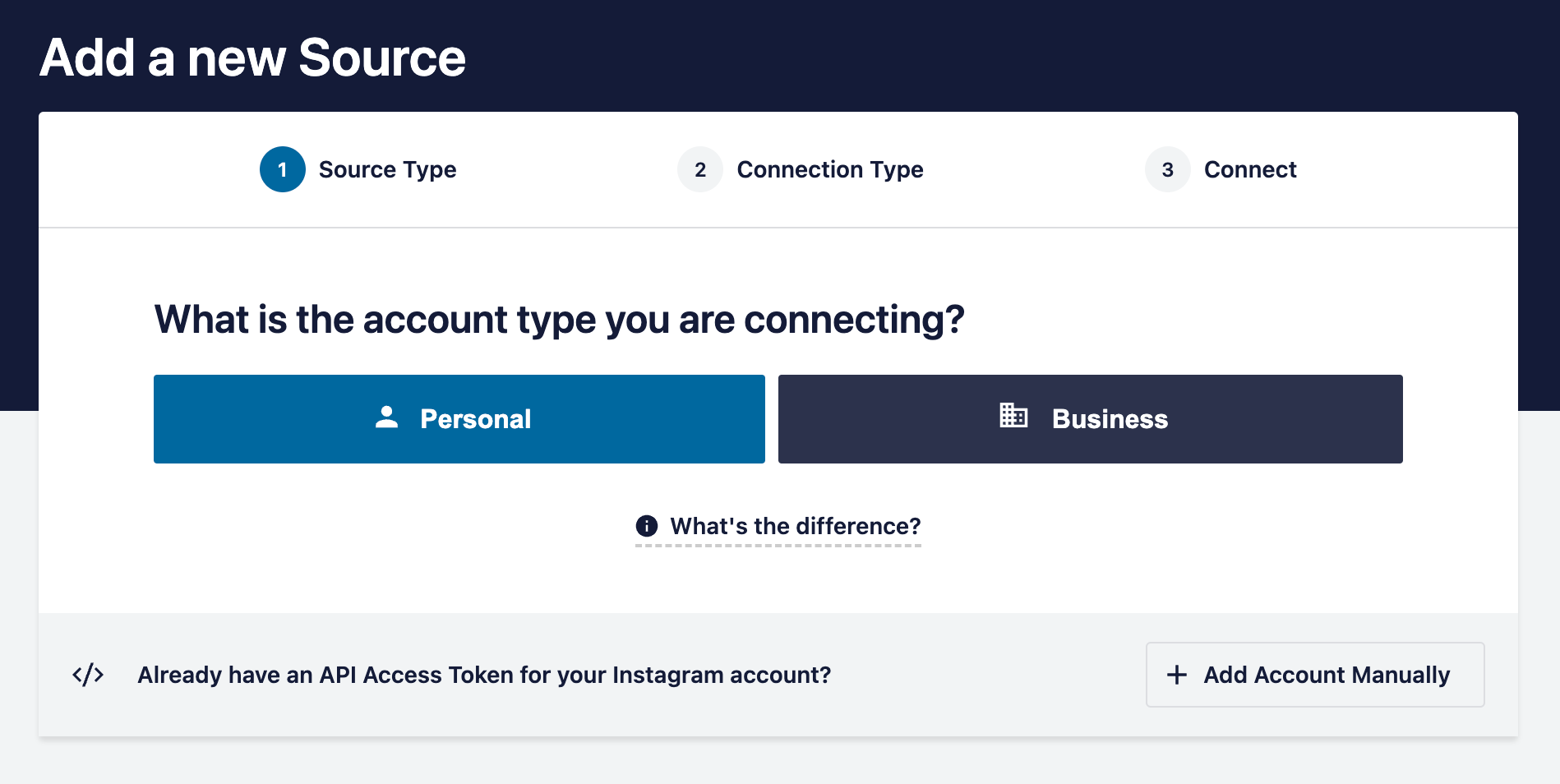
3. Once you’ve connected your Instagram account, select your account > next
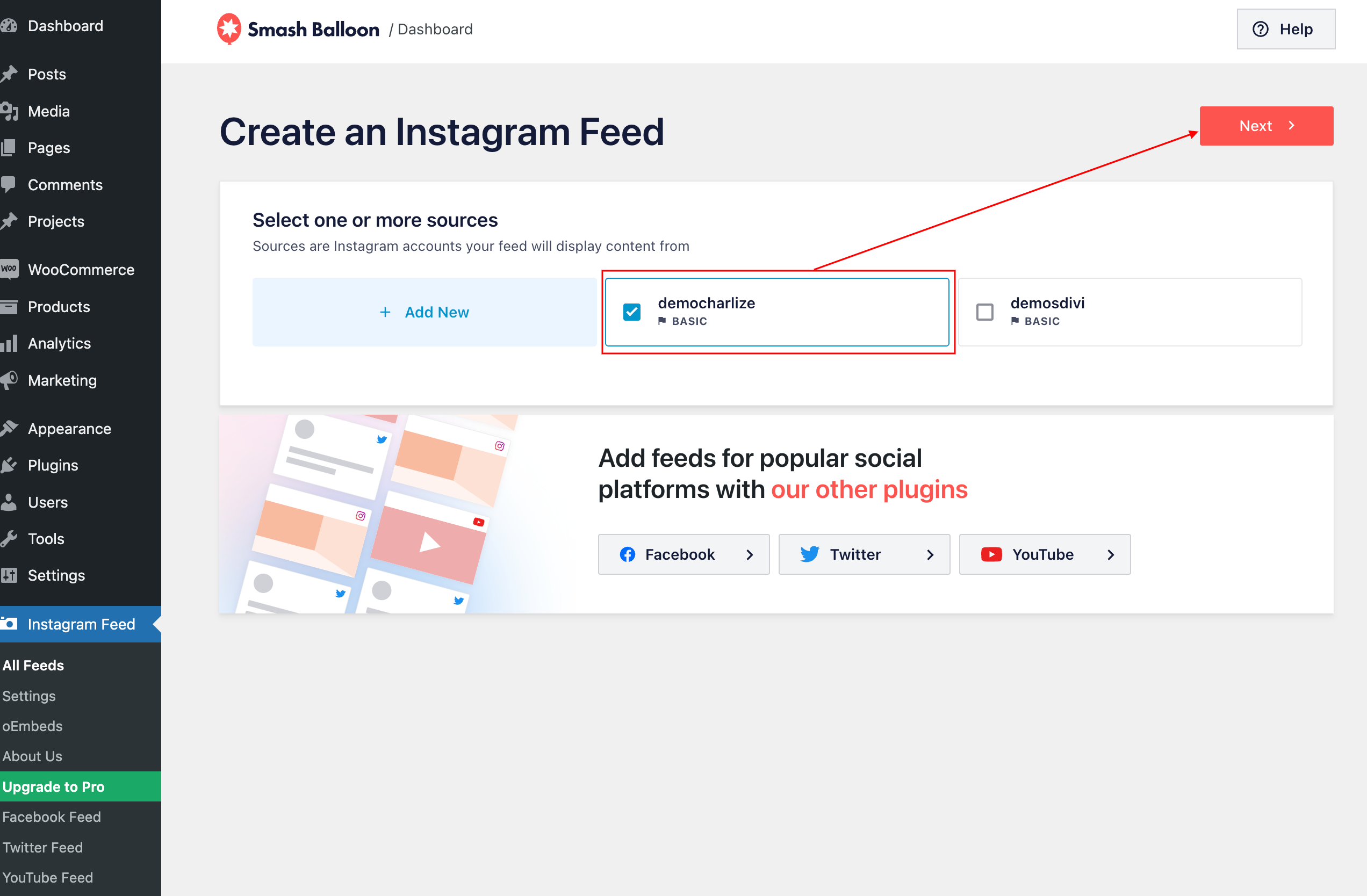
4. Navigate to the Customize page to customize your theme feed:
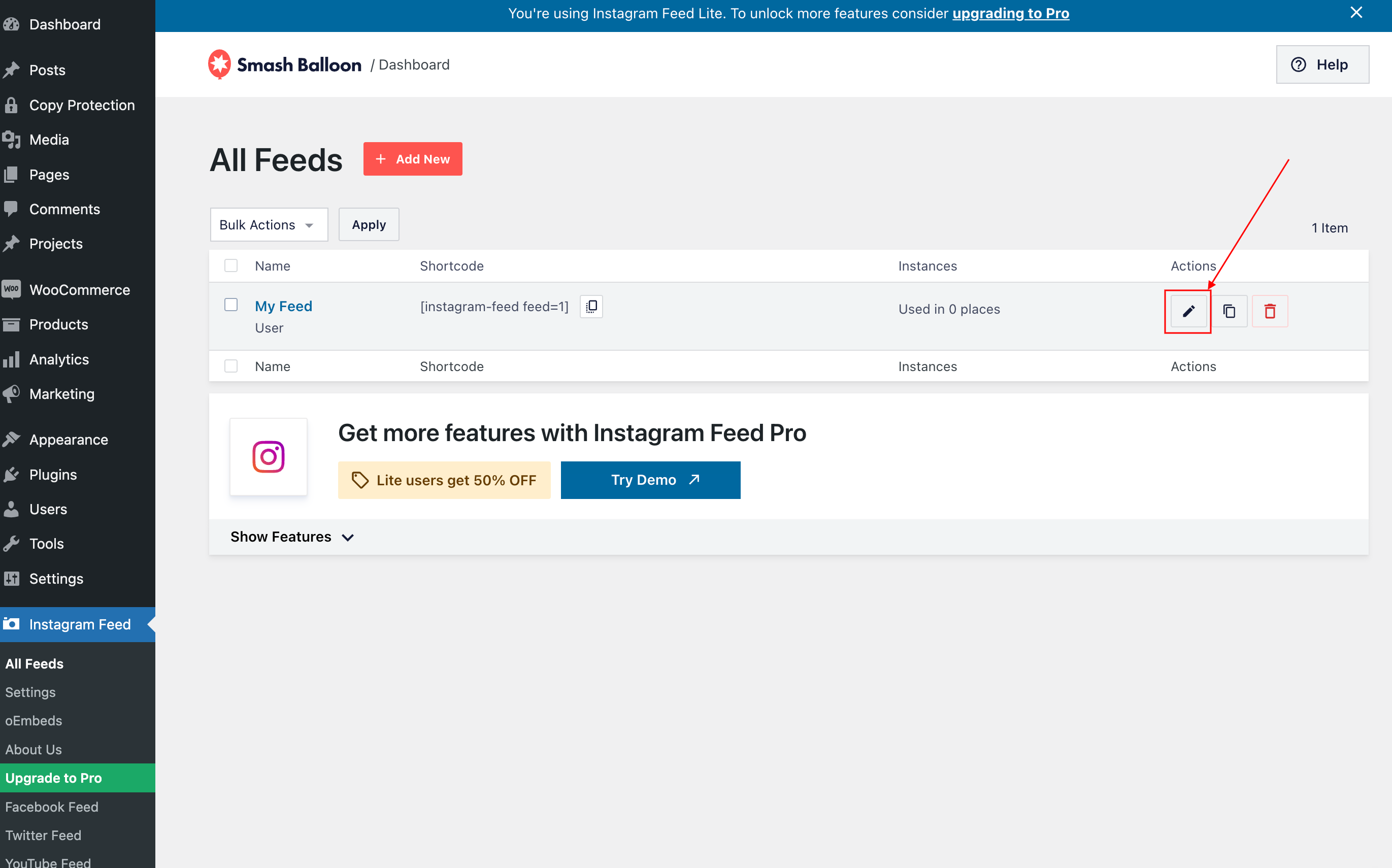
4. Navigate to the Customize page to customize your theme feed:
4. Navigate to the Customize page to customize your theme feed:
By default, feed is distributed in 20 columns with 20 photos, header, load more and follow button but you can customice it.
- Configure Feed Layout:
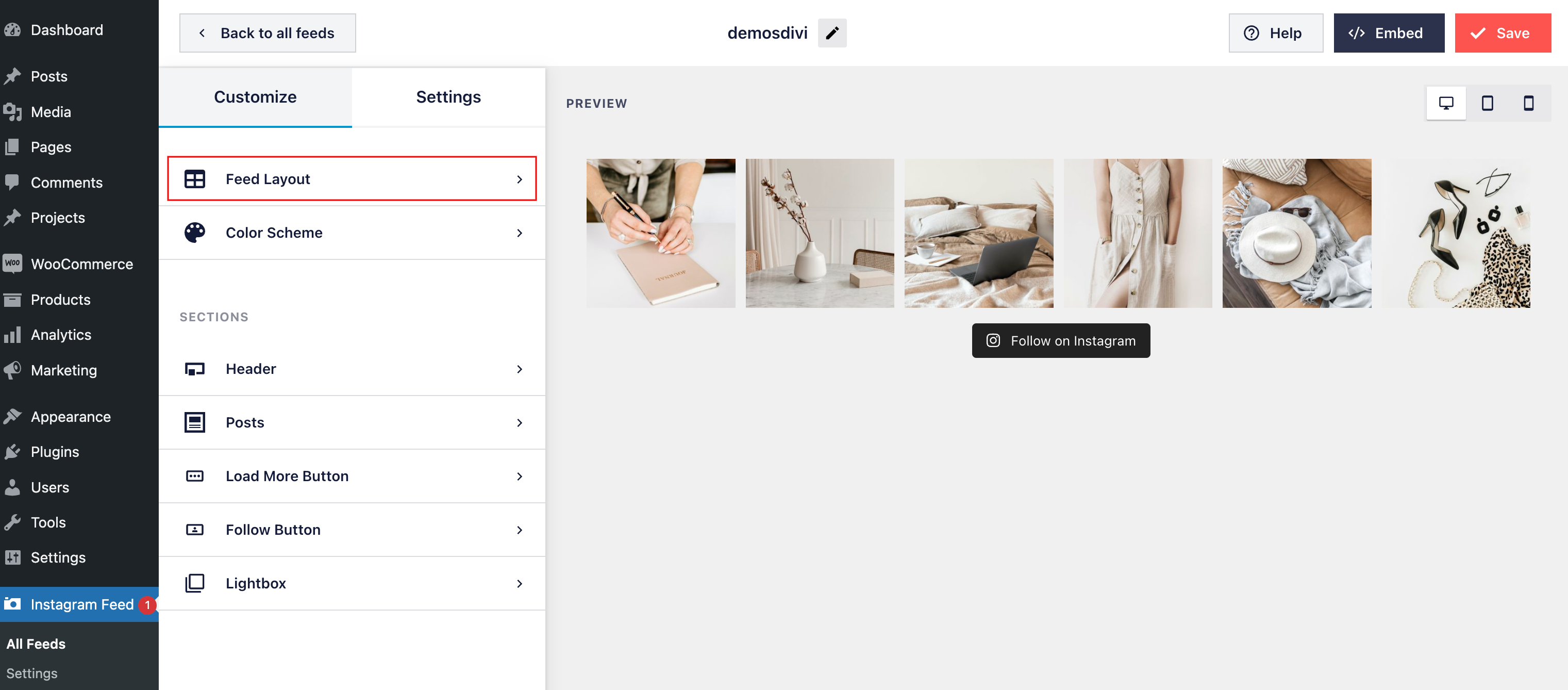
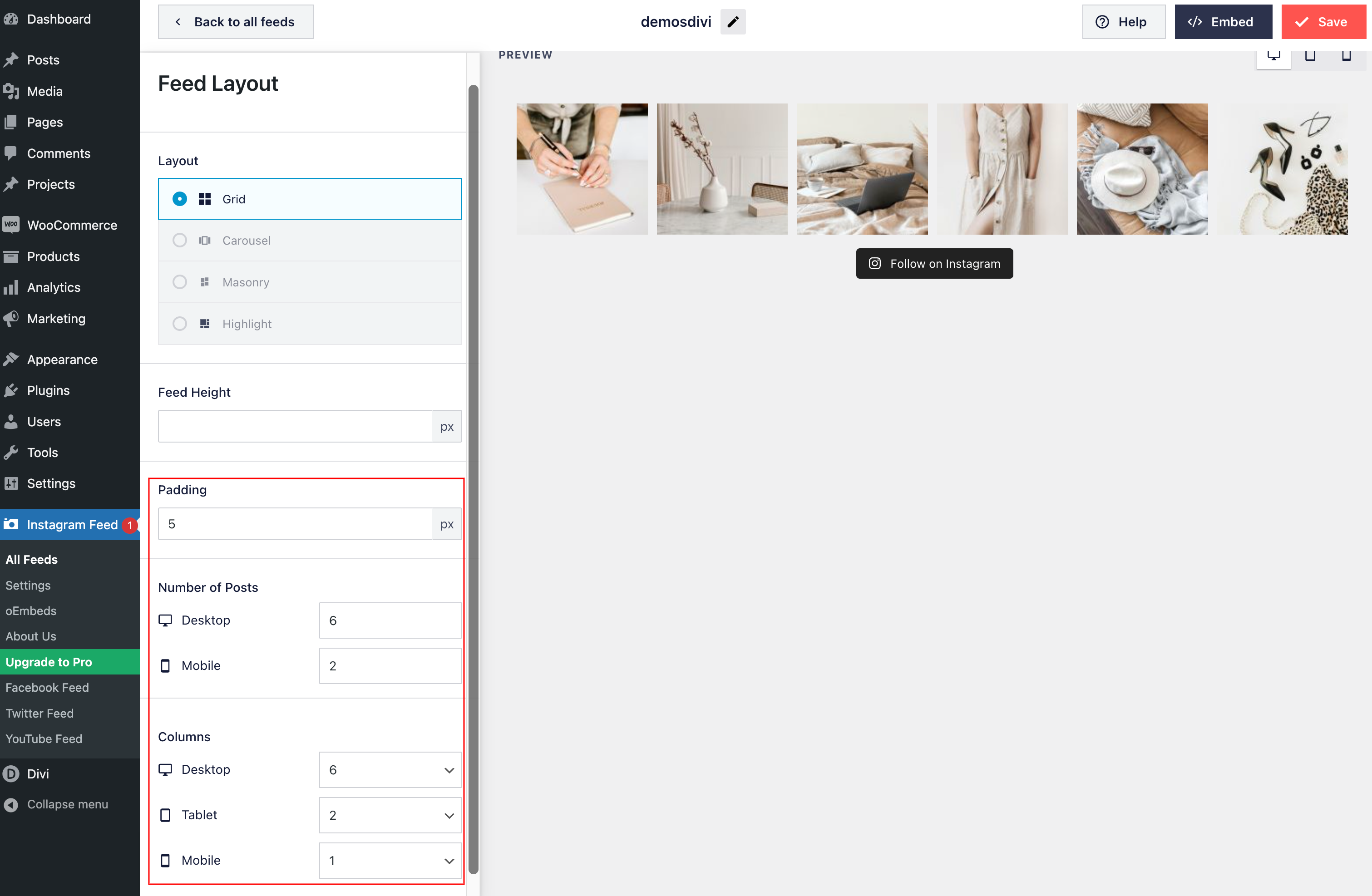
- Configure Header, load more button:
In demo, I´ve desactivated header
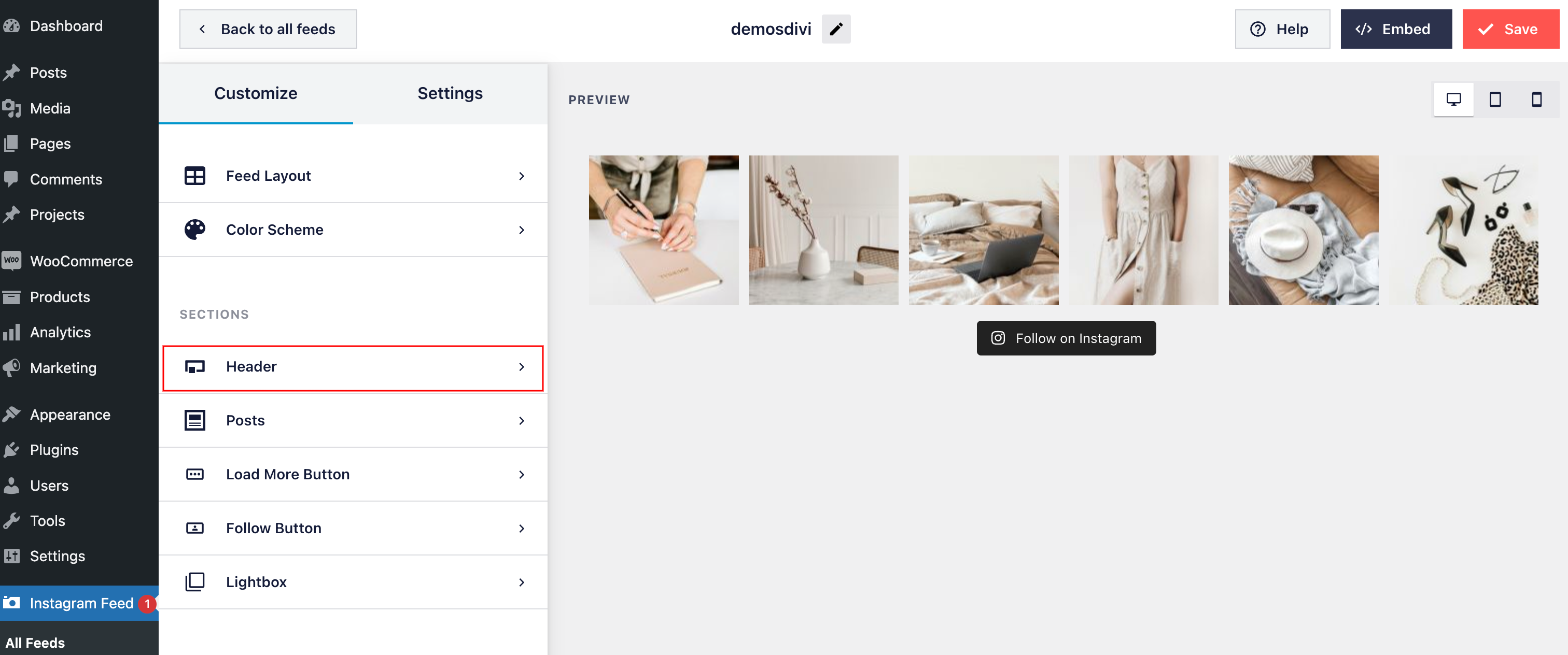
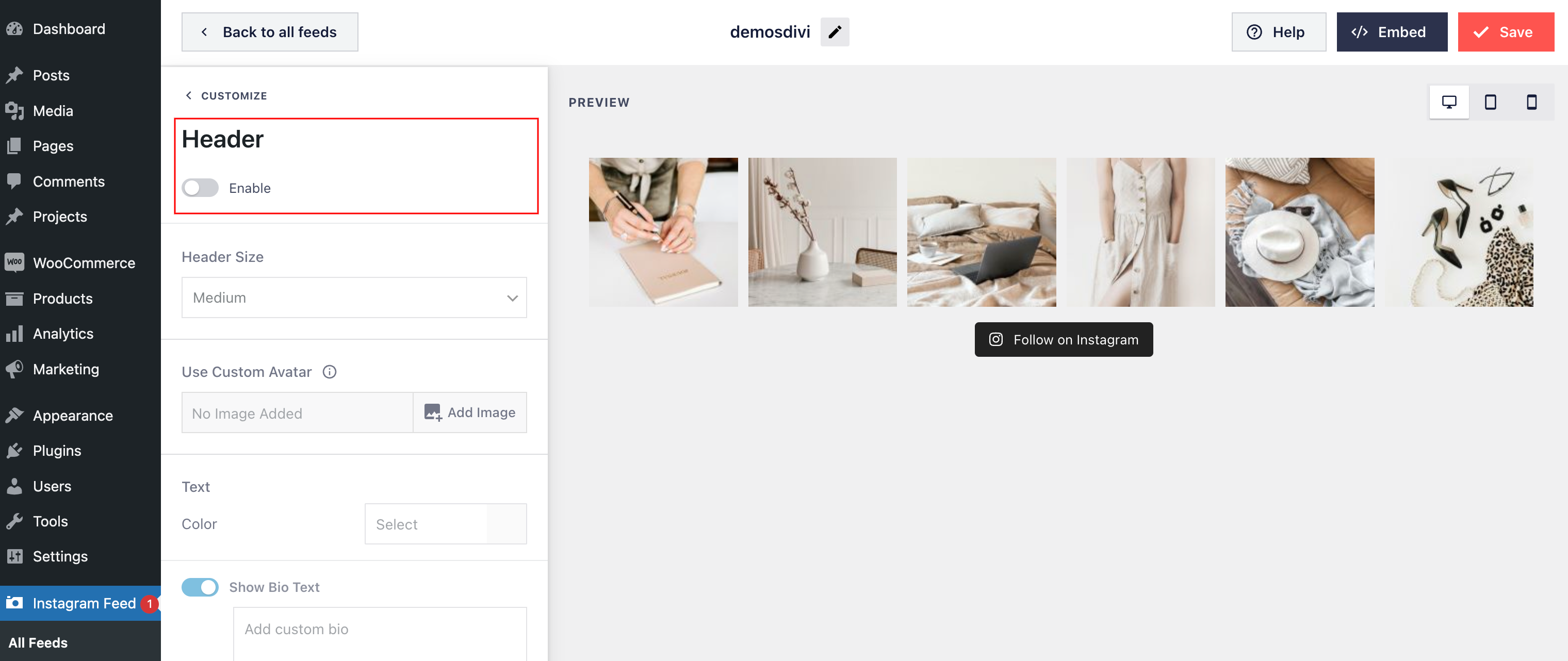
And Load more button
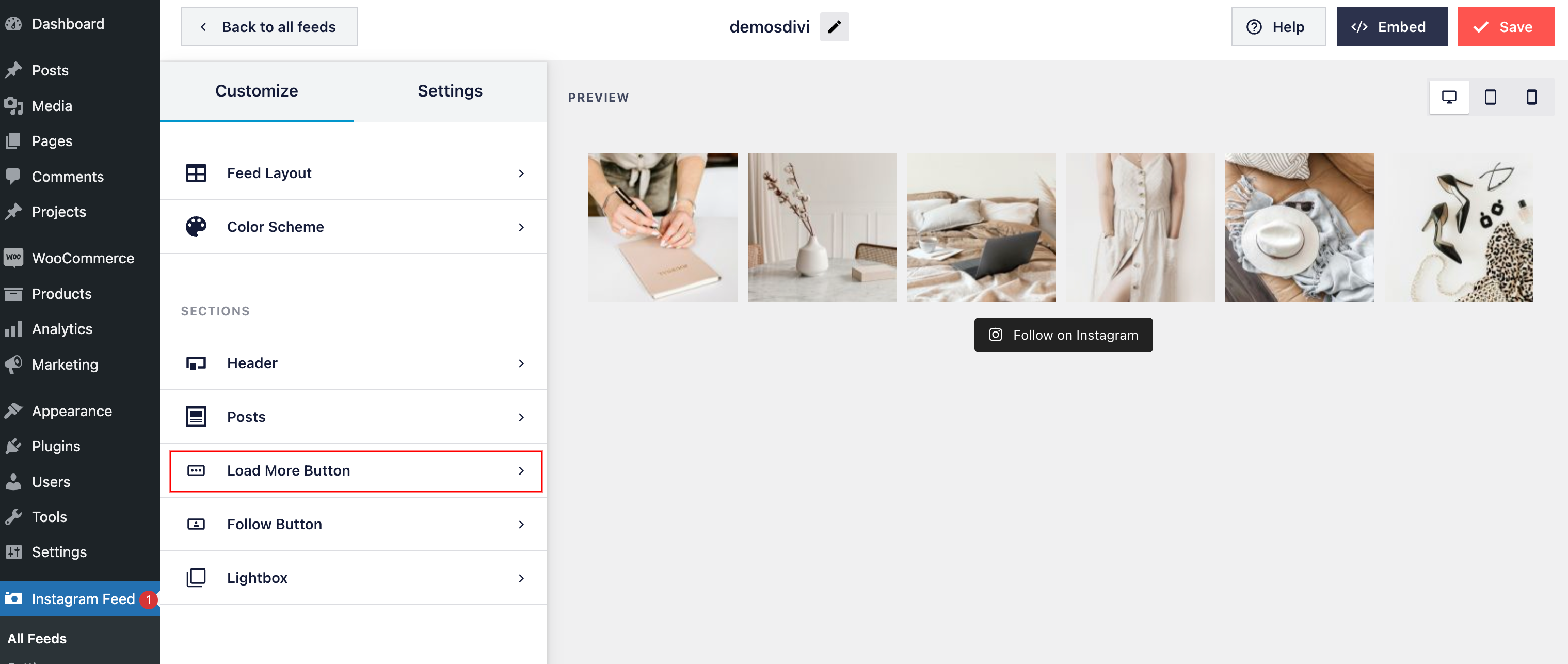
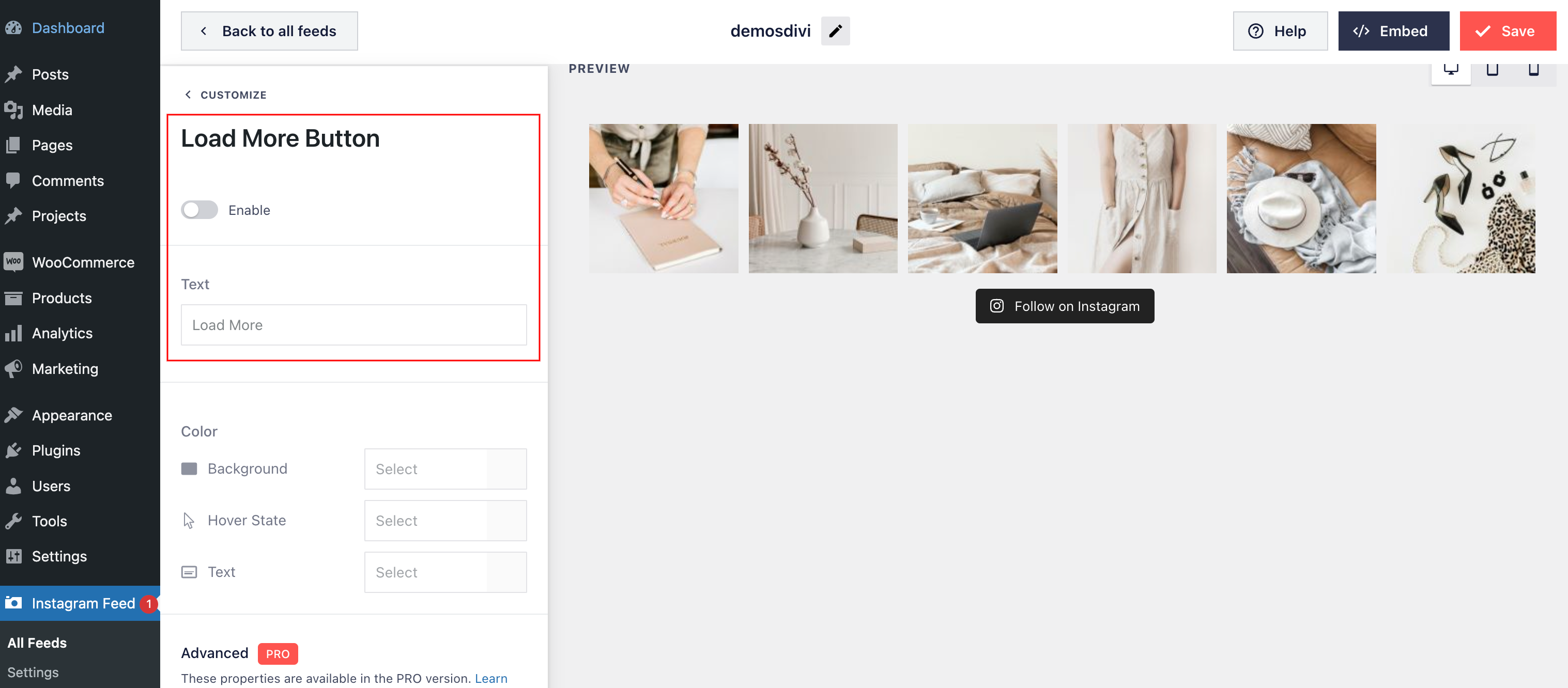
Customize button
5.Once you’ve customized your feed, go to All Feeds > Copy the shortcode ([instagram-feed feed=2]) into any page, post or widget where you want the feed to appear.
5.Once you’ve customized your feed, copy the [instagram-feed feed=2] shortcode into any page, post or widget where you want the feed to appear.
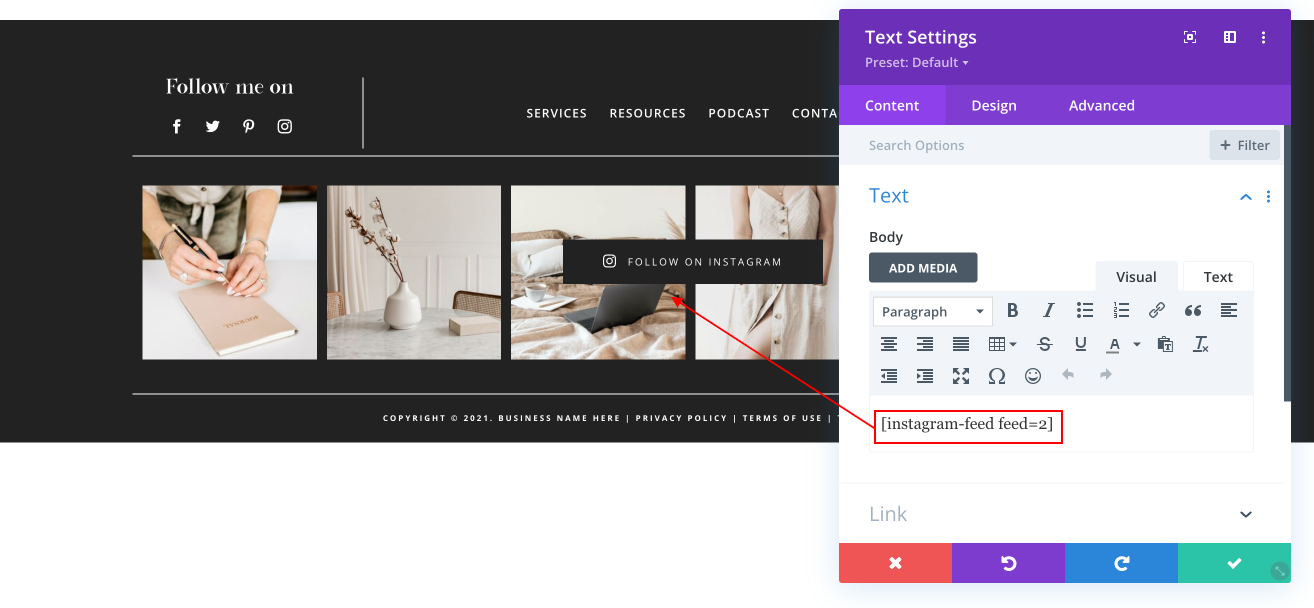
6. In DEMO I am using the Instagram feed in the footer and the code is already added. So you don’t need to add it
Go to Divi > Theme Builder > Footer
Code added: