Step 1: Create a New Page
Go to WordPress dashboard area, click on “Pages” then “Add New”:
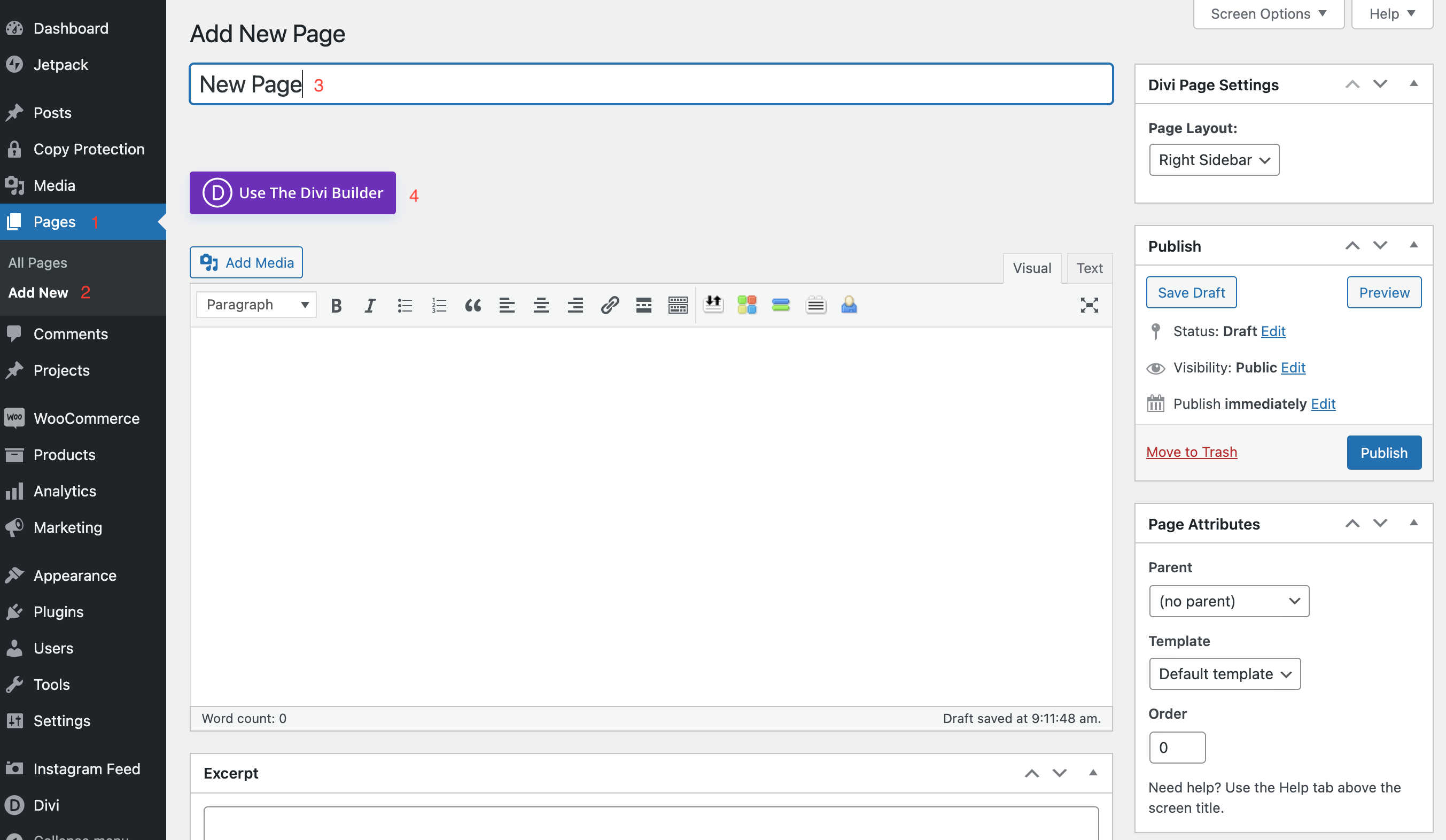
Type in a title for your new page (in the area where it says “New Page” above), then click the purple “Use Divi Builder” button.
Step 2: Clone existing page
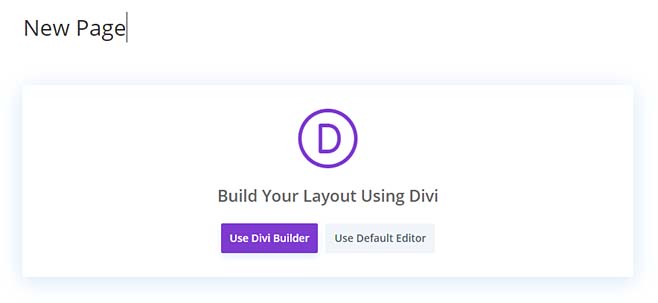
Type in a title for your new page (in the area where it says “New Page” above), then click the purple “Use Divi Builder” button.
You might see Divi’s wheels churning for a minute while it’s doing its thing, then this screen should appear:
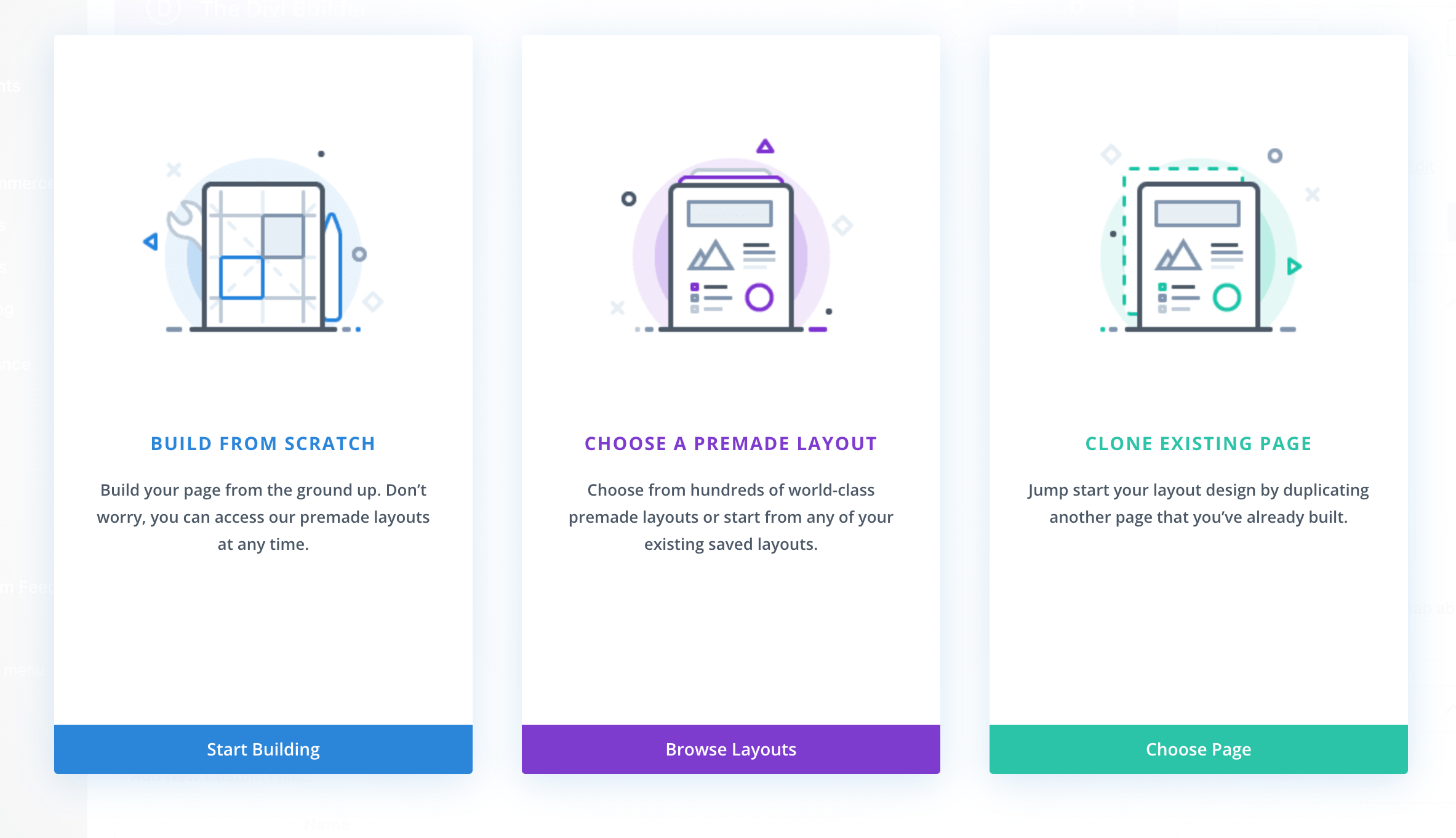
You have the options to build a new page from scratch, choose from one of Divi’s gorgeous premade layouts OR clone one of your own lovely existing pages.
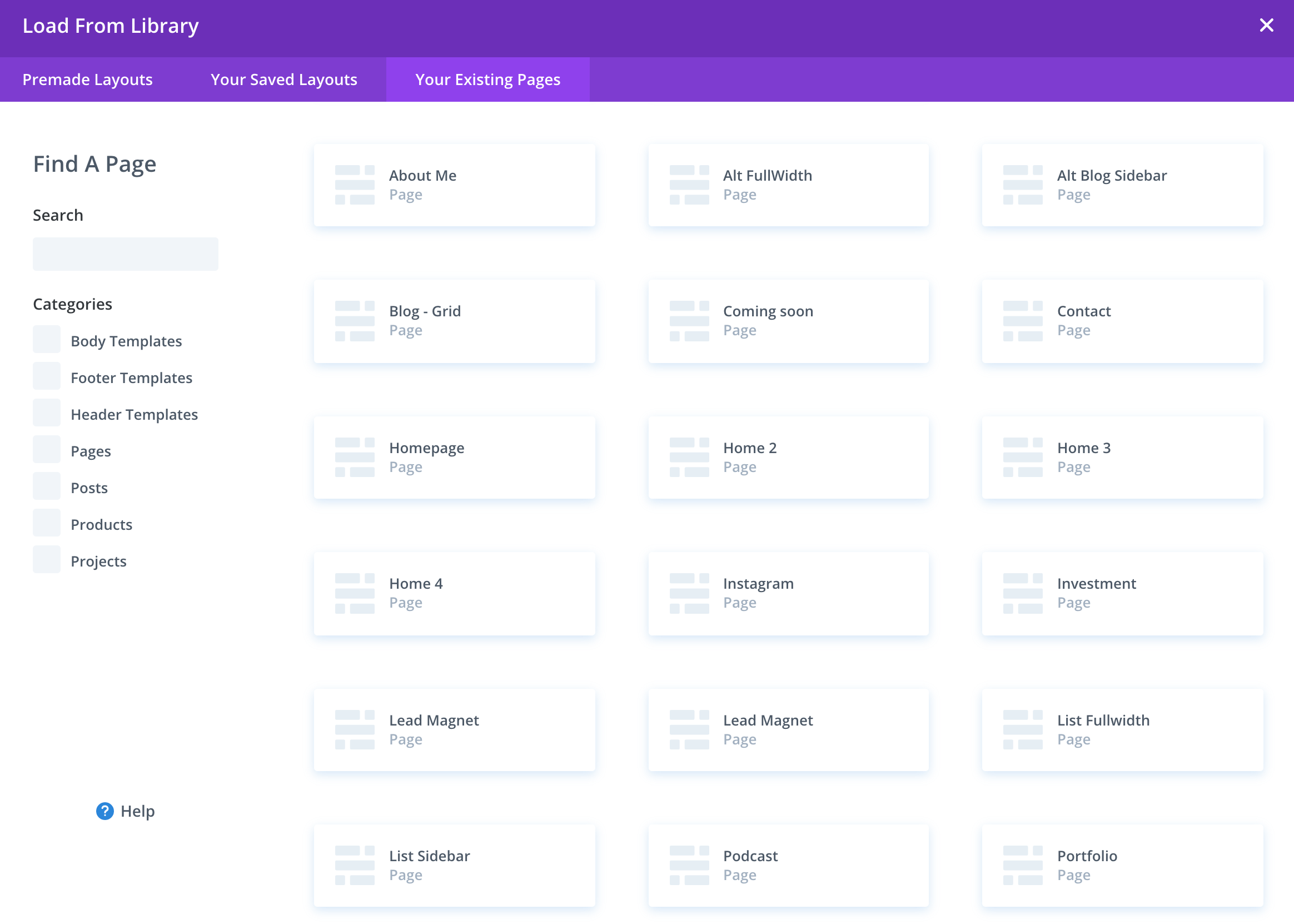
Click on the 3rd column to “clone existing page.”
Inside that window choose the page you would like to clone/duplicate by clicking on its little rectangular box. Then it should open your new page in the Divi Builder.
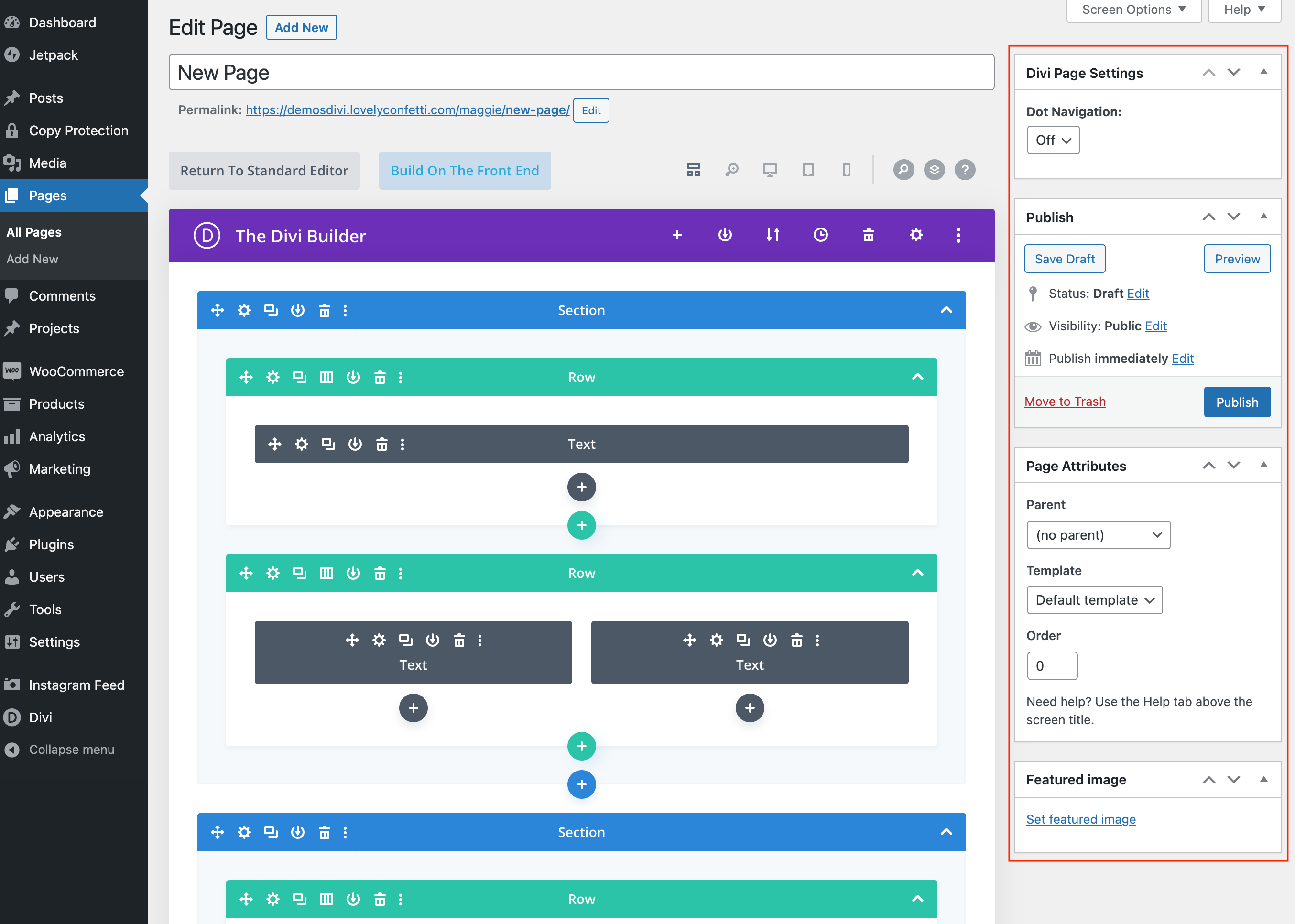
Step 3: Next edit your page or post settings as needed.
To do this you can go up to the top of your Divi page/screen and click on “Edit Page”:

Here you can edit various settings such as add a featured image, choose a parent page and template, turn off/on dot navigation, etc.