- Click on Enable Visual Builder in the top bar.
- To replace an image, start by hovering your mouse over it.
Recommended image sizes
For general use, here are recommended image sizes for Jane Theme
- Hero images: 2100 x 800 px
- Services image: 1000 x 1500 px
- Portfolio featured image: 850 x 1000 px
- Post featured image: 850 x 1000 px
- About/contact image: 1000 x 1500 px
Changing Background Images
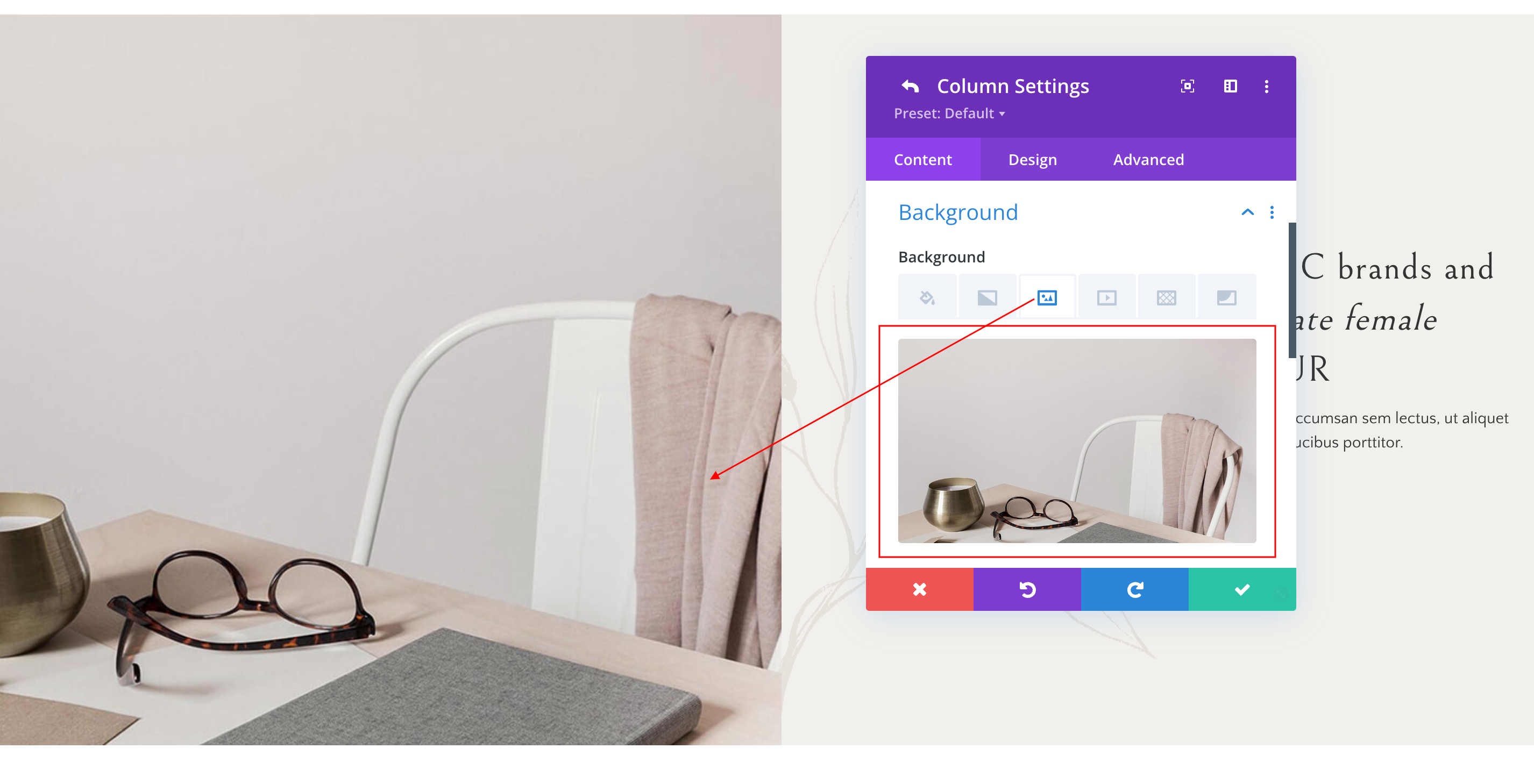
If you are attempting to replace an image but there is no Divi Image Module, then the image is being displayed as a background image.
To create a beautiful responsive design many of my themes often use background images of sections and rows instead of using the Divi Image Module.
The benefit is a responsive image that fits the text content next to it.
- Identify where the background image is located.
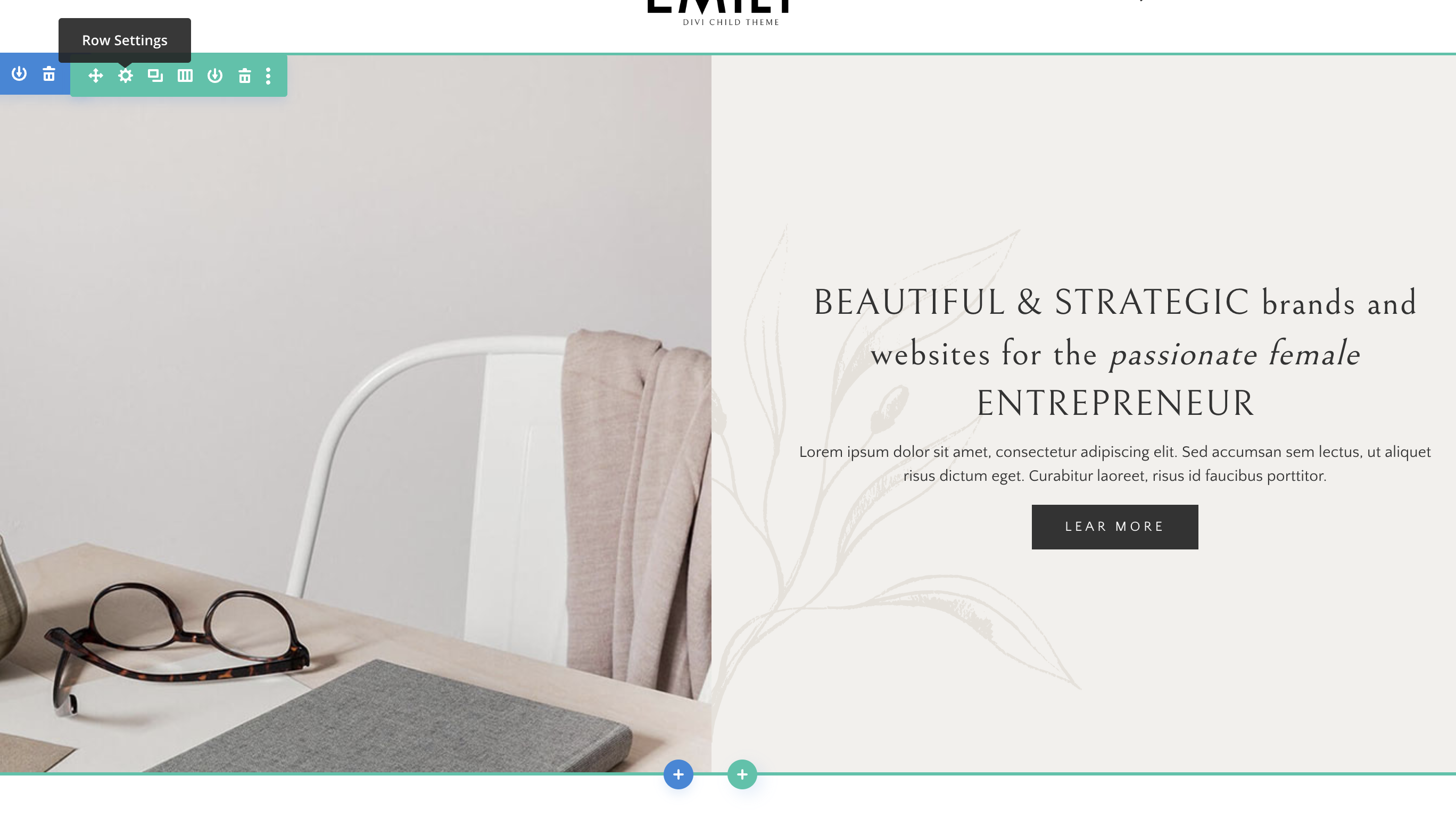
- Click the setting gear icon for the section or row.
- Click “Background” to open the background settings.
- Hover above the image and click the setting gear icon above the image
- Select an image from your media folder or upload a new image.
Need Further Tutorials?
The Divi Image Module: https://bit.ly/2Rpi4W2
Divi Builder overiew: https://www.elegantthemes.com/documentation/divi/visual-builder/